How to Control and Setup Smart Remote for Your Robot Vacuum
How to Control and Setup Smart Remote for Your Robot Vacuum
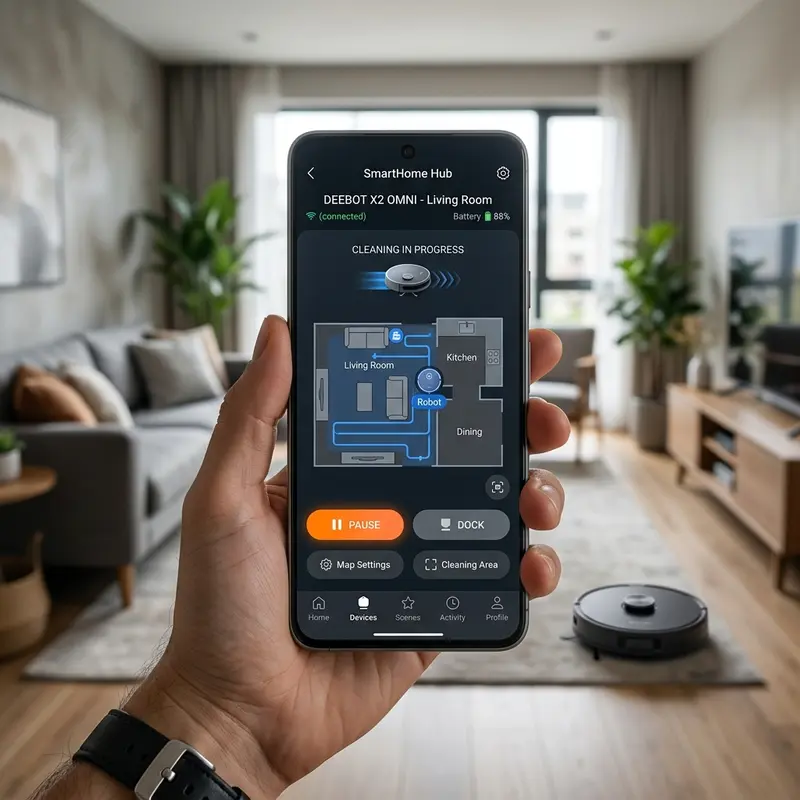
If you want to manage your daily cleanings easily, setting up a smart remote for your robot vacuum using your phone requires a smartphone with a built-in infrared emitter (IR Blaster) or a local Wi-Fi connection via the manufacturer app. Replacing your physical remote control with a mobile app allows you to steer the unit manually, change the suction flow, and configure automated weekly cleaning times. Knowing how to pair your device saves effort during household chores.
1. The Infrared Method (Using Phones with IR Blasters)
Many entry-level robot vacuums (such as Mondial, Philco, and WAP) include standard infrared remote controls. If your smartphone has an IR Blaster on the top edge (common in Xiaomi devices and older Samsung/LG models), you can clone the physical remote control using a pre-installed app like Mi Remote.
The IR emitter shoots light pulses at a specific frequency (usually 38 kHz) containing binary code instructions for direction, starting, and docking commands. Virtual remote control templates eliminate the need for batteries and allow offline control. To learn more about operating budget units, read our guide on whether the WAP Robot W100 is worth buying.
2. The Wi-Fi Method: Pairing with Tuya, Smart Life, or Native Apps
Advanced robot vacuums equipped with a Wi-Fi card communicate over local network links using 2.4 GHz TCP/IP protocols. In this setup, pairing is handled via the cloud, allowing remote control even when you are away from home.
To configure your smart vacuum remote over Wi-Fi, follow this guide:
- Download the compatible app indicated in the product manual (such as Smart Life, Tuya Smart, Liectroux, or KaBuM! Smart);
- Make sure your smartphone is connected to a 2.4 GHz Wi-Fi network (robot vacuums do not support 5 GHz channels);
- Turn on the vacuum and hold the power/dock buttons for 3 to 5 seconds to enter pairing mode (the Wi-Fi LED light will flash rapidly);
- Open the mobile app, tap 'Add Device', and select 'Small Home Appliances' -> 'Robot Vacuum (Wi-Fi)';
- Input your local router password and wait for the cloud registration to complete.
If you experience connection drops, check our setup instructions on how to connect Liectroux vacuum to Wi-Fi.
3. Infrared vs. Wi-Fi Smart Control Comparison Table
The table below highlights the differences between infrared and Wi-Fi control methods for robot vacuums:
| Feature | Infrared (IR Blaster) | Wi-Fi Mobile Application |
|---|---|---|
| Operating Range | Short (Line of sight up to 25 feet) | Unlimited (Anywhere with an active internet link) |
| Internet Requirement | None (Works completely offline) | Requires a stable 2.4 GHz router connection |
| Available Features | Basic directional steering and starting | Active mapping, suction levels, and zoning |
| Setup Process | Quick (Instant button matching) | Moderate (Requires registration and router pairing) |
4. Integrating Voice Commands (Alexa and Google Assistant)
After pairing your vacuum to the smart app, you can link it to voice assistants. Enable the corresponding skill in the Alexa or Google Home app and authenticate your account credentials.
This enables voice-control remote commands ('Alexa, turn on the vacuum') and smart home routines, such as scheduling the robot to sweep the moment you leave for work.

5. Troubleshooting Smart App Pairing Failures
The most common pairing failure is dual-band router conflicts. If your router broadcasts a single unified SSID for both 2.4 GHz and 5 GHz, the vacuum's Wi-Fi module will fail to connect. Access your router settings page and split the bands temporarily. Additionally, disable cellular mobile data on your phone during the pairing cycle to prevent local IP routing errors.
Static IP Address Reservation in Local DHCP Servers for Robot Clients
To prevent connection dropouts between your mobile app and the robot vacuum, reserve a static IP address in your router's DHCP server. Home routers assign dynamic IPs that expire periodically. If your vacuum is assigned a new IP address after power cycles, the smart app can take several minutes to locate it, resulting in offline error messages.
Access your router's settings page via your web browser (usually at 192.168.1.1). In the DHCP settings menu, locate the MAC address of your vacuum's Wi-Fi module and assign it a permanent static IP. This ensures instant command response times and prevents connection lag.
TCP Port 6668 and Cloud Synchronization Protocols in Smart Life Devices
The communication link between your smartphone app and the robot vacuum over the local network (LAN) relies on specific network ports. Tuya-based and Smart Life compatible vacuums communicate locally using TCP port 6668 and UDP port 6667. These ports carry real-time steering data packet signals and battery metrics.
If your router has client isolation (AP Isolation) enabled, devices on the same Wi-Fi network cannot talk to each other, blocking direct control of the vacuum. Turn off client isolation in your router's wireless security settings to allow local control without cloud routing latency.
NEC Protocol Carrier Modulation Frequencies in IR Transmitters
Robot vacuums controlled by physical remote accessories use the NEC transmission protocol. Commands are sent as 38 kHz modulated light pulses containing 32-bit binary instructions. Smartphones with built-in IR Blasters can emulate this NEC protocol using utility apps like Mi Remote.
To configure, match your vacuum brand in the database or use a learning app to copy the original remote's infrared signals. This registers the 32-bit code on your phone, allowing you to control and steer the vacuum without using Wi-Fi.
MAC Address Filtering and DHCP Settings on Local Wireless Routers
To ensure your smartphone remote app connects to the vacuum instantly, configure a static IP reservation in your router's DHCP menu. If your router changes the vacuum's IP address, connection lag or offline errors can occur in the mobile application.
Find the MAC address of the vacuum's Wi-Fi module and link it to a permanent static IP in your router's settings. This prevents network routing conflicts and keeps connections stable.
Tuya Custom Commands Format and Local TCP Networking Security
Smart Life and Tuya apps use TCP port 6668 and UDP port 6667 to communicate with connected vacuums in the local area network. If your router has client isolation enabled, your phone cannot connect to the vacuum locally.
Disable AP Isolation in your router settings to allow local network communication. This ensures your smartphone app commands reach the vacuum instantly without needing cloud routing.
NEC IR Code Capture and Playback via Universal Remotes
Infrared robot vacuum remotes use the 38 kHz NEC protocol to transmit steering data. Smartphones with IR blasters can clone these signals using apps like Mi Remote, allowing you to control the vacuum without Wi-Fi.
If your vacuum brand is missing from the app database, use the learning mode to capture individual button codes from the original remote, storing them on your phone for easy access.
Port Forwarding and DNS Settings for Cloud-Enabled Vacuums
Smartphone remote apps use cloud DNS servers to link with your vacuum. If your local router DNS settings are misconfigured, the vacuum cannot sync its offline status to the app, making remote controls fail.
Set your router's primary and secondary DNS fields to Google's public DNS (8.8.8.8 and 8.8.4.4) to resolve routing paths and ensure stable remote control connectivity from outside your home.
Wi-Fi Channel Bandwidth Adjustments (20MHz vs 40MHz) for Stability
The channel bandwidth on your router's 2.4 GHz band affects signal range and stability. While 40 MHz offers higher data transfer speeds, it is sensitive to noise interference and has a shorter range than 20 MHz.
Set the 2.4 GHz bandwidth to 20 MHz in your router settings. This reduces signal noise, ensuring the robot vacuum maintains its connection as it travels to distant rooms.
Microwave Oven RF Interference on 2.4 GHz Wi-Fi Vacuum connections
The 2.4 GHz frequency band used by robot vacuums is shared with household appliances like microwave ovens. Running a microwave near the charging dock or router can cause connection dropouts or app control lag.
Place the charging dock at least 6 feet away from microwave ovens. This prevents RF interference and ensures stable app remote controls.
Tuya IoT Cloud Authentication Retries and Local IP Address Mapping
When you send commands via the mobile app, the Tuya cloud routes data to the local vacuum IP. If the local IP changes, the cloud server initiates authentication retries, causing control delay.
Assigning a static IP to the vacuum in your router's DHCP table prevents these routing delays and ensures instant command execution.
Wi-Fi Signal Strength and Router Placement
For stable remote app controls, the robot vacuum must maintain a strong Wi-Fi link. If your router is placed in a corner behind thick concrete walls, the signal drops as the vacuum moves to distant rooms, causing connection errors.
Place your router in a central room to ensure even Wi-Fi coverage. A stable network link keeps remote controls responsive and prevents the vacuum from dropping offline during cleaning runs.
Tuya Custom Commands Format and Local TCP Networking Security
Smart Life apps communicate with the vacuum using TCP port 6668. If client isolation is enabled on your router, your phone cannot connect to the vacuum locally, forcing commands through the cloud and causing delay.
Disable AP Isolation in your router's wireless settings to allow local network communication. This ensures app commands reach the vacuum instantly without cloud lag.
Tracking Consumable Lifespans via the Mobile App
Wi-Fi smart control apps track the lifespan of brush rolls, side sweepers, and filters in real-time, notifying you when replacements are needed to maintain suction.
This monitoring prevents filter blockages and motor overload, keeping your vacuum in peak operating condition and extending its service life.
Configuring Tuya App Automations based on Location
Wi-Fi smart vacuums linked to Tuya or Smart Life apps can be automated using geofencing. This triggers the vacuum to start cleaning when your phone leaves your home area.
This automated cleaning ensures your floors are swept daily while you are away, keeping your home clean without requiring manual commands.
Router Settings for Sincronizing IoT Clients
For stable app remote controls, set your local router Wi-Fi settings to a static channel. This prevents network channel changes from dropping the vacuum connection, keeping your mobile application controls responsive during cleaning routines.
Tuya Custom Commands Format and Local TCP Networking Security Settings
Smart Life and Tuya apps use TCP port 6668. When your wireless router has AP isolation active, direct communication between the mobile app and the vacuum is blocked, causing all commands to route through remote servers..
Turn off the client isolation parameter in your gateway administration panel to restore direct local peer connection.. This ensures app commands reach the vacuum instantly without cloud lag, keeping your smartphone remote controls responsive.
Pairing Robot Vacuums via AP Mode Hotspots
If standard EZ Wi-Fi pairing fails, use AP Mode. The vacuum creates a local Wi-Fi hotspot (such as SmartLife-XXXX). Connect your phone directly to this network to pair the vacuum.
This method bypasses local DHCP conflicts, providing a direct link to register the device on your home network and enable app controls.
Frequently Asked Questions (FAQ)
How do I control my vacuum if I lost the physical remote?
If your phone has an IR blaster, configure a virtual remote. Otherwise, connect the vacuum to your home Wi-Fi and use the official mobile app to control all features.
Why won't my robot vacuum connect to my 5 GHz Wi-Fi?
Robot vacuums use 2.4 GHz antennas because this frequency has a longer range and penetrates concrete walls better, which is necessary as the robot moves from room to room.
Can I start the vacuum while away from home?
Yes. If the vacuum is connected to your home Wi-Fi, you can use the mobile app over cellular networks to start a clean run, change settings, or monitor battery charge.
What is the correct way to wipe down the infrared remote receiver on the bumper??
Warranty claims for imported devices like the Roborock S7 must be resolved through your seller..
Conclusion
Setting up your robot vacuum remote on your smartphone unlocks its full capability, enabling custom scheduling and remote monitoring. By following the steps in this guide, your robot vacuum will be connected and ready to clean.




