
Canon Printer Flashing Orange Light 8 Times: Error Codes and Repairs
When a printer suddenly locks out and displays flashing light alerts on its control panel, the user must decode firmware signal sequences to resume work. If your Canon printer is flashing its orange light 8 times in a cyclical sequence (interspersed with a steady or blinking green power LED), it indicates that the waste ink absorber pads are nearly full or saturated, triggering technical error code 1700 (or the ink absorber full error), which causes the printer's firmware to lock out operation to protect the circuit board and power supply from liquid ink overflow. Resolving this error code requires physically replacing the waste ink felt pads and resetting the EEPROM registration logic.
1. Mechanical Operation of the Purge Station and Ink Absorber Pads
Every consumer inkjet printer or continuous ink tank printer requires a built-in mechanism to capture excess ink. During print head initialization, nozzle priming, and deep cleaning cycles, ink is expelled to keep the nozzles hydrated. In Canon models (MegaTank G3100, G3110, G4100, and cartridge-based lines like the iP2810 or MG2410), this waste management system consists of the purge assembly and the waste ink absorber pads.
The purge assembly is located at the far-right end of the carriage guide rail. It features rubber caps designed to seal tightly against the nozzle face of the BH-7 and CH-7 print heads. When the system initiates a maintenance run, a main gear drive activates a small peristaltic pump. This pump creates suction, pulling liquid ink from the nozzles and routing it through transparent silicone tubes down to the bottom plastic base of the printer. The entire bottom chassis houses large, thick felt blocks made of dense synthetic fibers. These pads absorb the liquid solvent, allowing the water content to evaporate slowly over time while trapping the pigments and dyes safely within the fiber structure.
However, Canon printers do not have physical moisture detectors or optical level sensors to check the actual saturation of the felt blocks. Instead, the saturation level is calculated by the firmware on the motherboard. The printer stores a numeric value in a non-volatile memory chip called the EEPROM (Electrically Erasable Programmable Read-Only Memory). Every time the pump executes a maintenance cycle, the logic board calculates the volume of ink pumped and adds that amount to the counter. Once this calculation reaches a safety threshold (usually 95% to 100% of the calculated capacity), the motherboard stops printing operations and flashes the orange alarm LED exactly 8 times.
2. The Wiper Assembly: Scraper Mechanics and Motor Current Failures
Housed deep within the purge station is the wiper blade assembly, an essential physical mechanism that works alongside the capping unit. The wiper is a flexible blade made of chemical-resistant synthetic nitrile rubber, operated by a swing gear clutch connected directly to the paper feed stepper motor. Its purpose is to physically scrape the bottom surface (nozzle plate) of the BH-7 and CH-7 printheads as the carriage enters and exits the home position.
This physical wiping action clears away dried ink crusts and debris that could cause color bleeding or block nozzle openings. Over months of heavy operation, thick ink sludge (consisting of paper dust and coagulated pigment binders) accumulates around the base of the wiper slider. This buildup blocks the wiper from sliding smoothly. When the motor tries to push a jammed wiper, the driver chip detects a sharp increase in current (overcurrent). The logic board's protection algorithm stops the carriage immediately to prevent thermal overload on the stepper motor coils, which often triggers secondary maintenance errors that align with the absorber warnings.
3. Identifying Error Code 1700 on Your PC
The LED lights on the printer panel only provide a basic visual code. To confirm that the issue is indeed related to the waste ink absorber, you should check the detailed status monitor on your connected PC:
- Try sending a standard print job to the printer queue from your computer;
- The Windows operating system will trigger a printer status popup in the system tray;
- Inspect the status window for the exact error code. If the orange flashes mean what we suspect, it will report Error Code 1700 with a message stating "The ink absorber is almost full";
- If the error code displays as 5B00 or 5B01, it means the counter has reached 100% saturation, locking the printer completely until a hardware service and logical reset are performed;
- On models equipped with an LCD display, the screen will cycle through the characters
E,0, and8, representing the same absorber alert.
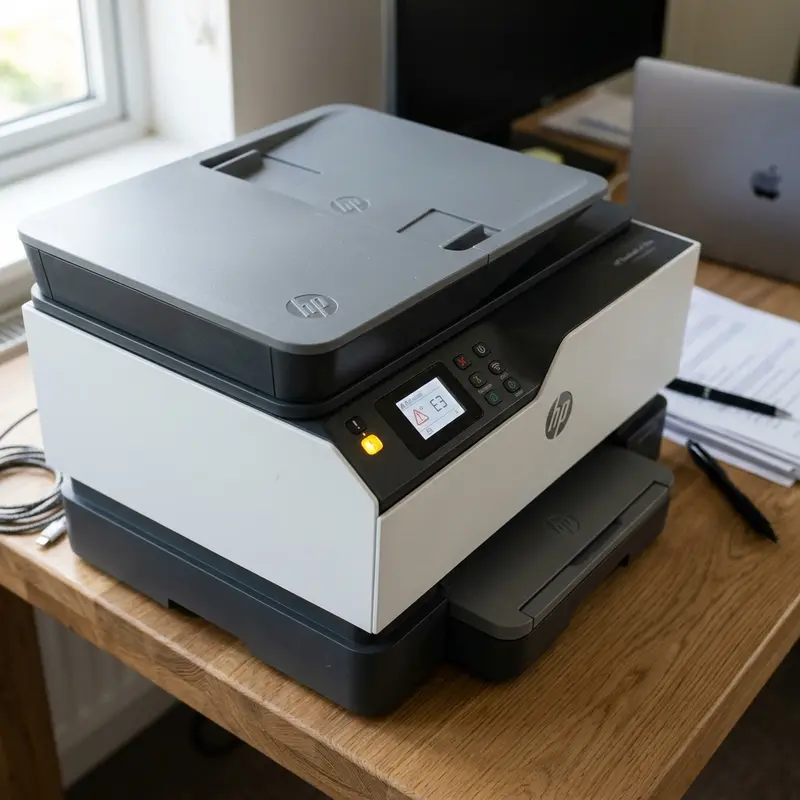
If you also manage other printer models that are displaying warning lights, you can check our guide on the HP printer blinking amber exclamation light to diagnose different manufacturer alert systems.
4. Technical Procedure: Replacing the Waste Ink Felt Pads
Resetting the digital counter in the EEPROM without physically replacing the saturated felt pads is a poor maintenance practice. When the pads are full, excess liquid ink pools in the bottom plastic tray. Because the printer's main power supply board and logical control circuits are mounted near the bottom, the conductive liquid ink can easily reach the traces, causing permanent short circuits.
To safely replace the physical felt pads, follow these steps:
- Unplug the power cable and the USB data cable from the printer. Let the device rest for at least 15 minutes to allow the capacitors to discharge;
- Remove the screws at the back of the printer that hold the outer plastic housing in place;
- Gently unclip the plastic side panels to expose the inner metal chassis;
- Locate the dark, ink-soaked felt blocks in the bottom tray. Always wear nitrile gloves to protect your hands from the highly concentrated ink pigments;
- Carefully lift out the old felt blocks. You can replace them with new OEM Canon pads, or wash the old ones in warm running water until they are clear of ink, allowing them to dry completely in the sun for 48 hours before reinstalling them;
- Wipe the plastic bottom tray with paper towels to clean up any pooled liquid ink;
- Reinstall the dry or new pads into their slots, making sure the purge pump tube is routed back into the center of the main absorber block. Reassemble the outer plastic shell and secure the screws.
5. Service Mode and Logical EEPROM Reset
After replacing the physical pads, the printer's firmware will remain locked because the EEPROM chip still holds the high saturation count. To unlock the device, you must reset this counter to zero. This is done by placing the printer into Service Mode and using a utility program on your PC.
Follow these steps to put the Canon MegaTank (G3110 and similar models) into Service Mode using the control panel:
- Turn off the printer, but leave the power cord connected. Press and hold the Stop/Cancel button;
- While holding the Stop button, press and hold the Power button;
- Release the Stop button, but keep holding the Power button down;
- With the Power button still pressed, press the Stop button exactly 5 times (or 6 times on older logic boards). The orange alarm LED will flash with each press;
- Release both buttons. The green power LED will flash for a few seconds and then stay lit, indicating the printer is in Service Mode. The LCD screen will remain blank.
Once the printer is in Service Mode, connect it to your PC with a USB cable (Wi-Fi connections cannot be used for this utility). Launch a compatible Canon utility program, such as Service Tool V4720 or V5103. In the program interface, look for the "Ink Absorber Counter" setting, select "Main" or the target absorber, and click "Set" or "Clear". The tool sends raw binary commands to rewrite the EEPROM sector, resetting the counter to zero. When you restart the printer normally, the 8 orange flashes will be gone, and the printer will be ready for use.
6. Alarm Flash and Error Code Reference Table
Depending on the specific Canon printer model, the visual flashing codes and corresponding PC error descriptions may vary. Use this reference table for troubleshooting:
| Orange Alarm Flashes | PC Error Code | Absorber Pad Status Description | Printer Behavior & Action |
|---|---|---|---|
| 8 Flashes (Repeating) | Error Code 1700 / 1701 | Waste ink counter has reached ~95% calculated capacity | Allows printing to continue temporarily by pressing the Stop button |
| 7 Flashes (Repeating) | Error Code 5B00 / 5B01 | Absorber felt pad is fully saturated (100% capacity) | Blocks all mechanical operations; requires replacement and reset |
| 15 Flashes (Repeating) | Error Code 1682 / 1684 | Print head cartridge electrical identification failed | Stops printing; clean the gold copper contact pads on the carriage |
| Alternating Amber/Green | Error Code P07 / P08 | Critical hardware error or print head overtemperature detected | Powers down the device automatically to protect the thermal resistors |
7. Preventive Maintenance for Ink Absorbers
How you use your printer directly affects how quickly the waste ink counter increases. Understanding these habits can help you delay the need for a physical pad replacement and reset for a long time.
Try to avoid turning the printer off and on frequently throughout the day. Every time the Canon G3110 performs a cold boot, the firmware assumes the print nozzles may have dried out. To prevent printing issues, it automatically runs a short purge cycle to flush the lines. If you turn the printer on and off several times a day to print only one page at a time, the waste counter will fill up much faster than if you leave the device in standby mode or print in larger, single batches.
Also, avoid using unverified or unofficial reset utilities. Corrupted software can damage the printer's flash ROM, corrupting the mainboard's firmware and requiring a physical mainboard replacement. If you are experiencing connection issues, you can refer to our guide on how to fix HP printer offline Windows issues, as the USB communication troubleshooting steps apply to Canon models as well.
Understanding waste ink absorber counters in Canon printers
Inside every Canon inkjet printer, including the MegaTank series, there is a physical waste ink absorber pad designed to collect excess ink from printhead cleaning cycles. The printer's logic board monitors the amount of ink deposited into this pad using a digital counter stored in the EEPROM chip. When this counter reaches 100% capacity, the printer halts all operations to prevent ink from leaking onto your desk. This state is communicated via the 8-orange-flashes sequence, signaling the system lock. Resolving this issue requires both physically replacing or washing the felt pads and resetting the electronic counter using Canon's proprietary service tool software.
EEPROM memory management and printer service mode
To communicate directly with the printer's EEPROM memory and clear error logs, the device must be put into Service Mode. When the printer is in Service Mode, it suspends normal boot checks and listens for diagnostic command sets over the USB port. Third-party software utilities, known as Service Tools, can send a write command to the EEPROM address containing the waste ink percentage, resetting it to 0%. Attempting to run these service tools while the printer is in normal operating mode will result in connection timeouts or write failure codes, as the firmware restricts EEPROM access during active warning states.
Frequently Asked Questions (FAQ)
Can I clear the Canon 8-flash orange error simply by restarting the printer?
No. The waste ink count is stored in the non-volatile EEPROM chip. Powering off the printer or unplugging it from the outlet will not clear the recorded value.
Is it safe to wash and reuse the original waste ink felt pads?
Yes, the synthetic fibers can be washed. However, you must ensure they are completely dry before putting them back. Any moisture inside can evaporate onto the electronics, causing short circuits.
Where can I get a safe version of the Canon Service Tool software?
The Service Tool software is officially restricted to Canon service centers. Safe, verified copies can generally be found on reputable hardware repair forums.
What happens if I reset the EEPROM counter but do not replace the felt pads?
The printer will unlock and resume printing, but the physical ink will eventually overflow from the tray, leaking onto your desk and potentially shorting the internal power supply.
Technical Conclusion
Resolving the 8-flash orange error on a Canon printer involves a two-part maintenance process. By replacing the physically saturated felt pads and resetting the EEPROM counter through Service Mode, you can clear the system lockout. This ensures the printer continues to perform its automatic cleaning runs safely, without the risk of ink leaks or electrical damage to your workspace.
Diagnostic Commands and Remote Port Control
Diagnostic Commands and Remote Port Control
Network-connected Canon printers can also report error status directly via the Simple Network Management Protocol (SNMP) using port 161. A system administrator can query the printer MIB (Management Information Base) to retrieve the error code 1700 or 5B00 remotely. This remote monitoring capability is especially useful for managing multiple devices in enterprise networks, preventing local user lockout and allowing IT departments to pre-emptively schedule absorber pad service before physical printing is blocked.
EEPROM Data Retention and Motherboard Battery Checks
The Electrically Erasable Programmable Read-Only Memory (EEPROM) chip on the Canon logic board is responsible for storing error histories, page counts, and waste ink saturation values. Unlike volatile memory (RAM), the EEPROM does not require constant electrical current to retain its data, meaning that unplugging the printer from the mains outlet will not clear the 1700 or 5B00 error states. However, in cases of severe power surges or lightning strikes, the EEPROM's logic sectors can become corrupted. If your printer fails to enter Service Mode or if the Service Tool software returns an 'Error Code 006' or 'Error Code 009', it usually indicates that the motherboard's EEPROM chip has suffered physical circuit damage, necessitating a complete logic board replacement rather than a simple digital reset.




