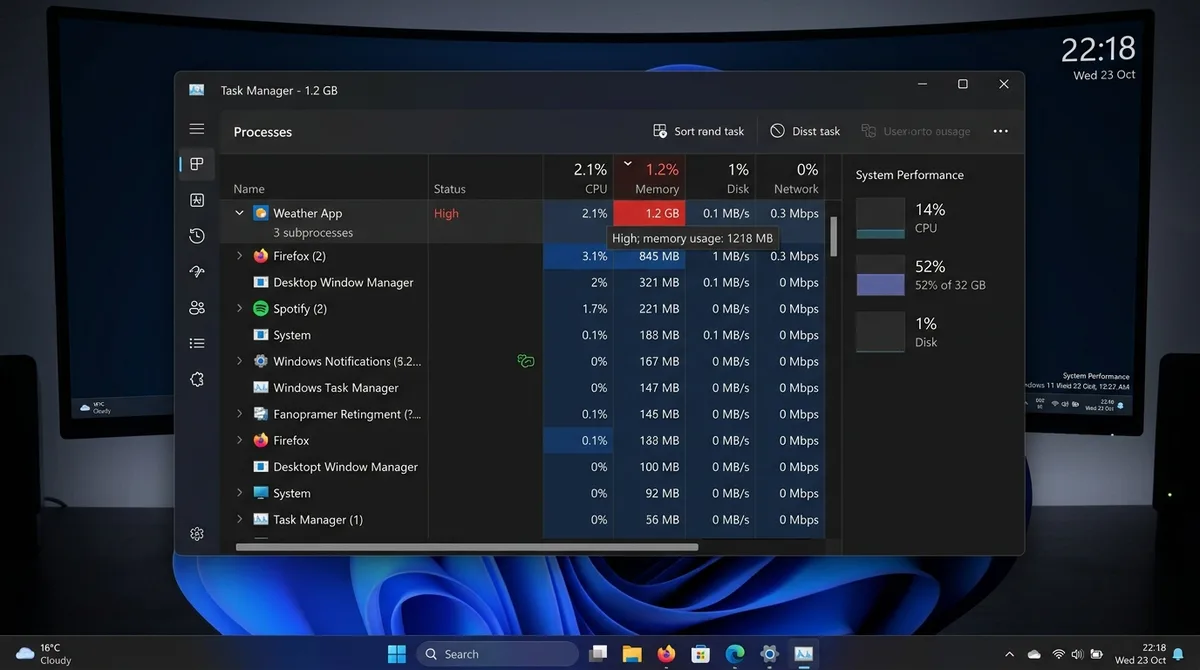
The Recent Windows 11 Memory Controversy
In recent months, users have raised concerns about the memory consumption of the built-in Weather app in Windows 11, commonly known as MSN Weather or Widgets. Reports indicate that this app can consume anywhere from 1GB to 1.2GB of RAM while running in the background. This unexpected behavior has led to frustration among users, especially those with systems that have limited memory resources. In this blog post, we will delve into the reasons behind this memory usage, the technical root causes, and how to mitigate the issue effectively.
Technical Root Cause
The high RAM consumption by the Weather app can be attributed to several factors. Firstly, the app relies heavily on the Microsoft Edge WebView2 framework, which is used to render web content within native applications. This dependency means that the Weather app effectively operates as a mini web browser, which can lead to significant resource usage.
Additionally, the app continuously loads advertisements, pulls live news feeds, and performs background polling for updates. Each of these actions consumes additional memory and processing power, further exacerbating the situation. As a result, users may experience sluggishness and reduced performance in other applications when the Weather app is active in the background.
Diagnosing High RAM Consumption Using Task Manager
To determine whether the Weather app is indeed the culprit behind high RAM usage, you can use the Task Manager. Here’s how to locate and diagnose high RAM consumption:
- Press Ctrl + Shift + Esc on your keyboard to open the Task Manager.
- In the Task Manager window, click on the Processes tab.
- Look for the Weather app or MSN Weather in the list of running processes.
- Check the Memory column to see how much RAM the app is consuming.
- If the usage is above 1GB, you may want to consider disabling or uninstalling the app.
Disabling the Weather Widget on the Taskbar
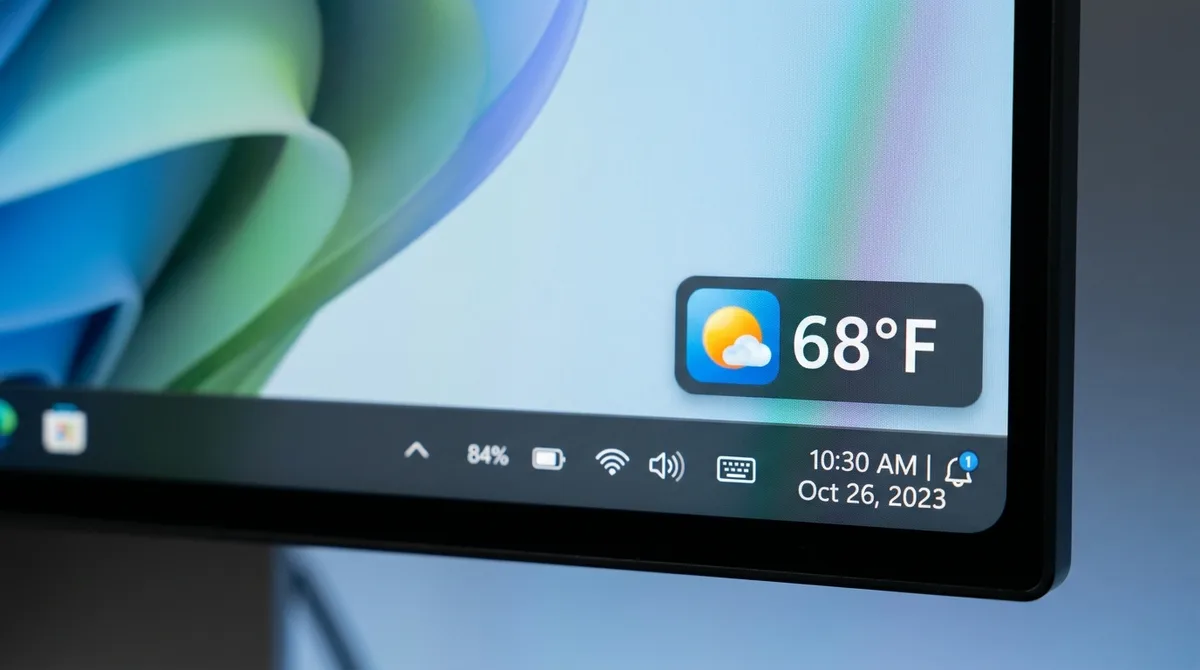
If you find that the Weather app is consuming too much RAM, one of the simplest solutions is to disable the widget from your taskbar. Here’s a step-by-step guide:
- Right-click on an empty space on your desktop and select Personalize.
- Click on Taskbar in the left-hand menu.
- Scroll down to the Taskbar items section.
- Find the Widgets toggle and switch it Off.
Completely Uninstalling the Weather App Using PowerShell
If disabling the widget isn’t enough to reclaim your system's memory, you may want to completely uninstall the Weather app. Here’s how to do it using PowerShell:
- Press Windows + X and select Windows Terminal (Admin) to open PowerShell with administrative privileges.
- In the PowerShell window, type the following command and press Enter:
- Wait for the command to execute, and the Weather app will be uninstalled from your system.
Get-AppxPackage *bingweather* | Remove-AppxPackageOptimizing Background WebView2 Processes
To reclaim system RAM and improve performance for gaming and productivity, consider optimizing the background WebView2 processes. Here are some tips:
- Limit the number of applications that utilize WebView2, as each instance can consume memory.
- Regularly check for updates to the WebView2 runtime, as optimizations are often included in new releases.
- Monitor background processes using Task Manager and close any unnecessary applications that use WebView2.
Comprehensive Comparison Table: Weather App RAM Usage
| Configuration | RAM Usage | Performance Impact |
|---|---|---|
| Default Weather App | 1GB - 1.2GB | High |
| Weather Widget Disabled | Less than 100MB | Low |
| Weather App Uninstalled | None | None |
| Lightweight Alternative | 50MB - 150MB | Minimal |
DomineTec Tip
Looking for a lightweight weather app alternative for Windows 11? Consider using:
- WeatherBug: A fast and reliable app with minimal resource usage.
- Climacell: Offers accurate weather forecasts with a clean interface.
- Rainmeter: A customizable desktop widget that displays weather information without heavy resource usage.
FAQ Section
1. Why is the Weather app consuming so much memory?
The Weather app uses the Microsoft Edge WebView2 framework to load web content, which can lead to high memory consumption due to continuous ad loading and live data updates.
2. Can I disable just the Weather widget without uninstalling the app?
Yes, you can disable the Weather widget from the taskbar without uninstalling the Weather app. This will help reduce RAM usage while keeping the app installed.
3. What are the consequences of uninstalling the Weather app?
Uninstalling the Weather app will remove it from your system, freeing up memory and resources. However, you will no longer have access to its features unless you reinstall it or use a third-party alternative.
4. Will optimizing WebView2 processes improve my system's performance?
Yes, optimizing WebView2 processes can help improve system responsiveness and free up RAM, which is especially beneficial for users with limited memory resources.
5. Are there any lightweight weather apps that I can use instead?
Yes, there are several lightweight alternatives available, such as WeatherBug, Climacell, and Rainmeter, which provide weather information with minimal resource usage.
PowerShell Removal Commands
If you're experiencing issues with the Windows 11 Weather App consuming excessive memory, using PowerShell can be an effective way to remove or reinstall the application. This approach can help eliminate potential corruption or memory leaks affecting the app's performance. Below are steps to execute common PowerShell commands for app removal.
Accessing PowerShell
To begin, you'll need to open PowerShell with administrative privileges. Follow these steps:
- Right-click on the Start menu.
- Select "Windows Terminal (Admin)" or "Windows PowerShell (Admin)" from the list.
- If prompted by User Account Control, click "Yes" to grant admin access.
Removing the Weather App
Once you have PowerShell open, you can remove the Windows 11 Weather App by using the following command:
Get-AppxPackage Microsoft.BingWeather | Remove-AppxPackage
This command finds the Weather App package and removes it from your system. If you want to reinstall the app later, you can do so from the Microsoft Store.
Reinstalling the Weather App
After removal, if you decide to reinstall the Weather App, use the following command in PowerShell:
Get-AppxPackage -allusers Microsoft.BingWeather | Foreach {Add-AppxPackage -DisableDevelopmentMode -Register "$($_.InstallLocation)\AppXManifest.xml"}
This command reinstalls the app, which may help resolve any memory leak issues you were encountering.
Task Manager Memory Inspection
Monitoring memory usage is crucial for identifying which applications are consuming significant resources. The Task Manager in Windows 11 provides a user-friendly interface to inspect memory usage. Here’s how to utilize Task Manager effectively.
Opening Task Manager
There are several ways to open Task Manager:
- Right-click the taskbar and select "Task Manager."
- Press Ctrl + Shift + Esc on your keyboard.
- Press Ctrl + Alt + Delete and select "Task Manager."
Inspecting Memory Usage
Once Task Manager is open, follow these steps to inspect memory usage:
- Click on the "Processes" tab to view all running applications.
- Locate the Weather App (it may be listed as "Bing Weather" or similar).
- Check the "Memory" column to see how much RAM the app is consuming.
If the memory usage is excessively high, you can right-click on the app and select "End Task" to close it. This action can free up RAM and potentially improve system performance.
Detailed Memory Analysis
For a more detailed analysis of memory consumption, click on the "Performance" tab. Here, you can see an overview of Memory usage, including:
- Total memory available
- Memory in use
- Cached memory
- Available memory
This information can help you determine whether the Weather App is the primary cause of your system's memory issues or if other applications are contributing to the problem.
Gaming Impact
Excessive memory usage by applications like the Weather App can significantly impact gaming performance. Games require substantial RAM to run smoothly, and background applications can hinder this experience. Here’s how to assess and mitigate these impacts.
How Background Applications Affect Gaming Performance
When you play resource-intensive games, having too many background applications can lead to:
- Increased loading times
- Lower frame rates
- Increased latency
Monitoring and managing memory consumption from background applications like the Weather App can help improve overall gaming performance. If you notice dips in performance while gaming, consider closing unnecessary background applications through Task Manager.
Optimizing Gaming Performance
Here are some steps to optimize your system for gaming:
- Close unnecessary applications before launching a game.
- Use Game Mode in Windows 11, which prioritizes gaming traffic.
- Adjust game settings for a balance between quality and performance.
By ensuring that your system’s RAM is dedicated primarily to your game, you can enjoy a smoother gaming experience.
Low-Spec PC Optimization
If you’re operating on a low-spec PC, managing system resources becomes even more critical. Here are strategies to optimize your system's performance and mitigate memory issues.
Uninstall Unnecessary Applications
Remove applications that you do not use. This can free up valuable disk space and system resources. Use PowerShell or the Settings app to uninstall apps that are not essential.
Disabling Startup Programs
Many applications automatically launch at startup, consuming RAM right from the beginning. To disable unnecessary startup programs:
- Open Task Manager.
- Click on the "Startup" tab.
- Right-click on any application you do not need at startup and select "Disable."
Adjusting Visual Effects
Windows 11 includes various visual effects that can consume memory. Adjusting these effects can improve performance:
- Right-click on "This PC" and select "Properties."
- Click on "Advanced system settings."
- Under the "Performance" section, click "Settings."
- Select "Adjust for best performance" or manually customize which effects to disable.
Upgrading Hardware
If possible, consider upgrading your hardware for better performance. Adding more RAM or switching to an SSD can significantly improve system responsiveness, especially for gaming and multitasking.
Regular Maintenance
Regularly perform system maintenance tasks such as:
- Running Disk Cleanup to remove temporary files.
- Defragmenting your hard drive (if you are using HDD).
- Checking for malware that may slow down your system.
By staying on top of system maintenance, you can ensure that your low-spec PC runs as efficiently as possible.
Conclusion
Managing memory consumption in Windows 11, particularly with applications like the Weather App, is essential for maintaining optimal performance. By utilizing PowerShell commands for app removal, inspecting memory usage via Task Manager, understanding the impact on gaming performance, and optimizing low-spec PCs, users can enhance their overall computing experience. Implementing these strategies will not only resolve immediate memory issues but also ensure a smoother and more responsive system in the long run.
PowerShell Removal Commands for the Weather App
If you are experiencing high memory usage due to the Windows 11 Weather App, using PowerShell can be an effective method to remove or reset the application. Below are the steps you need to follow:
Accessing PowerShell
1. Right-click on the Start button.
2. Select “Windows Terminal (Admin)” or “Windows PowerShell (Admin)” to run it with administrative privileges.
Removing the Weather App
To uninstall the Weather App, type the following command in the PowerShell window:
Get-AppxPackage Microsoft.BingWeather | Remove-AppxPackage
After executing the command, wait for a confirmation message. Once completed, the Weather App will be removed from your system.
Resetting the Weather App
If you prefer to keep the app but want to reset it, you can use the following command:
Get-AppxPackage Microsoft.BingWeather | Reset-AppxPackage
This command will restore the app to its default state, potentially resolving any memory leaks without complete removal.
Task Manager Memory Inspection
Monitoring your system's memory usage is crucial for identifying applications that may be consuming excessive resources. The Windows Task Manager provides a simple interface to inspect memory usage.
How to Open Task Manager
1. Press Ctrl + Shift + Esc to open Task Manager directly.
2. Alternatively, right-click on the taskbar and select “Task Manager.”
Inspecting Memory Usage
Once Task Manager is open:
1. Click on the “Processes” tab.
2. Look for the Weather App in the list. You will see the memory usage listed in the “Memory” column.
3. If the Memory usage is excessively high, consider ending the task by right-clicking on it and selecting “End Task.”
Gaming Impact from High Memory Usage
High memory consumption by background applications like the Weather App can significantly affect gaming performance on your PC. When RAM is limited, games may experience stuttering, longer load times, or even crashes.
Identifying Gaming Performance Issues
Monitor your gaming experience for signs of performance issues:
- Frame rate drops
- Longer loading times
- Game freezing or crashing
Optimizing Memory for Gaming
To optimize memory for gaming:
1. Close unnecessary applications using Task Manager before starting your game.
2. Consider disabling the Weather App from startup to free up system resources.
Low-Spec PC Optimization Tips
If you are running a low-spec PC, optimizing your system for better performance is vital, especially when resource-intensive applications are running.
Managing Startup Programs
Minimize the number of applications that run at startup:
- Open Task Manager and go to the “Startup” tab.
- Disable any programs that you do not need to launch at startup.
Adjusting Visual Effects
For better performance on low-spec machines, consider adjusting the visual effects:
- Right-click on “This PC” and choose “Properties.”
- Select “Advanced system settings.”
- Under the “Performance” section, click “Settings.”
- Select “Adjust for best performance” to disable unnecessary visual effects.
Regular Maintenance
Keep your system running smoothly by performing regular maintenance tasks like disk cleanup and defragmentation. These actions can free up space and improve overall performance.