Slow Wi-Fi But Fast Ethernet Cable Connection: How to Fix It Step-by-Step
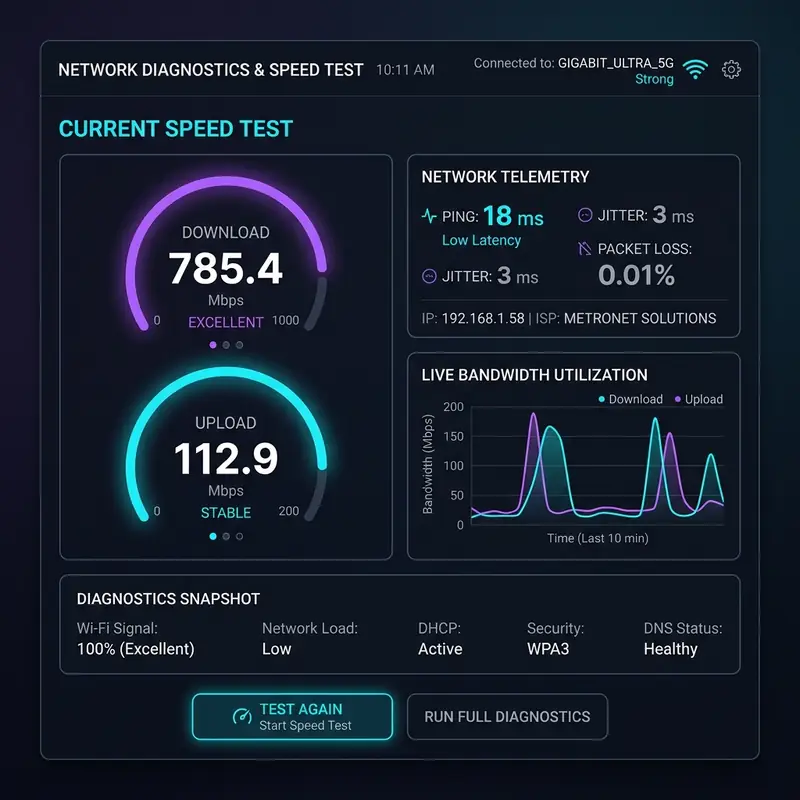
Few things are as frustrating as paying for a high-speed fiber or cable internet plan only to experience slow loading times, buffering, and high ping rates on your smartphone, tablet, or laptop. You run a speed test on your wired desktop computer and see a blazing-fast 500 Mbps connection, but your phone connected to the Wi-Fi in the next room barely registers 30 Mbps. A slow Wi-Fi connection paired with a fast wired Ethernet connection indicates that your internet service provider (ISP) is delivering the correct speeds to your modem, but the wireless signal is suffering from physical signal degradation, radio frequency congestion, misconfigured frequency bands (2.4 GHz vs. 5 GHz), or outdated router firmware settings.
Since the issue is confined to your local wireless link rather than the incoming fiber or coaxial line, you do not need to wait on hold for your ISP's technical support team. The problem can be resolved entirely by modifying your router's wireless parameters and correcting physical placement issues. In this comprehensive technical guide, we will analyze the physical differences between wired and wireless communication, identify physical and electromagnetic barriers, compare the 2.4 GHz, 5 GHz, and 6 GHz spectrums, walk through channel optimization, explain how to configure QoS and Airtime Fairness, and outline when to transition to a modern Wi-Fi Mesh topology.
1. The Physics of Data Transmission: Guided Copper vs. Unguided Radio Waves
To understand why this performance gap exists, we must analyze the physical media defined in Layer 1 of the OSI model. A wired connection utilizes copper Ethernet cables (such as Cat5e or Cat6) that transmit binary data via modulated electrical currents. These copper wires are twisted in pairs and shielded to prevent electromagnetic crosstalk. A wired link is a dedicated point-to-point connection that operates in Full-Duplex mode, allowing devices to send and receive packets simultaneously without collision.
Conversely, Wi-Fi transmits data via unguided electromagnetic waves through the air. This makes the wireless environment a shared medium, operating in Half-Duplex mode. In a Half-Duplex network, devices must take turns transmitting data to prevent collisions. If a laptop is uploading a file, other devices connected to the same wireless channel must pause for fractions of a millisecond. When multiple wireless devices demand bandwidth at the same time, the available airtime is split, causing a natural drop in speed.
Additionally, radio waves lose energy as they travel away from the transmitter. Any physical obstruction in their path scatters the signal, causing packet loss. When packet loss occurs, the TCP/IP protocol forces the sender to retransmit the missing data, which increases ping times and reduces the net throughput on your wireless devices.
2. Environmental Barriers and Radio Frequency Interference
Wi-Fi signals operate in high-frequency ranges. These high-frequency signals have short wavelengths, which makes it difficult for them to pass through solid materials commonly found in homes and offices.
Here are the primary environmental barriers that degrade wireless signals:
- # Concrete and Masonry Walls: Solid concrete, brick, and plaster walls are dense materials that absorb electromagnetic energy. A standard brick wall can cut your Wi-Fi signal strength in half, while reinforced concrete containing steel rebar can block the signal completely.
- # Mirrors and Metal Surfaces: Mirrors have a metallic backing that reflects radio waves. This creates "dead zones" behind the mirror where the Wi-Fi signal cannot reach. Metal filing cabinets, steel doors, and metal appliances block Wi-Fi signals in a similar way.
- # Household Electronics: Many home appliances operate on the same 2.4 GHz frequency band as older Wi-Fi routers. Microwave ovens, baby monitors, wireless security cameras, and Bluetooth speakers can generate electromagnetic noise that disrupts Wi-Fi traffic.
- # Neighboring Networks: In apartment complexes and close neighborhoods, dozens of routers may broadcast on the same channels. This overlap creates co-channel interference, which slows down all networks in the area.
3. Frequency Spectrum Breakdown: 2.4 GHz vs. 5 GHz vs. 6 GHz
Modern routers are dual-band or tri-band, meaning they can broadcast on different frequency ranges. Choosing the right band for each device is critical to maximizing your Wi-Fi speeds.
Here is how the three main Wi-Fi frequency bands compare:
The 2.4 GHz Band: This band has longer waves, which allow it to travel further and pass through walls more effectively. However, it only has three non-overlapping channels (1, 6, and 11) and is highly congested. Due to this congestion and a narrower channel width (usually 20 MHz), real-world speeds on the 2.4 GHz band rarely exceed 50 to 80 Mbps.
The 5 GHz Band: This band uses shorter waves to transmit more data at higher speeds, often exceeding 600 Mbps in close range. The disadvantage of the 5 GHz band is its limited range and poor penetration through walls. If you move a few rooms away, your device may lose the 5 GHz signal and fall back to the slower 2.4 GHz band.
The 6 GHz Band (Wi-Fi 6E & Wi-Fi 7): The newest frequency band offers wide channels (up to 320 MHz) and is free from legacy device congestion. It provides multi-gigabit speeds and low latency, but its range is shorter than the 5 GHz band, and it requires compatible client hardware.

4. Wireless Channel Optimization and Channel Width
Most routers are set to select wireless channels automatically. However, these automated systems often select congested channels. Manually selecting clean channels in your router's settings can help stabilize your Wi-Fi speeds.
Follow these steps to scan for and configure clean wireless channels:
- Download a wireless analysis tool, such as WiFi Analyzer for Android, or use the built-in wireless diagnostics utility on Windows or macOS.
- Run a scan to see which channels are heavily used by neighboring networks in both the 2.4 GHz and 5 GHz bands.
- For the 2.4 GHz band, manually set your router's channel to 1, 6, or 11. Do not use intermediate channels (like 2, 3, 4, 5, 7, 8, 9, or 10), as they overlap with adjacent channels, causing packet collisions.
- For the 5 GHz band, choose a channel with low usage, such as 36, 40, 44, or 48. If your router supports DFS (Dynamic Frequency Selection) channels (52 to 144), you can use them to access clear spectrum, provided there is no nearby radar activity.
- Adjust the Channel Width. Keep the 2.4 GHz band at 20 MHz to minimize interference. For the 5 GHz band, set the width to 80 MHz or 160 MHz for maximum speed. If the connection becomes unstable, reduce the width to 40 MHz.
5. Optimizing QoS and Managing Network Traffic
When multiple devices connect to your Wi-Fi at the same time, high-bandwidth activities like 4K streaming, file downloads, and online gaming can consume all the available airtime. Because Wi-Fi is a shared medium, this can slow down performance for all other connected devices.
You can manage this traffic by enabling QoS (Quality of Service) in your router's settings:
- Log in to your router's web interface and locate the QoS or Bandwidth Control menu.
- Enable QoS and enter your actual download and upload speeds as measured by a wired connection.
- Assign high priority to critical devices, such as your work computer or gaming console, ensuring they receive bandwidth priority over secondary devices.
- Enable Airtime Fairness if your router supports it. This setting prevents older, slower legacy devices from slowing down the transmission speeds of faster, modern devices on the network.
6. Comparison Table: Ethernet Cable vs. Wi-Fi Frequencies
Use the comparison table below to evaluate the technical specifications, speeds, and use cases for wired connections and the different Wi-Fi bands.
| Connection Type | Real-World Speed Limit | Average Latency (Ping) | Interference Vulnerability | Ideal Use Case |
|---|---|---|---|---|
| Ethernet (Cat6 Cable) | Up to 10 Gbps (10,000 Mbps) | < 1 ms (Excellent) | None (Shielded physical link) | Desktop computers, consoles, local servers, NAS, Smart TVs. |
| Wi-Fi 5 GHz Band | Up to 1.2 Gbps (1,200 Mbps) | 5 - 15 ms (Good) | Low (Blocked by thick walls) | Laptops, smartphones, streaming players, tablets. |
| Wi-Fi 2.4 GHz Band | Up to 80 Mbps | 20 - 50 ms (Moderate) | High (Microwaves, Bluetooth, neighbor Wi-Fi) | Smart home devices (lights, smart plugs, smart sensors). |
| Wi-Fi 6 GHz Band | Up to 2.4 Gbps+ | 2 - 5 ms (Excellent) | Very Low (Clear spectrum) | VR headsets, high-end laptops, gaming systems. |
7. Upgrading Network Hardware: Mesh Wi-Fi and Access Points
If you have optimized your wireless settings but still experience slow speeds and weak signals in distant rooms, your single router may not have enough power to cover your entire home.
Consider the following hardware solutions to expand coverage:
- Mesh Wi-Fi Systems: Unlike traditional extenders that create separate networks and reduce speeds, a Mesh system consists of multiple nodes that communicate with each other using a dedicated wireless channel (backhaul). This creates a single Wi-Fi network across your entire home. As you move between rooms, your device switches to the closest node automatically (fast roaming) without disconnecting.
- Avoid Cheap Extenders: Simple wall-plug range extenders receive a weak Wi-Fi signal and rebroadcast it on the same antenna, which can cut your maximum throughput in half. If you use extenders, connect them to the main router with an Ethernet cable and configure them in Access Point (AP) mode.
- Central Router Placement: Place your main router in a central location, elevated at least 1.5 meters off the ground. Keep it out of cabinets, drawers, and away from television screens, as metal and electrical wiring absorb wireless signal energy.
Understanding Wi-Fi Protocols and Channel Width Performance
When troubleshooting slow Wi-Fi speeds compared to a fast wired connection, you must evaluate the standard protocols in use. Legacy Wi-Fi 4 (802.11n) maxes out around 150 Mbps on 2.4 GHz under ideal conditions, but realistic throughput sits closer to 50 Mbps due to massive interference. Wi-Fi 5 (802.11ac) improves speed up to 867 Mbps using 80 MHz channel widths on the 5 GHz band. Newer Wi-Fi 6 (802.11ax) introduces OFDMA and MU-MIMO technologies, supporting speeds beyond 1.2 Gbps using 160 MHz channel widths. If your router is configured with a narrow 20 MHz channel width for 5 GHz to avoid interference, it will cut your maximum bandwidth in half. Access your router settings and adjust the channel width to 40 MHz or 80 MHz on the 5 GHz frequency to unlock the full throughput capacity of your internet plan. Testing your connection speeds during peak hours and off-peak hours is also a crucial troubleshooting step to determine if your Internet Service Provider is throttling your bandwidth or if the slowdown is purely caused by local wireless interference on your router's channels.
Frequently Asked Questions
Why is my internet fast on Ethernet but slow on Wi-Fi?
Ethernet cables use a dedicated physical connection that operates in Full-Duplex mode with zero interference. Wi-Fi uses shared radio waves that operate in Half-Duplex mode, making them vulnerable to interference from walls, mirrors, other electronics, and neighboring networks.
Does a dual-band router speed up Wi-Fi?
Yes, dual-band routers broadcast on both the 2.4 GHz and 5 GHz frequencies. Shifting high-bandwidth devices (like laptops and streaming devices) to the 5 GHz band reduces congestion on the 2.4 GHz band, allowing for faster speeds and lower latency.
How do I switch my phone from 2.4 GHz to 5 GHz Wi-Fi?
If your router displays separate names for the 2.4 GHz and 5 GHz networks, select the network name with "_5G" in your phone's Wi-Fi settings. If your router uses a single unified name (Smart Connect), it will automatically assign your device to the 5 GHz band when you are close to the router.
What type of Ethernet cable do I need for gigabit internet?
For internet speeds above 100 Mbps, you need at least a Cat5e or Cat6 cable. Older Cat5 cables are physically limited to a maximum speed of 100 Mbps, which will throttle your connection.




