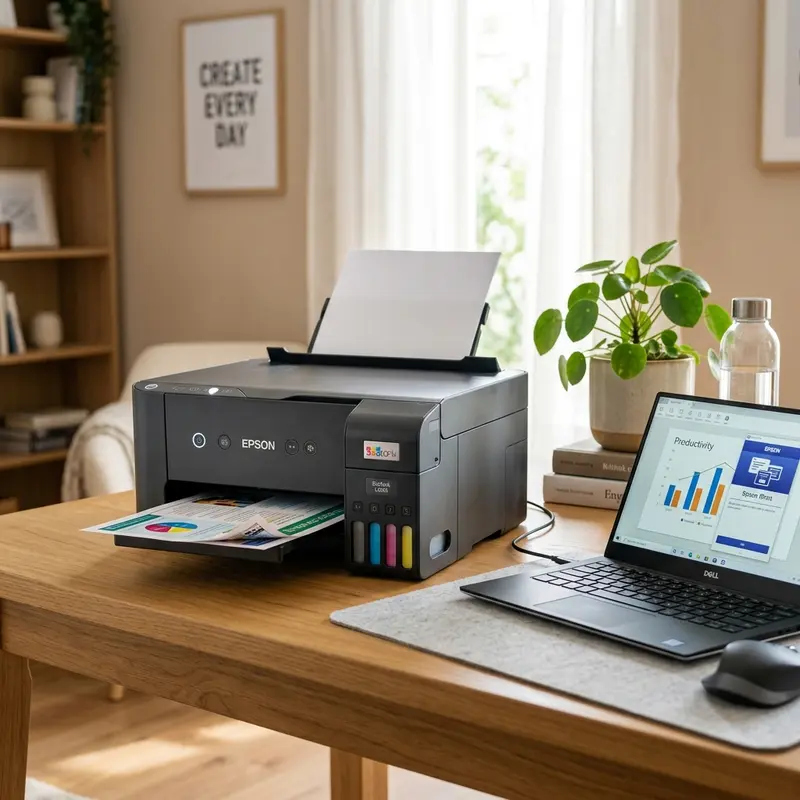
Scanning physical documents is a core task in modern office workflows, allowing users to digitize records for paperless archiving and streamlined sharing. To scan multiple documents into a single PDF file on the Epson L3250, you must open the official Epson Scan 2 utility on your PC, set the output file type to "PDF", and enable the multi-page addition feature to scan sheets sequentially before saving the combined file, or execute the procedure via the Epson Smart Panel mobile app. This batching technique avoids the need to use third-party PDF editors or unsecured online conversion services to merge separate page files, keeping your documents organized and secure in a single compact digital format.
Because the Epson EcoTank L3250 is designed for home and small office use, it does not feature an Automatic Document Feeder (ADF) on the lid. This means you must manually load and align each sheet on the scanner glass (flatbed). However, the official Epson utility manages this manual workflow efficiently. If you experience Wi-Fi drops or connectivity issues when trying to transmit scanned files to your PC, check out our guide on how to scan from the Epson L3250 to a computer for detailed hardware configuration steps. Below, we provide an in-depth breakdown of scanning software settings, recommended file options, and troubleshooting steps for multi-page captures.
1. The Mechanics of Multi-Page Document Scanning on the Epson L3250
Scanning converts analog text and graphics on a physical sheet of paper into binary digital image data. The Epson L3250 features a flatbed scanner that utilizes a CIS (Contact Image Sensor) array beneath a protective glass plate. A scanning lamp sweeps under the glass to capture the light reflected by the paper, converting it into a high-resolution pixel matrix.
As a budget-friendly, cost-effective model, the L3250 does not have an ADF (Automatic Document Feeder) to pull paper sheets from a stack automatically. Instead, users must align each page manually on the glass bed against the alignment mark in the upper-left corner (labeled for A4 and Letter paper sizes). To simplify multi-page tasks, the Epson Scan 2 utility uses a temporary memory buffer. This buffer holds scanned page data in your computer's RAM, keeping the output stream open until you indicate you have finished scanning. Once you confirm, the software combines these pages and generates a single, clean PDF file.
This software-managed flow allows you to compile a multi-page document into a single file without creating separate, cluttered image files (like Scan1.jpg, Scan2.jpg) that require manual renaming and organizing later.
2. Step-by-Step Guide: Scanning to a Single PDF via Epson Scan 2
The **Epson Scan 2** utility is Epson's proprietary scanning software for Windows and macOS. It provides direct, advanced control over the scanner hardware. To scan multiple pages into a single PDF using your PC, follow these steps:
- Place your first physical document page face-down on the scanner glass, aligning it with the orientation mark in the upper-left corner;
- Launch Epson Scan 2 on your computer. Make sure "Epson L3250" is selected in the "Scanner" dropdown;
- Adjust your scan settings based on the type of document:
- Mode: Set this to "Document Mode";
- Document Source: Choose "Scanner Glass";
- Image Type: Choose "Color," "Grayscale," or "Black & White" (grayscale is recommended for text-only files as it keeps file sizes small);
- Resolution: Set to 200 DPI or 300 DPI (resolutions higher than 300 DPI are unnecessary for text documents and make files too large to share via email);
3. Mobile Scanning: Using the Epson Smart Panel App for Multi-Page PDFs
If you prefer to scan documents without using a computer, you can use the free **Epson Smart Panel** app, available for Android (Google Play Store) and iOS (Apple App Store). The app uses your local Wi-Fi connection to communicate with the L3250 and manage scanning queues.
To scan multiple pages to a single PDF using your smartphone, follow these steps:
- Make sure your mobile device is connected to the same Wi-Fi network as the Epson printer. If you need assistance with wireless network settings, check out our guide on how to connect the Epson L3250 to Wi-Fi from your phone;
- Open the Epson Smart Panel app and wait for it to discover your printer on the local network;
- On the main screen of the app, select the **Scan** card;
- Tap the settings icon (gear) in the top corner and set the file format to PDF. Choose your target resolution (200 DPI is recommended for mobile devices to keep files light);
- Place your first page face-down on the scanner glass and close the lid;
- Tap the blue **Scan** button in the app to begin the process;
- A thumbnail preview of the scanned page will appear on your phone screen. Below this preview, you will see a "+" (Plus) button;
- Swap the paper on the glass with your second sheet, close the lid, and tap the "+" button in the app. The scanner will capture the new page and add it to the preview list;
- Once you have scanned all pages, you can drag and drop the thumbnails to reorder pages if any sheets were scanned out of sequence;
- Tap **Save** or **Share** in the upper-right corner. You can save the compiled PDF to your phone's internal storage or share it directly via email, messaging apps, or cloud storage folders (Google Drive, OneDrive, or iCloud).
4. Optimizing Resolution (DPI), Color Settings, and File Compression
Selecting the correct resolution (measured in DPI, or Dots Per Inch) and image type directly affects the final size of your PDF file and the legibility of its text. Choosing incorrect values can result in large files that fail to attach to emails or blurry documents that are hard to read.
Use these recommended settings for different document scan tasks:
- Standard Text Documents (Monochromatic): For text-only documents (such as contracts, terms, invoices, or simple forms), set the image type to "Grayscale" and the resolution to 200 DPI. Grayscale scanning keeps contrast high while ignoring background paper yellowing, resulting in small file sizes (typically under 100 KB per page) that are easy to share;
- Documents with Color Accents or Logos: If the document contains logos, color diagrams, or signatures in blue ink that must be captured for verification, select "Color" and set the resolution to 300 DPI. This resolution is the industry standard for color archiving, balancing visual clarity with file size;
- Photos and Graphics: If you are scanning physical photographs or highly detailed artwork, use "Color" and set the resolution to 600 DPI. Do not use 1200 DPI for standard text documents, as the scan process will take several minutes per page, and a short 5-page PDF will exceed 100 MB, making it difficult to send or store.
5. Troubleshooting Multi-Page Scanning Failures and Document Truncation
When scanning large batches of pages, network errors or software conflicts can interrupt the job, causing you to lose your progress. Knowing how to handle these errors helps keep your workflow smooth.
Wi-Fi disconnection is the most common issue when scanning wirelessly from a laptop or mobile phone. High-resolution scans generate large amounts of raw bitmap data that must be transmitted over your network. If your Wi-Fi signal is weak or suffers from latency due to interference, Epson Scan 2 may report a connection timeout error. If this happens, your buffered pages will be lost. To prevent this during large scanning jobs, place the printer closer to your router or connect the L3250 to your computer using a physical USB cable.
Another common issue is vertical black or colored lines appearing on your scans. This is caused by dust, smudges, or adhesive residue on the scanner glass. Because the CIS sensor array sweeps close to the glass, a tiny speck of dust can create a line that runs down the entire length of your PDF. To fix this, turn off the printer and clean the glass bed with a microfiber cloth dampened with high-purity isopropyl alcohol. Do not use standard glass cleaners or ammonia-based products, as they can damage the anti-reflective coating on the glass or leave residue that blurs future scans.
6. Technical Matrix of Scan Settings by Document Type and File Size
The table below provides recommended configurations for Epson Scan 2 and Epson Smart Panel based on your scan target:
| Document Type | Image Type | Resolution (DPI) | PDF Compression | Est. Size Per Page |
|---|---|---|---|---|
| Text-only contracts | Grayscale | 200 DPI | High (Maximum) | ~80 KB |
| Reports with color charts | Color | 300 DPI | Medium (Balanced) | ~350 KB |
| Official IDs/Signed papers | Color | 300 DPI | Low (High Quality) | ~600 KB |
| Black & white brochures | Black & White (Monochrome) | 200 DPI | High (Maximum) | ~40 KB |
| High-resolution photos | Color | 600 DPI | None (Lossless) | ~5 MB |
Optimizing PDF File Sizes in Epson Scan 2
If you scan a long document and the final PDF is too large to email, you can adjust the compression settings in Epson Scan 2 before saving the file.
Next to the "PDF" file format option, click the gear icon to access settings. Under the "Compression" tab, make sure image compression is enabled and set it to a medium or high level. The software will apply a JPEG2000 or Flate compression algorithm to the image data, reducing the file size of the paper background texture while maintaining the sharpness of the text characters. You can also minimize file sizes by ensuring the output document size matches the original page size (e.g., A4); avoiding custom sizes prevents the scanner from capturing empty margins, which consumes unnecessary storage space.
Advanced PDF Compression Settings in Epson Scan 2
When compiling large multipage PDF files, high-resolution scans can easily generate files over 100MB, which are difficult to send via email. Adjusting the compression level within Epson Scan 2 settings is crucial. Navigate to the file saving options and select PDF settings. There you can change the image compression level to high or standard. This compresses image elements in the document without losing text readability. Also, reducing the resolution from 300 DPI to 150 DPI for standard text documents drops the file size significantly while keeping it fully legible.
Troubleshooting Missing Pages and Buffer Overflows During Large Batch Scans
When scanning a high volume of documents consecutively to compile a large PDF file, the scanner buffer on your computer can occasionally overflow or experience a timeout. This is especially true if you are scanning over Wi-Fi instead of using a high-speed USB 2.0 connection. To prevent missing pages, disable image pre-processing functions in Epson Scan 2, such as 'Dual Image Output' or advanced 'Color Enhance' filters, which require intense local RAM allocation. In addition, configure the software to save temporary page caches directly onto a fast Solid State Drive (SSD) partition instead of the standard slow system drive. This provides stable disk write operations, preventing any data loss or scanner errors during long multipage scanning sessions.
Frequently Asked Questions
How do I scan multiple pages into one PDF on the Epson L3250?
On your PC, open Epson Scan 2, set the file format to PDF, and click Scan. After the first page is scanned, a pop-up window will appear. Swap the document on the scanner glass, click "Add Page," and repeat this process for the remaining sheets. Click "Save" when finished to compile the single PDF.
Does the Epson L3250 scanner feed paper automatically?
No, the Epson L3250 does not have an Automatic Document Feeder (ADF). It features a flatbed scanner glass, so you must lift the lid and swap each sheet of paper manually for every page you want to scan.
How can I scan multiple pages into a single PDF from my phone?
Install the Epson Smart Panel app on your phone. Tap the Scan icon and select PDF as the format. Scan the first sheet on the glass, then tap the "+" (Plus) button in the app to scan the next page. Once all pages are scanned, tap "Save" to compile them into a single PDF.
Why are my scanned PDF documents showing a vertical black line?
A vertical line across your scans indicates that there is dust, oil, or pen ink on the scanner glass. The sensor reads this residue as a continuous line as it moves. Turn off the printer and clean the glass surface with a microfiber cloth and a small amount of isopropyl alcohol.




