Recommended Reading: See also our guide on create consistent characters.
Recommended Reading: See also our guide on Midjourney prompts for realistic photos.
Midjourney V6 Overview
Midjourney V6 introduces a powerful suite of commands and parameters tailored for advanced designers, digital artists, and AI prompt engineers aiming to optimize their creative workflows.
Understanding Midjourney V6 Commands and Parameters
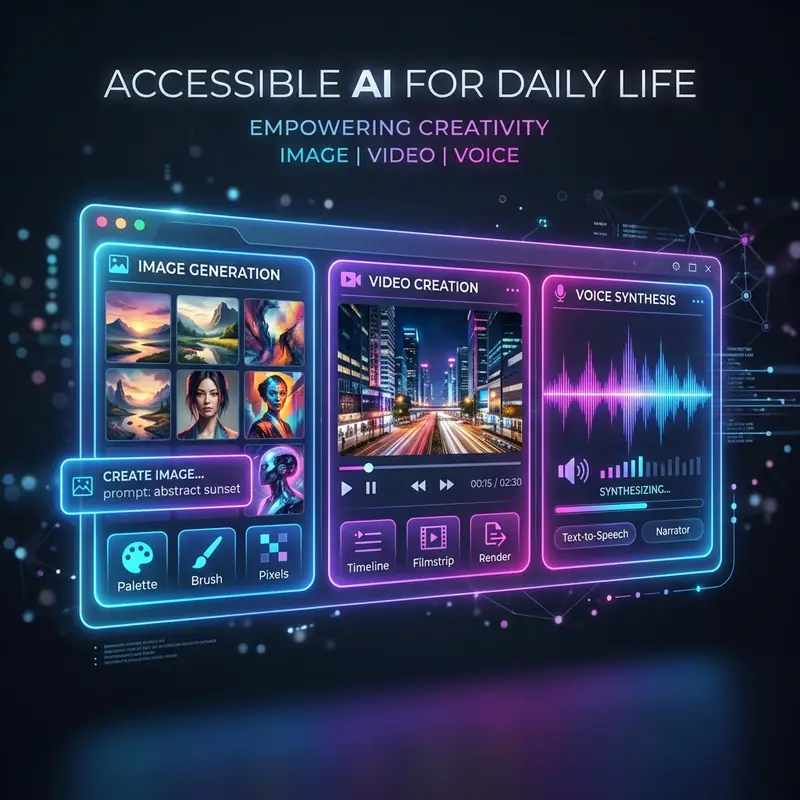
Midjourney V6 has significantly evolved, introducing an array of commands and parameters that enhance the creative capabilities of users. The primary commands are executed within Discord, leveraging the platform’s capabilities to streamline interaction with the AI model. Key commands include /imagine, /blend, and the /settings command for adjusting model options. This guide delves into the intricate details of each command and parameter, providing a comprehensive overview that enables users to maximize their output quality and efficiency.
Core Commands
The /imagine command is the cornerstone of Midjourney, allowing users to generate images from text prompts. When invoked, it requires a descriptive prompt that articulates the desired visual outcome. The command can be further refined using parameters to adjust aspects such as style, resolution, and aspect ratio. The syntax is as follows:
/imagine prompt: a sleek red sports car driving on a coastal road at sunsetIn addition, the /blend command facilitates the merging of multiple images into a cohesive output, enhancing creativity and providing unique visual compositions. The command operates similarly to /imagine but includes multiple image inputs.
Essential Parameters
Parameters in Midjourney V6 significantly influence the generated output. These parameters allow users to customize their prompts, ensuring that the AI model aligns closely with their artistic vision. Below is a table summarizing the most important parameters available in Midjourney V6:
| Parameter | Description | Example |
|---|---|---|
| --aspect | Defines the aspect ratio of the generated image. | --aspect 16:9 |
| --quality | Adjusts the rendering quality and time taken for processing. | --quality 2 |
| --stylize | Controls the level of artistic style applied to the image. | --stylize 1000 |
| --chaos | Increases variability in the generated images, allowing for more random outputs. | --chaos 50 |
| --no | Excludes specific elements from the image. | --no trees |
| --seed | Sets a seed for the random number generator, ensuring reproducibility. | --seed 12345 |
DomineTec Tip: Always specify the --seed parameter if you wish to reproduce an image with identical characteristics.
Using the Midjourney CREF and SREF Parameters
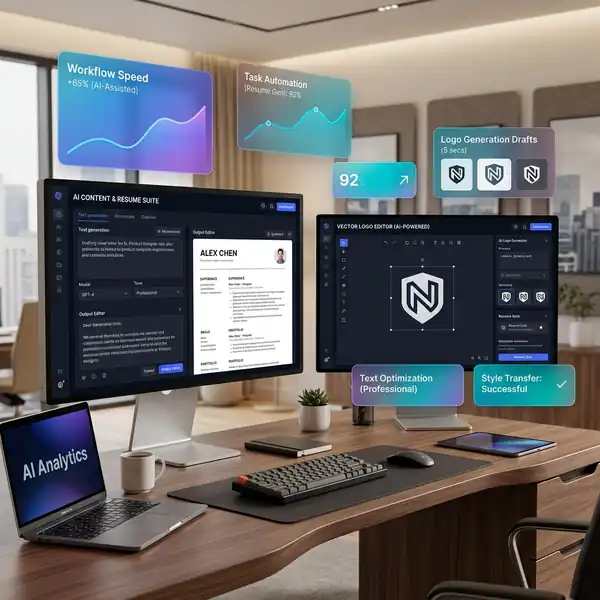
The cref (creative reference) and sref (style reference) parameters are important for guiding the aesthetic direction of the output. The cref parameter allows users to specify a reference image that influences the overall composition, while the sref parameter ensures that stylistic elements from a reference are integrated into the generated image.
Implementing CREF and SREF
To utilize these parameters, the syntax follows the format:
/imagine prompt: a sleek red sports car driving on a coastal road at sunset --cref https://i.imgur.com/example1.jpg --sref https://i.imgur.com/example2.jpgFor example, if you want to create a landscape inspired by a specific painting, you can upload the painting to Discord and use its link in the command:
/imagine prompt: "A serene landscape" --cref https://i.imgur.com/example_art.jpg --sref https://i.imgur.com/example_style.jpgOptimizing Workflow with Midjourney V6
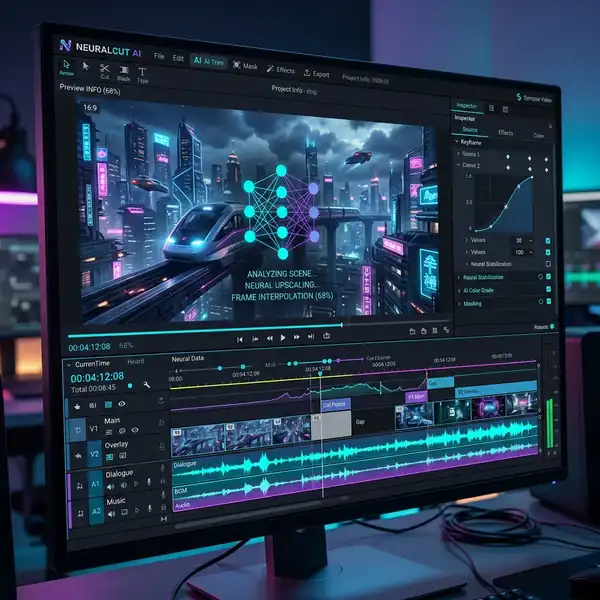
For advanced designers and digital artists, optimizing the workflow in Midjourney V6 is essential for maximizing productivity and creativity. Here are several techniques that can be employed:
1. Batch Processing
Utilizing batch processing can significantly reduce the time spent on generating multiple images. You can queue multiple /imagine commands in a single message by separating them with semicolons:
/imagine prompt: "A futuristic city"; /imagine prompt: "An ancient forest"2. Prompt Weighting
Prompt weighting allows you to emphasize specific elements within your description, guiding the AI on which aspects to prioritize. The syntax uses double colons to assign weights:
/imagine prompt: "A beautiful sunset::2 over a calm sea::1"In this example, the sunset will be prioritized, while the calm sea will still be considered but with less emphasis.
3. Utilizing Custom Models
Midjourney V6 supports custom models, which can be fine-tuned for specific styles or themes. To access custom models, use the /settings command to switch between them:
/settings model: 3D Animation Style4. Leveraging Community Resources
The Midjourney community is an invaluable resource for inspiration and learning. Participate in community discussions, explore shared prompts, and analyze the outcomes to enhance your understanding of effective prompt engineering.
Step-by-Step Tutorial: Creating an Image Using Midjourney V6
To illustrate how to effectively use Midjourney V6 commands and parameters, here’s a step-by-step tutorial on creating a digital landscape image.
- Open Discord and navigate to the Midjourney bot channel.
- Type the command
/imaginefollowed by your descriptive prompt. For example:/imagine prompt: "A vibrant sunset over the mountains" - Add parameters to refine your image. For example, to set the aspect ratio, you could append
--aspect 16:9. - If you want to include a creative reference, upload the reference image to Discord and copy its link.
- Incorporate the reference link into your command using the
--crefparameter. Your command might look like this: - Press Enter to submit your command and wait for Midjourney to generate the image.
- Review the generated image and make adjustments as necessary by modifying the prompt or parameters.
/imagine prompt: "A vibrant sunset over the mountains" --cref https://i.imgur.com/character_face.jpgComparative Analysis of Midjourney V6 Parameters
Understanding the impact of various parameters is important for effective prompt engineering. Below is a comparative analysis of how different parameters affect the output quality and style of images generated by Midjourney V6.
Quality vs. Speed
The --quality parameter can be set to values such as 1, 2, or even 5, where a higher value indicates better quality but longer generation times. Advanced users should consider their needs: for quick iterations, a lower quality setting can expedite processes, while a higher setting is more suited for final outputs.
Aspect Ratio Adjustments
The --aspect parameter significantly alters the composition of the image. For instance, a --aspect 1:1 setting produces a square image suited for social media, while a wide format like --aspect 16:9 is ideal for landscapes or presentations. Understanding the visual context for your work allows for better decision-making regarding aspect ratios.
Artistic Style Influence
The --stylize parameter applies varying levels of artistic influence based on user preference. A --stylize 0 setting yields a more literal representation of the prompt, while a higher value, such as --stylize 1000, infuses the output with a distinctive artistic flair. Experimentation with this parameter can lead to unique and compelling results.
Advanced Techniques for Customizing Outputs in Midjourney V6
As users delve deeper into the capabilities of Midjourney V6, understanding advanced techniques for customizing outputs becomes essential. One of the most powerful features of Midjourney is its ability to interpret complex prompts and parameters, allowing users to fine-tune their creative outputs. To harness this potential, users should familiarize themselves with the intricacies of prompt engineering, which involves crafting detailed and specific commands that guide the AI in generating desired results.
One effective method for enhancing the quality of generated images is the use of multi-part prompts. By breaking down the desired output into distinct sections, users can provide the AI with clearer instructions. For example, instead of a single vague prompt, consider using a format that specifies the subject, style, and mood separately. A prompt like "a serene landscape, in the style of Impressionism, with a warm sunset glow" gives the AI more context to work with, resulting in an image that closely aligns with the user's vision. Additionally, incorporating specific adjectives and nouns can further refine the output, allowing for a more tailored artistic expression.
Another advanced technique involves the manipulation of parameters such as aspect ratio, quality, and stylization. Midjourney V6 allows users to adjust the aspect ratio to suit various formats, whether for social media, print, or digital displays. Utilizing commands like "--ar 16:9" or "--ar 1:1" can significantly alter the composition of the image. Furthermore, the quality parameter, denoted by "--q", enables users to specify the rendering quality, with options ranging from low to high. For instance, using "--q 2" can enhance the detail and overall fidelity of the generated image, making it more suitable for professional use. Understanding how to balance these parameters is key to achieving the best results.
Lastly, users should explore the use of seed values for reproducibility. By incorporating a seed value into the prompt, such as "--seed 12345", users can ensure that the same prompt yields consistent results across multiple generations. This is particularly useful for projects that require a cohesive visual style or when collaborating with others. Experimenting with different seed values can also lead to unexpected and unique variations, providing a rich source of inspiration. By mastering these advanced techniques, users can unlock the full potential of Midjourney V6, transforming their creative visions into stunning visual realities.
Advanced Techniques for Optimizing Midjourney V6 Outputs
When working with Midjourney V6, understanding the intricacies of its command structure and parameters can significantly enhance the quality and relevance of your outputs. One of the most effective ways to optimize your results is through the strategic use of advanced parameters that fine-tune the model's behavior. These parameters allow users to control aspects such as style, detail, and even the emotional tone of the generated images. To leverage these capabilities, it’s essential to familiarize yourself with the syntax and the potential combinations that can yield the best results.
One of the key parameters to explore is the --style command, which allows users to specify a particular artistic style or influence. For example, you can use --style 4a to invoke a more illustrative approach, while --style 4b might yield a more photorealistic output. Experimenting with different styles can lead to diverse interpretations of the same prompt. Additionally, combining the style parameter with the --quality command can further enhance the output. The --quality parameter, which can be set to values like --q 2 for high quality or --q 1 for standard, directly affects the rendering time and detail level of the generated images. A higher quality setting will generally produce more intricate details, but it may also increase processing time, so balancing these settings based on your project needs is important.
Another powerful technique involves the use of the --chaos parameter, which introduces variability into the outputs. By adjusting the chaos level, you can control how much randomness is injected into the generation process. A lower chaos value (e.g., --chaos 10) will yield more consistent and predictable results, while a higher value (e.g., --chaos 50) can produce more unexpected and creative variations. This is particularly useful when you are looking for inspiration or when you want to explore a broader range of creative possibilities. It’s advisable to iterate through several chaos levels to find the sweet spot that aligns with your creative vision.
Lastly, utilizing the --seed parameter can be instrumental in achieving reproducibility in your results. By setting a specific seed value, you can ensure that the same prompt will yield the same output every time. This is particularly beneficial for projects that require consistency across multiple iterations or for collaborative efforts where team members need to reference the same visual outputs. To implement this, simply append --seed 12345 to your command, replacing 12345 with your desired seed value. Experimenting with different seeds can also lead to discovering unique variations of your prompt, providing a structured way to explore creativity while maintaining a level of control over the results.
Advanced Techniques for Customizing Outputs in Midjourney V6
Midjourney V6 introduces a plethora of advanced customization options that allow users to fine-tune their outputs to achieve specific artistic visions. One of the most powerful features is the ability to manipulate the aspect ratio of generated images. By default, Midjourney generates images in a 1:1 aspect ratio, but users can specify different ratios using the --ar parameter. For instance, if you want a landscape-oriented image, you can use --ar 16:9. This not only changes the dimensions of the output but can also affect the composition and focus of the image. Experimenting with various aspect ratios can lead to surprising and visually striking results, especially when combined with other parameters.
Another critical aspect of customizing outputs is the use of the --style parameter, which allows users to apply different artistic styles to their images. Midjourney V6 supports a variety of styles, from photorealistic to abstract, and even specific art movements like Impressionism or Surrealism. To apply a style, simply append --style followed by the desired style name to your prompt. For example, “a serene landscape --style Impressionism” will yield an image that captures the essence of Impressionist art. Users can also create hybrid styles by combining different style parameters, which can lead to unique and innovative outputs. This flexibility encourages experimentation and can result in artwork that stands out in a crowded digital space.
In addition to aspect ratios and styles, users can leverage the power of --chaos to introduce variability into their outputs. The --chaos parameter allows users to control the level of randomness in the generated images. By setting a value between 0 and 100, you can dictate how much deviation from the prompt occurs. A lower value (e.g., --chaos 10) will produce outputs that are closely aligned with the prompt, while a higher value (e.g., --chaos 80) will result in more unexpected and diverse interpretations. This feature is particularly useful for artists and designers looking to explore different creative avenues or generate multiple variations of a concept quickly.
Finally, the integration of --quality settings allows users to control the rendering time and detail level of their images. Midjourney V6 offers several quality levels, ranging from --q 1 for faster, lower-quality outputs to --q 5 for high-quality, detailed images that take longer to generate. Understanding how to balance quality and speed is important, especially for users working on tight deadlines or those who need to produce multiple iterations. By strategically using the quality parameter in conjunction with other commands, users can optimize their workflow while still achieving stunning visual results. Mastering these advanced techniques will not only enhance the creative process but also empower users to fully harness the capabilities of Midjourney V6.
Frequently Asked Questions
What is the best way to learn the Midjourney commands?
The best approach to learning Midjourney commands is through practical experimentation. Utilize the commands in Discord, explore different parameters, and analyze the outputs. Engaging with the Midjourney community for tips and sharing experiences also enhances learning.
Can I use Midjourney for commercial purposes?
Yes, Midjourney images can be used for commercial purposes, provided you adhere to their usage guidelines and licensing agreements. Always ensure you have the right to use the generated content, especially if it involves references from other works.
How can I improve the quality of my Midjourney images?
Improving the quality of your Midjourney images involves using higher quality settings, experimenting with prompt weights, and refining your prompts to be more descriptive. Utilizing the --stylize parameter effectively can also enhance the artistic quality of your outputs.

