Microsoft Ergonomic Keyboard Review: Comfort and Typing Strain Relief
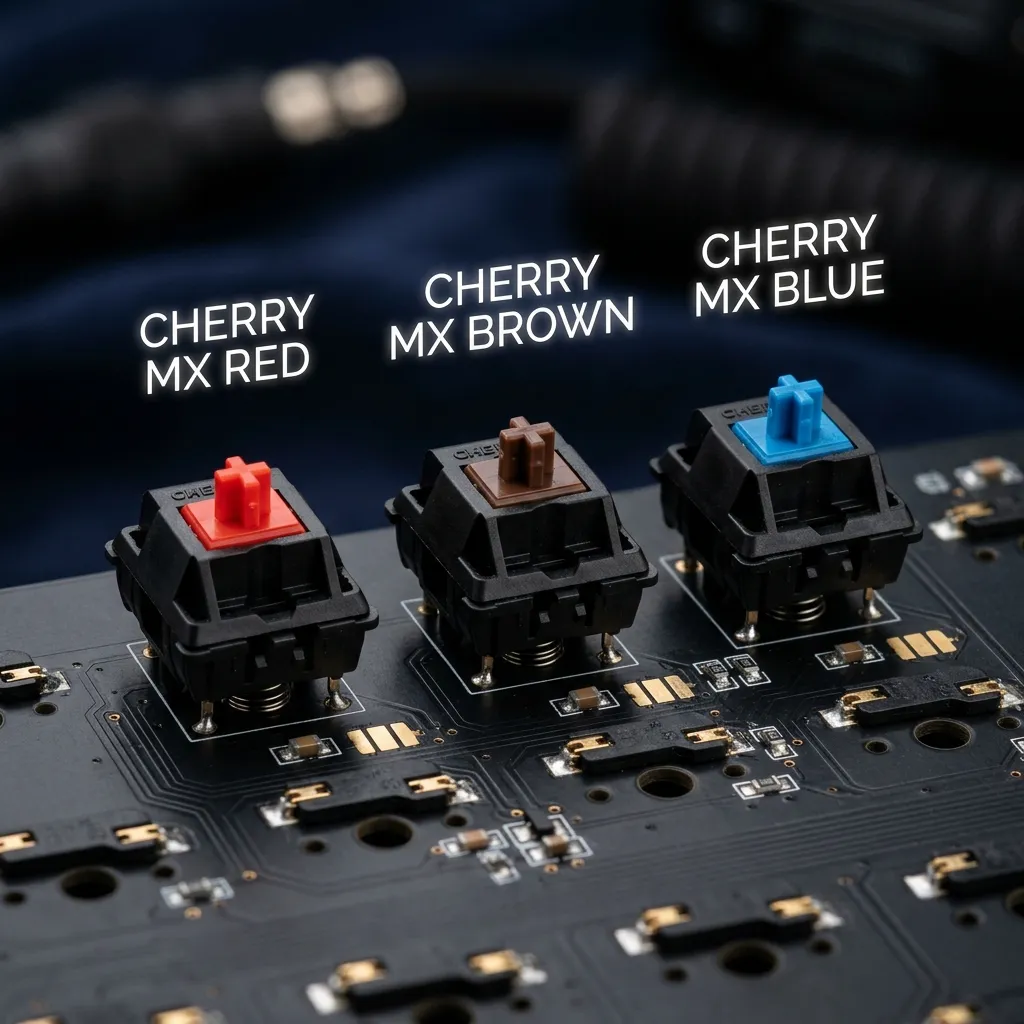
The Microsoft Ergonomic Keyboard offers superior comfort and effective strain relief for prolonged typing sessions.
Ergonomic Design Features
The keyboard features a split layout, promoting a natural wrist and forearm position, reducing the risk of repetitive strain injuries.
Its cushioned palm rest provides additional support and comfort during extensive typing sessions.
Typing Performance
Keys are designed with a cushioned feel, enabling a quieter typing experience while maintaining tactile feedback.
The layout accommodates both standard and function keys for efficient workflow management.
Material Composition
The keyboard is constructed using high-quality plastic with a matte finish, enhancing durability and resistance to wear.
Use of rubberized materials in the palm rest adds comfort and eases the strain on the wrists.
Comparative Analysis
| Feature | Microsoft Ergonomic Keyboard | Logitech Ergo K860 | Kinesis Advantage2 |
|---|---|---|---|
| Layout | Split | Split | Contoured |
| Palm Rest | Cushioned | Built-in | Removable |
| Connectivity | USB | Bluetooth | USB |
| Key Switch Type | Membrane | Membrane | Mechanical |
| Price Range | Mid-range | Premium | High-end |
DomineTec Tip: Regular breaks and proper wrist alignment will enhance the ergonomic benefits of any keyboard.
- Adjust the keyboard height to keep elbows at a 90-degree angle.
- Position the keyboard close enough to prevent reaching.
- Ensure that wrists are straight and not bent while typing.
- Use a chair that supports your lower back.
- Consider a footrest to maintain proper leg positioning.
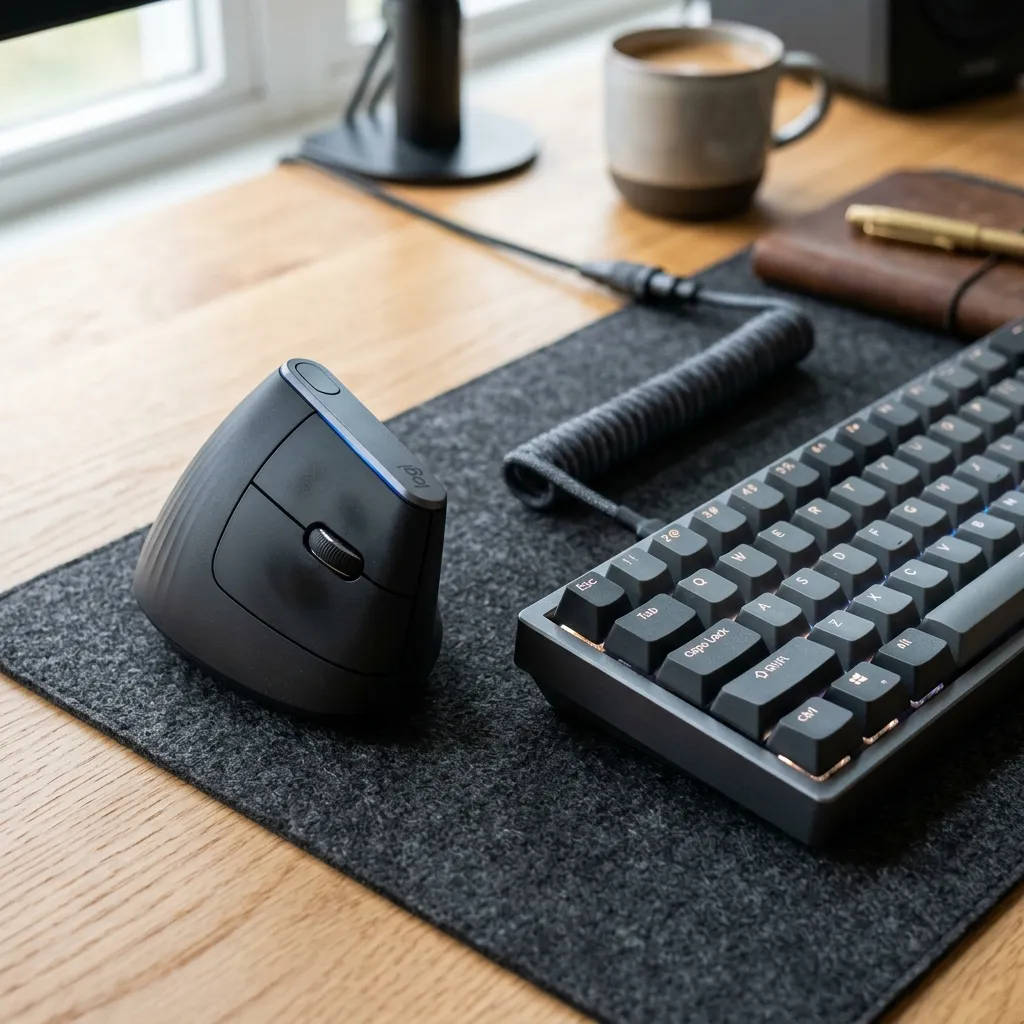

For further customization, explore how to choose mechanical keyboard switches suitable for your typing style.
Optimizing your workspace is crucial; learn to correct monitor height for better posture.
Key Switch Mechanism and Feedback
The Microsoft Ergonomic Keyboard employs a scissor-switch mechanism that enhances typing feedback and responsiveness. This design allows for a shorter travel distance, which can lead to faster typing speeds and reduced fatigue during long sessions.
Users often report a satisfying tactile response with each keystroke, enhancing overall typing accuracy. This feedback is crucial for typists who rely on touch rather than visual confirmation when typing.
Additionally, the key switches are engineered to minimize noise, making the keyboard suitable for shared workspaces. This feature contributes to a more serene working environment, reducing distractions for both the user and nearby colleagues.
Adjustability and Customization Options
The Microsoft Ergonomic Keyboard offers limited adjustability, but it caters to various user preferences with its built-in wrist rest. This feature can help align the wrists in a more natural position, thereby reducing strain during extended typing sessions.
Customization options are somewhat limited compared to other premium ergonomic keyboards. However, users can still benefit from programmable keys, allowing them to set shortcuts for frequently used functions.
For individuals who require specific adjustments, using external wrist supports or keyboard risers can complement the built-in features. These additional accessories can enhance the overall ergonomic experience for users with unique needs.
Cleaning and Maintenance Considerations
Regular maintenance of the Microsoft Ergonomic Keyboard is essential for longevity and optimal performance. The keyboard's surface is designed to be resistant to dust and spills, making it easier to clean compared to traditional keyboards.
Users can easily wipe the keyboard with a damp cloth to remove dirt and grime. For deeper cleaning, key removal is not typically recommended but can be conducted with care to prevent damage.
Proper cleaning routines can enhance the tactile feedback of the keys, ensuring a pleasant typing experience over time. Moreover, routine maintenance can help prevent sticky keys that may arise from accumulated debris.
Compatibility with Operating Systems
The Microsoft Ergonomic Keyboard is designed to be compatible with multiple operating systems, including Windows and macOS. This versatility makes it an appealing option for users who switch between different platforms.
Plug-and-play functionality ensures that users can start typing without needing to install additional software. However, some advanced features may require specific drivers, particularly for Windows users.
Mac users can still utilize the keyboard effectively, although certain key functions may operate differently due to system variations. Understanding these differences can help users optimize their experience across platforms.
Impact on Productivity and Focus
Using the Microsoft Ergonomic Keyboard can significantly impact productivity and focus. The design promotes comfort, allowing users to type for longer periods without experiencing discomfort or fatigue.
As typing strain is reduced, users are more likely to maintain concentration on their tasks. This can lead to improved efficiency and a higher quality of work as distractions from discomfort are minimized.
Additionally, the tactile feedback from the keys encourages a smoother typing flow, which further enhances productivity. Users often report a more enjoyable typing experience, contributing to overall job satisfaction.
Health Implications of Ergonomic Keyboards
Investing in an ergonomic keyboard like the Microsoft Ergonomic Keyboard can have significant health benefits. Prolonged use of standard keyboards can lead to repetitive strain injuries, such as carpal tunnel syndrome, which can be mitigated with ergonomic design.
The wrist rest and split layout of the keyboard help to maintain a neutral wrist position, reducing the risk of discomfort and injury. Users often find that their overall well-being improves with the adoption of ergonomic equipment.
Furthermore, the design encourages better posture, which can have a positive ripple effect on overall spinal health. Proper posture while typing can alleviate tension in the neck and shoulders, promoting better overall physical health.
Market Position and Value for Money
The Microsoft Ergonomic Keyboard occupies a competitive position in the market, offering an excellent balance of features, quality, and price. Priced reasonably compared to premium ergonomic keyboards, it provides significant value for users seeking better comfort without breaking the bank.
While there are more advanced ergonomic models available, the Microsoft keyboard caters to a broad audience, appealing especially to casual users and professionals alike. Its features justify the cost, making it an accessible option for many.
Additionally, the brand reputation of Microsoft adds to the overall value proposition, as users can trust the quality and support associated with their products. This reliability is essential for users investing in tools that affect their daily productivity.
Long-Term Use and User Adaptation
When transitioning to an ergonomic keyboard like the Microsoft Ergonomic Keyboard, users may experience an adjustment period. This period is crucial for acclimatizing to the unique layout and design, which diverges from traditional keyboards.
Many users report feeling discomfort or awkwardness initially, particularly in their wrists and hands, as they adapt to the new posture encouraged by the keyboard. Gradual usage, starting with short typing sessions, can facilitate a smoother adaptation process.
Typing Techniques and Best Practices
Employing proper typing techniques can significantly enhance the benefits of using the Microsoft Ergonomic Keyboard. Users should focus on maintaining a neutral wrist position, which is essential for reducing strain during extended typing sessions.
Additionally, the practice of touch typing can be particularly beneficial, as it minimizes unnecessary hand movements and promotes efficiency. Incorporating regular breaks and stretches into the typing routine can further mitigate the risk of repetitive strain injuries.
Environmental Considerations
As consumers become increasingly aware of environmental issues, the sustainability of products is a relevant aspect to consider. The Microsoft Ergonomic Keyboard incorporates materials that are more eco-friendly compared to conventional keyboards, reflecting a commitment to sustainability.
Moreover, Microsoft has established recycling programs that allow users to return their old devices, promoting a circular economy. By choosing this keyboard, users can contribute to reducing electronic waste, thus supporting environmental conservation efforts.
User Feedback and Community Insights
User reviews and community feedback provide valuable insights into the real-world performance of the Microsoft Ergonomic Keyboard. Many users praise its comfort and the significant reduction in wrist strain, highlighting its effectiveness for long hours of typing.
Conversely, some users express concerns about the learning curve associated with the keyboard's layout, emphasizing that patience is key during the adaptation phase. Online forums and discussion boards often feature tips and personal experiences, which can be beneficial for prospective users seeking advice on maximizing their typing experience.
Integration with Software and Productivity Tools
The Microsoft Ergonomic Keyboard seamlessly integrates with various software applications, enhancing user efficiency through customizable shortcuts and function keys. This integration allows users to tailor their keyboard experience to specific tasks, whether it be programming, graphic design, or general office work.
In addition to built-in functionality, the keyboard is compatible with Microsoft’s productivity suite, including Word, Excel, and Outlook. Users can assign macros to specific keys, streamlining repetitive tasks and reducing the time spent on routine operations.
Furthermore, the keyboard supports third-party software that can enhance its functionality, such as key remapping applications and productivity enhancers. This versatility makes it a strong contender for users who rely heavily on software tools to maximize their workflow.
Accessibility Features for Diverse Users
The Microsoft Ergonomic Keyboard is designed with accessibility in mind, making it suitable for a wide range of users, including those with disabilities. The layout and tactile feedback are optimized for individuals who may have difficulty with traditional keyboards, ensuring an inclusive experience.
Key spacing and size are thoughtfully designed to accommodate users with motor impairments, allowing for easier navigation and fewer typing errors. Additionally, the keyboard’s adjustable angle can benefit users with limited wrist mobility, as it promotes a more comfortable typing posture.
Moreover, the keyboard includes features such as large, easy-to-read key legends that assist users with visual impairments. This attention to detail demonstrates Microsoft’s commitment to creating products that cater to the diverse needs of its user base.
Durability and Longevity of the Microsoft Ergonomic Keyboard
The durability of a keyboard is a crucial factor for users who rely on their devices for extended periods. The Microsoft Ergonomic Keyboard is designed with high-quality materials that are intended to withstand daily wear and tear, ensuring it remains functional over time.
Its keycaps are constructed from robust plastic that resists fading and damage, while the overall frame is engineered to endure heavy use. Users have reported that even after months of intensive typing, the keyboard retains its original tactile feel and appearance.
Additionally, the keyboard features a spill-resistant design, which helps protect it from accidental liquid exposure. This feature significantly extends the lifespan of the keyboard, making it a practical choice for users concerned about longevity.
Effectiveness of Ergonomic Features in Reducing Fatigue
The effectiveness of ergonomic features in reducing typing fatigue is a significant consideration for users who spend long hours at their keyboards. The Microsoft Ergonomic Keyboard incorporates several design elements aimed at minimizing strain, such as a split layout and cushioned palm rest.
Users have reported a noticeable reduction in discomfort and fatigue during prolonged typing sessions, particularly due to the keyboard's angled key layout. This position encourages a more natural wrist angle, which can alleviate pressure on the wrists and forearms.
Research into ergonomic design supports the notion that proper wrist positioning can lead to decreased muscle fatigue and improved overall comfort. The Microsoft Ergonomic Keyboard's thoughtful design aligns with these findings, providing users with an effective solution to combat typing-related fatigue.
Troubleshooting Common Connectivity Issues
Connectivity problems can hinder the functionality of the Microsoft Ergonomic Keyboard, particularly when using wireless models. It is essential to ensure that the USB receiver is securely connected to the computer's USB port and that the keyboard is powered on.
If the keyboard fails to connect, users should first check the battery level if it is battery-operated, replacing the batteries if necessary. Conducting a quick test with a different USB port or another device can determine if the issue lies with the keyboard or the USB port itself.
In cases where the keyboard connects but exhibits intermittent functionality, it is advisable to minimize the distance between the keyboard and the USB receiver. Physical obstructions, such as metal objects or other wireless devices, can interfere with the signal, so relocating the receiver to a more unobstructed position may improve connectivity.
If connectivity issues persist, resetting the keyboard can often resolve lingering problems. This can typically be achieved by pressing a designated reset button on the keyboard or by following the manufacturer's instructions to re-pair the device with the computer.
Advanced Key Mapping and Customization Techniques
Advanced users seeking to optimize their Microsoft Ergonomic Keyboard experience can benefit from key mapping and customization techniques. Utilizing software such as Microsoft's Mouse and Keyboard Center allows for extensive customization of key functions and macros, enhancing workflow efficiency.
To remap keys, users should first install the Mouse and Keyboard Center, which provides an intuitive interface for selecting specific keys and assigning new functions. Custom shortcuts can be created for frequently used applications, streamlining access and reducing typing strain.
Another powerful feature is the ability to create macros—sequences of keystrokes that can be executed with a single key press. This is especially useful for repetitive tasks, allowing users to execute complex commands swiftly and reducing the potential for strain associated with repetitive typing.
For optimal results, users are encouraged to explore community forums for shared customization profiles. Engaging with the user community can provide insights into effective key mappings that enhance productivity tailored to specific tasks or software applications.
Frequently Asked Questions
What is the key travel distance of the Microsoft Ergonomic Keyboard?
The key travel distance is approximately 2.5 mm, providing a responsive typing experience.
Is the keyboard compatible with both Windows and Mac?
Yes, it is compatible with both Windows and Mac operating systems, though some function keys may vary in functionality.
How does the Microsoft Ergonomic Keyboard compare to traditional keyboards?
This keyboard offers enhanced comfort and reduced strain compared to traditional flat designs, promoting better wrist alignment.
What is the warranty period for this keyboard?
The keyboard typically comes with a one-year limited warranty covering manufacturing defects.
Can the keyboard be used wirelessly?
No, the Microsoft Ergonomic Keyboard is designed for wired USB connection only, ensuring consistent performance.




