HP Printer Blinking Orange Exclamation Mark (Troubleshooting)
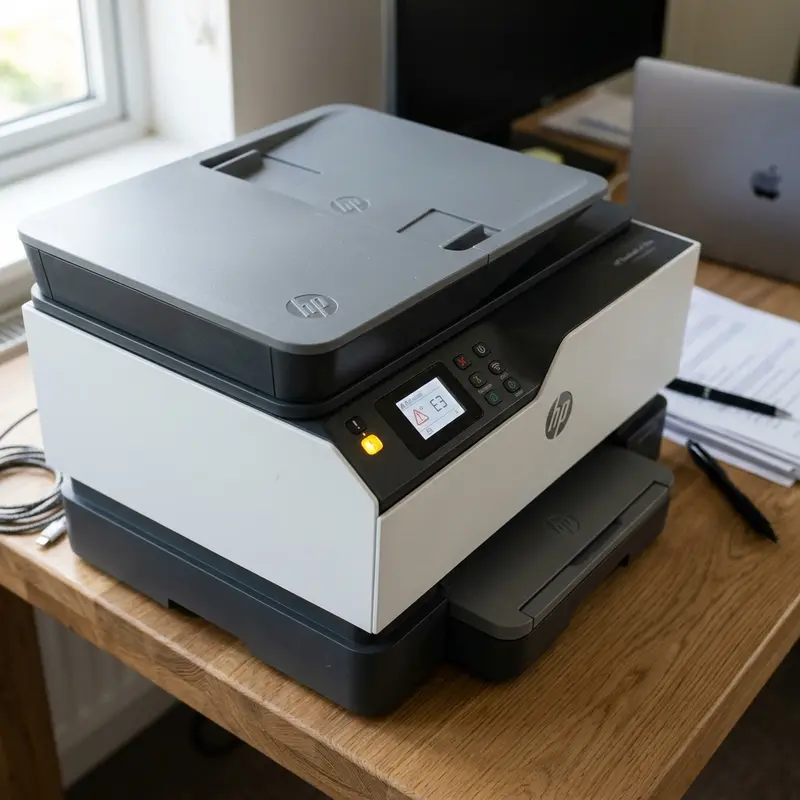
HP Printer Blinking Orange Exclamation Mark: Causes and Fixes
The blinking orange exclamation mark light on an HP printer is a critical alert from the firmware's embedded diagnostic system. When your HP printer blinks an orange exclamation mark, the error code is determined by counting the number of blinks in sequence before the pause — for example, 2 blinks indicate a paper jam, 3 blinks mean the paper tray is empty, and 5 blinks signal a cartridge problem or incompatibility — and each code requires a specific hardware or driver resolution action. Accurately counting the blink pattern is the first and most important step to resolving the problem without calling technical support.
1. How to Read HP's Blink Code System
HP printers communicate errors via serial LED patterns: the light blinks a specific number of times, pauses for approximately 1 second, then repeats the sequence. Count the blinks within one complete cycle before the pause. This count corresponds to a specific entry in the firmware's error table. The most common codes on DeskJet 2776, Smart Tank 517, and OfficeJet 8000-series models are:
| Orange Blink Count | Indicated Error | Recommended Action |
|---|---|---|
| 2 blinks | Paper jam in the print path | Remove jammed paper via rear access panel |
| 3 blinks | Paper tray empty or paper misloaded | Reload paper and adjust side guides |
| 4 blinks | Cartridge cover open or not properly latched | Close and firmly latch the cover |
| 5 blinks | Incompatible, missing, or faulty cartridge | Remove and reinstall cartridges; verify compatibility |
| 8 blinks | Waste ink pads nearing end of service life | Plan waste pad replacement |
| Continuous blink | Serious hardware error (board or printhead) | Factory reset or HP support |
2. Resolving Paper Jams (2 Blinks)
Paper jams are the most frequent cause of the orange exclamation mark on HP printers. The paper feed mechanism uses rubber pickup rollers driven by a stepper motor to pull sheets from the tray. When a sheet fails to advance — due to damp paper, overly thin stock, or multiple sheets pulled together by static electricity — the optical pass-through sensors inside the print path detect the lack of movement and trigger the error code.
To safely remove a jam: power off the printer completely. Remove the front paper tray. Open the rear access panel (present on most DeskJet and Smart Tank models). Carefully pull the jammed paper with a straight, even motion — never pull diagonally, which can tear the paper and leave fragments inside the mechanism. After removal, inspect the internal print path with a flashlight to ensure no fragments remain before powering the unit back on.
3. Resolving Cartridge Error (5 Blinks)
The cartridge error (5 blinks) is triggered by the electronic EEPROM chip embedded in each original HP cartridge. When the printer cannot read the chip's data — whether because the cartridge is installed incorrectly, the gold cartridge contacts are dirty, or the cartridge is incompatible with that specific model — the firmware blocks printing as a protection measure.
To resolve: open the cartridge access cover. With the printer on, wait for the ink carriage to move to the replacement position (center). Remove each cartridge by pressing and pulling. Using a microfiber cloth lightly moistened with isopropyl alcohol, gently clean the gold copper contacts on the cartridge bottom and the corresponding contacts inside the slot. Reinstall firmly ensuring a click is felt. Close the cover and restart.
4. Factory Reset via HP Printer Control Panel
When the error persists after trying all code-specific solutions, a factory reset completely clears the firmware error memory. Most HP DeskJet and Smart Tank models allow a factory reset via the following button sequence (verify your specific model's manual as combinations vary):
- Completely power off the printer;
- Wait 30 seconds for complete capacitor discharge on the logic board;
- Press and hold the Cancel (X) or Resume (curved arrow) button;
- While holding, power on the printer and maintain for 5 seconds;
- Release the button — the printer enters an initialization cycle and returns to factory defaults.
After the reset, reconnect to Wi-Fi and reinstall the driver if needed. For detailed HP DeskJet 2776 reset instructions, see our guide on how to reset HP DeskJet 2776.
5. When the Problem Is the Printhead (Continuous Blink)
A continuous orange blink without pause, or alternating orange and blue power light, indicates a serious hardware error — typically related to the printhead on models that have it separate from the cartridge (like HP OfficeJet Pro). If the print carriage is also stuck in the center position unable to move, there may be a physical obstruction on the slide rail or a problem with the stepper motor driving the carriage. Inspect the rail for foreign objects and verify the carriage moves freely by hand when the printer is powered off.
For more information on complex HP hardware errors, see also our guide on HP printer blinking amber exclamation light, where we cover specific DeskJet high-resolution line errors.
6. Diagnosis via HP Smart App
The HP Smart app (available free for iOS, Android, and Windows) offers more detailed automated diagnostics than simply counting LED blinks. When an HP printer shows the orange exclamation mark, the HP Smart app automatically detects the error code and displays a plain-text message explaining the problem and guiding the user through resolution steps.
To use HP Smart diagnostics: open the app on a smartphone connected to the same Wi-Fi network as the printer → tap the printer icon → tap "Printer Diagnostics" → select "Printer Check". The app communicates directly with the printer firmware, reads internal error logs, and presents a complete diagnosis with step-by-step correction instructions.
Beyond error diagnostics, HP Smart also allows remotely running printhead alignment verification, test page printing, nozzle cleaning cycles, and firmware updates — all without needing to access the computer driver. For cartridge models, the app also monitors ink level for each individual cartridge and sends notifications when the level drops below 15%.
7. Prevention: Avoiding the Orange Exclamation Error
Most causes of the orange exclamation mark can be prevented with simple usage care and preventive maintenance:
- Keep the paper tray always stocked: Running out of paper is one of the most frequent causes of the 3-blink error. Keeping at least 20 sheets in the tray prevents the printer from entering an error state during automated print jobs.
- Use only original HP or certified compatible cartridges: Questionable-quality cartridges with defective EEPROM chips are a frequent cause of the 5-blink error. Buy cartridges from authorized retailers and check that the original packaging is intact before installing.
- Never open the printer during printing: Opening the cartridge access cover while the printer is processing a job can cause carriage jamming and trigger a mechanical obstruction error.
- Update firmware regularly: HP releases firmware updates that fix cartridge compatibility bugs and improve error detection. Keep firmware updated via the HP Smart app to reduce false positives in the error detection system.
8. Understanding HP's Error Recovery System
HP printers implement a layered error recovery system that distinguishes between temporary soft errors (resolvable by the user) and permanent hard errors (requiring technical service). Soft errors — like paper jams, empty trays, or incorrectly seated cartridges — are always self-recoverable once the physical condition is resolved. The printer automatically clears the error state when the problem is fixed and the Resume/Cancel button is pressed.
Hard errors — like failed printhead resistors, damaged encoder strips, or a faulty main logic board — cannot be cleared by user intervention and require component replacement. These are typically signaled by error codes that don't clear after standard troubleshooting. The HP Print and Scan Doctor utility distinguishes between these categories and can tell you definitively whether a hardware service is necessary or if user-level troubleshooting will resolve the issue.
9. HP Warranty and Support for Hardware Errors
If your HP printer is within its warranty period (typically 1 year for home products, 2 years for professional products from the registered purchase date), hardware errors originating from manufacturing defects — including firmware failures, burned printheads, and electronic board failures — are covered by warranty at no additional charge.
To file an HP warranty claim: go to support.hp.com → enter the printer's serial number (sticker on the bottom of the unit) → select "Contact Support" → choose chat, phone, or in-home repair service depending on availability in your region. HP typically requires proof of purchase (receipt or order confirmation) and the unit's serial number to verify warranty eligibility. For business-grade products under HP Care Packs or extended warranty agreements, dedicated business support channels with faster response times are available.
10. Differences Between Error Codes Across HP Printer Generations
HP's blink code system has evolved across printer generations. Older HP DeskJet models from the 2010s used a different blink code table than current DeskJet Advantage, Smart Tank, and Ink Tank models. If you're troubleshooting a printer that's several years old, the blink count for a given error may differ from the table provided in this article, which is calibrated to current-generation models.
For the most accurate blink code reference for your specific model, download the official service manual or user guide PDF from HP's support site (search by model number). HP also maintains an online error lookup tool at support.hp.com where you can enter your model number and describe the error pattern to receive model-specific resolution guidance. This is particularly important for OfficeJet and ENVY series, which have more complex blink code systems than the basic DeskJet line.
11. Multi-LED Combination Error States
Some HP DeskJet and Smart Tank models use combinations of multiple LEDs to encode more specific error states beyond simple blink sequences. The most common combinations are: orange blinking with solid blue indicates a serious hardware error during normal operation; orange blinking while green blinks slowly indicates sleep mode active with a pending low ink level alert; orange and blue alternating rapidly indicates a firmware initialization error that occurred during boot. For any LED combination not easily identified through standard blink counting, the HP Print and Scan Doctor tool is the most reliable resource for decoding the specific state of your model without risk of misinterpretation. The software is free from the official HP site, automatically identifies your printer model, and displays in plain text the current error state, possible causes, and recommended resolution steps specifically tailored to your HP printer model and firmware version. It also logs the diagnostic session so you can share results with HP support if professional assistance is ultimately needed.
Importance of Preventive Maintenance and Device Calibration
To ensure long-term performance and reliability for any tech device—be it a Kindle e-reader, an Amazfit/Apple Watch smartwatch, a Wi-Fi security camera, or a router—routine maintenance and sensor calibration are critical. Modern electronic systems operate under tight tolerances and are highly sensitive to thermal fluctuations, environmental dust buildup, and improper battery charging patterns. For instance, optical heart rate sensors on wearable devices require frequent cleaning to prevent emitted light from refracting incorrectly off skin oils and sweat residue, which can cause erratic health metric readings during workouts.
Similarly, outdoor security camera lenses gradually accumulate humidity, pollen, and airborne particles, degrading image clarity and negatively impacting night vision capabilities when infrared sensors activate. Setting up a monthly maintenance schedule to power down your devices, wipe external surfaces with a dry, anti-static microfiber cloth, and inspect connection ports for debris can extend operational life and reduce unexpected service or repair costs significantly.
Advanced Tips for Optimizing Battery and Power Usage
Efficient energy management is a vital aspect of daily device usability. Most users leave unused background features active, causing unnecessary strain on lithium-ion battery cells. Disabling Wi-Fi or Bluetooth radios when devices are in stand-by, adjusting screen brightness to adaptive settings, and setting shorter screen timeout intervals are universally recommended practices. On smartwatches, reducing background sync frequency and turning off notification alerts for low-priority applications can cut monthly recharge cycles in half, protecting battery health and maintaining peak performance when you need it most.
Frequently Asked Questions (FAQ)
Why does my HP printer blink orange even with correct paper and cartridges?
Even with correct paper and cartridges, orange blinking can occur due to dirty cartridge contacts, outdated firmware, or corrupted error memory. A factory reset followed by driver reinstallation resolves most cases.
Do remanufactured cartridges cause the orange exclamation mark error on HP printers?
Yes. Remanufactured cartridges with reused EEPROM chips may contain invalid or incompatible ink volume data, triggering the 5-blink error code. Always use original HP cartridges or certified compatible ones with new chips.
Does the orange blink pattern differ between HP DeskJet and OfficeJet?
Yes. The blink code table varies by product line and firmware generation. OfficeJet Pro models typically have LCD displays showing error codes as text, while basic DeskJet models rely entirely on LEDs.
Can I use the HP printer with the orange exclamation light blinking?
No. The orange exclamation mark actively blocks printing. Attempting to force printing with an active error can worsen the issue and physically damage components like the pickup rollers or printhead.




