How to Use a PlayStation 5 DualSense Controller on Nintendo Switch (8BitDo)
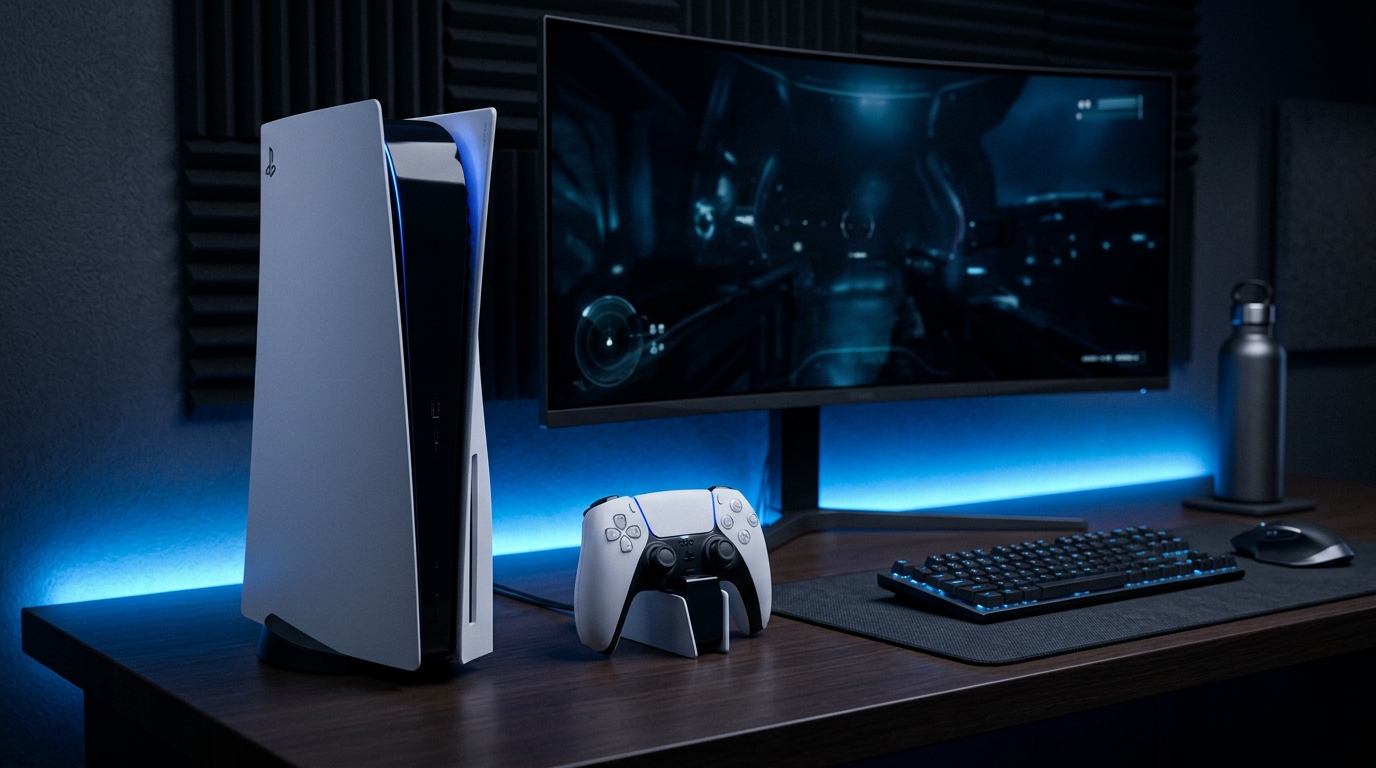
The PlayStation 5 DualSense controller has garnered attention for its innovative features, including adaptive triggers and haptic feedback, making it a favorite among gamers. However, many Nintendo Switch players may not know that they can utilize this advanced controller on their Switch consoles (be it the original, V2, OLED, or docked). This guide will walk you through the steps of connecting your DualSense controller to your Nintendo Switch using the 8BitDo Wireless USB Adapter 2 or the Mayflash Magic-NS. Prepare to elevate your gameplay experience!
Understanding the Requirements
Before diving into the connection process, it’s essential to gather the necessary hardware and understand the settings needed for a smooth setup. Here’s what you’ll need:
- PlayStation 5 DualSense Controller: Ensure your controller is fully charged.
- 8BitDo Wireless USB Adapter 2 or Mayflash Magic-NS: These adapters allow wireless communication between your DualSense and Switch.
- Nintendo Switch: Any model (original, V2, OLED, or docked) will work.
- USB Port: An available USB port on the Switch dock for the adapter.
Step 1: Preparing the Nintendo Switch
Accessing System Settings
First, you need to ensure that your Nintendo Switch is configured correctly:
- Turn on your Nintendo Switch and navigate to the Home Screen.
- Scroll down and select the System Settings icon.
- In the settings menu, select Controllers and Sensors.
- Scroll down to find Pro Controller Wired Communication and toggle it to ON.
Step 2: Setting Up the 8BitDo Wireless USB Adapter
Connecting the Adapter
Next, you will need to plug in the adapter:
- Take your 8BitDo Wireless USB Adapter and connect it to an available USB port on the Nintendo Switch dock.
- Ensure that the Switch is docked and powered on, as the adapter requires power to function.
DomineTec Tech Tip: If you want to play wirelessly, make sure your adapter is updated to the latest firmware version. This can ensure better compatibility and performance.
Step 3: Pairing the DualSense Controller
Entering Pairing Mode
Now it’s time to connect your DualSense controller to the Switch via the adapter:
- Make sure your DualSense controller is turned off. If it’s on, hold the PS button until it turns off.
- Press and hold both the Create (or Share) button and the PS button simultaneously. Hold them until the light bar on the controller begins to flash rapidly.
Syncing with the Adapter
- On the 8BitDo Wireless USB Adapter, press the Sync button. This will allow the adapter to search for nearby Bluetooth devices.
- Within a few moments, the DualSense controller should connect to the adapter, and the light bar will change to a solid color.
- At this point, your controller is now paired with the Nintendo Switch.
Step 4: Configuring Button Mapping
Understanding Button Equivalence
Using a DualSense controller means you need to be familiar with how its buttons correspond to the Nintendo Switch Pro Controller. Below is a helpful table:
| DualSense Button | Switch Pro Button | Action | Notes | Usage |
|---|---|---|---|---|
| PS Button | Home | Access Home Menu | Hold to turn on | Always |
| X | A | Confirm | Main action button | Always |
| O | B | Cancel | Back action | Always |
| Square | X | Menu | Open menu options | Contextual |
| Triangle | Y | Special | Special actions | Contextual |
Step 5: Utilizing Advanced Features
Motion Controls and Rumble
The DualSense controller offers unique features that enhance gameplay. Here’s how to utilize them on the Switch:
- The motion control gyroscope should work automatically. You can test it in games that support motion controls.
- To use the adaptive triggers and haptic feedback, ensure that your games support these features. Not all Switch games utilize the controller's advanced functionalities.
Step 6: Troubleshooting Connection Issues
Common Connection Problems
Sometimes, pairing issues may arise. Here are some troubleshooting tips:
- Ensure the DualSense controller is charged; a low battery may prevent it from connecting.
- Double-check that the 8BitDo adapter is correctly plugged into the USB port.
- If the controller doesn’t connect, try resetting the adapter by unplugging it and plugging it back in.
- Make sure no other devices are trying to connect to the DualSense controller simultaneously.
Step 7: Testing Your Setup
Verifying Functionality
Now that you have everything set up, it’s time to test the controller:
- Launch a game that supports controller input.
- Use the DualSense controller to navigate through menus and gameplay.
- Check the response of buttons, motion controls, and haptic feedback.
Step 8: Enjoying Your Gaming Experience
Maximizing Gameplay
With your DualSense controller successfully connected to the Nintendo Switch, you can enjoy a unique gaming experience:
- Explore games that utilize motion controls for enhanced gameplay.
- Take advantage of the haptic feedback while playing adventure or action games.
- Customize your settings within specific games to optimize your experience.
Advanced Troubleshooting
Resolving Persistent Issues
If you continue to experience issues with your DualSense controller connection, consider the following advanced troubleshooting steps:
- Check for Interference: Other wireless devices may cause interference. Move away from devices like microwaves, cordless phones, or other Bluetooth devices.
- Reset the DualSense Controller: If the controller is unresponsive, reset it by pressing the small reset button located on the back near the L2 button.
- Re-pairing the Controller: If you have previously paired the controller with another device, make sure to unpair it first before attempting to connect it to the Switch.
Alternative Settings and Configurations
Customizing Your Experience
To enhance your gaming experience further, consider adjusting the following settings:
- Adjusting Dead Zones: Some games allow you to modify the dead zones of the analog sticks, which can improve responsiveness and control.
- Custom Vibration Settings: If the vibration intensity is too strong or weak for your preference, check if your game has options to adjust these settings.
- Button Layout Customization: Explore in-game settings to customize button layouts to suit your play style better.
Long-Term Care Tips for Your DualSense Controller
Maintaining Your Controller
To ensure the longevity of your DualSense controller, adhere to the following care tips:
- Regular Cleaning: Wipe down your controller with a microfiber cloth to remove dirt and grime. Avoid using harsh chemicals that could damage the plastic.
- Battery Maintenance: Avoid letting the battery fully discharge regularly. If you’re not using the controller for an extended period, store it with a partial charge to maintain battery health.
- Firmware Updates: Keep your controller's firmware updated via the PlayStation console to benefit from performance improvements and fixes.
Frequently Asked Questions (FAQ)
Can I use the DualSense controller on other devices?
Yes, the DualSense controller can be used on various devices, including PCs and mobile devices, as long as they support Bluetooth connections.
Do I need to update the firmware on my 8BitDo adapter?
It is highly recommended to keep your 8BitDo adapter firmware updated for optimal performance and compatibility with various devices.
Can I use the DualSense controller wired on the Switch?
Unfortunately, the Nintendo Switch does not support wired connections with DualSense controllers. You must use a wireless adapter.
Will all games support the DualSense features on the Switch?
Not all Nintendo Switch games will support the advanced features of the DualSense controller, such as adaptive triggers or haptic feedback. It’s best to check game compatibility before relying on these features.
Where can I find more tips on gaming accessories?
You can find more information on gaming accessories and tips in our articles on best portable external SSDs and how to translate entire PDF files for free.






