How to Setup and Use a PS4 Controller on Windows PC (DS4Windows)
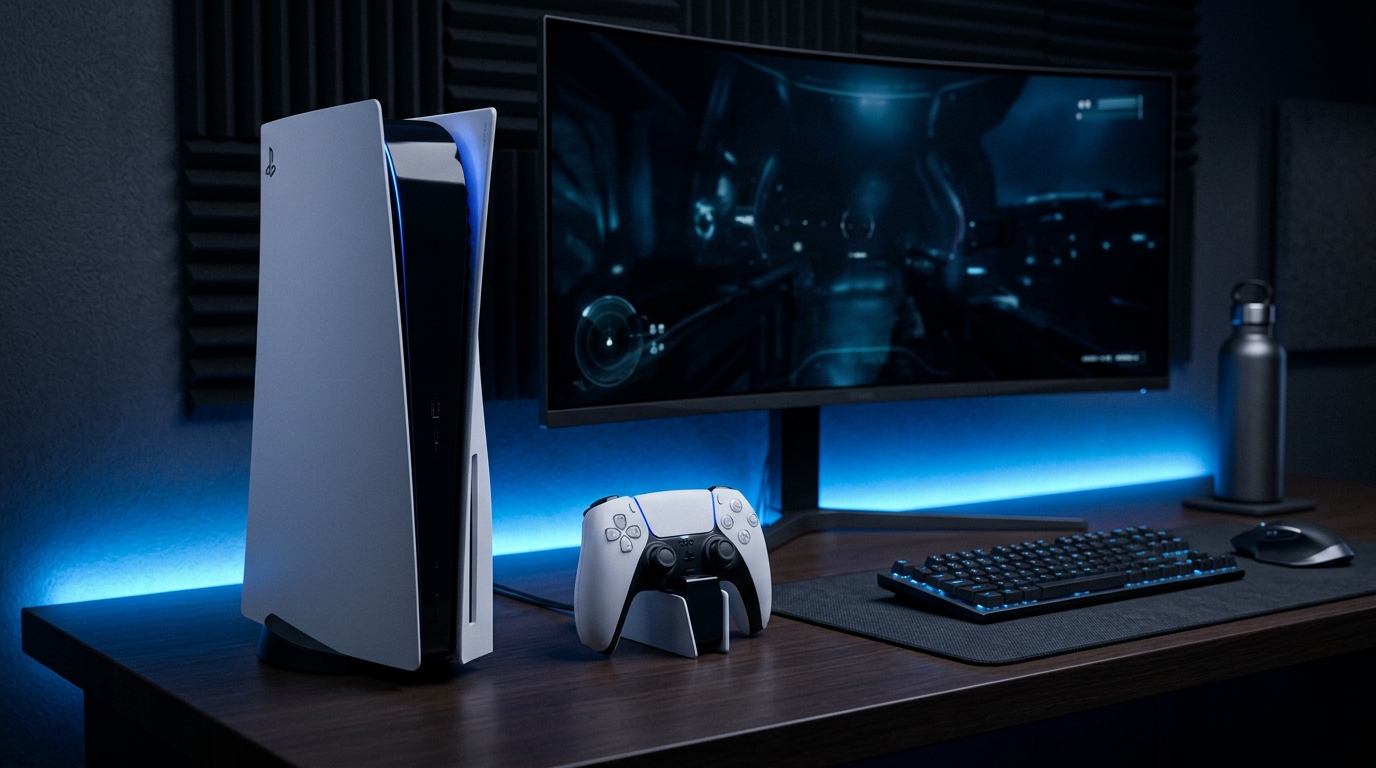
Connecting a PlayStation 4 (PS4) DualShock 4 controller to a Windows PC can enhance your gaming experience significantly, providing a familiar and comfortable interface for gamers used to console gaming. This guide will walk you through the entire process, including both wired and wireless connections, utilizing the DS4Windows software to ensure compatibility with a wide array of games beyond Steam. From installation to advanced settings, we will cover everything you need to know to get your PS4 controller up and running on your Windows 10 or 11 PC.
Understanding Your PS4 Controller
The DualShock 4 controller is not just a game controller; it is a sophisticated piece of technology that includes features such as a touchpad, motion sensors, and a light bar. These features can be mapped and utilized in various ways when gaming on a PC.
Specifications of DualShock 4
- Dimensions: 162 x 52 x 98 mm
- Weight: 210 grams
- Battery: 1000 mAh rechargeable lithium-ion battery
- Connectivity: Bluetooth 2.1 + EDR / USB 2.0
- Features: Touchpad, motion sensors, vibration feedback, and built-in speaker
Connecting Your PS4 Controller via USB
Using a USB connection is the easiest and most straightforward way to connect your PS4 controller to your Windows PC. Follow these steps:
- Gather Your Equipment: You will need a PS4 controller and a USB cable (the same one used to charge the controller).
- Connect the Controller: Plug one end of the USB cable into the controller and the other end into a USB port on your PC.
- Driver Installation: Windows should automatically recognize the controller and install the necessary drivers. You can check this by going to Device Manager and looking for the controller under Human Interface Devices.
- Test the Controller: Open the Devices and Printers settings in the Control Panel to check if your controller is listed. You can also test the inputs by right-clicking on the controller icon and selecting Game controller settings.
Connecting Your PS4 Controller via Bluetooth
If you prefer a wireless setup, you can connect your PS4 controller to your Windows PC via Bluetooth. Here’s how:
- Enable Bluetooth: Ensure your PC has Bluetooth capability. Go to Settings > Devices > Bluetooth & other devices and toggle Bluetooth to ON.
- Prepare the Controller: Press and hold the Share button and the PS button on the controller simultaneously until the light bar starts to flash.
- Add Bluetooth Device: On your PC, click on Add Bluetooth or other device and select Bluetooth. Your PC will search for available devices.
- Select the Controller: When the PS4 controller appears in the list, click on it to connect. After successfully pairing, the light bar will change to a solid color.
Installing DS4Windows Software
To fully utilize the capabilities of your PS4 controller on a Windows PC, it’s highly recommended to use DS4Windows. This software allows you to emulate an Xbox 360 controller, which is compatible with many games that do not support the DualShock 4 natively.
Step-by-Step Installation
- Download DS4Windows: Visit the DS4Windows GitHub page and download the latest version of the software.
- Extract Files: Unzip the downloaded file into a new folder.
- Run DS4Windows: Open the DS4Windows.exe file. You will be prompted to choose a location for the controller profiles. You can use the default location or select a custom folder.
- Install Drivers: The first time you run DS4Windows, you will need to install the necessary drivers. Follow the prompts to install the DS4 Driver and Vigem Bus Driver.
- Connect Your Controller: If your controller is connected via USB, it should be detected automatically. If you are using Bluetooth, ensure the controller is on and in pairing mode.
Configuring DS4Windows
Once DS4Windows is installed, you can customize your controller settings to fit your gaming needs.
Creating Profiles
- Access Profiles: In the DS4Windows interface, navigate to the Profiles tab.
- Create New Profile: Click on the New button to create a new profile for your PS4 controller.
- Mapping Controls: In the new profile, you can map buttons, adjust sensitivity, and modify the touchpad settings. Simply click on the button you want to remap and select the new function from the dropdown menu.
Touchpad and LED Customization
The DualShock 4 touchpad can be utilized in various ways. In DS4Windows, you can assign touchpad functionalities:
- Touchpad Click: Assign a button function to the touchpad click.
- Swipe Gestures: You can map swipe gestures to different actions, making it easier to perform in-game commands.
Additionally, you can customize the LED light bar colors by navigating to the Controller Settings in DS4Windows:
- Access LED Settings: In the controller settings, find the option for LED Color.
- Select Colors: Choose a color for the LED light bar based on your profile or gameplay preferences.
Using Your PS4 Controller with Non-Steam Games
DS4Windows allows you to play non-Steam games seamlessly. Here's how to set it up:
- Launch DS4Windows: Make sure DS4Windows is running in the background.
- Open Non-Steam Game: Start your game directly from its launcher (for example, Epic Games or PC Game Pass).
- Check Input Recognition: Your inputs should now be recognized. If not, revisit your DS4Windows settings and ensure the profile is active.
Troubleshooting Common Issues
Even with the best setups, issues can arise. Below are some common problems and their solutions:
Controller Not Recognized
If your controller is not being recognized by Windows or DS4Windows, try the following:
- Check Connections: Ensure that the USB cable is functioning properly or that Bluetooth is enabled on your PC.
- Reinstall Drivers: Go to the DS4Windows settings and reinstall the drivers.
- Update Windows: Make sure that your Windows operating system is up to date.
Input Lag
Experiencing input lag can hinder your gaming experience. To resolve this:
- Adjust DS4Windows Settings: Lower the sensitivity settings in DS4Windows.
- Close Background Applications: Disable any unnecessary applications that may be consuming system resources.
Bluetooth Connectivity Issues
If you face issues connecting via Bluetooth:
- Reset Controller: Hold the small reset button on the back of the controller for a few seconds.
- Remove Old Devices: In the Bluetooth settings, remove any old or unused Bluetooth devices to avoid conflicts.
Incompatibility with Specific Games
Some games might not recognize the PS4 controller correctly. In such cases:
- Use Steam Big Picture Mode: Launch your game through Steam’s Big Picture Mode, which can better recognize various controllers.
- Check Game Settings: Ensure that the game settings allow for controller input.
Firmware Specifications
Keeping your PS4 controller firmware up to date is crucial for optimal performance. Sony periodically releases updates that enhance performance and add compatibility with new games. Here’s how to check and update your firmware:
- Connect the Controller: Ensure your PS4 controller is connected to the PS4 or PC via USB.
- Access Settings: On your PS4, navigate to Settings > Devices > Bluetooth Devices.
- Check for Updates: If an update is available, follow the prompts to download and install it.
For PC users, you can check for updates through the PlayStation website or use the official PS4 Remote Play application, which may prompt you for updates when connected to your controller.
Connection Diagnostics
Diagnosing connection issues with your PS4 controller can help ensure a smooth gaming experience. Here are steps to perform diagnostics:
USB Connection Test
To verify USB connectivity:
- Check Cable Integrity: Inspect the USB cable for any visible damage.
- Test Ports: Try connecting the controller to different USB ports on your PC.
- Device Manager: Open Device Manager to see if the controller appears under Human Interface Devices.
Bluetooth Connection Test
For Bluetooth connections:
- Bluetooth Settings: Go to Settings > Devices > Bluetooth & other devices to ensure the controller is paired.
- Signal Strength: Move closer to the PC to check if distance affects connectivity.
- Interference Check: Ensure no other devices are causing interference by temporarily turning off nearby Bluetooth devices.
Compatibility Matrix
Understanding the compatibility of your PS4 controller with various games and platforms can help optimize your gaming experience. Below is a compatibility matrix:
| Platform | Compatibility |
|---|---|
| Steam | Fully supported with native settings |
| Epic Games Store | Supported via DS4Windows |
| PC Game Pass | Supported via DS4Windows |
| Origin | Partially supported; may require additional configuration |
| Uplay | Partially supported; may require additional configuration |
This matrix helps identify which platforms allow for seamless use of the PS4 controller without extensive additional setup.
Signal Interference Fixes
Signal interference can affect the performance of your PS4 controller when connected via Bluetooth. Here are some fixes:
Identify Interfering Devices
Common devices that may interfere include:
- Wireless routers
- Microwave ovens
- Other Bluetooth devices
Optimize Bluetooth Settings
To reduce interference:
- Change Frequency: If your router supports both 2.4 GHz and 5 GHz, switch to a less congested frequency.
- Reduce Distance: Keep the controller as close to the receiver as possible.
Physical Barriers
Remove any physical objects between the controller and the PC that may block the signal. Barriers like walls and furniture can significantly weaken the Bluetooth connection.
Maintenance Guide
Proper maintenance of your PS4 controller can prolong its lifespan and performance. Here are some tips:
Cleaning the Controller
Regular cleaning helps prevent dust and grime buildup. Use a microfiber cloth slightly dampened with water or isopropyl alcohol to clean the exterior. Avoid getting moisture into the openings.
Battery Care
To ensure the longevity of the battery:
- Avoid letting the battery completely discharge regularly.
- Charge the controller after heavy use to maintain battery health.
Storage Tips
When not in use, store your controller in a cool, dry place, away from direct sunlight to prevent heat damage.
DomineTec Pro Tip: Always keep your controller firmware updated for optimal performance and compatibility. Check for firmware updates from the PlayStation website regularly.
Firmware Specifications
Keeping your PS4 controller firmware up to date is crucial for optimal performance. Sony periodically releases updates that enhance performance and add compatibility with new games. Here’s how to check and update your firmware:
- Connect the Controller: Ensure your PS4 controller is connected to the PS4 or PC via USB.
- Access Settings: On your PS4, navigate to Settings > Devices > Bluetooth Devices.
- Check for Updates: If an update is available, follow the prompts to download and install it.
For PC users, you can check for updates through the PlayStation website or use the official PS4 Remote Play application, which may prompt you for updates when connected to your controller.
Connection Diagnostics
Diagnosing connection issues with your PS4 controller can help ensure a smooth gaming experience. Here are steps to perform diagnostics:
USB Connection Test
To verify USB connectivity:
- Check Cable Integrity: Inspect the USB cable for any visible damage.
- Test Ports: Try connecting the controller to different USB ports on your PC.
- Device Manager: Open Device Manager to see if the controller appears under Human Interface Devices.
Bluetooth Connection Test
For Bluetooth connections:
- Bluetooth Settings: Go to Settings > Devices > Bluetooth & other devices to ensure the controller is paired.
- Signal Strength: Move closer to the PC to check if distance affects connectivity.
- Interference Check: Ensure no other devices are causing interference by temporarily turning off nearby Bluetooth devices.
Compatibility Matrix
Understanding the compatibility of your PS4 controller with various games and platforms can help optimize your gaming experience. Below is a compatibility matrix:
| Platform | Compatibility |
|---|---|
| Steam | Fully supported with native settings |
| Epic Games Store | Supported via DS4Windows |
| PC Game Pass | Supported via DS4Windows |
| Origin | Partially supported; may require additional configuration |
| Uplay | Partially supported; may require additional configuration |
This matrix helps identify which platforms allow for seamless use of the PS4 controller without extensive additional setup.
Signal Interference Fixes
Signal interference can affect the performance of your PS4 controller when connected via Bluetooth. Here are some fixes:
Identify Interfering Devices
Common devices that may interfere include:
- Wireless routers
- Microwave ovens
- Other Bluetooth devices
Optimize Bluetooth Settings
To reduce interference:
- Change Frequency: If your router supports both 2.4 GHz and 5 GHz, switch to a less congested frequency.
- Reduce Distance: Keep the controller as close to the receiver as possible.
Physical Barriers
Remove any physical objects between the controller and the PC that may block the signal. Barriers like walls and furniture can significantly weaken the Bluetooth connection.
Maintenance Guide
Proper maintenance of your PS4 controller can prolong its lifespan and performance. Here are some tips:
Cleaning the Controller
Regular cleaning helps prevent dust and grime buildup. Use a microfiber cloth slightly dampened with water or isopropyl alcohol to clean the exterior. Avoid getting moisture into the openings.
Battery Care
To ensure the longevity of the battery:
- Avoid letting the battery completely discharge regularly.
- Charge the controller after heavy use to maintain battery health.
Storage Tips
When not in use, store your controller in a cool, dry place, away from direct sunlight to prevent heat damage.
DomineTec Pro Tip: Always keep your controller firmware updated for optimal performance and compatibility. Check for firmware updates from the PlayStation website regularly.
Connection Diagnostics
Diagnosing connection issues with your PS4 controller can help ensure a smooth gaming experience. Here are steps to perform diagnostics:
USB Connection Test
To verify USB connectivity:
- Check Cable Integrity: Inspect the USB cable for any visible damage.
- Test Ports: Try connecting the controller to different USB ports on your PC.
- Device Manager: Open Device Manager to see if the controller appears under Human Interface Devices.
Bluetooth Connection Test
For Bluetooth connections:
- Bluetooth Settings: Go to Settings > Devices > Bluetooth & other devices to ensure the controller is paired.
- Signal Strength: Move closer to the PC to check if distance affects connectivity.
- Interference Check: Ensure no other devices are causing interference by temporarily turning off nearby Bluetooth devices.
Firmware Specifications
Keeping your PS4 controller firmware up to date is crucial for optimal performance. Sony periodically releases updates that enhance performance and add compatibility with new games. Here’s how to check and update your firmware:
- Connect the Controller: Ensure your PS4 controller is connected to the PS4 or PC via USB.
- Access Settings: On your PS4, navigate to Settings > Devices > Bluetooth Devices.
- Check for Updates: If an update is available, follow the prompts to download and install it.
For PC users, you can check for updates through the PlayStation website or use the official PS4 Remote Play application, which may prompt you for updates when connected to your controller.
Firmware Specifications
Keeping your PS4 controller firmware up to date is crucial for optimal performance. Sony periodically releases updates that enhance performance and add compatibility with new games. Here’s how to check and update your firmware:
- Connect the Controller: Ensure your PS4 controller is connected to the PS4 or PC via USB.
- Access Settings: On your PS4, navigate to Settings > Devices > Bluetooth Devices.
- Check for Updates: If an update is available, follow the prompts to download and install it.
For PC users, you can check for updates through the PlayStation website or use the official PS4 Remote Play application, which may prompt you for updates when connected to your controller.
Connection Diagnostics
Diagnosing connection issues with your PS4 controller can help ensure a smooth gaming experience. Here are steps to perform diagnostics:
USB Connection Test
To verify USB connectivity:
- Check Cable Integrity: Inspect the USB cable for any visible damage.
- Test Ports: Try connecting the controller to different USB ports on your PC.
- Device Manager: Open Device Manager to see if the controller appears under Human Interface Devices.
Bluetooth Connection Test
For Bluetooth connections:
- Bluetooth Settings: Go to Settings > Devices > Bluetooth & other devices to ensure the controller is paired.
- Signal Strength: Move closer to the PC to check if distance affects connectivity.
- Interference Check: Ensure no other devices are causing interference by temporarily turning off nearby Bluetooth devices.
Compatibility Matrix
Understanding the compatibility of your PS4 controller with various games and platforms can help optimize your gaming experience. Below is a compatibility matrix:
| Platform | Compatibility |
|---|---|
| Steam | Fully supported with native settings |
| Epic Games Store | Supported via DS4Windows |
| PC Game Pass | Supported via DS4Windows |
| Origin | Partially supported; may require additional configuration |
| Uplay | Partially supported; may require additional configuration |
This matrix helps identify which platforms allow for seamless use of the PS4 controller without extensive additional setup.
Signal Interference Fixes
Signal interference can affect the performance of your PS4 controller when connected via Bluetooth. Here are some fixes:
Identify Interfering Devices
Common devices that may interfere include:
- Wireless routers
- Microwave ovens
- Other Bluetooth devices
Optimize Bluetooth Settings
To reduce interference:
- Change Frequency: If your router supports both 2.4 GHz and 5 GHz, switch to a less congested frequency.
- Reduce Distance: Keep the controller as close to the receiver as possible.
Physical Barriers
Remove any physical objects between the controller and the PC that may block the signal. Barriers like walls and furniture can significantly weaken the Bluetooth connection.
Maintenance Guide
Proper maintenance of your PS4 controller can prolong its lifespan and performance. Here are some tips:
Cleaning the Controller
Regular cleaning helps prevent dust and grime buildup. Use a microfiber cloth slightly dampened with water or isopropyl alcohol to clean the exterior. Avoid getting moisture into the openings.
Battery Care
To ensure the longevity of the battery:
- Avoid letting the battery completely discharge regularly.
- Charge the controller after heavy use to maintain battery health.
Storage Tips
When not in use, store your controller in a cool, dry place, away from direct sunlight to prevent heat damage.
DomineTec Pro Tip: Always keep your controller firmware updated for optimal performance and compatibility. Check for firmware updates from the PlayStation website regularly.
Frequently Asked Questions (FAQ)
1. Can I use a PS4 controller on Windows without DS4Windows?
Yes, you can use a PS4 controller on Windows without DS4Windows for games that support PlayStation controllers natively, such as those on Steam. However, many non-Steam games may require DS4Windows to properly recognize the controller and its features.
2. What should I do if my PS4 controller is not connecting via Bluetooth?
If your PS4 controller is not connecting via Bluetooth, ensure that Bluetooth is enabled on your PC and that the controller is in pairing mode (flashing light). Additionally, try resetting the controller by pressing the reset button on the back.
3. How can I remap buttons on my PS4 controller?
You can remap buttons on your PS4 controller using DS4Windows. Create or select a profile and then click on the button you wish to change. Choose the desired function from the dropdown menu to remap it.
4. Is it possible to use multiple PS4 controllers on Windows?
Yes, you can connect multiple PS4 controllers to a Windows PC, either via USB or Bluetooth. Each controller will be recognized as a separate device, allowing multiple players to join in on gaming sessions.
5. Can I use the PS4 controller for games on other platforms, like Epic Games Store or PC Game Pass?
Yes, you can use the PS4 controller for games on other platforms, such as the Epic Games Store or PC Game Pass, by utilizing DS4Windows to ensure compatibility with Xbox controller emulation.






