How to Use Your Smartphone as a Windows PC Game Controller Over Wi-Fi
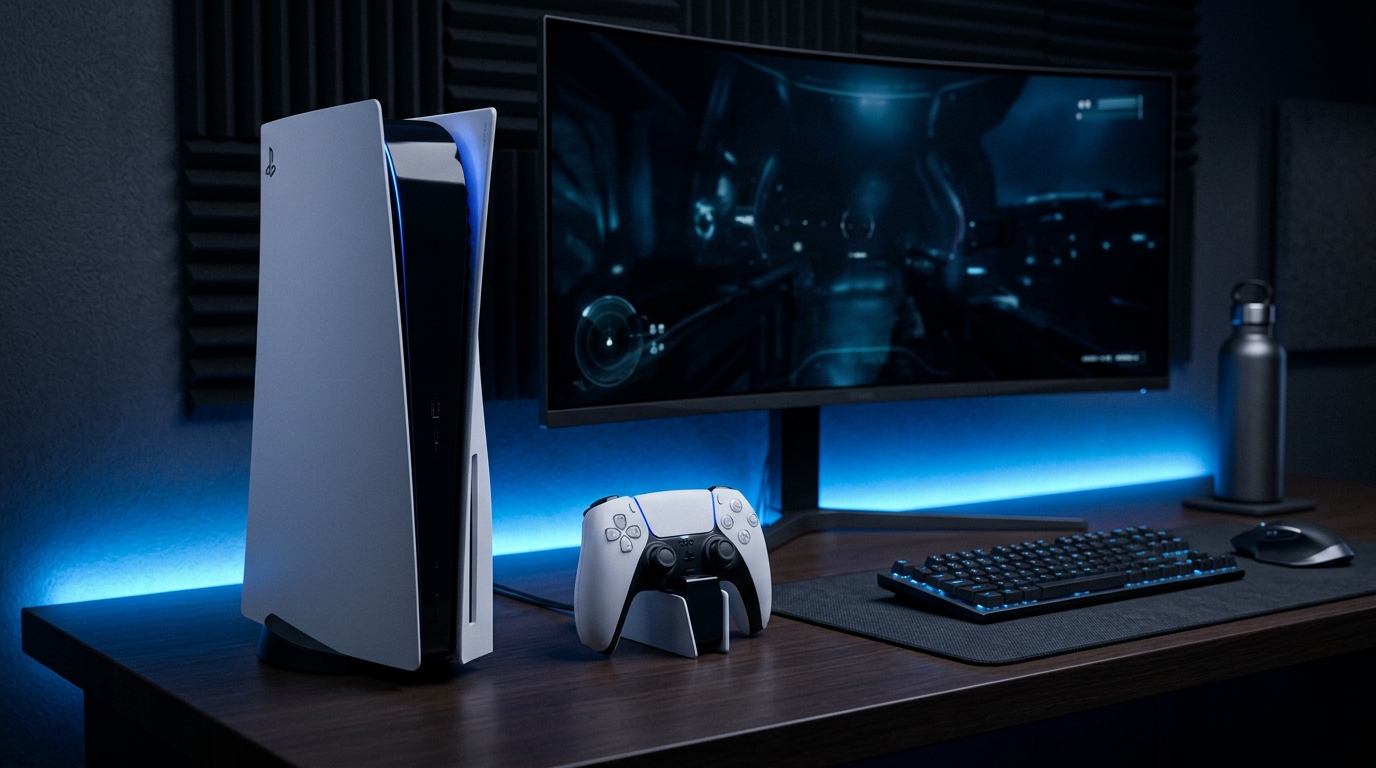
In the world of gaming, having the right controller can make all the difference. No entanto, nem todos têm o orçamento para um controle de jogo extra ou talvez você queira uma solução mais portátil. Felizmente, seu smartphone pode ser transformado em um poderoso controle de jogo para PC Windows via Wi-Fi. Este guia abrangente o levará pelo processo de usar seu dispositivo Android ou iOS como um controle de jogo sem fio, utilizando aplicativos populares como PC Remote (Monect), HandyPad, DroidJoy e Steam Link. Vamos explorar a conexão via Wi-Fi local e Bluetooth, emulando drivers XInput para compatibilidade perfeita com títulos da Steam, Epic Games e Game Pass, além de personalizar layouts na tela e ajuste de latência. Vamos mergulhar!
Understanding the Basics
Before we dive into the applications and their setup, it's essential to understand the technology behind using your smartphone as a game controller. Most modern games on Windows PCs support the XInput driver, which is used by Xbox controllers. This means that your smartphone needs to emulate this driver to communicate correctly with your gaming PC. Fortunately, several apps are available that can do just that.
Requirements for Setup
- A Windows PC with the game you want to play installed.
- A smartphone (Android or iOS) with an internet connection.
- A local Wi-Fi network.
- The corresponding game controller app installed on both your smartphone and your PC.
Choosing the Right App
There are several apps available for both Android and iOS that allow you to use your smartphone as a game controller. Below, we’ll take a closer look at some of the most popular options.
1. PC Remote (Monect)
PC Remote is a versatile app that allows users to control their PC remotely, and it includes a game controller feature. With a user-friendly interface and extensive customization options, it's a great choice for gamers.
2. HandyPad
HandyPad offers a simple interface for controlling games and applications on your PC. It supports touch control and various layouts, which makes it an excellent option for casual gaming.
3. DroidJoy
DroidJoy is specifically designed for Android users, offering a range of features including joystick emulation, customizable layouts, and more. It's perfect for gamers looking for a comprehensive solution.
4. Steam Link
Steam Link allows you to stream your games from your PC to your smartphone and offers an integrated controller layout. This is ideal for users who primarily game on Steam.
Installing the Apps
Now that you’ve chosen an app, let’s go through the installation process for both your smartphone and PC.
Step 1: Install the App on Your Smartphone
For Android:
- Open the Google Play Store.
- Search for the chosen app (e.g., PC Remote, HandyPad, DroidJoy, or Steam Link).
- Tap 'Install' and wait for the app to download and install.
For iOS:
- Open the App Store.
- Search for the chosen app.
- Tap 'Get' and authenticate as needed to download and install the app.
Step 2: Install the Companion Software on Your PC
Most of these applications require a companion software installation on your Windows PC. Here’s how to do it:
- Visit the official website of the app you’ve chosen.
- Download the Windows version of the companion software.
- Run the installer and follow the on-screen instructions to install the software.
Connecting Your Smartphone to Your PC
After installing the necessary apps, it’s time to connect your smartphone to your PC. This can generally be done over local Wi-Fi or Bluetooth, depending on the application.
Step 1: Connect via Wi-Fi
1. Ensure both your smartphone and PC are connected to the same Wi-Fi network.
2. Open the companion app on your PC and the corresponding app on your smartphone.
3. The smartphone app should automatically detect your PC. If not, you may need to enter an IP address provided by the PC app.
Step 2: Connect via Bluetooth (if supported)
1. Enable Bluetooth on both your smartphone and PC.
2. On your smartphone, open the app and select the Bluetooth option.
3. Follow the prompts to pair your smartphone with your PC.
Configuring the Controller Settings
Once connected, you will need to configure the controller settings to ensure everything works smoothly.
Step 1: Access Controller Settings
1. Open the app on your smartphone.
2. Navigate to the settings or configuration section.
3. Select the option to configure the controller layout.
Step 2: Customize the Layout
1. You will see various options for buttons, joysticks, and other controls.
2. Drag and drop the control elements to customize your layout according to your preferences.
3. Save your configuration once you are satisfied.
Testing Your Controller Configuration
After configuring your settings, it’s crucial to test your new setup to ensure everything works correctly.
Step 1: Launch a Game
1. Open a game on your PC that supports controller input.
2. Use the controller app to start controlling the game.
Step 2: Check for Functionality
1. Ensure all buttons and controls respond as expected.
2. Make adjustments to the layout or sensitivity if necessary.
DomineTec Tech Tip: Always test your configuration with a game that you are familiar with to better assess how your controls are working.
Latency Tuning for Optimal Performance
Latency can be a significant issue when using a smartphone as a game controller. Aqui estão algumas dicas para minimizar o atraso:
1. Use uma Conexão Com Fio (se possível)
While Wi-Fi is convenient, a wired connection via USB can significantly reduce latency.
2. Otimize Sua Rede Wi-Fi
- Ensure your router is not congested with too many devices.
- Use the 5GHz band if available for better performance.
3. Ajuste as Configurações de Sensibilidade
Many apps allow you to adjust the sensitivity of the controls. Experiment with these settings to find what works best for you.
Advanced Troubleshooting Techniques
If you encounter issues while using your smartphone as a game controller, here are some advanced troubleshooting techniques to consider:
1. Check Firewall and Antivirus Settings
Sometimes, firewall or antivirus software on your PC can block the connection between your smartphone and PC. Ensure that the app you are using is whitelisted in your security software.
2. Update Network Drivers
Outdated network drivers can lead to connectivity issues. Regularly check for updates for your network adapter to ensure optimal performance.
3. Reboot Devices
If you experience connectivity problems, try rebooting both your smartphone and PC. This can often resolve temporary network issues.
Alternative Settings for Enhanced Functionality
For a better gaming experience, consider the following alternative settings:
1. Custom Profiles
Many apps allow you to create custom profiles for different games. Take advantage of this feature to adjust settings like button layout and sensitivity for each game.
2. Use Game Mode on Your PC
Windows 10 and 11 offer a Game Mode feature that optimizes system resources for gaming. Enable this mode to minimize background processes and improve performance.
3. Monitor System Performance
Utilize performance monitoring tools to keep an eye on your CPU and memory usage while gaming. This can help identify any bottlenecks that may affect gameplay.
Long-Term Care Tips for Your Setup
Maintaining your smartphone and gaming setup will ensure longevity and optimal performance:
1. Regular App Updates
Always keep your game controller apps updated to the latest version to benefit from new features and bug fixes.
2. Clean Your Devices
Regularly clean your smartphone and PC components to prevent dust buildup, which can impact performance and cooling.
3. Battery Care
Be mindful of your smartphone’s battery health. Avoid extreme temperatures and charge your device within recommended levels to prolong battery life.
Advanced Troubleshooting Techniques
When you face persistent issues, here are more in-depth troubleshooting techniques:
1. Check for App Conflicts
Sometimes, other applications running on your PC can conflict with the controller app. Close all unnecessary applications and try reconnecting your smartphone.
2. Test Different Wi-Fi Channels
If you're experiencing connectivity issues, consider changing the Wi-Fi channel on your router. Often, interference from neighboring networks can affect performance.
3. Reset Network Settings
If all else fails, resetting the network settings on your smartphone and PC can sometimes resolve stubborn connectivity issues. Be aware that this will remove saved Wi-Fi networks and may require reconfiguration.
Alternative Settings for Enhanced Functionality
Explore these additional settings for an improved gaming experience:
1. Adjust Control Dead Zones
Some apps allow you to set dead zones for your joystick controls, which can help in achieving better precision. Adjust these settings based on your gaming style.
2. Enable V-Sync
If you notice tearing or stuttering in games, enabling V-Sync in your game settings can help synchronize the frame rate with your display refresh rate.
3. Use a Gaming Mouse and Keyboard Setup
For games that allow, consider using a combination of your smartphone as a controller and using a mouse and keyboard for precision tasks to enhance your gameplay.
Long-Term Care Tips for Your Setup
Taking care of your gaming setup will ensure a longer lifespan and better performance:
1. Backup Settings
Regularly back up your app settings and profiles, especially before major updates, to avoid losing your customized configurations.
2. Use Quality Charging Accessories
Always use high-quality chargers and cables for your smartphone. Cheap accessories can damage battery health over time.
3. Store Your Devices Properly
When not in use, store your smartphone and any gaming accessories in a cool, dry place to prevent overheating or moisture damage.
Comparison of Top Apps
| App Name | Platform | Features | Price | Rating |
|---|---|---|---|---|
| PC Remote (Monect) | Android, iOS | Custom layouts, multi-device support | Free / Paid | 4.5/5 |
| HandyPad | Android, iOS | Simple interface, touch control | Free | 4.0/5 |
| DroidJoy | Android | Joystick emulation, customizable | Free / Paid | 4.3/5 |
| Steam Link | Android, iOS | Game streaming, integrated controls | Free | 4.6/5 |
| GameSir World | Android, iOS | Multi-platform support | Free / Paid | 4.2/5 |
Frequently Asked Questions (FAQ)
1. Can I use my smartphone as a controller for all PC games?
While most games that support XInput should work, some games may not recognize third-party controllers. Testing is crucial.
2. Will using my smartphone as a controller affect my gaming experience?
It may initially feel different than using a physical controller, but with practice, you can adapt to the controls and enjoy a comparable experience.
3. Is there a risk of latency when using my smartphone as a controller?
Yes, latency can occur, especially over Wi-Fi. To minimize this, consider wired connections or optimizing your Wi-Fi setup.
4. Are there any compatibility issues with my smartphone?
Most modern smartphones (Android and iOS) should work well, but always check app compatibility and requirements.
5. Can I use multiple smartphones as controllers for one PC?
Yes, many apps support multiple devices. Check the app's documentation for details on how to set this up.






