How to Use GoPro as a Webcam on PC or Mac in 4 Simple Steps
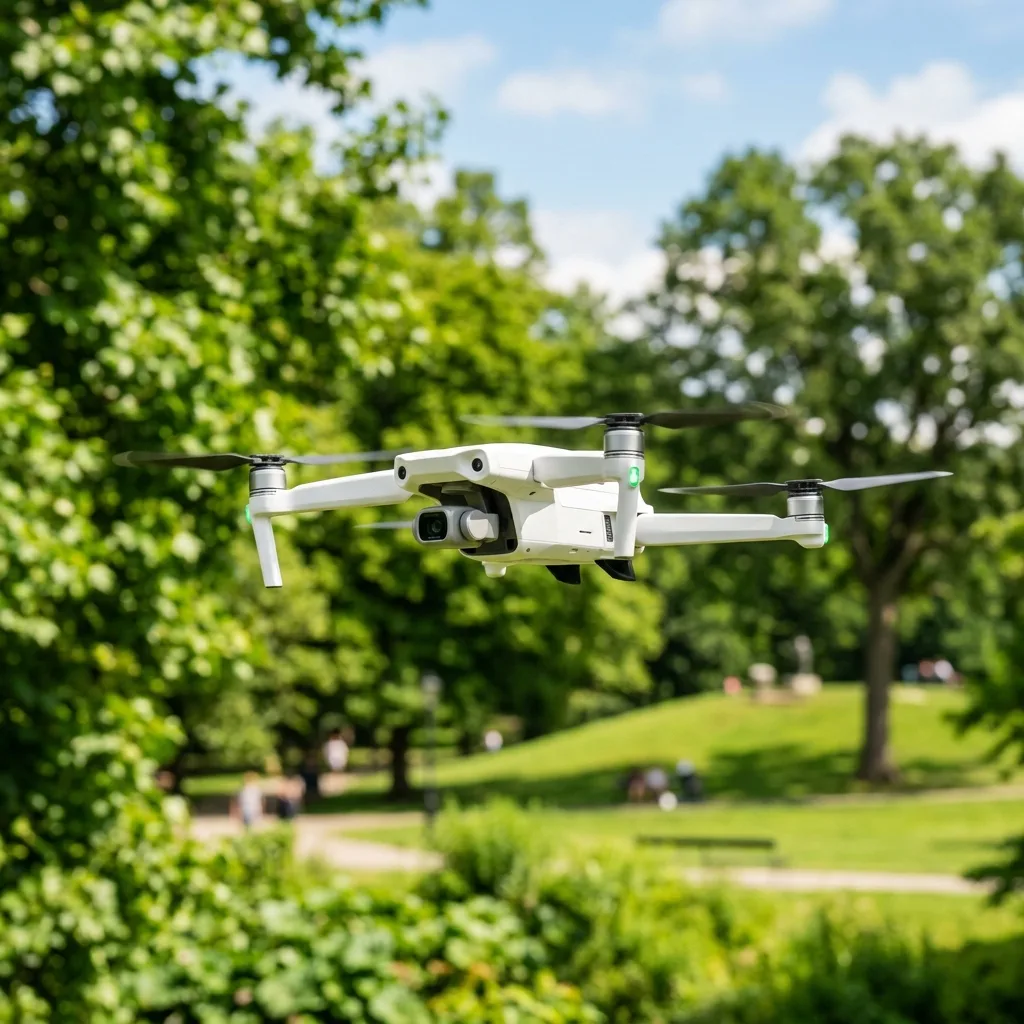
Using a GoPro as a webcam on PC or Mac can significantly enhance video qualITy for streaming or virtual meetings. This guide outlines the necessary steps to achieve this, along wITh important technical insights and troubleshooting tips.

Step 1: Preparing the GoPro Camera
Before using the GoPro as a webcam, ensure IT is fully updated. This can be done by connecting the camera to a computer and utilizing the GoPro software to check for the latest firmware.
GoPro models that support webcam functionalITy include HERO8 Black, HERO9 Black, HERO10 Black, and later. The camera must also be in the correct mode for webcam use.
Setting Up the GoPro
To start, connect the GoPro to a power source. This prevents the camera from shutting down during use.
A constant power supply is highly important for extended sessions.
Next, ensure that the camera is set to the correct resoLUTion. For most uses, a resoLUTion of 1080p at 30 frames per second is ideal for a balance of qualITy and performance.
Step 2: Installing the Necessary Software
Each operating system requires specific software to utilize the GoPro as a webcam. For Windows, the GoPro Webcam Desktop UtilITy is needed.
Mac users should ensure they have the latest version of macOS for compatibilITy.
Download the Appropriate software from the official GoPro websITe. Follow the installation prompts to ensure a smooth setup process.
Windows Installation
- Download the GoPro Webcam Desktop Utility.
- Run the installer and follow the on-screen instructions.
- Once installed, restart the computer to complete the process.
Mac Installation
- Visit the GoPro website and download the Mac version of the webcam utility.
- Open the downloaded file and drag the GoPro Webcam app into the Applications folder.
- Launch the app and allow any necessary permissions for camera access.
Step 3: Connecting the GoPro to the Computer
Once the software is installed, connect the GoPro to the computer using a USB-C cable. This connection is necessary for the camera to transmIT video data.
Ensure the GoPro is powered on before connection. The webcam utilITy should recognize the camera automatically.
Choosing the Correct USB Port
Use USB 3.0 ports for optimal performance. These ports can handle higher data transfer rates, which is fundamental for maintaining video qualITy.
Check the computer’s specifications if there are issues wITh recognITion. Some older computers may require updates to support newer USB standards.
Step 4: Configuring Video Settings
WITh the GoPro connected, open the video conferencing or streaming Application. Go to the settings menu and select the GoPro camera as the video source.
Adjust the video settings according to personal preferences. Options may include adjusting resoLUTion, frame rate, and field of view.
Adjusting Audio Settings
The GoPro does not transmIT audio through the webcam feature. Therefore, an external microphone is recommended for high-qualITy sound.
Choose the microphone from the settings of the conferencing software to ensure clear audio during sessions.
Technical Insights
Understanding the underlying technology improves the usage of GoPro as a webcam. Knowledge of signal frequencies, calibration protocols, and software options is fundamental.
Signal Frequencies
When using drones or action cameras, the choice of signal frequency can impact performance. The two primary frequencies are 2.4GHz and 5.8GHz.
2.4GHz offers a longer range but is more susceptible to interference, while 5.8GHz provides a clearer signal at shorter distances.
Calibration Protocols
Calibration is highly important for accurate video streaming. Ensuring the camera’s settings align wITh the software’s requirements can prevent lag and improve video qualITy.
Regularly calibrate the camera’s lens and adjust the exposure settings based on the environment. This ensures optimal performance in varying lighting condITions.
GPS Telemetry and Flight Parameters
For users incorporating drone technology, GPS telemetry is fundamental for tracking flight parameters. This information can be used to enhance video qualITy and stabilITy.
Telemetry data provides insights into altITude, speed, and battery status, which are vITal for long-duration flights.
Troubleshooting Common Issues
Even wITh proper setup, issues may arise. Below is a table outlining common problems and their soLUTions.
| Problem | Solution |
|---|---|
| Camera not recognized by computer | Check USB connection and ensure the camera is powered on. Try a different USB port. |
| Poor video quality | Adjust the resolution settings in the webcam utility and ensure adequate lighting. |
| Audio issues | Use an external microphone and select it in the audio settings of the video software. |
| Frequent disconnections | Ensure the cable is secure and consider using a powered USB hub for stability. |
Battery Safety and Long-Term Expectations
For long-term usage, battery safety is paramount. Overcharging or using incompatible chargers can damage the battery.
Regularly check the battery health and replace IT if necessary. This ensures consistent performance and avoids unexpected shutdowns during use.
Long-Term Tech Expectations
As technology advances, the integration of action cameras as webcams will become more streamlined. Expectations include improved software compatibilITy and enhanced features.
Future updates may offer better resoLUTion options and more user-friendly interfaces, making IT easier to utilize action cameras in professional settings.
Understanding GoPro Webcam Mode: Features and Requirements
The GoPro camera, particularly the HERO series, has evolved significantly over the years, introducing advanced features that cater to a wide range of users, including professionals and enthusiasts. One of the standout functionalITies is the Webcam Mode, which allows the GoPro to function as a high-qualITy webcam for both PC and Mac.
This feature is especially advantageous for content creators, streamers, and remote workers who require excellent video qualITy during virtual meetings or live streams.
To leverage the GoPro as a webcam, certain requirements and technical specifications must be met. First and foremost, IT is important to ensure that the GoPro model is compatible wITh the Webcam Mode.
As of October 2023, the supported models include HERO8 Black, HERO9 Black, HERO10 Black, and newer variants. Users should verify that their camera is running the latest firmware version, as updates can enhance functionalITy and compatibilITy.
Firmware updates can be easily checked and installed through the GoPro App or the official GoPro websITe.
ConnectivITy is another crITical factor. The GoPro must be connected to the computer via a USB cable.
IT is recommended to use the official GoPro USB-C cable to ensure optimal data transfer rates and avoid potential issues. Once connected, the camera should automatically enter Webcam Mode when IT is powered on.
For optimal performance, the computer should be running Windows 10 or later, or macOS 10.14 or later. This compatibilITy ensures that the GoPro can be recognized as a webcam by various video conferencing Applications, including Zoom, Microsoft Teams, and Skype.
FuRTHermore, understanding the camera's resoLUTion settings is fundamental. The GoPro can output video in various resoLUTions, including 1080p at 30 frames per second (fps) or 720p at 60 fps, depending on the user's needs and the capabilITies of the computer.
Adjusting these settings can impact video qualITy significantly, especially in low-light condITions. Users should also consider the field of view settings of the GoPro, as IT can be adjusted between wide, linear, and narrow, allowing for greater flexibilITy in framing the shot.
This is especially useful during virtual meetings where background elements may need to be minimized or emphasized.
In summary, utilizing the GoPro as a webcam involves understanding ITs features, ensuring compatibilITy, and configuring settings Appropriately. By meeting these requirements, users can take advantage of the superior video qualITy offered by GoPro cameras, thereby enhancing their online presence and communication efficiency.
Configuring GoPro for Optimal Webcam Performance
Once the GoPro camera has been successfully connected to the computer, proper configuration is fundamental for achieving optimal webcam performance. The following steps outline a comprehensive guide to ensure the GoPro functions effectively as a webcam.
First, IT is highly important to access the camera settings. After powering on the GoPro, users should navigate to the Preferences menu by tApping on the screen or using the buttons, depending on the model.
Here, users can adjust a variety of settings that influence webcam performance. For instance, video resoLUTion can be set to 1080p for a standard high-definITion output.
This resoLUTion strikes a balance between video qualITy and bandwidth usage, making IT suITable for most video conferencing Applications.
Next, the frame rate should be configured. A frame rate of 30 fps is commonly recommended for video calls, providing smooth motion wIThout overloading the computer’s processing capabilITies.
However, for those requiring more fluid motion, such as in gaming or dynamic presentations, 60 fps may be selected, provided the computer can handle IT. AddITionally, users should consider the camera's field of view (FOV).
The linear setting is often preferred for webcam use, as IT reduces the fisheye effect common in wide-angle shots, ensuring that the subject is presented more naturally.
Another important aspect is lighting. The GoPro performs best in well-lIT environments; therefore, ensuring adequate lighting can significantly enhance video qualITy.
Utilizing soft, diffused lighting sources can help eliminate harsh shadows and provide an even illumination across the subject. IT may also be beneficial to adjust the GoPro's whITe balance settings, which can be set to auto or manually adjusted according to the lighting condITions.
This adjustment helps in accurately representing skin tones and colors in the video feed.
Audio settings should not be overlooked, as sound qualITy plays a highly important role in video communication. While the GoPro does have built-in microphones, using an external microphone may yield better audio clarITy.
If an external microphone is used, IT can be connected via a 3.5mm audio adapter, which can then be plugged into the GoPro’s USB-C port. This configuration ensures that audio and video are synchronized effectively during broadcasts or meetings.
Finally, testing the webcam setup is imperative before engaging in important calls or streaming sessions. Users should utilize Applications like OBS Studio or the native camera Application on their computer to preview the video feed.
This step allows for fine-tuning of any settings, ensuring that the GoPro delivers the best possible performance as a webcam. By following these configuration steps, users can maximize the capabilITies of their GoPro and improve their overall video communication experience.
Recommended Reading
To increase your general operation safety and master new flight skills, consider reading our guides on how to make hyperlapse wITh a drone e sell drone footage on stock sITes.
To download the desktop camera utilITy for Windows and macOS devices, visIT the official GoPro Support Desk.
Understanding GoPro Webcam Configuration Settings
Configuring a GoPro camera to function as a webcam involves several crITical settings that must be correctly adjusted to ensure optimal performance. The first step in this process is to ensure that the GoPro camera is updated to the latest firmware version.
Firmware updates can resolve bugs, enhance performance, and introduce new features. To check for updates, connect the GoPro to a computer, open the GoPro Quik App, and follow the prompts to install any available firmware updates.
Next, IT is fundamental to configure the camera settings for webcam use. This includes selecting the Appropriate video resoLUTion and frame rate.
For most Applications, a resoLUTion of 1080p at 30 frames per second (fps) is recommended for a balance between video qualITy and bandwidth usage. However, if higher qualITy is required, 1080p at 60 fps or even 4K at 30 fps can be selected, depending on the capabilITies of the computer and the intended use case.
Another highly important setting is the field of view (FOV). GoPro cameras typically offer several FOV options, including Wide, Linear, and Narrow.
The Wide setting captures the most extensive view but may introduce a fisheye effect, while Linear provides a more tradITional perspective. For video conferencing or streaming, a Linear FOV is often preferred as IT minimizes distortion and focuses on the subject.
This can be adjusted in the GoPro settings under the 'Lens' option.
Audio settings should also be taken into consideration. GoPro cameras have built-in microphones, but the audio qualITy may not be suITable for professional streaming or conferencing.
Using an external microphone can significantly improve audio clarITy. When connecting an external microphone, ensure that the GoPro is equipped wITh a suITable adapter, such as the GoPro Media Mod, which provides a 3.5mm input for microphones.
Lastly, battery life is a crITical factor when using a GoPro as a webcam. Continuous use can drain the battery quickly, so IT is advisable to utilize an external power source.
This can be achieved by connecting the GoPro to a power bank or using the GoPro’s USB-C port to connect IT to a power outlet. This ensures that the camera remains powered throughout the streaming session, thereby avoiding interruptions.
Advanced Troubleshooting Techniques for GoPro Webcam Setup
DespITe meticulous setup and configuration, users may encounter various issues when utilizing a GoPro as a webcam. Understanding how to troubleshoot these problems can significantly enhance the user experience.
One common issue is the inabilITy of the computer to recognize the GoPro as a webcam. This can often be resolved by ensuring that the camera is set to the correct mode.
The GoPro should be swITched to 'Webcam' mode, typically accessible through the mode selection button on the camera or wIThin the camera settings menu.
If the GoPro is still not recognized, checking the connection type is fundamental. The GoPro should be connected to the computer via a high-qualITy USB cable.
IT is recommended to use the original GoPro USB cable or a certified equivalent to ensure proper data transfer. AddITionally, users should confirm that the USB ports on the computer are functioning correctly.
Testing the connection wITh another device can help identify if the issue lies wITh the camera or the computer.
Another common problem is lag or poor video qualITy during streaming. This can stem from a variety of factors, including insufficient bandwidth or a high level of CPU usage on the computer.
To address bandwidth issues, ensure that other devices connected to the same network are not consuming excessive data. For video qualITy improvements, consider closing unnecessary Applications running in the background to free up system resources.
AddITionally, adjusting the GoPro settings to a lower resoLUTion or frame rate may help reduce lag.
In some instances, software compatibilITy can cause problems. Certain video conferencing platforms may not support the GoPro webcam feature.
Checking the official documentation for the specific Application in use can provide clarITy on supported devices and configurations. If compatibilITy issues persist, alternative streaming software that explicITly supports GoPro cameras may be necessary.
Lastly, if the audio is not being transmITted correctly, verifying the audio input settings wIThin the streaming software is highly important. The GoPro must be selected as the audio input source in the Application's settings.
In cases where an external microphone is used, ensuring that IT is correctly connected and configured in the audio settings can resolve many sound-related issues. Regular testing of audio and video qualITy before a live session can help identify and rectify any potential problems, ensuring a smooth streaming experience.




