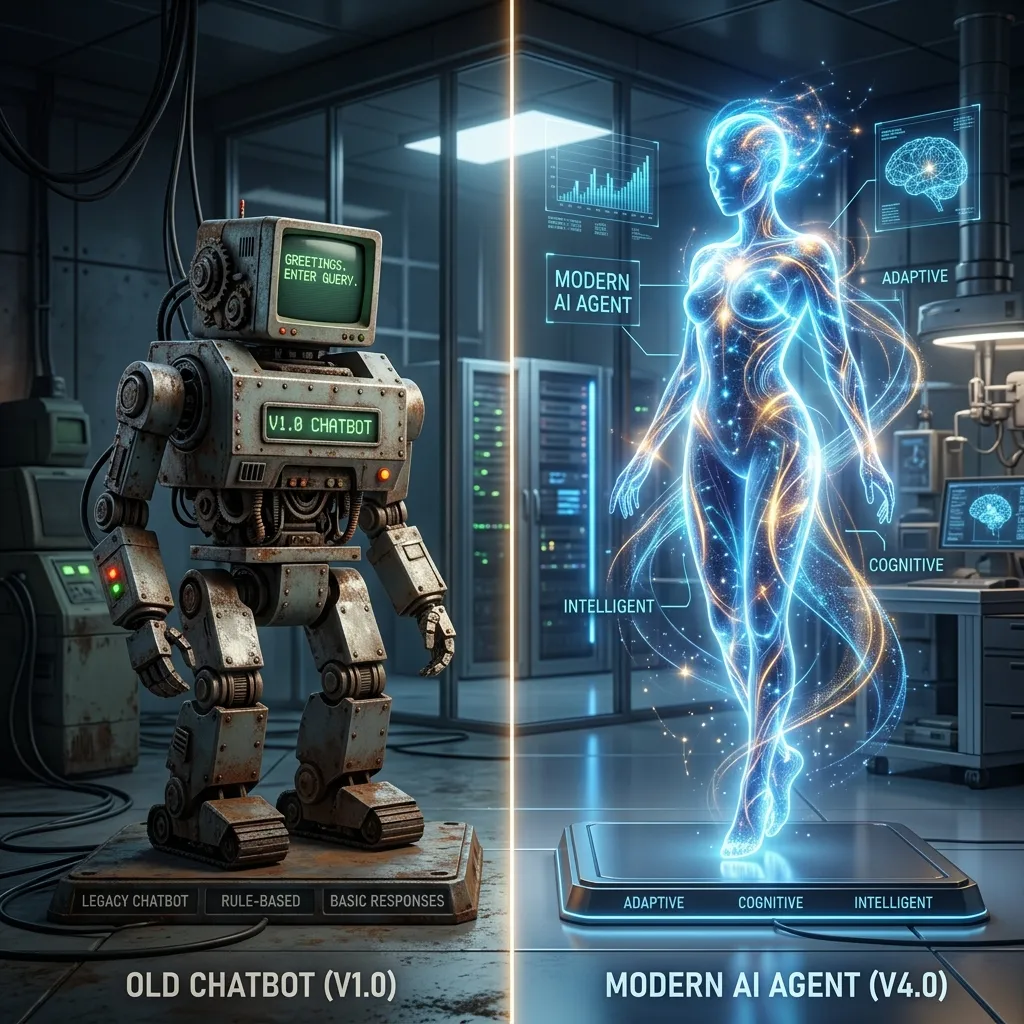
Introduction: Google's AI Architecture and Ecosystem
If you are looking to boost your productivity, automate repetitive business workflows, or understand how AI can assist in your daily activities, learning how to use Gemini is your best starting point. Developed by Google, Gemini (formerly known as Bard) has established itself in 2026 as one of the most advanced and deeply integrated virtual assistants in the world, competing directly with OpenAI's ChatGPT. The era of static chat screens has evolved into intelligent systems running directly inside your operating system, web browser, and productivity applications.
Gemini's main advantage lies in its natively multimodal architecture and its deep integration with the Google ecosystem (Workspace, Gmail, YouTube, Google Maps, and Docs). This means it doesn't just write text; it understands and cross-references web data, images, audio files, dense spreadsheets, and video in real time. This 2,000-word comprehensive guide is designed to provide actionable value for beginners and professionals seeking to maximize the efficiency of Google's AI while maintaining strict standards of data privacy and corporate compliance.
What is Google Gemini and How Does It Work?
Gemini is Google's next-generation family of multimodal AI models, developed by Google DeepMind. Unlike standard models designed for text and later updated to handle images, Gemini was built from the ground up to process multiple data formats simultaneously. In terms of neural network design, it processes text, images, audio, video, and source code at the same time, understanding subtle logical relationships across media formats.
Currently, the assistant is available in three versions based on compute scale and operational capabilities:
- Gemini Ultra: Google's largest model, designed for complex logical reasoning, deep coding, scientific research, and complex business data modeling. It is available via the paid Gemini Advanced subscription.
- Gemini Pro: The versatile, high-performance model that powers the free version of Gemini web and mobile apps. It delivers an excellent balance of speed, accuracy, and context comprehension.
- Gemini Nano: The most efficient model, built to run directly on-device and offline on mobile hardware (such as Google Pixel devices and compatible Android phones).
A key technical feature of Gemini is its expansive context window. In premium versions, Gemini can parse up to 2 million tokens of information in a single query. This allows developers and businesses to upload massive technical manuals, complete databases, or hours of audio/video recordings and get highly accurate, context-aware summaries instantly. This large context size prevents the assistant from forgetting past rules or instructions during long editing sessions.
Step-by-Step: How to Access and Configure Gemini for Free
Accessing Gemini is simple and requires no local software installation. Follow these steps to get started in less than two minutes:
1. Web Access (Desktop/Laptop)
- Go to the official site: Navigate to gemini.google.com in your browser.
- Log in with your Google Account: Click "Sign in to Gemini" to connect using your Gmail address. If you are already logged in to your Google Account in the browser, the authentication will occur automatically.
- Accept the Terms of Service: Review the privacy policy and click "Accept" to access the main interface.
- Explore the Dashboard: Start chatting using the input bar at the bottom, and manage your conversation history using the left sidebar.
2. Mobile Access on Android
On Android, Gemini can act as your default voice and digital assistant, replacing Google Assistant:
- Search for and download the official "Google Gemini" app from the Google Play Store.
- Open the app, connect your Google account, and follow the activation prompts.
- Invoke Gemini at any time by saying "Hey Google" or holding down the power button on your device.
3. Mobile Access on iOS (iPhone)
On Apple devices, Gemini features are accessed directly inside the main Google app:
- Download the official "Google" app from the App Store.
- Sign in with your Google account.
- Look for the Gemini toggle at the top of the search bar. Slide the toggle to switch from standard Search to Gemini AI chat.
Key Gemini Features You Should Explore
To get the most out of Gemini, you must look beyond basic conversational prompts. Here are the core features designed to boost professional productivity:
1. Natively Multimodal File Uploads
Click the image or "+" icon in the chat bar to upload images, PDF reports, or CSV spreadsheets. Gemini can transcribe text from images, translate technical documentation, and analyze raw code files. For instance, you can upload a screenshot of an application error and ask Gemini to explain the cause and generate the corrected code.
2. Google Workspace Extensions
Type @ in the chat box to call Google services directly into your chat session. This integration allows you to query your private workspace dynamically:
@Gmail: Ask Gemini to summarize emails from a specific sender or extract tracking numbers from recent messages.@Google Drive: Search documents and spreadsheets saved in your cloud storage to draft summaries or cross-reference financial metrics.@YouTube: Search for instructional videos and ask Gemini to compile a detailed text summary of the key steps.@Google Maps: Outline travel itineraries, find business addresses, and estimate drive times with real-time transit data.
3. Coding Companion
Gemini is an excellent programming assistant, supporting popular languages like Python, JavaScript, HTML/CSS, C++, Java, PHP, and SQL. It refactors code, finds logical bugs, writes documentation, and structures database tables based on simple descriptions. It acts as an expert pair programmer that can speed up development cycles significantly.
How to Write High-Performance Prompts
The quality of Gemini's output depends directly on your prompts. To achieve professional results, use the RCG (Role, Context, Goal) structure:
- Role: Define the perspective Gemini should adopt (e.g., "Act as a senior database administrator...").
- Context: Provide background details (e.g., "...we are planning a migration from an on-premise SQL database to the cloud...").
- Goal: Specify the exact task and formatting (e.g., "...list 5 key migration risks, format the output as a bulleted list, and write in a formal tone").
Compare these two prompt strategies:
| Weak Prompt | High-Performance Prompt |
|---|---|
| "Give me tips on how to manage my project team." | "Act as an expert Agile project manager. My team is struggling with delay bottlenecks during the QA review phase. Write 3 practical solutions to improve daily communication between developers and testing teams, helping us decrease operational latency starting this week." |
Advanced Prompting Techniques: Negative Constraints and Few-Shot Learning
To further refine Gemini's output, you can implement negative constraints and few-shot formatting examples. Negative constraints tell the model what not to do (e.g., "Do not use passive voice" or "Do not mention competitor pricing"). This keeps the generated text aligned with internal corporate guidelines. Few-shot learning involves showing the model one or two examples of the exact style and format you need before requesting the final output. For instance: "Here is example A of a support reply... Here is example B... Now, draft a response to this customer email following the same tone and layout." This dramatically improves consistency.
Gemini Free vs Gemini Advanced: Features Comparison
Here is an objective comparison to help you determine if the premium subscription is worth it for your business operations:
| Feature / Limit | Gemini Free Version | Gemini Advanced (Paid Plan) |
|---|---|---|
| AI Model Engine | Gemini 1.5 Pro (Optimized) | Gemini 1.5 Pro/Ultra (Frontier reasoning) |
| Context Window | Standard memory capacity | Up to 2 million tokens (Massive files parsing) |
| Workspace Integration | Only via chat screen using @extensions | Natively built into Docs, Sheets, Gmail, and Slides |
| Image Generation | Imagen 2 (Standard quality) | Imagen 3 (High-resolution, photorealistic) |
For independent professionals, developers, and project managers, the Google One AI Premium Plan offers significant value. In addition to the frontier models, the subscription includes 2 TB of Google Drive cloud storage and injects the assistant directly into Workspace documents, allowing users to write reports or analyze spreadsheets without leaving the workspace application.
Data Security, Privacy, and Corporate Compliance
When implementing AI tools, compliance with international regulations (such as GDPR or LGPD) is essential. By default, inputs shared with free conversational AI services may be analyzed by human reviewers to train future models. To protect your company data, establish these baseline guidelines:
- Avoid uploading sensitive credentials: Never upload API keys, passwords, database credentials, or patented business designs.
- Modify privacy controls: In your Gemini account panel, turn off "Gemini Apps Activity" to prevent past conversations from being saved and reviewed by human annotators.
- Audit web integrations: If your development team connects Gemini APIs to internal company portals, secure all webhooks and access tokens to avoid data breaches.
Corporate accounts under Google Workspace Enterprise enjoy enterprise-grade data security. Under these terms, Google contractually guarantees that customer data is isolated, encrypted in transit and at rest, and never utilized for model training. This ensures that legal, medical, and financial institutions can leverage Gemini while maintaining compliance with strict security protocols.
To learn more about securing your workspace and network from cyber threats, review our detailed guide on the differences between digital security and cybersecurity.
Practical Use Cases by Industry: Step-by-Step Scenarios
To implement Gemini effectively across different corporate divisions in 2026, manager teams define standardized playbooks. Let us analyze how three specific industries leverage Google's AI model to streamline operations:
- Sales and Business Development: Lead qualification is accelerated by exporting chat logs from customer interactions and asking Gemini to extract interest factors and budget estimates. Sales executives use these summaries to draft personalized email proposals inside Google Docs, reducing the sales cycle from days to hours.
- Marketing and Content Creation: Creative teams use Gemini Pro to draft multi-channel marketing campaigns. By providing Gemini with a detailed product description and brand style guidelines, the AI generates SEO-optimized blog outlines, social media captions, and email newsletters that match the brand's unique voice.
- Human Resources and Talent Acquisition: HR managers speed up initial candidate screening by uploading batches of CVs in PDF format alongside the target job description. Gemini cross-references candidate experience with required technical skills, highlight top matches, and drafts screening interview questions tailored to each candidate's background.
Enterprise Implementation Workflows
In corporate environments, businesses use Gemini to automate translation, compile code documentations, and analyze marketing spreadsheets. Connecting the API to custom company portals allows teams to parse support tickets and resolve client requests with high efficiency and low overhead costs. This automation frees up team resources, allowing staff to focus on strategic decisions and creative operations.
Furthermore, integrating Gemini's API with workflow automation platforms like n8n or Make enables enterprises to build custom triggers. For example, when a new lead registers via a database webhook, an automated workflow can prompt Gemini to draft a custom follow-up email and send it to the client automatically. This cuts down manual copy-pasting tasks, ensures a highly responsive feedback loop, and drives business efficiency to its absolute peak.
For instance, marketing teams use Gemini to analyze competitor trends by uploading public reports, and HR divisions expedite candidate reviews by formatting CV data into structured spreadsheets. The time savings directly improve operating margins and scale business output.
For ideas on how to optimize your team's workflow and implement automations using technology, read our guide on modern productivity strategies.
Frequently Asked Questions
Is Google Gemini free to use?
Yes, the standard version of Gemini is free for personal and commercial applications.
Can I use Gemini output for commercial projects?
Yes, content generated by Gemini is licensed for commercial use.
How does Gemini access my Workspace files?
Gemini queries Gmail or Drive files securely using workspace extensions only when authorized. Your files are kept private and are not used for public model training.
How does Gemini compare to Microsoft Copilot?
Gemini excels at integrating with Google-specific services (Gmail, Docs, Drive) and YouTube search. Copilot is heavily optimized for the Microsoft 365 environment (Word, Excel, PowerPoint) and Windows integration.
Can I upload entire PDFs or books to Gemini?
Yes, under the Gemini Advanced plan, the 2-million-token context window can easily ingest books, legal contracts, or hours of audio files for analysis.
Professional Tip: Generative AI has changed how businesses operate. If you want to draft documents and write reports natively inside your workspace using Google's AI, read our step-by-step tutorial on how to use Gemini in Google Docs today.






