How to Update System Firmware on Amazfit GTS and Fix Software Bugs
Amazfit GTS smartwatches are highly popular due to their vibrant AMOLED displays, extensive fitness tracking metrics, and elegant physical design. However, keeping the device's system firmware updated is vital to ensuring all internal optical and biological sensors operate correctly. Frequent system updates improve Bluetooth connectivity, optimize battery management protocols, and fix UI lag issues.
To update the system firmware on Amazfit GTS and resolve persistent software bugs, open the Zepp application on your paired smartphone, navigate to the Profile menu, select your Amazfit GTS device, scroll down to click on "Check for Updates," and wait for the application to download and flash the new firmware files onto the smartwatch's memory via Bluetooth. Keep the smartwatch close to your phone, and make sure its battery is charged to at least 50% before initiating the transmission.
If you want to read more about optimizing other smart wearables in your daily sports collection, take a look at our comparison guide on apple watch vs samsung galaxy watch and discover how to clean accessories properly in how to clean white silicone watch band to avoid skin irritation and stains.
1. Why Firmware Updates are Essential for Amazfit Wearables
Firmware acts as the bridge between your smartwatch's hardware microcontrollers and the logical software interface. On the Amazfit GTS, this operating system is responsible for controlling the heart rate sensor, processing accelerometer data, and maintaining the wireless Bluetooth connection. When a new system package is released, it typically contains memory allocation patches that prevent unexpected watch restarts.
Updating your firmware also helps recalibrate sensory tracking algorithms, ensuring more accurate calorie estimation and step counts during walking or running exercises. Neglecting these updates may cause the watch to fail to sync with the mobile application, rendering health logs inaccurate.
2. Preparing Your Smartwatch and Smartphone for the Update
Before launching the installation of system updates on your Amazfit GTS, it is crucial to perform a few precautionary steps to avoid logical software corruption (bricking the wearable):
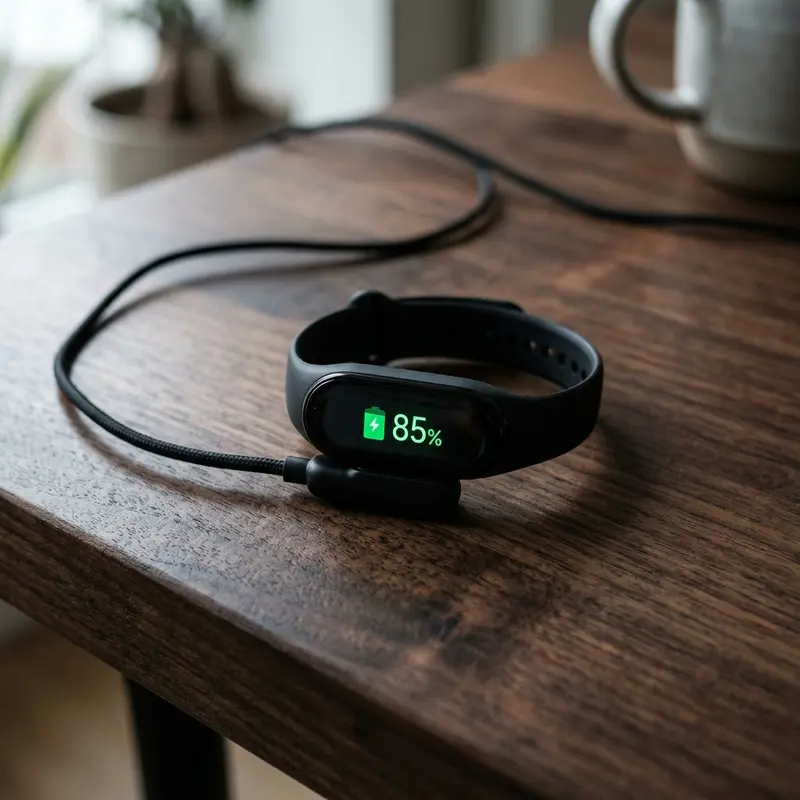
- Battery Check: Verify that the Amazfit GTS has at least 50% battery capacity remaining. Keeping it plugged into its charger is recommended.
- Stable Network: Connect your smartphone to a fast Wi-Fi connection to download the official firmware binaries from Zepp servers.
- Proximity: Keep the smartwatch within 3 feet (1 meter) of your mobile phone to reduce Bluetooth signal degradation.
- Background Performance: Adjust your phone's settings to prevent closing the Zepp application while updating the watch's flash storage.
3. Step-by-Step Guide to Updating the Amazfit GTS System
Follow these technical instructions carefully to download and install the latest firmware updates on your device:
- Ensure Bluetooth and Location services are enabled on your smartphone.
- Open the Zepp companion application and let it complete its daily data sync.
- Tap the Profile tab in the bottom right corner of the dashboard screen.
- Under the "My Devices" section, tap on your paired Amazfit GTS.
- Scroll down to the bottom of the list and select the Check for Updates menu option.
- If a newer version is available, tap the Update button to begin the download.
- The app will transmit the firmware package files to your watch. A circular update progress screen will display on the GTS screen.
- Wait for the progress bar to reach 100%. The watch will automatically reboot to load the updated system files.
Do not force close the Zepp app, turn off your phone, or disconnect the Bluetooth connection while the update is in progress, as this can corrupt the device bootloader.
4. How to Resolve Update Failures and Sync Errors
If the update process gets stuck halfway or fails to download, the problem is usually caused by wireless interference or temporary Bluetooth cache corruption on your phone. To resolve this issue, perform these diagnostic steps:
Turn off your phone's Bluetooth transceiver, wait 10 seconds, and turn it back on. If the issue persists, clear the application cache by going to your phone's system Settings > Apps > Zepp > Storage and clicking on Clear Cache. This removes temporary file locks that might block communication sockets.
5. Recovering a Frozen Amazfit GTS from a Failed Update
In rare situations, the watch screen might freeze on the "Updating" message with the progress bar stopped. This occurs due to writing issues on the internal flash memory chip. To force a recovery without physical disassembly:
Press and hold the physical side button of the Amazfit GTS for 20 to 30 seconds. This hardware interrupt forces the CPU chip to cut power to its registers and perform a cold reboot. When the watch reboots, open the Zepp app and scan the QR code to re-establish the pairing connection and reinstall the firmware from scratch.
6. Post-Update Battery Optimization Tips
It is common for the watch's battery drain to increase during the first 24 hours after a firmware update. This occurs as the operating system runs background optimization scripts to align the database structures. To fix this:
Allow the watch to drain its battery to 0% completely, then charge it back to 100% without interruptions. This recalibrates the charging limits of the internal controller chip. Additionally, check the Zepp app settings to disable non-essential app alerts that frequently wake up the watch screen.
7. Technical Bluetooth Protocol Analysis during Updates
The Bluetooth Low Energy (BLE) protocol transmits data in small packet payloads to optimize battery consumption on wearables. When flashing a 50MB system file, the Zepp app splits it into thousands of hex packages. If other local Wi-Fi networks are transmitting on conflicting 2.4GHz frequencies, the rate of packet loss increases. If the GTS firmware stack drops too many packets in a row, the handshake terminates, and the update is cancelled to protect the bootloader partition.
8. Adjusting Android Battery Restriction Settings for Zepp
Android OS power-saving algorithms frequently terminate background processes to save juice. To prevent Android from closing the Zepp application mid-update, configure the app's battery options:
Go to Settings > Apps > Zepp > Battery and change the restriction profile from "Optimized" to "Unrestricted." This ensures the phone keeps the socket connection open during the firmware flashing process, eliminating abort bugs.
9. Understanding Third-Party App Interference During Bluetooth Sync
Many advanced users rely on third-party companion tools like Notify for Amazfit or Gadgetbridge to customize their experience. While these tools provide custom widgets and unrestricted data export options, they often interfere with the official watchOS firmware pipeline. These applications try to write data packets to the RAM memory while the Zepp app is actively flashing the OTA system files. This creates network packet conflicts that can result in a soft-brick scenario. To avoid technical issues, disable or uninstall third-party managers before initiating any system updates.
10. Comparative Update Lifecycles: Zepp OS vs. Apple Watch and Galaxy Watch
The lifecycle of Amazfit firmware updates differs from systems like watchOS or Wear OS. While Apple and Samsung release large monthly updates focusing on security protocols and rich app features, Zepp Health focuses on sensor calibration and battery life optimization. An Amazfit GTS device typically receives feature additions for the first two years, followed by minor stability patches to maintain Bluetooth compatibility in later stages.
11. The Hardware Architecture of Amazfit Microcontrollers
To achieve weeks of battery performance, the Amazfit GTS uses a dual-core microcontroller (MCU) design. A low-power chip handles daily tasks like step counting and screen standby, while a higher-frequency processor executes complex tasks like system updates and GPS tracking. When you initiate an update, the high-power processor decodes the system files and writes them to the flash storage. Once the flashing process completes, the watch transitions back to the low-power processor to save energy.
12. Deciphering Zepp OS Firmware Version Conventions
Zepp OS firmware updates follow a strict semantic numbering format (e.g., v8.2.1.0). The first digit indicates the major operating system framework, the second digit represents new features or sensor algorithm improvements, the third digit covers security patches, and the fourth digit represents region-specific optimizations. Understanding this numbering helps users identify whether an update introduces major new capabilities or simply optimizes existing sensor routines.
13. Bluetooth Packet Validation and Checksum Verification (CRC32)
To ensure that the firmware files are not corrupted during wireless transmission, the Zepp Health update protocol uses cyclic redundancy check algorithms, specifically CRC32. Each package sent to the Amazfit GTS contains a verification checksum header. Once a packet arrives, the watch's microcontroller runs a binary math check on the packet payload. If the calculated value does not match the header checksum, the packet is discarded and a retransmission request is sent to the phone. This validation ensures that corrupted files are never written to the system bootloader.
14. RAM Allocation and Garbage Collection During OTA Updates
The Amazfit GTS operates on a lightweight real-time operating system (RTOS) with limited RAM availability. When the OTA update script is executing, the system terminates non-essential background threads, such as step counters and heart rate polling daemons, to free up memory blocks. This temporary memory optimization ensures that the system update installer has sufficient heap space to unpack system partitions. If you attempt to open system menus on the watch during the update, you may trigger a memory exception, causing the watch to reboot and abort the install.
15. Troubleshooting Bootloader Loop Issues and Recovery Modes
If your Amazfit GTS is caught in a bootloader loop where it displays the logo and reboots constantly after an update, it means the partition map was corrupted. To resolve this, you must trigger the low-level recovery mode of the Zepp OS bootloader. Keep the side button pressed while connecting the charging cable to a high-speed USB port on a computer. This connection forces the USB controller to mount the watch as a serial interface. From there, the official Zepp app can deploy an emergency recovery image that rewrites the system parameters and restores standard operation.
16. Managing Background Cache Clears on iOS Devices
iOS handles memory allocation aggressively, often terminating inactive background app processes. When updating the Amazfit GTS, iOS may sleep the Zepp app's background network connections if you switch to another heavy app. To prevent this, ensure 'Background App Refresh' is enabled for Zepp in your iOS Settings. This permission keeps the Bluetooth transfer queue active even when the iPhone screen is locked, avoiding write failures during system flashing.
17. Resolving Unknown Error Codes and System Update Halts
If you encounter unknown error codes (such as Error 0x09 or Sync Failed 102) during the firmware upload, these are usually related to MTU (Maximum Transmission Unit) packet sizing errors over Bluetooth. Some older smartphone models use smaller MTU packets that split the firmware binaries into too many pieces, causing the watch to lose synchronization. To bypass this, you can use a different tablet or phone to perform the update once, which updates the base configuration. Afterward, your original phone will reconnect without triggering any transmission block errors.
Frequently Asked Questions (FAQ)
1. How long does the Amazfit GTS update process take?
The entire process usually takes between 8 and 15 minutes, depending on the speed of your internet connection and local Bluetooth data transfer rates.
2. Can I use my phone while the smartwatch is updating?
It is highly recommended to leave your phone untouched and avoid playing games or using other Bluetooth devices to ensure the update process is not interrupted.
3. Will updating my Amazfit GTS delete my workout history?
No. All step counts, sleep tracking data, and workout histories are saved in the cloud under your Zepp account and will sync back once the update is complete.
4. What should I do if the watch screen displays 'Connect App'?
This message means the device is missing its operational firmware or has been reset. Open the Zepp app on your phone, select Add Device, and scan the watch QR code to pair it and complete the install.
5. Does the Amazfit GTS update itself automatically?
No. While the phone app can download updates in the background when connected to Wi-Fi, the installation process on the watch requires manual approval inside the Zepp app.




