How to Tell If Your Wi-Fi Router is Dead, Broken, or Damaged

In our highly connected modern world, a stable internet connection has transitioned to an essential utility. At the heart of this digital network bridge that connects our smartphones, laptops, smart televisions, and home automation systems to the web is the wireless router. When your connection suddenly drops or the Wi-Fi signal disappears, a sense of immediate frustration is inevitable. The first question that arises is whether the issue is a temporary service outage from your internet service provider (ISP) or if your physical router hardware has reached the end of its operational lifespan.
To tell if your Wi-Fi router is dead, broken, or physically damaged, check if the indicator LEDs remain completely unlit (even when plugged into a verified power outlet), if you smell burnt plastic or notice melted spots on the chassis, if the device constantly reboot loop under load, or if all LAN/WAN Ethernet ports and wireless SSIDs fail simultaneously, preventing access to the local admin interface (192.168.0.1 or similar). Identifying these physical symptoms early prevents you from buying a replacement router unnecessarily when the actual problem is a simple loose cable or a temporary signal outage from your fiber operator.
In this comprehensive technical guide, we will analyze the key symptoms of a failing router, walk through a step-by-step diagnostic process to isolate hardware failures, and discuss best practices to protect your network equipment from future electrical damage.
Power Adapter Failure vs. Dead Router Board
Before throwing your router away, it is vital to understand that a quiet router with unlit LEDs does not always mean the mainboard is completely dead. A router's power system consists of two distinct components: the internal power distribution circuit on the motherboard and the external power supply adapter (the wall brick). During power surges or lightning storms, the external power adapter often acts as a sacrificial fuse. The surge destroys the adapter's transformer or capacitors, preventing electricity from reaching the router while leaving the router's internal circuits intact. In this case, simply replacing the power adapter with one of identical voltage, polarity, and equal or higher amperage can restore your router to full function for a fraction of the cost of a new router.
Furthermore, a failing power adapter might still output the correct voltage when measured with no load, but fail under the dynamic load of a booting router. This occurs when the adapter's internal filtering capacitors degrade, allowing high levels of alternating current (AC) ripple voltage to leak into the direct current (DC) line. This voltage ripple introduces electrical noise into the router's power rail, causing CPU logic errors or spontaneous resets. Replacing this weak adapter with a high-quality, regulated switching power supply resolves these issues.
Conversely, configuration and software errors are often mistaken for physical hardware damage. A router that suffers a critical firmware crash, a corrupted memory block during an update, or an IP address conflict may stop broadcasting Wi-Fi and freeze entirely, often with all status lights locked in a solid, unblinking state. In these scenarios, the physical hardware is completely healthy, but the system code is unable to initialize. A factory reset can restore the original firmware settings and bring the router back to life. Only when the internal electronic components—such as the central processing unit (CPU), radio frequency chips, or flash memory chip—suffer permanent physical degradation do we classify the router as dead.
Key Symptoms of a Dead or Damaged Router
Wireless routers are built to run continuously for years, but their silicon chips and electrical components degrade over time under constant thermal stress. Here are the most common symptoms indicating that your router's hardware is failing:
- Unlit LEDs or Frozen Status Lights: If the router is plugged into a functional outlet and all indicator lights remain completely dark, the power circuit has failed. Another indicator of hardware failure is when all LEDs light up simultaneously and stay frozen indefinitely, ignoring button presses or connected cables. This indicates that the CPU is unable to execute the firmware boot sequence due to a physical hardware interrupt or corrupted bootloader.
- Frequent Random Reboots: A router that restarts on its own multiple times a day, dropping your connection and requiring a power cycle to recover, is showing signs of component fatigue. Inside the router, small capacitors filter electrical noise and stabilize voltage. When these capacitors bulge or leak, they lose their electrical capacity, causing the processor to reboot whenever network traffic spikes or internal temperatures rise.
- SPI Flash Memory Wear-Out: Routers utilize SPI flash memory chips to store firmware, system configuration files, and system logs. These flash chips have a finite write endurance limit. In older routers, constant log writing can wear out the flash blocks, rendering the configuration read-only or causing corrupt blocks that prevent the router from booting successfully.
- Severe Range Reduction and Wi-Fi Instability: If your internet connection works perfectly when you stand right next to the router but drops entirely when you step a few meters away, the internal radio frequency amplifiers or antennas are failing. Heat buildup degrades the Wi-Fi transmitter chips over time, causing them to emit a weak, unstable signal that cannot penetrate basic obstacles.
- Non-Responsive Ethernet Ports: Sometimes a nearby lightning strike travels down an external ethernet cable, bypassing the power outlet and burning out the WAN or LAN ports on the router. If you plug a known-good ethernet cable into a port and the corresponding link LED does not light up, or if your computer displays a Network Cable Unplugged error, the router's internal network switch chip has burned out.
- Excessive Heat and Burning Smell: Routers naturally run warm, but if the plastic housing is hot to the touch, or if you smell hot plastic, there is an active short circuit on the board. The excess heat will cause the CPU to throttle or shut down completely to prevent a fire hazard.
Diagnostic Tests Step-by-Step
To diagnose your router and confirm whether it needs to be replaced, perform this sequence of tests:
- Test the Outlet and Power Adapter: Unplug the router's power adapter. Plug another working appliance into the same wall outlet to ensure the outlet has power. If the outlet works, inspect the adapter brick for physical damage. If you have a multimeter, set it to measure DC voltage and test the output pin of the adapter plug. The voltage reading should match or be slightly higher than the nominal rating printed on the label (e.g., 12V adapter). If the reading is zero or significantly low, replace the power adapter. Always ensure any replacement adapter matches the voltage and plug polarity exactly, and has an amperage rating equal to or higher than the original.
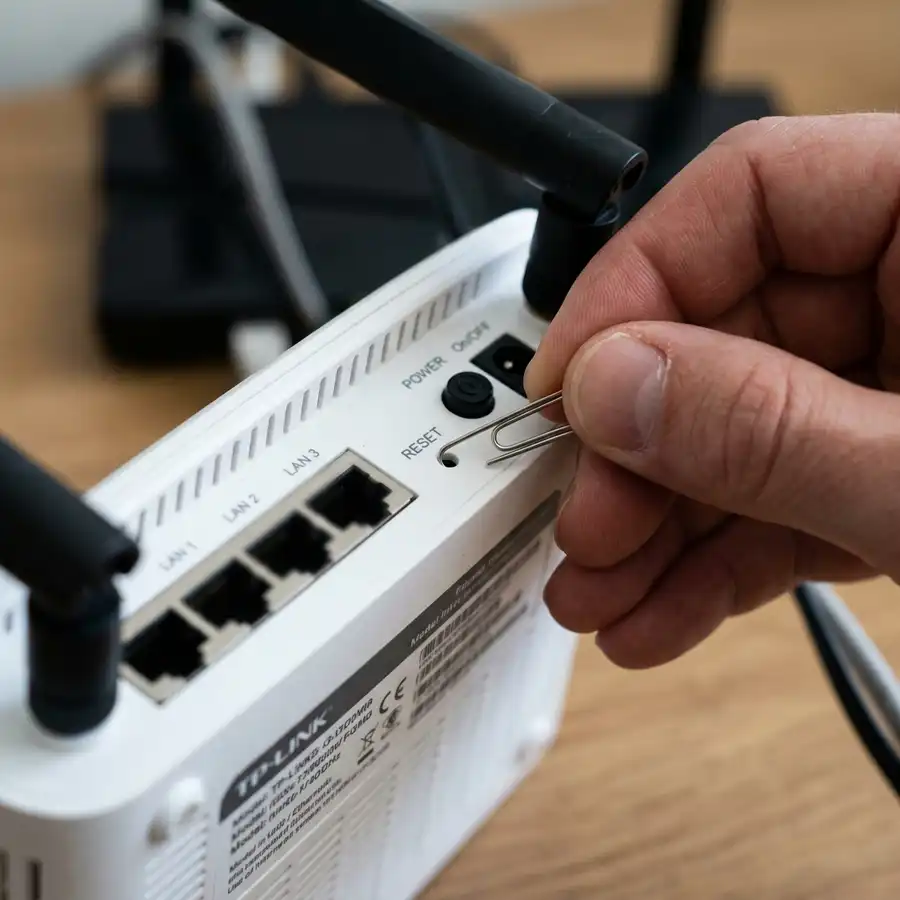
- Perform a Physical Factory Reset: Locate the small, recessed Reset button on the back of the router. While the device is powered on, use a straightened paperclip to press and hold the button for 15 seconds. Watch the LED lights; they should all flash once and turn off as the router reboots. This clears any corrupt configurations. If holding the button does nothing, the internal processor is non-responsive.
- Test Direct Connection to the Modem: Unplug your computer from the router and plug it directly into your ISP's modem using an ethernet cable. If your computer connects to the internet, the signal from your provider is healthy. Next, reconnect the router to the modem, and connect your computer to one of the router's LAN ports. Open the command prompt and type ipconfig on Windows. If your computer fails to receive an IP address (like 192.168.0.x or 192.168.1.x) or shows a disconnected status, the router's internal DHCP server and network interface are failing.
- Analyze Network Packet Integrity: Open your operating system's terminal and run a continuous ping test to your router's gateway IP address (for example, ping -t 192.168.0.1 on Windows). If you observe high packet loss or General Failure errors, it indicates the router's network interface controller (NIC) is failing under load.
- Attempt Admin Panel Access: Open a web browser on a device connected to the router. Type the router's default IP address (typically 192.168.0.1 or 192.168.1.1) into the address bar. If the login screen does not load, even after a factory reset and with a direct cable connection, the router's operating system is corrupted or the memory chip is dead.
Comparison Table of Router Failures
Use this table to distinguish between simple, fixable configuration issues and severe hardware failures:
| Symptom | Probable Cause | Recommended Action |
|---|---|---|
| All LEDs remain unlit | Dead adapter or blown fuse | Test the outlet, test adapter voltage, or replace power adapter. |
| All lights frozen solid | Corrupted firmware or dead CPU | Hold reset button for 15 seconds; attempt TFTP recovery. |
| Drops connection under load | Capacitor wear or overheating | Relocate to a ventilated area; replace router if it persists. |
| Ethernet port unlit | Burned switch port from surge | Try a different LAN port; use the router as an AP if WAN is dead. |
| Slight range, drops nearby | Damaged RF amplifier chip | Move closer to verify; replace router or add an AP. |
External Factors Mimicking a Broken Router
Network issues are frequently caused by external factors that mimic a broken router. Verify these variables to prevent a false diagnosis:
- ISP Outages and Maintenance: A cut fiber optic line in your neighborhood or an outage at your ISP's server will cut your internet access. Your local Wi-Fi network will remain visible, and you will still be able to log into your router's admin panel, but the internet status LED will turn orange, red, or turn off completely.
- Damaged Ethernet Cables: Old, bent, or chewed ethernet cables can suffer internal copper breaks. This causes intermittent drops or limits connection speeds. Swap out your WAN and LAN cables with new Cat5e or Cat6 cables to rule out cable failure.
- Device Overload: Basic routers provided by ISPs have low-powered CPUs and limited RAM. If dozens of smartphones, smart TVs, IoT bulbs, and computers connect at the same time, the router will freeze under the load. This mimics hardware failure, but it is actually a processing capacity limit.
- IP Address Conflicts: If another device on the network is accidentally configured with the same IP address as the router's gateway, an IP conflict occurs. This blocks network traffic and prevents you from accessing the router's configuration page. Disconnecting all devices and restarting the network resolves this logical error.
How to Protect Your Network Hardware from Future Damage
Take these preventive measures to extend the lifespan of your network equipment and protect it from premature failure:
- Install Surge Protectors: Do not plug your router directly into the wall. Use a high-quality surge protector or connect it to an uninterruptible power supply (UPS). These devices absorb voltage spikes caused by lightning or grid switching, keeping high voltage away from your router's sensitive circuits.
- Use Ethernet RJ45 Surge Protectors: Since surges can travel down telephone or Ethernet lines, installing an RJ45 surge protector between the incoming WAN line and your router is highly recommended. This device grounds excess voltage before it reaches the router's WAN interface chip.
- Disconnect Cables During Storms: Many routers burn out because electrical surges from lightning strikes travel down incoming lines, passing through the modem and into the router's WAN port. During severe storms, unplug both the power supply and the incoming internet cable.
- Provide Adequate Ventilation: Install your router in an open, elevated, and well-ventilated area. Avoid placing it inside closed cabinets or on top of heat-generating electronics like game consoles or cable boxes. Heat degrades internal capacitors, leading to crashes and chip failure.
- Keep Firmware Updated: Keeping your router's firmware updated ensures the processor manages power and heat efficiently. Security patches also prevent malicious actors from overloading your router's CPU with DDoS attacks.
Technical Safety Tip: If your router continues to show extreme instability after a factory reset, check the plastic casing for discoloration or warped areas near the air vents. This indicates the internal heatsink has detached from the CPU, and the router must be replaced to prevent a fire hazard.
Frequently Asked Questions
How do I know if my router was damaged by lightning?
If your router stops working after a storm, refuses to turn on, or the WAN port stays dark when connected to a working modem, a voltage surge has likely burned the power circuit or the network chip.
What does it mean when all lights on my router stay on?
If all LEDs turn on and remain frozen, the router has suffered a critical firmware crash or CPU damage. The device cannot boot its operating system, and a standard factory reset will usually not work.
Is it worth repairing a broken home router?
No, repairing a home router is not cost-effective. The cost of diagnostic labor and replacement microchips exceeds the price of a new router featuring newer technology, such as Wi-Fi 6 or Wi-Fi 7.
Can a bad power supply cause a router to drop Wi-Fi?
Yes. If the power adapter is failing, it cannot supply stable current under load. When network traffic increases, internal voltage drops, causing the router to reboot or drop the Wi-Fi signal.
Can a router burn out only the Wi-Fi signal?
Yes. The radio frequency chips that broadcast Wi-Fi can burn out from heat or power surges while the physical LAN ports continue to work. In this case, wired devices can access the internet, but the Wi-Fi network vanishes.




