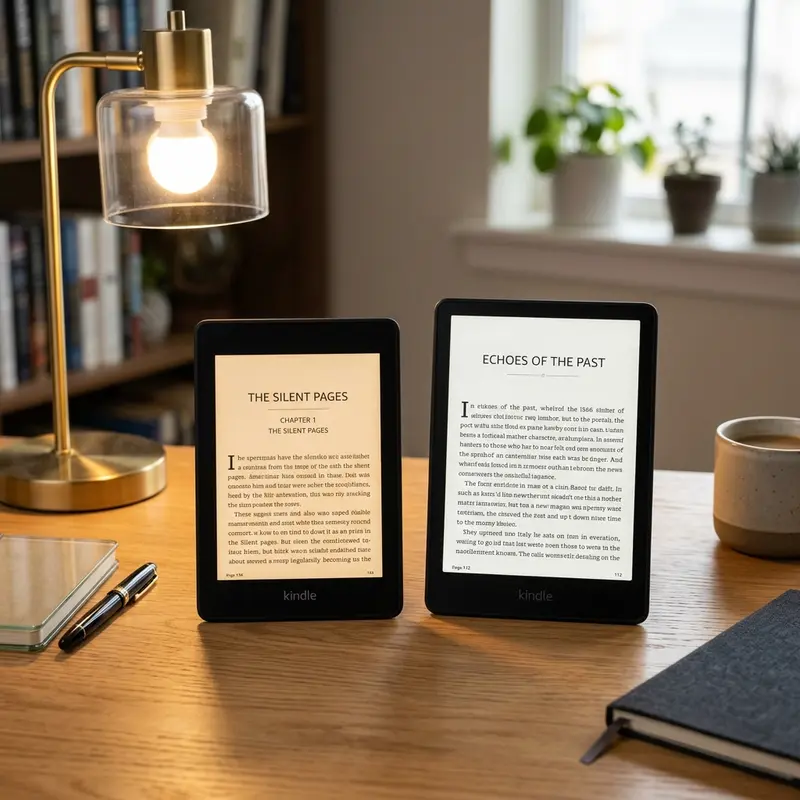
To send EPUB to Kindle from your phone, use the official Kindle app's share menu or email the EPUB file directly to your unique Send-to-Kindle email.
For a long time, Kindle owners had to rely on slow computer syncs, USB cables, or converting files to the outdated MOBI format to read their personal e-book files. Fortunately, Amazon has modernised its platform. Today, you can transfer EPUB files—the most widely used open standard format for e-books—directly to your Kindle using nothing but your mobile phone.
Whether you use an Android device or an iPhone, the process is incredibly simple and takes less than a minute. In this guide, we will break down the three most efficient ways to send EPUB e-books to your Kindle directly from your mobile phone, troubleshooting common errors along the way so you can get back to reading as quickly as possible.
Understanding Kindle ePub Support (Why MOBI is Dead)
Publicidade
To ensure a smooth transfer, it is essential to understand how Amazon handles e-book formats today. In late 2022, Amazon officially retired support for the MOBI format within its Send-to-Kindle services. Since MOBI is an old, proprietary format that does not support modern formatting, complex CSS layouts, or newer typography, Amazon transitioned entirely to supporting EPUB.
It is important to note, however, that the Kindle device itself cannot read an EPUB file directly. Instead, when you send an EPUB file using Amazon's official channels, Amazon's cloud service automatically converts the EPUB into a native Kindle format (such as AZW3 or KFX) before downloading it to your e-reader. This means you get the best of both worlds: the universal compatibility of EPUB files and the optimized reading features of Kindle's native formats.
Method 1: Using the Kindle App for Android and iOS (Fastest Way)
Publicidade
The fastest and most integrated method to send an EPUB to your Kindle is by using the official, free Kindle mobile application. This app is available on the Google Play Store and Apple App Store, and it leverages the native sharing capabilities of your phone's operating system.
Step-by-Step for iPhone (iOS)
Ensure you have the Kindle app installed and logged into the same Amazon account as your physical Kindle device.
Open the file manager app on your iPhone (usually the Files app) and locate the EPUB file you want to transfer.
Tap and hold the EPUB file, then select Share from the menu.
In the list of applications, scroll until you find the Kindle icon. (If you don't see it, tap "More" at the end of the list and select Kindle).
A pop-up will appear allowing you to edit the author name and title. You can also toggle the option to "Save to Library" (ensure this is enabled so it syncs across all devices).
Tap Send. The file will upload to Amazon's servers, convert, and appear in your Kindle library within minutes.
Publicidade
Step-by-Step for Android
Open your preferred Android file manager (such as Files by Google or your device's native Files app).
Locate the downloaded EPUB file.
Tap the share icon or hold the file to select Share.
Select the Kindle app from the sharing menu.
Review the title and author name in the prompt, and ensure "Add to Library" is checked.
Tap Send. The app will upload the file in the background.
Dica DomineTec: Make sure your phone is connected to Wi-Fi or cellular data during this process. The Kindle app needs an active internet connection to upload the file to Amazon's cloud storage.
Method 2: Sending EPUB via Email (Send-to-Kindle Email Service)
If you prefer not to install the Kindle application on your mobile phone, or if you want to share a book with a family member's Kindle, the email method is an excellent alternative. Every Kindle device has a private email address linked to it.
Publicidade
How to Configure and Send via Email
First, verify your Kindle email address by navigating to the Amazon website, going to Content and Devices > Preferences > Personal Document Settings.
Under the Approved Personal Document E-mail List, ensure the email address you use on your phone is registered. If it isn't, add it. This is a vital security measure to prevent spam on your Kindle.
Open your email app on your phone (Gmail, Apple Mail, Outlook, etc.).
Compose a new message addressed to your Kindle email address (e.g., yourusername@kindle.com).
Attach the EPUB file to the email.
Leave the subject line and the body of the email completely blank, and tap send.
After sending the email, Amazon will process the attachment. In some cases, you will receive a verification email from Amazon asking you to confirm the transfer. Simply click the "Verify Request" link in that email within 48 hours to complete the process. This security check is triggered automatically to ensure no unauthorized files are sent to your account.
Publicidade
Method 3: Using the Send to Kindle Web Interface on Mobile
If you want a visual way to upload your books without utilizing email or installing the Kindle app, Amazon offers a web-based portal optimized for mobile browsers. This method is incredibly reliable and features a drag-and-drop style upload.
Tap the upload box to browse your phone's files and select your EPUB document.
Once selected, tap the Send button.
You can track the conversion status directly on the webpage under the "Recent Uploads" section.
The web portal supports files up to 200MB, which is significantly larger than the 50MB limit allowed by the email method. This makes it the absolute best choice for large illustrated EPUB files or compilation books.
Publicidade
Comparison of EPUB Transfer Methods from Mobile
To help you decide which mobile transfer option is best for your current situation, refer to this detailed comparison table:
Transfer Method
Max File Size
Setup Effort
Best For
Key Benefit
Kindle Mobile App
50 MB
Medium (App install required)
Frequent readers with phones
One-tap sharing menu integration
Send-to-Kindle Email
50 MB
Low (One-time email approval)
Quick sharing, no app needed
Works on any device with email
Send-to-Kindle Web
200 MB
None (Direct web login)
Large files and text-heavy books
High file size limit & upload tracking
Dica DomineTec: If you are running into persistent conversion errors where Amazon sends an email stating "There was a problem with the document(s) you sent," it is likely because your EPUB has structural errors. Try running the EPUB through an online validator or convert it to a standard EPUB format using Calibre before uploading.
Publicidade
Troubleshooting Common EPUB Transfer Errors and Formatting Issues
While the transition to EPUB has made reading personal files much easier, you may still run into issues. Here are the most common problems and how to solve them directly from your phone:
The "Failed Delivery" Email
If you receive an email from Amazon saying your document could not be delivered, the most common culprit is that your email address is not in the approved sender list. Double-check your Amazon account's Personal Document Settings to ensure your personal email is approved. Alternatively, use the Send to Kindle web portal, which bypasses the approved sender list entirely.
Missing Book Covers
Sometimes your EPUB will transfer successfully, but its cover art will not display in your Kindle library, showing a generic document icon instead. This happens when the metadata inside the EPUB does not conform to Amazon's standards. To fix this, you can open the file in a metadata editor on your computer or phone, verify that the cover image is designated as the official cover, and re-upload it.
Publicidade
Tips for Managing Your Transferred Kindle Library from Mobile
Once you start sending multiple EPUBs to your Kindle, your library can quickly become cluttered. Fortunately, you can organize your personal documents using the Kindle app on your phone. You can create custom Collections (e.g., "To Read," "Fantasy," "Reference") and add your uploaded EPUBs to them. These collections will automatically sync to your physical Kindle device over Wi-Fi. Additionally, personal documents uploaded via Send-to-Kindle support Whispersync, meaning your page position, notes, and highlights will sync seamlessly across your Kindle e-reader and your phone's Kindle app.
Conclusion
Sending EPUB files to your Kindle from your mobile phone is a game-changer for digital reading. By leveraging the Kindle app's share sheet, the Send-to-Kindle email service, or the web portal, you can entirely bypass the need for a desktop computer or USB cables. Select the method that best matches your file size and device preferences, and enjoy your personalized e-ink library wherever you go.
Publicidade
Frequently Asked Questions (FAQ)
1. Can I send EPUB files protected by DRM to my Kindle?
No, Amazon's Send-to-Kindle service cannot convert or read EPUB files that are protected by Digital Rights Management (DRM). If you purchased an EPUB from another bookstore (like Kobo or Google Play) that uses Adobe DRM, you must first remove the protection using authorized software before transferring it to your Kindle.
2. Why is the formatting of my EPUB messed up after conversion?
Occasionally, an EPUB has complex coding or layouts that Amazon's cloud converter fails to translate correctly. If the text has weird spacing or missing paragraphs, you can convert the EPUB to an AZW3 file on your computer using Calibre, which often handles complex styling much better than Amazon's automated cloud tool.
3. Do EPUB files sent to Kindle sync my reading progress?
Yes! Any EPUB file transferred to your Kindle library using the Send-to-Kindle service (via app, email, or web) is stored in your Amazon cloud library. This enables Whispersync, which automatically synchronizes your reading progress, bookmarks, highlights, and notes across all your Kindle devices and apps linked to your account.
Publicidade
4. Is there a limit to how many EPUB files I can send to my Kindle?
There is no specific limit to the number of documents you can send, but Amazon provides a total storage limit of 5 GB for personal documents in their cloud library. If you reach this limit, you can manage and delete older documents by visiting the "Manage Your Content and Devices" page on the Amazon website.