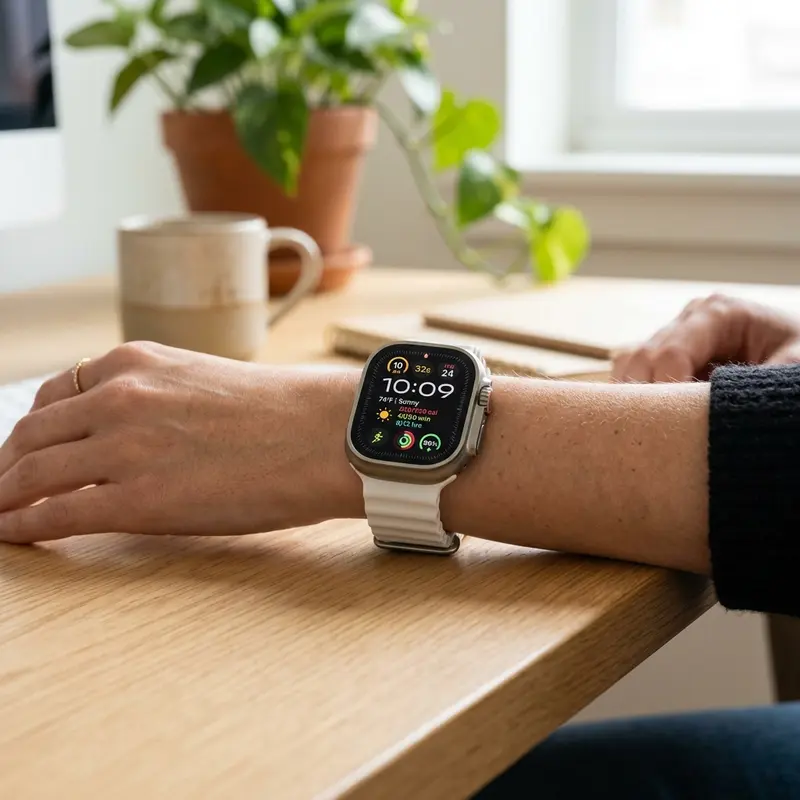
How to Force Restart a Frozen or Hung Apple Watch
Apple devices are widely recognized for their software stability and smooth user interfaces. However, because the Apple Watch is essentially a compact, wrist-worn computer, it can occasionally experience system hangs, frozen touchscreens, or infinite boot loops. Situations where the screen stops responding to touches, displays a frozen black screen while haptic feedback continues, or gets stuck on the Apple logo require a force restart.
To force restart a frozen or hung Apple Watch, you must press and hold both the side button and the Digital Crown simultaneously for at least 10 seconds, releasing them only when the official Apple logo appears on the display. This hardware-level force restart cuts power to the processor temporarily, clearing volatile system memory and ending corrupted background loops instantly.
If you also use other smart devices and want to learn troubleshooting tips for systems in your home, read our detailed guides on how to restart frozen Kindle and check out how to put iPhone in DFU mode to recover your iOS device from boot loops and system errors.
1. Standard Reboot vs. Force Restart
Many new users try to turn off a frozen Apple Watch by pressing only the side button, expecting the power-off slider to appear. However, when a system process crashes (known as a Kernel Panic), the watchOS software cannot process input from the slider, making a standard reboot impossible.
Here is the difference between these two operations:
- Standard Reboot: Used when the watch is functional but running slowly. You hold the side button until the power slider appears, slide to turn off, and turn it back on after a few seconds. Note: Never reboot your watch (standard or forced) if it is installing a watchOS update (indicated by a progress circle). Doing so can corrupt the firmware.
- Force Restart (Hard Reset): A hardware-level command that cuts electrical power from the battery. It shuts down the processor immediately without saving temporary system logs. This should only be used when the watch is unresponsive, showing a frozen or black screen.
2. How to Force Restart Your Apple Watch
The force restart procedure is identical across all Apple Watch models (from the Series 1 up to the Series 11 and the Apple Watch Ultra lines). Follow these steps to perform it safely:
- Locate the two physical buttons on the right side of the watch: the rotating Digital Crown and the flat Side Button below it.
- Press and hold both buttons simultaneously. Apply even pressure to both buttons.
- Keep holding the buttons. Do not release them if the screen goes black.
- Hold for approximately 10 to 12 seconds.
- Release both buttons immediately when the Apple logo appears in the center of the display.
- Wait for the watch to boot up. A forced restart can take 1 to 2 minutes to load the main screen, as watchOS performs directory integrity checks during boot.
3. Troubleshooting Guide for Unresponsive Apple Watches
| Symptom | Likely Cause | Recommended Action |
|---|---|---|
| Screen frozen on watch face (Touch unresponsive) | App crash or RAM overflow. | Force restart by holding Crown + Side button for 10s. |
| Stuck on Apple Logo (Boot Loop) | Corrupted boot files during watchOS update. | Force restart while on the charger; reset via iPhone if unresolved. |
| Black screen with green analog time (Power Reserve) | Battery level is critically low. | Place the watch on its magnetic charger for at least 30 minutes. |
| Screen displays a red charging cable graphic | Battery drained below safe boot levels. | Charge using a high-power wall adapter for at least 1 hour. |
| Red exclamation mark (!) display screen | Critical firmware corruption. | Bring near a paired iPhone running iOS 15.4+ for wireless recovery. |
4. What to Do If stuck on the Red Charging Cable Screen
If you leave your Apple Watch uncharged in a drawer for several weeks, it may enter a deep discharge state. When you place it back on the charger, the screen may display a red lightning bolt icon and a graphic of the charging cable. Sometimes the watch remains stuck on this screen for hours and refuses to boot.
This occurs because the battery voltage has dropped below the minimum level required to boot the watchOS operating system. To fix this:
- Ensure you are using a power adapter rated for at least 10W (avoid connecting to old computer USB ports, which only output 5W and cannot wake a deeply discharged battery).
- Leave the watch on the charger for 30 minutes without moving it.
- If the Apple logo does not appear after 30 minutes, keep the watch on the charger and force restart it by holding the Digital Crown and Side Button for 10 to 15 seconds. This forces the device to bypass initial temperature and voltage checks to kickstart the charging process.

5. How to Resolve watchOS Boot Loops
A "boot loop" is when your Apple Watch starts up, displays the Apple logo for a few seconds, turns off, and repeats this cycle continuously. This usually indicates that a core watchOS boot file is crashing during startup.
To break this loop, try the following steps:
- Place your Apple Watch on its magnetic charger connected to a reliable power source.
- While charging, perform a force restart by holding down the Digital Crown and Side Button for 10 seconds until the screen goes dark.
- Release the buttons when the Apple logo reappear.
- Immediately make a phone call to your paired iPhone or send a notification to the watch. This can force the Bluetooth connection to reset and break the startup crash loop.
- If the boot loop continues, you will need to restore the watch using your iPhone.
6. Recovering the Apple Watch Using Your Paired iPhone
Starting with iOS 15.4 and watchOS 8.5, Apple added a feature that allows users to restore a corrupted Apple Watch using a nearby iPhone. If your watch displays a red exclamation mark (!) or a prompt to bring the watch near a phone, you can restore the firmware at home.
To use this wireless recovery feature:
- Make sure your iPhone is near the watch, connected to a stable 2.4 GHz Wi-Fi network, and has Bluetooth enabled.
- Place the Apple Watch on its charger.
- Double-click the Side Button (below the Digital Crown) on your watch to initiate the recovery connection.
- A pop-up window will appear on your iPhone screen saying "Recover Apple Watch." Tap Continue.
- Your iPhone will download the latest watchOS update and send it to the watch over Wi-Fi. Do not move either device until the process is complete.
7. Preventing Future watchOS Freezes
To reduce the chance of your Apple Watch freezing in the future, follow these maintenance tips to free up RAM and reduce CPU load:
- Remove Unused Apps: By default, watchOS installs companions for apps on your iPhone. Open the Watch app on your iPhone and uninstall any apps you do not use on your wrist.
- Keep Storage Free: Avoid filling the watch's internal storage with offline playlists or podcasts. Keep at least 2 GB of free space to allow the system to write temporary cache files.
- Clear Notifications: A backlog of hundreds of unread alerts can slow down the user interface. Swipe down from the top of the watch screen and tap "Clear All" regularly.
8. Handling Freezes During Live Workout Logging
If watchOS crashes during a workout, the system memory locks up, rendering the touchscreen unresponsive. When you trigger a force restart during an active workout, the OS attempts to write cached GPS coordinates and heart rate telemetry to the local SQLite database. In most cases, once the watch reboots, the Fitness app will recover your session up to the point of the freeze.
9. Clearing Debris and Sweat from Physical Buttons
An accumulation of dried sweat, salt crystals, and skin oils under the Digital Crown and side button can prevent them from sending their electronic click signals. Since force restarting relies on these buttons, maintaining them is critical. Hold the watch side under a light stream of warm water for 15 seconds while turning the crown to dissolve dirt and restore responsiveness.
10. Memory Leaks and watchOS Diagnostic Logs
Modern watchOS applications can occasionally suffer from memory leak vulnerabilities, where memory allocated to a process is not returned to the global system pool. Over several days, these leaks exhaust the active RAM, causing the operating system to experience kernel panic failures. When this happens, the watch display freezes instantly. Understanding how to pull diagnostic logs using the iPhone Console app allows developers to isolate which third-party complications are leaking memory, preventing future freezes from disrupting your tracking routines.
11. Hardware-Level Diagnostic Modes
If a force restart does not resolve your black display issue, the watch may be stuck in a deep bootloader failure. Apple Watches feature a hidden diagnostic interface located inside one of the band slots (a 6-pin port). Authorized technicians use this port to flash recovery firmware directly to the system ROM when wireless recovery is unavailable. Understanding this helps users realize that a frozen screen that refuses to react to standard button combinations can often be restored in an Apple Store without replacing the entire internal motherboard.
12. The Role of watchOS Kernel Execution Queues
The core of watchOS is built on the Darwin kernel, inheriting the Mach scheduling system. In this environment, tasks are separated into threads with strict priority levels. The graphical user interface (Backboard Services) runs on a high-priority thread, while background tasks (like weather sync) run on lower-priority queues. However, if a low-priority thread acquires a hardware lock (such as a database mutex) and is preempted, it can trigger a condition known as priority inversion. This blocks the main GUI thread, making the screen completely unresponsive. Initiating a force restart cuts power at the PMU level, clearing the blocked thread queue and resolving the lockup.
13. Impact of Hardware Resets on Flash Filesystems
A force restart does not delete personal files, but it does interrupt active write cycles on the flash storage. If the watchOS file system (APFS) is writing system logs or cached workout coordinates when you press the Digital Crown and side button, those uncommitted blocks are discarded. Fortunately, APFS uses copy-on-write mechanisms, preventing total system corruption. Once the watch reboots, the filesystem executes a quick metadata check, restoring stability without user data loss.
Frequently Asked Questions (FAQ)
1. Will force restarting my Apple Watch delete my photos, music, or health data?
No. A force restart (hard reset) only cuts power to the processor to force a reboot. It does not erase your personal files, synced music, photos, or fitness data stored on the watch's internal storage.
2. What if my watch does not respond after holding the buttons for 15 seconds?
If the display remains black, connect the watch to its charger and plug it into a wall outlet for at least 30 minutes. A deeply discharged battery may not show any charging indicators immediately.
3. Is it safe to force restart a watch that is stuck in a boot loop?
Yes. If the watch is stuck on the Apple logo, a force restart is safe and necessary to interrupt the loop so you can connect the device to your iPhone and perform a system recovery.
4. What does a red exclamation mark mean on the Apple Watch screen?
A red exclamation mark indicates a serious firmware error. Place the watch on its charger, bring your paired iPhone close to it, and follow the wireless system recovery instructions shown on your phone's screen.
5. Why does my Apple Watch touch screen freeze when it gets wet?
Water droplets on the screen conduct electricity, confusing the capacitive touch sensor array. If the screen behaves erratically or appears frozen while wet, press and hold the side button to open the Control Center and turn on the "Water Lock" feature (droplet icon) to disable touch inputs until you spin the Digital Crown to clear the speaker.
