DFU (Device Firmware Update) Mode lets iTunes or Finder restore an iPhone at the firmware level, bypassing the bootloader entirely — making it the most powerful recovery option available.
Most iPhone users will never need DFU Mode in their lifetime. But when a device gets stuck in a boot loop, refuses to respond to standard Recovery Mode, or needs a downgrade of its firmware, DFU becomes the only viable path. Unlike every other troubleshooting step, it operates below iOS itself — which is precisely what makes it so effective and so unforgiving at the same time.
This guide covers everything: what DFU actually does under the hood, how it differs from Recovery Mode, the exact button sequences for every iPhone model from the 5s to the iPhone 16 series, what happens to your stored data, and how to get out without triggering a full restore if you entered by accident. If you have already tried the usual fixes and nothing worked, read on — this is likely the answer.
What is DFU Mode and Why Does It Exist?
DFU stands for Device Firmware Update. Apple introduced it as an engineering-level interface that allows direct communication between iTunes (or Finder on macOS Catalina and later) and the iPhone's processor without loading iOS or even the iBoot bootloader. In normal operation, every iPhone boots through a chain of trust: the Secure Enclave checks iBoot, iBoot loads the kernel, and the kernel brings up iOS. DFU Mode skips every step after the initial hardware handshake.
The practical implication is significant: because iOS is never loaded, DFU can flash a completely new firmware image even when the existing software is so corrupted that the device cannot boot at all. Apple engineers use it to test firmware builds during development; for end users, it is the last resort before a trip to an Apple Store or a third-party repair shop.
It is worth understanding what DFU does not do. It does not automatically erase your iPhone — it simply places the device in a state where iTunes or Finder can choose to flash a signed IPSW (iPhone Software) file. The actual data loss happens when a restore is initiated through the software, not the moment you enter DFU. This distinction matters when you need to unlock a disabled iPhone without making the situation worse.
DFU Mode vs Recovery Mode: Key Differences
Recovery Mode is the option most people encounter first. It is represented by the familiar iTunes logo on a black screen and is triggered when iBoot detects a problem during startup. It is useful for a standard restore or update, and in many cases it is all you need. DFU Mode, however, is fundamentally different in several ways that matter depending on your situation.
When in Recovery Mode, iBoot is still running. This means that certain firmware-level issues cannot be addressed, because the very component needed to write new firmware is itself potentially compromised. DFU Mode bypasses iBoot entirely and communicates directly with the processor through a USB interface protocol called the Apple Mobile Device Interface (AMDI).
A device in DFU Mode shows a completely black screen — no Apple logo, no iTunes graphic, nothing. If you see any image on screen, you are in Recovery Mode, not DFU. This is one of the most common points of confusion and wasted time during troubleshooting.
| Feature | Recovery Mode | DFU Mode |
|---|---|---|
| iBoot loaded? | Yes | No |
| Screen appearance | iTunes / Finder logo | Completely black |
| iOS loaded? | No | No |
| Useful for standard restore? | Yes | Yes |
| Can address iBoot corruption? | No | Yes |
| Downgrades firmware? | No | Yes (if Apple still signs the version) |
| Difficulty of entry | Moderate | High — timing-sensitive |
The take away: always try Recovery Mode first. It is faster to enter, easier to exit, and sufficient for the vast majority of restore scenarios. DFU is reserved for situations where Recovery Mode either does not resolve the problem or cannot be reached at all.
How to Enter DFU Mode — By iPhone Model

The button sequence to enter DFU Mode changed significantly across iPhone hardware generations. Getting the timing wrong by even half a second will put the device into Recovery Mode instead, or simply restart it normally. Use a wired USB connection — Lightning or USB-C depending on your model — to a Mac or Windows PC running iTunes or Finder before you begin.
| iPhone Model | Step 1 | Step 2 | Step 3 | Screen Should Show |
|---|---|---|---|---|
| iPhone 15, 16 series | Press & release Volume Up | Press & release Volume Down | Hold Side button ~10 s; then add Volume Down for ~5 s; release Side only | Black (nothing) |
| iPhone X, 11, 12, 13, 14 series | Press & release Volume Up | Press & release Volume Down | Hold Side button ~10 s; then add Volume Down for ~5 s; release Side only | Black (nothing) |
| iPhone 7 / 7 Plus | Hold Side + Volume Down simultaneously | After 8 s, release Side only; keep Volume Down held for ~5 more s | — | Black (nothing) |
| iPhone 6s, SE (1st gen) and earlier | Hold Home + Sleep/Wake simultaneously | After 8 s, release Sleep/Wake; keep Home held for ~5 more s | — | Black (nothing) |
Confirmation: Once in DFU Mode, iTunes or Finder will display a message saying the device has been detected in recovery mode and needs to be restored. Do not be confused by this wording — internally the software recognises DFU as a sub-type of recovery. The key visual confirmation is the black screen on the iPhone itself. If you see the Apple logo or the USB cable graphic, start over.
Common mistakes to avoid:
- Holding buttons too long in step 3 — this causes the device to reboot or enter standard Recovery Mode instead.
- Using a faulty or uncertified cable — DFU requires a stable data connection, not just a charging connection.
- Not having the latest version of iTunes or Finder — older versions may not recognise the device correctly.
- Starting from a completely drained battery — charge to at least 20% before attempting DFU entry.
What Happens to Your Data in DFU Mode?
Simply entering DFU Mode does not erase your iPhone. The device is in a passive, low-level state waiting for instructions from the connected computer. Your photos, messages, app data, and settings remain intact at this point. Data loss only occurs if you proceed with a restore through iTunes or Finder.
When you click Restore iPhone in iTunes or Finder while in DFU Mode, the software downloads the latest signed IPSW for your device, flashes the firmware, and initialises the device as new — wiping everything in the process. There is no partial restore option in DFU Mode; it is always a complete wipe.
For this reason, it is critical to ensure you have a recent iCloud or local iTunes/Finder backup before initiating the restore. If you can still access your device before putting it into DFU, go to Settings → [Your Name] → iCloud → iCloud Backup → Back Up Now immediately. Alternatively, if you want to restore your iPhone without losing data, there are methods worth exploring first — DFU with a full restore should only be used when every other option has been exhausted.
After a successful DFU restore, you will be able to set up the iPhone as new or restore from any backup you have available. Your Apple ID, iCloud photos, iMessage history (if backed up), and App Store purchases can all be recovered — but anything stored exclusively on the device that was not backed up will be permanently lost.
How to Exit DFU Mode Without Restoring
If you entered DFU Mode by accident, or you changed your mind before clicking Restore, exiting is straightforward. The process forces a hard reset of the device, bringing it back to its normal state without any data being affected.
For iPhone 8 and later (including all Face ID models): Press and quickly release Volume Up, press and quickly release Volume Down, then hold the Side button until the Apple logo appears. Release and wait for the normal boot sequence to complete.
For iPhone 7 / 7 Plus: Hold the Side button and Volume Down simultaneously until the Apple logo appears, then release both.
For iPhone 6s, SE (1st gen), and earlier: Hold the Home button and the Sleep/Wake button simultaneously until the Apple logo appears, then release both.
In all cases, the Apple logo will appear within a few seconds, indicating the device is booting normally. Once iOS loads, everything is exactly as you left it — DFU Mode is stateless; it holds no changes until a restore is actively executed.
When DFU Mode Is Your Only Option
Not every iPhone problem requires DFU Mode, and using it unnecessarily causes a full data wipe that could have been avoided. However, there are specific scenarios where it is genuinely the only path forward.
Boot loop that survives Recovery Mode: If the device restarts endlessly and connecting to iTunes in Recovery Mode fails to produce a successful restore, the bootloader itself may be damaged. DFU bypasses it and writes a clean firmware image directly.
Error codes 1, 3, 4013, 4014 during restore: These iTunes error codes typically indicate a communication failure between the device and the host computer that can be resolved by switching to DFU Mode before attempting the restore again.
Firmware downgrade (while Apple still signs the version): Apple periodically stops signing older iOS versions, but during the window when a prior version is still signed, DFU Mode is required to flash it — Recovery Mode only accepts the latest version.
Jailbreak removal or failed jailbreak: Devices that were jailbroken and are now stuck or behaving erratically can often only be returned to a stock iOS state through a DFU restore. Standard Recovery Mode may not be reachable on a heavily modified system partition.
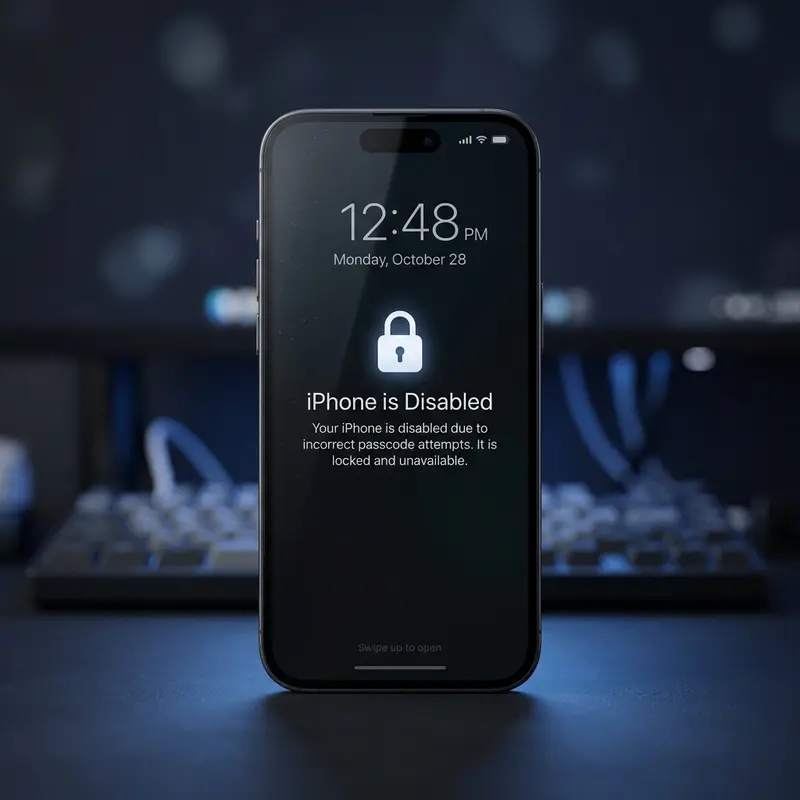
Persistent "iPhone is disabled" loop: When a device has been disabled due to too many wrong passcode attempts and neither the passcode nor Face/Touch ID is available, a DFU restore is the definitive solution. This is different from a supervised device enrolled in MDM, which requires additional steps through the organisation's management platform.
In summary, DFU Mode is the correct tool when the device's software stack is damaged below the operating system level, when standard restore procedures return specific error codes, or when you need to write a firmware version that is not the current release. For everything else — app crashes, slow performance, minor software glitches — a standard restart, settings reset, or Recovery Mode restore is sufficient and far less disruptive.
FAQ
Does DFU Mode erase my iPhone automatically?
No. Entering DFU Mode alone does not erase anything. Data is only wiped if you click Restore in iTunes or Finder while the device is connected in DFU Mode. Simply entering and then exiting DFU leaves your iPhone exactly as it was.
What is the difference between DFU Mode and Recovery Mode?
Recovery Mode loads iBoot (the iPhone's bootloader), while DFU Mode bypasses it entirely and communicates directly with the hardware. DFU Mode shows a completely black screen; Recovery Mode shows an iTunes or Finder icon. DFU is more powerful and should be used when Recovery Mode fails or produces persistent error codes.
Can I use DFU Mode without a computer?
No. DFU Mode requires a Mac or Windows PC running iTunes or Finder with a physical USB connection. Without the computer, the device will simply remain on a black screen until the battery drains. There is no wireless DFU option.
Will DFU Mode work if my iPhone has Activation Lock enabled?
DFU Mode can flash a new firmware regardless of Activation Lock, but Activation Lock is stored on Apple's servers — not on the device. After a DFU restore, the iPhone will still ask for the original Apple ID and password during setup. Activation Lock cannot be bypassed through DFU Mode.
