How to Factory Reset a JBL Xtreme 3 Bluetooth Speaker to Fix Bluetooth Pairing
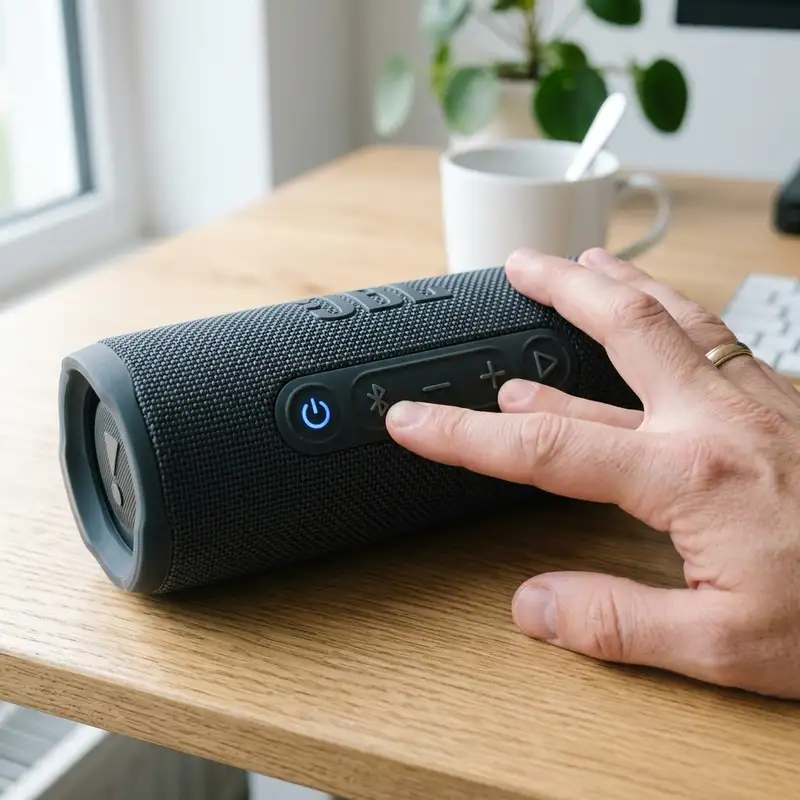
Bluetooth speakers like the JBL Xtreme 3 bring the party to life with their powerful sound and portability. However, like any electronic device, they can sometimes encounter issues that disrupt your experience. If you find your JBL Xtreme 3 is not responding to control commands, experiencing frequent Bluetooth dropouts, or struggling to connect with other devices via PartyBoost, it may be time for a factory reset. This guide will take you through the complete process of resetting your speaker, troubleshooting common issues, and ensuring it performs optimally.
Understanding the Need for a Factory Reset
Factory resetting your JBL Xtreme 3 can help resolve various operational issues. Aqui estão alguns dos sintomas típicos que indicam que um reset pode ser necessário:
- Control buttons fail to register commands.
- The speaker hangs or becomes unresponsive during PartyBoost multi-speaker linking.
- Frequent Bluetooth dropping out or inability to connect to devices.
By performing a factory reset, you can restore the speaker to its original settings, potentially resolving these frustrating problems.
Getting Started with the Factory Reset Process
Before you begin the factory reset process, ensure that your JBL Xtreme 3 is charged to at least 50%. This helps prevent any interruptions during the reset procedure. Aqui está um guia passo a passo sobre como redefinir seu dispositivo:
Step 1: Power On Your JBL Xtreme 3
To start the reset process, you first need to turn on your speaker. Here’s how:
- Locate the power button on the JBL Xtreme 3.
- Press the power button until you see the indicator lights turn on.
Step 2: Locate the Required Buttons
Next, you will need to find the Play/Pause button and the Volume + button. These buttons are critical for the reset process.
- The Play/Pause button is usually represented by a circular icon with two vertical bars.
- The Volume + button is typically marked with a plus sign (+).
Step 3: Press and Hold the Buttons
Now, you’re ready to initiate the reset:
- Press and hold both the Play/Pause button and the Volume + button simultaneously.
- Keep holding the buttons for roughly 5 seconds.
During this time, you should see the battery light bar flash, indicating that the reset process is underway.
Step 4: Wait for the Speaker to Shut Down
After holding the buttons, your JBL Xtreme 3 will automatically shut down. This indicates that the factory reset has been successfully completed.
Once the speaker is off, wait for a few moments before turning it back on to ensure that the reset process is finalized.
Post-Reset: Reconnecting Your JBL Xtreme 3
After performing a factory reset, your JBL Xtreme 3 will be in its default state. To use the speaker again, you will need to reconnect it to your devices. Follow these steps:
Step 1: Power On the Speaker
Press the power button once more to turn on your JBL Xtreme 3.
Step 2: Enable Bluetooth on Your Device
On the device you wish to connect to (smartphone, tablet, etc.), ensure that Bluetooth is enabled.
Step 3: Pair the Devices
To pair your JBL Xtreme 3 with your device:
- Go to the Bluetooth settings on your device.
- Look for "JBL Xtreme 3" in the list of available devices.
- Tap on it to establish the connection.
Once connected, you should hear a confirmation sound from the speaker.
DomineTec Tech Tip: If you face difficulties reconnecting, try turning off and on your Bluetooth device or forgetting the JBL Xtreme 3 from the device's Bluetooth settings before attempting to reconnect.
Troubleshooting Common Issues
Even after a factory reset, you may encounter some issues with your JBL Xtreme 3. Here’s a reference table for common problems and their solutions:
| Issue | Possible Cause | Solution | Prevention | Notes |
|---|---|---|---|---|
| Speaker Won't Turn On | Low Battery | Charge the speaker for at least 30 minutes. | Regularly charge the speaker. | Check charging cable and port. |
| Bluetooth Connection Issues | Pairing Mode Issues | Reset the speaker and try pairing again. | Keep the speaker updated. | Ensure the device is within range. |
| No Sound Output | Volume Settings | Check volume levels on both the speaker and device. | Test with different devices. | Check for physical obstructions. |
| Static or Distorted Sound | Interference | Move away from other electronic devices. | Avoid crowded wireless environments. | Try resetting the speaker. |
| PartyBoost Not Working | Compatibility Issues | Ensure all devices support PartyBoost. | Check for firmware updates. | Reset all connected devices. |
Best Practices for Maintaining Your JBL Xtreme 3
To ensure a long lifespan and optimal performance from your JBL Xtreme 3, consider the following best practices:
- Keep your speaker clean and free from dust.
- Avoid exposing the speaker to extreme temperatures or moisture.
- Regularly check for software updates to enhance functionality.
- Store the speaker in a cool, dry place when not in use.
- Use only the recommended USB-C charger to prevent damage.
Exploring Additional Features of the JBL Xtreme 3
The JBL Xtreme 3 comes with several features that enhance your listening experience:
- **PartyBoost**: Link multiple JBL speakers to amplify your sound.
- **IP67 Waterproof Rating**: Take the speaker to the beach or pool without worry.
- **Long Battery Life**: Enjoy up to 15 hours of playtime on a single charge.
- **Built-in Powerbank**: Charge your devices on the go.
For more information on external storage options that can work seamlessly with your JBL Xtreme 3, check out our guide on the best portable external SSDs.
Advanced Troubleshooting Techniques
If you're still facing issues after performing a factory reset and basic troubleshooting, consider these advanced techniques:
- **Bluetooth Interference Check**: Move the speaker away from potential sources of interference such as microwaves, Wi-Fi routers, and other Bluetooth devices. This can help improve connectivity.
- **Firmware Rollback**: If your speaker has recently received a firmware update and started having issues, you may want to rollback to a previous version. Check the JBL website for available firmware versions and instructions on how to revert.
- **Reset Bluetooth Settings on Source Device**: Sometimes the problem lies not with the speaker but with the device trying to connect to it. Reset the Bluetooth settings on your smartphone or tablet through the settings menu and try reconnecting.
Alternative Settings for Enhanced Performance
Adjusting certain settings on your JBL Xtreme 3 can lead to improved performance, especially in specific environments:
- **Equalizer Settings**: Use an equalizer app to customize the sound profile according to your preferences. By adjusting bass, midrange, and treble levels, you can enhance your listening experience for different genres of music.
- **PartyBoost Configuration**: If you have multiple JBL speakers, ensure they are all updated to the latest firmware. Properly configuring PartyBoost settings can help you take full advantage of multi-speaker setups.
- **Battery Management**: To prolong battery life, avoid letting the speaker stay on charge for extended periods after reaching full charge. Additionally, consider using a power-saving mode if available.
Long-Term Care Tips for Your JBL Xtreme 3
Taking care of your JBL Xtreme 3 over the long term will help maintain its functionality and sound quality:
- **Regular Cleaning**: Dust and debris can accumulate in the speaker’s grill and buttons. Use a soft, dry cloth to wipe the exterior and avoid using any harsh chemicals that may damage the finish.
- **Environmental Considerations**: When using the speaker outdoors, be mindful of sand and water exposure. While the Xtreme 3 is IP67 rated, excessive exposure to harsh conditions can still cause wear over time.
- **Battery Care**: Lithium-ion batteries degrade over time with improper care. To extend battery lifespan, charge your speaker before it completely drains and avoid exposing it to extreme temperatures.
Frequently Asked Questions (FAQ)
1. Will a factory reset delete all my saved settings?
Yes, a factory reset will erase all saved settings, including paired devices and personalized configurations.
2. How often should I perform a factory reset on my JBL Xtreme 3?
Only perform a factory reset when you encounter persistent issues that cannot be resolved through normal troubleshooting steps.
3. Can I still use my JBL Xtreme 3 while it’s charging?
Yes, you can use your JBL Xtreme 3 while it’s charging. However, it may take longer to charge if used during this time.
4. What is the warranty period for the JBL Xtreme 3?
The JBL Xtreme 3 typically comes with a one-year warranty from the date of purchase, covering manufacturing defects.
5. How do I update the firmware of my JBL Xtreme 3?
You can update the firmware through the JBL Portable app available on iOS and Android. Connect your speaker to the app, and follow the prompts to check for updates.






