How to Factory Reset a JBL Charge 5 Bluetooth Speaker to Fix Lag/Connection Issues
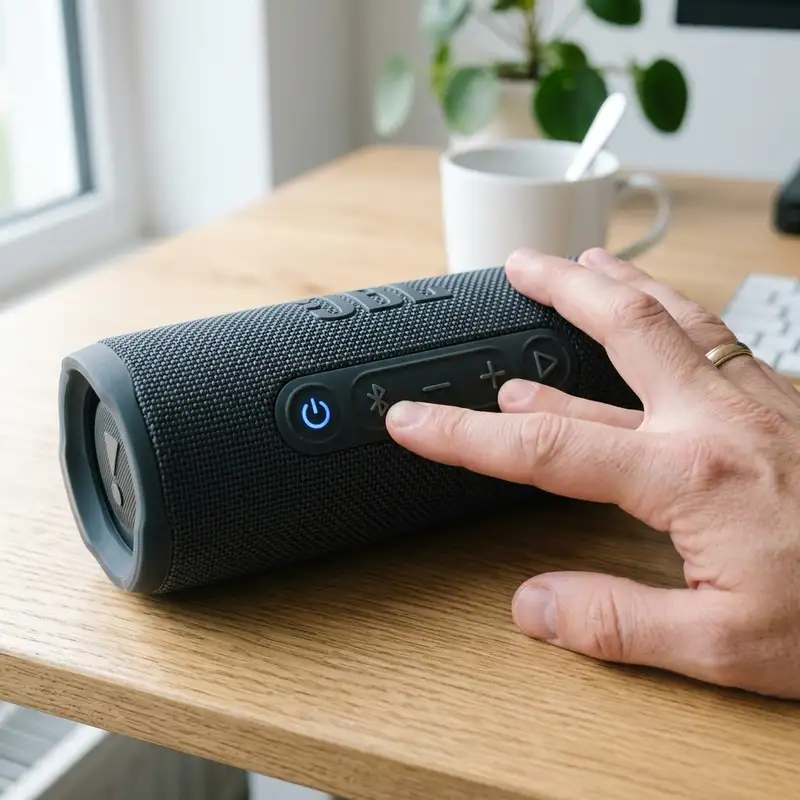
JBL Charge 5 is a popular Bluetooth speaker known for its robust sound quality and portability. No entanto, como qualquer dispositivo eletrônico, pode ocasionalmente apresentar problemas, como lag, problemas de conexão ou um painel de controle não responsivo. Essas questões podem se manifestar de várias maneiras, incluindo uma tela congelada com luzes sólidas, um botão de energia não responsivo, dificuldades em entrar no modo de emparelhamento Bluetooth ou desconexões intermitentes do aplicativo JBL Portable. Quando enfrentamos esses desafios, realizar uma redefinição de fábrica pode muitas vezes resolver problemas subjacentes e restaurar seu alto-falante à funcionalidade ideal.
Este guia abrangente o guiará pelo processo passo a passo de redefinição de fábrica de seu alto-falante JBL Charge 5, solucionando problemas comuns e garantindo uma experiência Bluetooth tranquila. Você aprenderá sobre a combinação secreta de botões de hardware para uma redefinição completa, como desvincular perfis Bluetooth obsoletos e muito mais. Vamos mergulhar!
Understanding the Need for a Factory Reset
Factory resetting your JBL Charge 5 can be an effective solution for various issues. Here are some common reasons you might need to perform a reset:
- Frozen Control Panel: If the LED lights are solid, and the buttons are unresponsive, a reset may be necessary.
- Unresponsive Power Button: If you press the power button but the speaker doesn't turn on, a factory reset can help.
- Bluetooth Pairing Issues: If the speaker fails to enter Bluetooth pairing mode or won’t connect, resetting may resolve these problems.
- Connection Drops with JBL Portable App: Frequent disconnections from the JBL app can indicate a need for a reset.
Step-by-Step Guide to Factory Reset Your JBL Charge 5
Step 1: Prepare Your Speaker
Before you begin the reset process, ensure that your JBL Charge 5 is charged adequately. A low battery can complicate resetting and may lead to incomplete processes.
Step 2: Power On Your JBL Charge 5
Press the power button located on the speaker to turn it on. You should see the LED lights illuminate, indicating that the device is powered up.
Step 3: Perform the Hard Reset
To execute the hard reset, follow these steps cuidadosamente:
- Press and hold the Play/Pause button and the Volume + button simultaneously.
- Keep these buttons pressed for approximately 3 to 5 seconds.
- You will notice that the front LED battery light bar turns off, and the speaker plays a power-down chime.
Congratulations! You have successfully performed a factory reset on your JBL Charge 5.
Unpairing Stale Bluetooth Profiles
After resetting your device, you may need to unpair any stale Bluetooth profiles from your device to ensure a fresh start. Here’s how:
Step 4: Access Bluetooth Settings
On your smartphone or tablet, navigate to the Bluetooth settings menu. This is typically found in the settings app under the 'Connections' or 'Bluetooth' section.
Step 5: Forget the JBL Charge 5
Look for your JBL Charge 5 in the list of paired devices. Tap on the speaker's name and select Forget ou Unpair. This action removes any previous connection profiles, allowing you to start fresh.
Reconnecting Your JBL Charge 5
Step 6: Put the Speaker in Pairing Mode
To reconnect your speaker:
- Ensure your JBL Charge 5 is powered on.
- Press and hold the Bluetooth button until the LED indicator starts flashing, indicating that the speaker is in pairing mode.
Step 7: Pair with Your Device
Return to the Bluetooth settings on your smartphone or tablet. Select your JBL Charge 5 from the list of available devices. Once paired, you should hear a confirmation tone from the speaker.
JBL Charge 5 LED Battery Status Table
| Battery Level | LED Indicator | Duration | Usage | Action Required |
|---|---|---|---|---|
| 0-25% | Red | 1-2 hours | Low usage | Charge immediately |
| 26-50% | Orange | 3-4 hours | Moderate usage | Consider charging soon |
| 51-75% | Green | 5-6 hours | Good usage | No action needed |
| 76-100% | Solid Green | 7-12 hours | High usage | No action needed |
| Charging | Flashing Orange | N/A | N/A | Wait until fully charged |
DomineTec Tech Tip: Always ensure your JBL Charge 5 is updated to the latest firmware for optimal performance. Check the JBL Portable app for any available updates.
Troubleshooting Common Issues After Resetting
Issue 1: Speaker Still Unresponsive
If your speaker remains unresponsive after attempting a reset, ensure that it is sufficiently charged. If the battery is low, charge it for at least 30 minutes before trying to power it on again.
Issue 2: Bluetooth Connection Problems
After resetting and unpairing, if you still experience Bluetooth connection problems, try restarting your smartphone ou tablet. Additionally, ensure that Bluetooth is enabled on your device.
Issue 3: Sound Quality Issues
If you notice sound quality issues after a reset, check for any obstruções ao redor do alto-falante. Sometimes, physical barriers can affect sound output. Also, ensure that the speaker is not connected to multiple devices simultaneously.
Issue 4: JBL Portable App Drops Connection
If you experience drops in connection with the JBL Portable app, ensure that your smartphone ou tablet is updated to the latest operating system. Additionally, try reinstalling the app.
Issue 5: Persistent LED Light Issues
If the LED indicators continue to show unusual patterns, consider performing the factory reset again. If the issue persists, it may be a hardware problem that requires professional assistance.
Advanced Troubleshooting Techniques
In addition to the common troubleshooting steps outlined above, there are several advanced techniques you can employ to diagnose and resolve more complex issues with your JBL Charge 5.
Resetting Network Settings on Your Device
Sometimes, the issue may not lie with the speaker itself but rather with the device it's trying to connect to. Resetting the network settings on your smartphone ou tablet can resolve connection issues. To do this:
- For iOS devices: Go to Settings > General > Transfer or Reset iPhone > Reset > Reset Network Settings.
- For Android devices: Go to Settings > System > Reset options > Reset Wi-Fi, mobile & Bluetooth.
After resetting the network settings, reconnect your JBL Charge 5 to your device as described in the previous sections.
Updating the JBL Charge 5 Firmware
Keeping your JBL Charge 5 updated with the latest firmware is crucial for optimal performance. To check for updates:
- Open the JBL Portable app on your smartphone.
- Connect to your JBL Charge 5.
- In the app, navigate to the settings section and look for firmware updates.
- If an update is available, follow the prompts to install it.
Regularly updating your firmware can help address bugs, improve performance, and introduce new features.
Long-Term Care Tips for Your JBL Charge 5
To ensure the longevity and optimal performance of your JBL Charge 5, consider the following long-term care tips:
- Store Properly: When not in use, store your speaker in a cool, dry place away from direct sunlight and extreme temperatures.
- Clean Regularly: Keep the speaker clean by wiping it down with a soft, damp cloth. Avoid using harsh chemicals that may damage the surface.
- Charge Wisely: Avoid letting the battery drain completely before charging. Try to keep the battery level between 20% and 80% for optimal battery health.
- Update Firmware: As mentioned earlier, regularly check for firmware updates to ensure your speaker runs smoothly.
- Avoid Overcharging: Once fully charged, unplug the speaker to prevent potential battery damage.
Frequently Asked Questions (FAQ)
1. How do I know if my JBL Charge 5 needs a reset?
If you experience freezing issues, unresponsive controls, or Bluetooth pairing problems, it may be time for a reset.
2. Will a factory reset delete my saved Bluetooth devices?
Yes, a factory reset will erase all saved Bluetooth connections, allowing you to set them up anew.
3. How often should I reset my JBL Charge 5?
Only reset your speaker when necessary, such as when troubleshooting issues. Regular resets are not required.
4. Can I reset my JBL Charge 5 without using the buttons?
No, the factory reset must be performed using the button combination as outlined in this guide.
5. Is it safe to reset my speaker multiple times?
Yes, it is safe to reset your JBL Charge 5 multiple times if needed, but it should be done sparingly and primarily for troubleshooting purposes.






