How to Reset Unrecognized HP 667 Ink Cartridge Error Warning
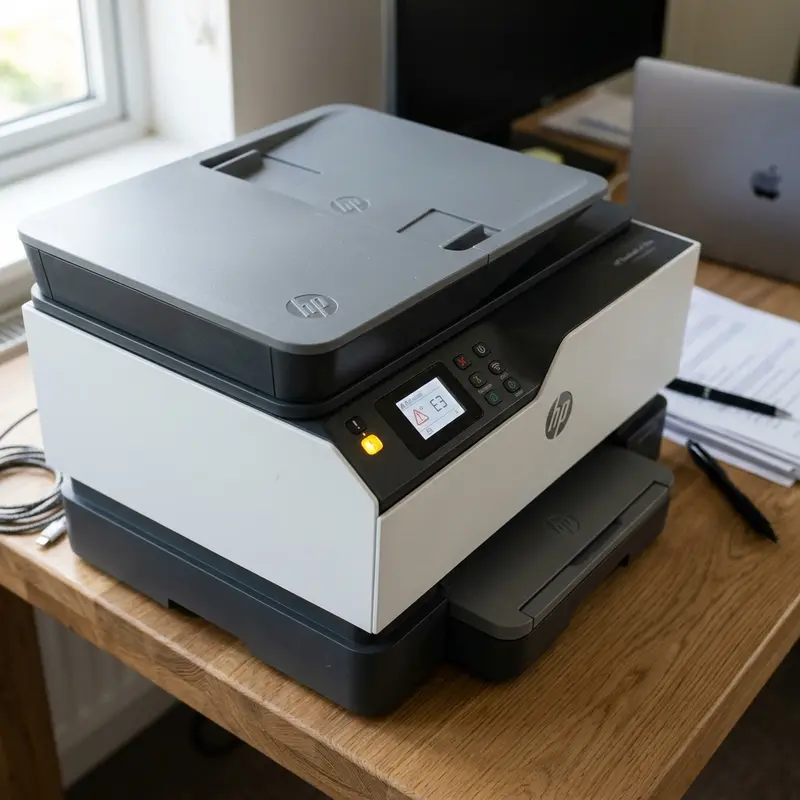
HP 667 ink cartridges, widely used in consumer-oriented multifunction inkjet printer series such as the HP DeskJet Ink Advantage 2774, 2776, 2374, 2376, and 6400, are highly convenient but prone to unexpected technical issues. One of the most common user complaints is the sudden appearance of cartridge-related error warnings on the computer screen or blinking amber status lights on the printer console. These errors can occur with newly installed original cartridges, third-party remanufactured cartridges, or after manually refilling an empty cartridge.
To reset or recover an unrecognized HP 667 ink cartridge displaying an error warning, you must clean the copper contact plates on the cartridge and the matching connection pins inside the carriage using high-purity isopropyl alcohol, perform a logic board hard reset by disconnecting the power cord while the printer is on, or disable the "HP Cartridge Protection" feature via the printer’s web interface to bypass software-based blocks.
The Architecture and Electronics of HP 667 Thermal Cartridges
To troubleshoot HP 667 cartridge errors effectively, it is helpful to understand the electronic engineering behind the hardware. Unlike continuous ink tank systems where the printhead is a permanent component built into the printer chassis, HP 667 cartridges integrate the thermal inkjet (TIJ) printhead directly into the disposable plastic cartridge housing. When you purchase a new cartridge, you are buying a complete, brand-new set of print nozzles and an associated electrical circuit interface.
This electrical interface consists of a flexible printed circuit board (FPCB) containing dozens of microscopic gold-plated copper contact pads. Each pad connects to a tiny resistor behind an individual print nozzle. When the printer's motherboard sends a brief electrical current to a specific pad, the corresponding resistor heats up to approximately 300°C (572°F) in a fraction of a microsecond. This intense heat vaporizes a microscopic bubble of ink, creating an expansion wave that ejects a droplet of ink onto the page. Additionally, the cartridge chip contains a small ROM memory that stores a unique digital serial number, factory calibration settings, and the estimated remaining ink volume.
When the printer displays an "Incompatible Cartridge" or "Cartridge Error" message, it indicates that the printer's controller has failed to establish proper electrical or logic communication with the cartridge chip. A thin film of grease from fingerprints, airborne dust particles, or a tiny splatter of dried ink on a single copper contact pad can disrupt the connection, prompting the printer to declare the cartridge missing or defective.
Identifying Specific HP 667 Ink Cartridge Errors
Before applying a fix, it is critical to diagnose the exact nature of the error message displayed by your operating system or the HP Smart application. Different symptoms point to different underlying physical or logical failures, and selecting the correct remedy will save valuable time.
- Incompatible or Unrecognized Cartridge: This error usually points to physical contact contamination, oxidation of the copper pads, or a firmware-level block targeting refilled chips.
- HP Cartridge Protection Enabled: This is a proprietary anti-theft software feature that permanently locks a cartridge to the first printer it is installed in. If you purchase a remanufactured cartridge or try to share a cartridge between two printers, this lock will trigger.
- Cartridge Missing: The printer’s carriage sensor cannot detect any electronic response from the cartridge slots. This is caused by severe physical disconnection or a broken trace in the cartridge's flexible circuit.
- Low Ink or Depleted Ink Warning (After Refilling): When you refill an HP 667 cartridge, the chip retains the "empty" state in its write-once memory. While it displays a warning, the printer will usually allow you to continue printing once you click past the initial prompt, though the ink monitor will remain at zero.
Comparison of Reset and Recovery Techniques
Each type of failure requires a specific troubleshooting protocol. The following table highlights the primary corrective steps, the required materials, and their typical success rates:
| Fix Procedure | Target Error Condition | Required Tools | Expected Success Rate |
|---|---|---|---|
| Physical Contact Cleaning | Unrecognized cartridge, missing cartridge, dirty pins | 99% Isopropyl alcohol, lint-free paper filter/cloth | High (~70% of cases) |
| Hardware Hard Reset | Corrupted NVRAM memory cache on the printer board | None (Power cycling sequence) | Medium (~40% of cases) |
| Disable Cartridge Protection | Protected cartridge warning on remanufactured units | PC/Mac with HP full software or access to local EWS page | High (Prevents future blocks) |
| Nozzle Priming (Snap Tool) | Clogged nozzles, dry cartridge head after refilling | Cartridge snap-in clip, syringe, warm distilled water | Medium-High (Restores flow) |
Step-by-Step Guide to Cleaning Electrical Contacts Safely
More than half of the errors related to unrecognized HP 667 cartridges are caused by invisible contamination on the gold-plated contact pads. Cleaning these contacts is a delicate process that must be performed carefully to avoid bending the tiny pins inside the carriage assembly.
Required Tools: A clean paper coffee filter or lint-free microfiber cloth, and high-purity isopropyl alcohol (do not use rubbing alcohol or household water-based cleaners, as they contain water that will oxidize the copper).
Step-by-Step Instructions:
- Power on the HP DeskJet printer and open the cartridge access door. Wait for the carriage to glide into the center of the printer.
- Remove both cartridges (Black and Tri-color) by pressing down gently on them until they click out of their slots, then pull them toward you.
- Moisten a small area of the lint-free cloth or coffee filter with a few drops of isopropyl alcohol. Do not saturate the cloth.
- Gently wipe the copper contacts on the face of the cartridge in a single direction (top to bottom). Warning: Do not touch the metal nozzle plate on the bottom of the cartridge with your fingers or the cleaning cloth to avoid damaging the nozzles.
- Locate the tiny gold-plated contact pins inside the printer carriage. Dampen a clean section of the lint-free cloth and gently wipe the pins. Be very careful not to apply too much pressure, which can bend the pins.
- Let the alcohol evaporate completely, which should take about 2 minutes.
- Reinsert both cartridges into their correct slots, close the access door, and check if the error message is resolved.
Performing a Logic Board Hard Reset on the HP Printer
HP printers feature a temporary NVRAM memory cache that tracks the serial numbers and electrical status of the installed cartridges. If the printer encounters a minor electrical fluctuation or a chip error, it may store this status and continue rejecting the cartridge even after the contacts have been cleaned. Performing a hard reset clears this memory cache.
How to execute a hard reset on an HP DeskJet printer:
- With the printer turned on and the cartridges installed, disconnect the power cord from the back of the printer.
- Unplug the power cord from the wall outlet or surge protector.
- Disconnect any USB interface cables linking the printer to your computer.
- Press and hold down the printer's Power button for 30 seconds to drain any residual electrical charge stored in the motherboard's capacitors.
- Leave the printer disconnected from all power sources for at least 3 minutes.
- Plug the power cord directly back into a wall outlet, bypassing any extension cords or surge protectors for testing.
- Reconnect the power cable to the back of the printer, and turn it on.
- Wait for the printer to finish its startup routine and become quiet before attempting to print a test page.
How to Disable HP Cartridge Protection via Software
HP Cartridge Protection is designed to prevent cartridges from being stolen and used in other printers. However, it often blocks legitimate original or remanufactured cartridges. You can disable this feature through your printer's software settings to prevent future issues.
To disable HP Cartridge Protection on Windows:
- Open the HP Smart app or the HP printer driver software on your computer.
- Go to Printer Settings.
- Select Advanced Settings. This will open the printer's Embedded Web Server (EWS) in your web browser.
- In the EWS menu, click on the Tools or Settings tab.
- Look for the HP Cartridge Protection option under the system settings menu.
- Select Disable HP Cartridge Protection and click Apply or Save to confirm the changes.
Please note that disabling this setting will prevent future cartridges from being locked, but it may not unlock a cartridge that has already been flagged as protected by another printer.
Best Practices to Avoid Damaging Your HP 667 Cartridges
HP 667 cartridges are sensitive electronic components that can easily burn out if they are not handled properly. To prolong their lifespan and ensure reliable printing:
- Never print when the cartridge is completely dry: The liquid ink acts as a cooling agent for the thermal resistors in the printhead. If you print without ink, the resistors will overheat and burn out in seconds, permanently ruining the cartridge.
- Avoid static electricity: When handling the cartridge during a refill or clean, avoid touching the gold contacts. Static electricity from your hands can easily damage the delicate CMOS circuits inside the chip.
- Use high-quality ink for refills: If you choose to refill your cartridges, use premium formulated inks that closely match HP's original specifications to prevent clogging and carbon residue buildup on the nozzle plate.
The Role of Electrical Oxidation on HP 667 Copper Contact Strips
Modern HP DeskJet printers communicate with the cartridge microcircuits using low-voltage signals sent through small copper pads on the back of the cartridge. Over time, exposure to air and humidity causes copper oxidation, forming a thin, non-conductive layer that blocks electrical signals, triggering unrecognized cartridge errors. To resolve this, remove the HP 667 cartridge and use a clean pencil eraser to gently rub the copper contacts. This removes the oxidation layer and restores electrical communication without damaging the circuits. Wipe away any dust before reinstalling the cartridge.
Bypassing HP Firmware Protection and Cartridge Protection Settings
HP printers use a feature called 'Cartridge Protection' that binds a cartridge to a specific printer serial number, preventing it from being used elsewhere. If you install a refilled or relocated HP 667 cartridge, the printer may reject it. To bypass this, open the HP Smart software on your computer, navigate to Advanced Settings, locate the 'Cartridge Protection' option under Settings, and toggle it off. Restart the printer to clear the motherboard cache and resolve the unrecognized cartridge error.
How HP Cartridge Protection Works Under the Hood
HP Cartridge Protection is a software-based security feature built into HP printer firmware. When you install a new HP 667 cartridge, the printer reads its internal microchip and locks its unique ID to the printer's serial number. If that cartridge is later refilled or moved to another HP printer, it is marked as protected and rejected. By disabling Cartridge Protection inside the HP Smart software interface, you tell the printer mainboard to ignore serialization logs, allowing the device to accept refilled, remanufactured, or second-hand HP 667 cartridges without triggering unrecognized cartridge errors.
Understanding Refilled HP 667 Cartridge Ink Level Registry Settings
Refilling an HP 667 cartridge replenishes the physical ink reservoir but does not reset the cartridge's internal microchip registers. The printer reads the chip's memory log, which indicates the cartridge was depleted, and continues to display 'Ink Alert' or low ink messages. To clear this, press and hold the 'Cancel' (X) and 'Color Copy' buttons on the physical printer panel for five seconds. This overrides the mathematical ink tracking system and allows you to print using the refilled cartridge despite the low ink warning.
Resetting HP Print Spooler Files to Clear Cartridge Communication Failures
Sometimes, cartridge recognition errors are caused by corrupt spooler cache files in Windows rather than physical hardware defects. If your HP printer continues to show error lights, open the Command Prompt on Windows as Administrator and type 'net stop spooler', followed by deleting all files in the 'C:\Windows\System32\spool\PRINTERS' folder. Type 'net start spooler' to restart the print service. This clears old spooler tasks, allowing the PC and printer to establish clean communication.
Preventative Maintenance Tips for HP 667 Cartridges and Print Carriage
To ensure your HP printer recognizes the HP 667 cartridge consistently and avoids sudden communication errors, implement a regular maintenance schedule. Every few weeks, print a single page containing all four colors (cyan, magenta, yellow, and black). This forces ink to flow through the nozzles, preventing dry blockages and reducing the build-up of static electricity on the copper contacts. Additionally, wipe the interior carriage rails with a dry microfiber cloth to remove any accumulated paper fibers and dust that can settle on the gold contacts, ensuring a stable connection.
A Note on Environmental Settings for HP Printers
In addition to software and physical contact cleaning, the surrounding environment can play a subtle role in how your HP DeskJet printer communicates with the HP 667 cartridge. High static electricity in low humidity areas can disrupt the delicate copper connections, leading to false unrecognized cartridge warnings. Keeping your home office at a moderate humidity level and plugging the printer directly into a grounded wall outlet helps dissipate static build-up, ensuring stable performance and avoiding sudden printer errors.
Frequently Asked Questions (FAQ)
Below are the most common technical questions and answers regarding HP 667 ink cartridge errors.




