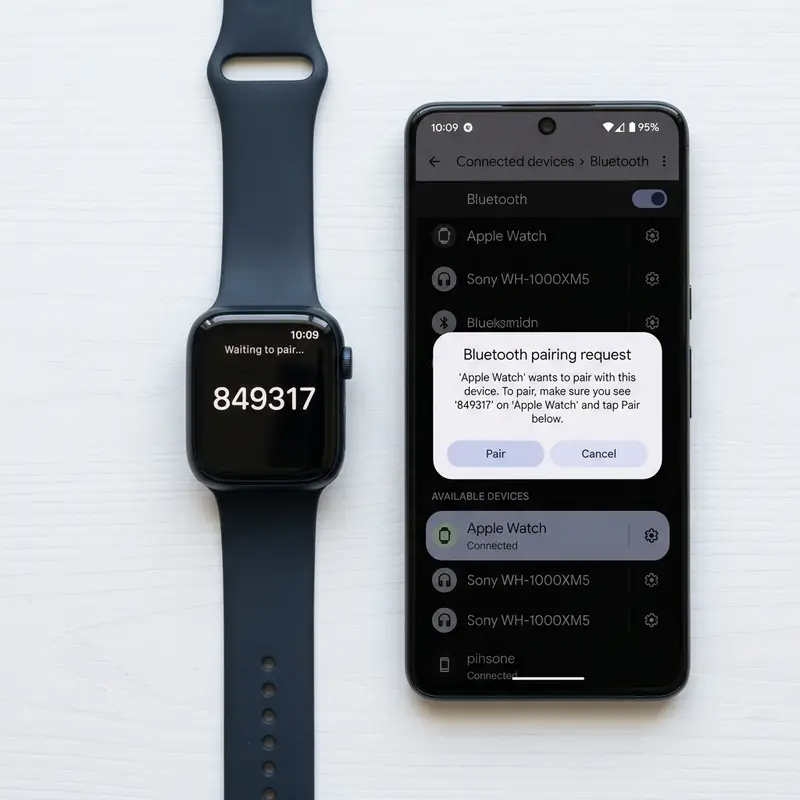
How to Pair Amazfit Smartwatch with Phone Using Zepp App
Amazfit smartwatches, developed by Zepp Health, are popular worldwide for their long battery life and excellent cost-to-performance ratio. Whether you own a rugged Amazfit T-Rex, an urban GTR or GTS model, or a budget-friendly Amazfit Bip series, completing the initial pairing process with your smartphone is essential. This connection allows you to receive incoming notifications, control music playbacks, and sync workout logs and sleep metrics.
To pair your Amazfit smartwatch with your phone using the Zepp application, download and install the Zepp app (formerly Amazfit) from the iOS App Store or Google Play Store, create a user account, and enable Bluetooth and Location Services on your smartphone. Turn on the watch to display the startup QR code. In the Zepp app, select add device, tap watch, and use your phone's camera to scan the code displayed on the screen. Confirm the pairing request on the watch face to complete the process. Once linked, your device will sync fitness logs in real time.
If your Amazfit watch has connection problems and you want to look at more troubleshooting guides, read our article on amazfit nao conecta no bluetooth o que fazer or learn how to enable cellular profiles in como ativar esim iphone.
1. The Role of the Zepp Cloud Account
The Zepp application acts as the hub for your Amazfit watch data. Unlike basic Bluetooth devices, pairing a smartwatch requires a user account to create a personalized fitness profile. This account securely stores heart rate trends, blood oxygen levels (SpO2), stress indicators, and your Personal Activity Intelligence (PAI) score.
You can create an account using your Google ID, Apple ID, Facebook credentials, or a standard email address. Using a cloud account ensures that if you switch phones in the future, your historical health and training data remains safe.
2. How to Pair Using the Startup QR Code
The easiest way to link your smartwatch is by scanning the graphic QR code generated by the Zepp OS on a new or factory-reset watch.
Follow these steps to connect your device:
- Charge your Amazfit watch to at least 30% battery capacity before starting.
- Enable Bluetooth and turn on Location Services (GPS) on your phone. Android requires location access to search for nearby Bluetooth devices.
- Launch the Zepp app on your phone and log in.
- Tap the Profile tab in the bottom-right corner and select Add Device.
- Select Watch from the options.
- Choose "Watch with QR Code".
- Point your phone's camera at the QR code shown on the watch face.
- Wait for the watch to vibrate, then tap the green checkmark on the screen to confirm the pairing.
3. Required OS Permissions and Configuration Chart
| System Permission | Feature in Amazfit Watch | Recommended Settings Status |
|---|---|---|
| Location Services (GPS) | Weather updates and outdoor workout routing | Always Allow (High Accuracy) |
| Notification Access | Receiving WhatsApp, call alerts, and system notifications | Enabled in OS Settings |
| Contacts & Telephone | Displaying contact names for incoming calls on screen | Enabled |
| Storage / File Access | Downloading watch faces and syncing offline maps | Enabled |
| Physical Activity Access | Optimizing battery by tracking steps via phone motion | Optional |
4. Manual Bluetooth Pairing Without QR Code
If your watch has already been set up and does not display the QR code on the screen, you can connect it manually by searching for its Bluetooth signal through the app.
To connect manually:
- Open the Zepp app, go to Profile > Add Device > Watch.
- Select "Watch without QR Code".
- The app will scan the 2.4 GHz Bluetooth frequencies for nearby Amazfit devices.
- Tap the name of your Amazfit watch once it appears on the discovered devices list.
- Confirm the pairing request on the watch screen.
5. Optimizing Android Background Activity to Prevent Disconnections
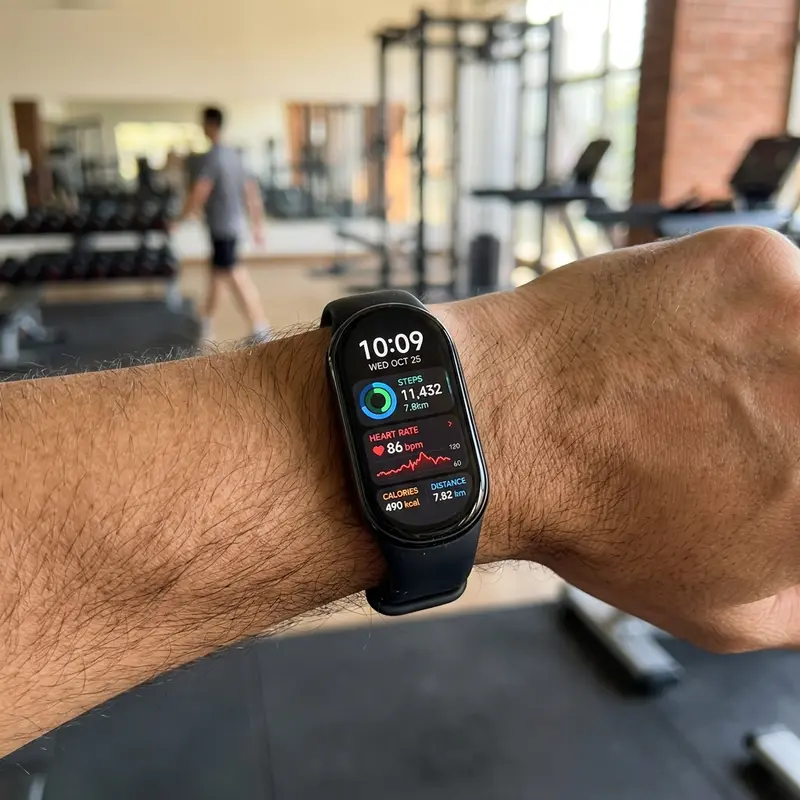
Users of Android devices (such as Xiaomi, Samsung, or Motorola) may experience frequent disconnections or miss notifications. This happens because the Android OS aggressively terminates background apps to save battery.
To prevent the Zepp app from being closed:
- Go to Android Settings > Apps > Manage Apps and select Zepp.
- Open the Battery Saver sub-menu and change it to "No Restrictions".
- Open the Android recent apps screen, tap and hold the Zepp app preview card, and select the padlock icon to lock the app in memory.
6. The Zepp OS Micro App Store
On newer Amazfit models, Zepp Health introduced the Zepp OS. In contrast to older, static firmware, Zepp OS features a lightweight Micro App Store accessible from the Zepp smartphone app. Users can download small utilities like calculators, navigation tools, and hydration reminders, which run directly on the watch's low-power microcontroller.
7. Integrating with Third-Party Platforms
The Zepp app supports sharing data with popular fitness ecosystems. Go to Profile > Add Accounts in the Zepp app to link accounts with Strava, Google Fit, Apple Health, adidas Running, or Komoot. Once configured, your GPS workouts will sync to these third-party platforms automatically.
8. Performing OTA Firmware Updates
After your watch is paired, the Zepp app will check for pending firmware updates. These Over-The-Air (OTA) updates are important for fixing bugs and improving touch screen response. Keep the watch near your phone and make sure its battery is above 50% during the update process to avoid corrupting the system files.
Configuring Notification Streams and System Access Settings
Once the initial Bluetooth pairing between your Amazfit watch and phone is complete, you must configure the notification settings within the Zepp application. Navigate to your Device settings inside Zepp, enable App Alerts, and select apps like Messages, WhatsApp, and email. You must grant the Zepp app permission to access notifications within your phone's OS settings so it can transmit incoming messages to your watch screen in real time.
Linking Your Zepp Account for Automatic Strava Syncs
The Zepp platform allows users to sync their workouts with third-party fitness networks like Strava, Apple Health, and Google Fit. To enable this integration, open the Zepp app, go to your Profile, tap Add Accounts, and select Strava. After completing the authorization steps, any outdoor runs, rides, or walks recorded with your Amazfit watch's GPS will upload to your Strava profile as soon as the watch syncs with your phone.
Unhashing Security Profiles When Transferring to a New Smartphone
When migrating your Amazfit device to a new smartphone, you must disassociate the hardware token from your old phone's Bluetooth registry. If the watch remains locked to the MAC address of the old device, it will reject pairing requests. Open the Zepp app on your old phone, select your watch model under devices, and click Unpair to clear the encryption keys and show the QR pairing screen again.
Granting Background App Execution Access for Zepp OS Services
To maintain updated weather widgets and calendar syncs, the Zepp companion app requires unrestricted background access. On Android and iOS systems, power managers terminate processes that run in the background. Granting Zepp background permissions ensures that target services remain active, preventing sync drops and ensuring that your sports tracker stays fully integrated.
Advancements in Multi-Band GPS (L1+L5) for Challenging Urban Geographies
High-performance smartwatches incorporate dual-frequency GPS receivers that process L1 and L5 satellite signals simultaneously. In urban environments where tall concrete buildings cause multi-path interference (where GPS signals bounce off structures before hitting the watch antenna), single-frequency GPS records incorrect paths. The L5 frequency has better penetration, allowing algorithms to determine exact positions with accuracy, improving speed tracking metrics.
Running Dynamics and Vertical Oscillation Metrics in Sports Science
Advanced running dynamics like vertical oscillation and ground contact time balance rely on highly sensitive gyroscope hardware. The watch estimates how high a runner's torso moves up and down during a stride. Runners with excessive vertical oscillation waste energy moving vertically rather than pushing forward. Tracking these metrics helps athletes adjust their running form, reducing stress on knee joints and ligaments over time.
Understanding Reflective Optical Spectroscopy in SpO2 Pulse Sensors
The blood oxygen saturation (SpO2) sensor in modern wearables uses reflective optical spectroscopy. The sensor emits red light (approx. 660 nanometers) and infrared light (approx. 940 nanometers) through the skin. Oxygenated hemoglobin absorbs more infrared light, whereas deoxygenated hemoglobin absorbs more red light. By calculating the ratio of reflected light captured by the photodiode array, the onboard processor estimates blood oxygen saturation levels.
Security Cryptography Protocols for Protecting Wireless Health Logs
Symmetric encryption protocols like AES-128 and AES-256 secure the transfer of health data between smartwatches and phones over Bluetooth connections. Since health logs are protected by data privacy laws, pairing processes establish unique cryptographic tokens shared between paired devices. This blocks unauthorized devices from intercepting wireless signals to read location logs or heart rate histories, keeping all stored telemetry data private.
Compiler Optimizations and Application Execution in Resource-Constrained Environments
To run applications smoothly on limited smartwatch hardware, developer suites use Ahead-of-Time (AOT) compilation. This converts source code into native machine code instructions before application launch, reducing CPU cycles during runtimes. Wearable operating systems like WearOS also use layout optimizers to make sure rendering circular UI elements does not overload system RAM, preventing lag when running media players.
The Role of MEMS Accelerometers in Complex Motion Tracking
Micro-Electromechanical Systems (MEMS) accelerometers built into modern smartwatches measure linear acceleration along three orthogonal axes. These tiny silicon components detect minute voltage shifts generated by the swing of a user's arm. Proprietary sensor-fusion algorithms analyze these analog signals and apply Fourier transforms to filter out environmental vibrations, such as typing or driving. This mechanical parsing prevents the system from logging false steps, saving processing cycles for the main CPU cores and drastically reducing battery drain during standby periods.
Chemical Degradation of Lithium-Ion Batteries Under Thermal Stress
Small-scale lithium-ion cells used in wearable electronics undergo rapid physical degradation when subjected to persistent heat. The chemical charging cycle generates internal resistance that, if not radiated through the aluminum or ceramic case, damages the solid electrolyte interphase (SEI) layer. This reduces the anode's ability to host lithium ions. Furthermore, utilizing low-quality chargers that introduce voltage spikes accelerates lithium plating on the electrodes, increasing the risk of cell swelling and sudden battery drops.
The Evolution of Bluetooth Low Energy (BLE) Protocol Implementations
Bluetooth Low Energy (BLE) has changed how smartwatches sync telemetry logs with mobile hosts by prioritizing energy conservation over high-bandwidth transfers. BLE keeps the radio transceiver in a low-power sleep state, waking it up to broadcast small health telemetry packets during brief connection intervals. If a mobile operating system alters these connection intervals, it can cause delayed notification deliveries on the watch face or disrupt the wireless connection entirely.
Applying Kalman Filters to Sensor Fusion for Clean Heart Rate Tracking
Optical photoplethysmography and motion sensor data are merged in real time using Kalman filters and sensor-fusion algorithms. This mathematics calculates the user's pulse rate by subtracting motion-induced noise, such as the impact of steps during running. Without this dynamic noise filtering, the optical sensor's LED feedback would be corrupt, showing inaccurate spikes that would throw off estimations of physical stress, VO2 max metrics, and recovery estimates.
Frequently Asked Questions (FAQ)
1. Can I use the Zepp app on any smartphone?
Yes. The Zepp app is fully compatible with Android phones (Android 7.0 and higher) and Apple iPhones (iOS 12.0 and higher), supporting devices from Samsung, Xiaomi, Motorola, and Apple.
2. Can I connect the same Amazfit watch to two phones at the same time?
No. For security and data integrity, an Amazfit watch can only be paired with one Zepp account and one smartphone at a time. To link it to another phone, you must first unpair it from the original device.
3. What should I do if the QR code disappears from the watch screen?
If your watch is past the initial setup screen, go to the settings menu on the watch, select System, and tap Factory Reset. The watch will restart and show the pairing QR code again.
4. Is it safe to share my location data with the Zepp app?
Yes. Location access is required to track outdoor workouts and by Android to search for nearby Bluetooth devices. The app does not share this data with third parties.
5. Why am I not receiving WhatsApp notifications on my watch?
Open the Zepp app, go to Profile > My Device > App Notifications, and verify that the notification toggle is enabled and that WhatsApp is checked in the app list.




