How to Create Professional Product Mockups in Canva for Free
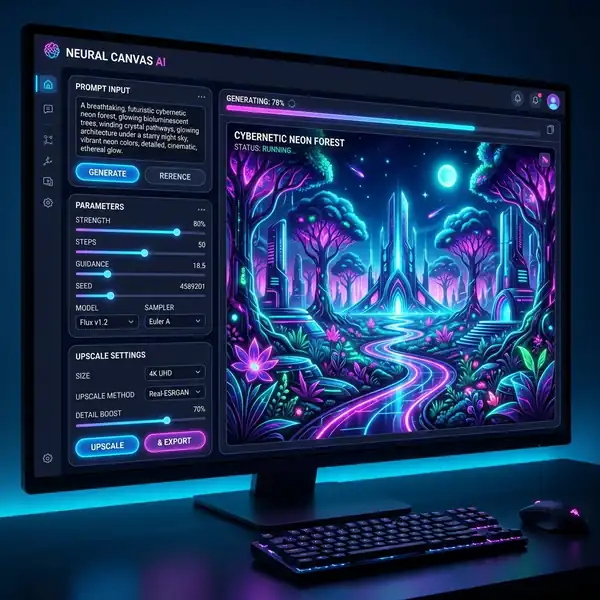
Learn how to create professional product mockups in Canva for free with our step-by-step guide.
DomineTec Tip: To elevate your designs further, learn how to remove image background in Canva for free, allowing for cleaner mockups.
Understanding Mockups and Their Importance
Mockups are visual representations of products or designs, often used to showcase how a final product will look. They are essential in marketing and design as they provide a tangible representation of abstract ideas. Utilizing mockups in your presentations can help convey concepts more effectively, allowing clients and stakeholders to visualize the end product.Getting Started with Canva
To create mockups in Canva, you first need to set up an account. Canva offers a free plan with sufficient features for mockup creation. Follow these steps to get started:1. Sign Up or Log In: Visit Canva’s official website and either log in or create a new account using your email or social media account. 2. Select a Template: Use the search bar to find “mockup” templates. This will give you a variety of pre-designed options to choose from, simplifying your design process. 3. Choose the Right Dimensions: Depending on your needs, select an appropriate size for your mockup. Common dimensions include 1080x1080 pixels for social media or 1920x1080 pixels for presentations.
Creating Your Mockup
Once you’ve selected your template, it’s time to customize it. Here are the detailed steps:1. Upload Your Images: Click on the “Uploads” tab to upload your product images. Drag and drop them into your chosen template. 2. Adjust Image Placement: Click on the image to resize and reposition it. Use the alignment guides provided by Canva to ensure your images are centered and well-placed. 3. Apply Effects and Filters: Enhance your mockup by applying effects. Use Canva’s editing tools to adjust brightness, contrast, and saturation to make your product stand out. 4. Add Text and Branding: Use the “Text” tool to add product descriptions, prices, or branding elements. Ensure that the font styles and colors match your brand identity.
Styling and Customizing Your Mockup
Customization is key to creating unique mockups. Here are some advanced techniques to consider:
1. Color Palettes and Themes: Use Canva’s color palette generator to find complementary colors for your design. This can enhance visual appeal and ensure brand consistency. 2. Layering Elements: Use the layering feature to bring elements to the front or back. This is especially useful for creating depth in your design. 3. Using Grids and Frames: Grids can help organize elements neatly, while frames can give images a polished look. Experiment with these features to enhance your layout.
| Aspect Ratio | Common Usage | Recommended Size |
|---|---|---|
| 1:1 | Social Media Posts | 1080 x 1080 pixels |
| 16:9 | Presentations | 1920 x 1080 pixels |
| 4:3 | Print Media | 1600 x 1200 pixels |
Exporting Your Mockup
After completing your design, exporting it correctly is important. Here’s how to ensure your mockups are ready for presentation or sharing:1. Choose the Right Format: Canva allows you to export your designs in various formats, including PNG, JPEG, and PDF. For high-quality prints, select PDF; for digital sharing, PNG or JPEG works best. 2. Adjust Resolution Settings: Ensure that your images are exported at the highest resolution possible. This is particularly important if you plan to print your mockup. 3. Share or Download: Click the “Share” button to get a shareable link or download the file directly to your device.

Enhancing Your Design Skills
If you’re looking to improve your design skills further, consider exploring other resources and tools available online. Canva offers various tutorials and design courses that can help elevate your capabilities.Final Thoughts
Creating professional product mockups in Canva for free is not only possible but also relatively straightforward with the right approach. By utilizing the tools and techniques outlined in this guide, you can produce visually appealing mockups that effectively communicate your ideas. Don’t hesitate to explore all the functionalities Canva offers, as they can significantly enhance your design workflow.As you advance, you might wonder if investing in Canva Pro is worthwhile for your design team. Check out our article on whether is Canva Pro worth it for design teams for deeper insights.
Understanding Aspect Ratios for Product Mockups
Aspect ratio plays a important role in product mockups, influencing both the visual appeal and the practicality of the design. When creating mockups in Canva, understanding aspect ratios ensures that the final product is both aesthetically pleasing and functional across various platforms and devices. Aspect ratio, defined as the proportional relationship between width and height, can drastically affect how your designs are perceived. For instance, a 16:9 ratio is commonly used for digital displays, while a 4:3 ratio is often preferred for print media. By selecting the appropriate aspect ratio for your mockup, you can enhance the presentation of your product, making it more engaging for your target audience.
Canva allows users to customize aspect ratios to fit specific needs, be it for social media posts, website banners, or print advertisements. Familiarizing oneself with Canva's preset dimensions, such as Instagram posts (1080 x 1080 pixels) or Facebook cover photos (820 x 312 pixels), can facilitate a smoother design process. Additionally, designers can create custom dimensions based on their requirements, which is particularly useful for product mockups that need to adhere to specific platform guidelines or marketing materials. Understanding how to manipulate aspect ratios can elevate your mockups, ensuring that they resonate well within their intended context.
Moreover, aspect ratios can also affect the perceived depth and focus of the product within the mockup. A wider aspect ratio can create a cinematic feel, drawing attention to the product while allowing for contextual elements to complement it. In contrast, a narrower ratio can help focus on the product itself, eliminating distractions. As you iterate on your mockups, experimenting with different aspect ratios can yield insights into how your audience interacts with your designs. This iterative process is vital for refining the mockup to align closely with branding goals and user expectations.

Streamlining Your Workflow with Canva's User Interface Features
Canva's user interface is designed to facilitate an efficient workflow, particularly for creating professional product mockups. The platform's drag-and-drop functionality allows designers to seamlessly incorporate elements into their mockups, whether they are images, text, or graphics. This intuitive feature reduces the time spent on layout adjustments and enables a more fluid creative process. By leveraging Canva's grid and alignment tools, users can ensure that elements are precisely positioned, contributing to a polished final product. These UI features are not just for aesthetics; they play a significant role in maintaining consistency across multiple mockups.
Another beneficial aspect of Canva's interface is its extensive library of templates and elements tailored for product mockups. Users can browse through pre-designed templates that are optimized for various industries, making it easier to find a starting point that aligns with their vision. These templates often come with placeholders that prompt users to think critically about how they want to position their product and accompanying information. Utilizing these resources can significantly shorten the design process while maintaining a high standard of professionalism in the mockups.
Additionally, Canva’s collaboration features facilitate a streamlined workflow for teams. With real-time editing capabilities, multiple users can work on a mockup simultaneously, allowing for instant feedback and quicker iterations. Comments and suggestions can be added directly within the design, ensuring that all team members are aligned on the creative direction. This collaborative environment not only enhances productivity but also fosters a culture of creativity by integrating diverse perspectives into the design process. Understanding and leveraging these UI features is essential for maximizing efficiency when producing high-quality product mockups in Canva.
Optimizing Workflows for Efficient Mockup Creation
Creating professional product mockups in Canva for free involves more than just selecting templates; it requires a streamlined workflow that maximizes efficiency and output quality. To begin with, establishing a robust design process is important. This involves defining your project's scope, gathering necessary assets, and creating a checklist that includes all design elements required for the mockup. By segmenting the workflow into manageable phases—research, design, review, and finalize—you can maintain a clear focus and avoid common pitfalls like design fatigue or miscommunication among team members.
One effective approach is to utilize Canva's organizational tools, such as folders and labels, to categorize assets and mockup drafts systematically. This not only speeds up the design process but also aids in version control, allowing designers to easily revert to previous iterations if needed. Furthermore, leveraging Canva’s collaboration features can enhance the workflow by allowing team members to provide real-time feedback directly on the mockup. This immediate input can significantly reduce the number of revisions needed, leading to a more polished final product.
Another aspect of optimizing the workflow is the integration of templates and reusable elements. By creating a library of frequently used design components—such as logos, icons, and color palettes—designers can expedite the mockup process. This aspect is especially beneficial when working on multiple product lines or campaigns, as it ensures brand consistency and speeds up the iteration cycle. Additionally, utilizing shortcuts and keyboard commands in Canva can further streamline interactions, allowing for a more fluid design experience.

Understanding Aspect Ratios for Enhanced Visual Impact
Aspect ratios play a significant role in the presentation of product mockups, impacting both the visual appeal and the clarity of the design. An aspect ratio, defined as the proportional relationship between an image's width and height, influences how a design is perceived across various platforms and devices. For instance, a common aspect ratio for social media posts is 1:1, while websites may favor a 16:9 ratio for banners. Understanding these differences ensures that mockups are optimized for their intended use cases, enhancing user engagement and communication effectiveness.
When designing mockups in Canva, it is critical to select the appropriate aspect ratio based on the end medium. Canva offers preset dimensions for various platforms, but custom dimensions can also be employed to meet specific design needs. By maintaining the correct aspect ratio, designers can avoid issues such as cropping or distortion, which could detract from the product's appeal. Utilizing the grid and alignment tools within Canva can assist in maintaining the integrity of the aspect ratio while positioning elements accurately within the mockup.
Moreover, aspect ratios can influence the overall composition and focal points within the mockup. Designers should consider how visual hierarchy can be enhanced by manipulating the aspect ratio, drawing attention to key features of the product. For example, a taller aspect ratio may emphasize vertical elements, while a wider ratio can highlight landscapes or groupings of products. Understanding these dynamics allows for more thoughtful design decisions, ultimately leading to mockups that resonate with the target audience and effectively convey the intended message.