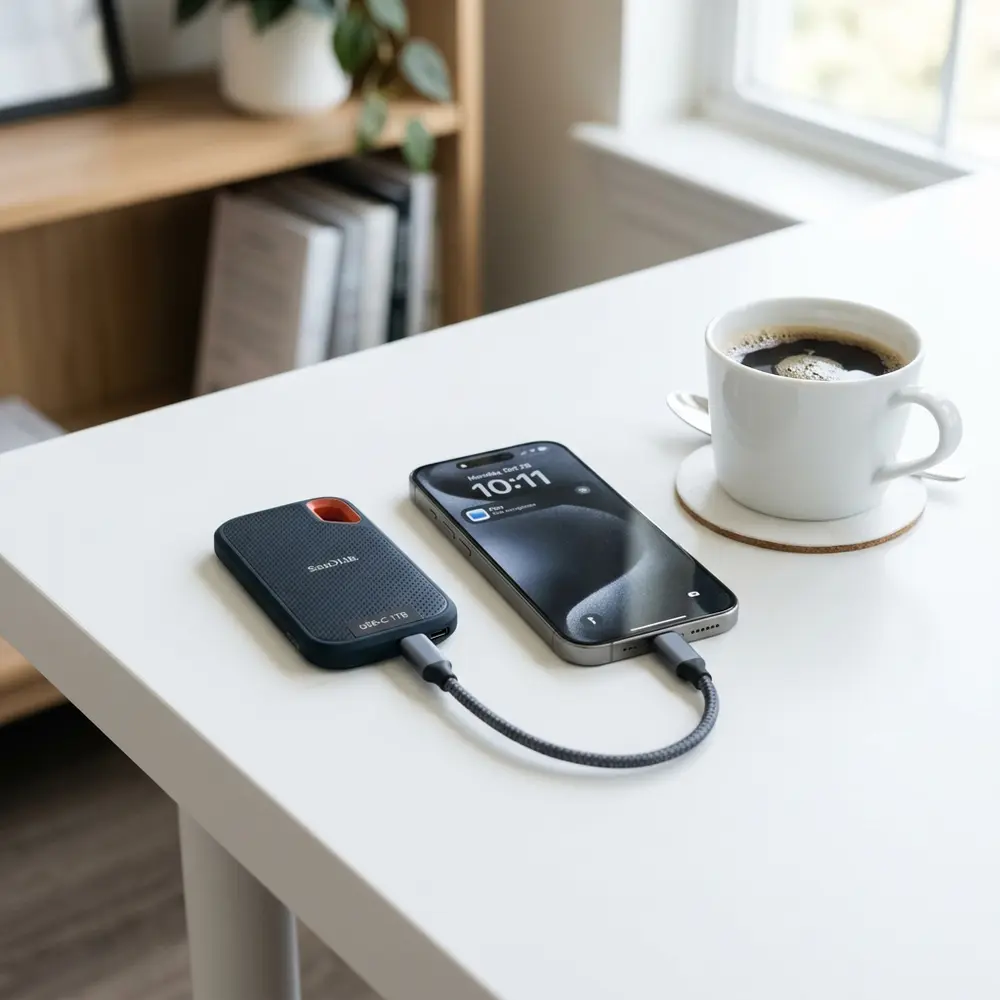
How to Format a USB Flash Drive or External SSD on macOS
Formatting a USB flash drive or external SSD on macOS is a straightforward process. This guide will provide a comprehensive overview of how to accomplish this task efficiently and effectively.
Understanding File Systems
Before formatting, it is crucial to understand the different file system options available. macOS supports several formats including APFS, HFS+, exFAT, and FAT32, each serving different purposes.
APFS is optimized for SSDs, HFS+ is ideal for older macOS compatibility, while exFAT and FAT32 are useful for cross-platform compatibility.
Formatting Process Overview
To format a USB flash drive or external SSD on macOS, follow these steps:
- Connect the USB flash drive or external SSD to the Mac.
- Open Disk Utility from the Applications > Utilities folder.
- Select the drive from the list on the left.
- Click the "Erase" button at the top of the Disk Utility window.
- Choose the desired file system format from the dropdown menu.
- Name the drive and click "Erase" to format it.
Comparison of Popular USB Flash Drives and External SSDs
| Brand | Type | Speed (MB/s) | Capacity | Price ($) |
|---|---|---|---|---|
| SanDisk | USB Flash Drive | 150 | 64GB | 20 |
| Samsung | External SSD | 540 | 1TB | 100 |
| Kingston | USB Flash Drive | 200 | 128GB | 25 |
| Crucial | External SSD | 1050 | 2TB | 200 |
| Seagate | External SSD | 500 | 500GB | 90 |
Detailed Steps for Formatting
The following detailed steps provide a clear guide on formatting any USB flash drive or external SSD on macOS.
- Connect the device to the Mac via USB port.
- Access Disk Utility by searching for it through Spotlight or navigating to Applications > Utilities.
- In Disk Utility, identify the connected device in the sidebar. Ensure it is the correct one to avoid data loss.
- Click on the device name to select it, then click the "Erase" button at the top.
- In the dialog box, input a name for the drive. This is how it will appear in Finder.
- Select the desired format from APFS, HFS+, exFAT, or FAT32 based on the intended use.
- Click "Erase" to initiate the formatting process. A progress bar will appear, and upon completion, the drive will be formatted.
- Once formatting is complete, click "Done" to exit the dialog.
- Safely eject the drive by clicking the eject icon next to its name in Finder.
DomineTec Tip: Always back up important data before formatting. For a seamless experience, consider using the best portable USB-C monitor for enhanced productivity during the process.
Additional Considerations
Formatting will erase all data on the device. Ensure that necessary backups are completed prior to this action.
It is advisable to choose the appropriate file system based on the usage scenario. APFS is preferred for macOS users while exFAT is suitable for those who need compatibility with Windows.
Common Issues and Troubleshooting
Occasionally, errors may arise during the formatting process. Common issues include the device not appearing in Disk Utility or being grayed out.
In such cases, ensure the device is properly connected, try a different USB port, or reset the NVRAM/PRAM on the Mac if the issue persists.

Best Practices for USB Flash Drives and External SSDs
To maintain optimal performance, consider the following best practices:
- Regularly back up important data.
- Use safe eject procedures to avoid corruption.
- Keep the device free from physical damage.
- Periodically reformat the drive to enhance performance.
- Store the drive in a cool, dry place to prevent wear.
When selecting a USB flash drive or external SSD, consider speed ratings, capacity requirements, and compatibility with other devices. A thorough review of options such as the seagate one touch portable ssd review: compact storage analysis can provide valuable insights.

Frequently Asked Questions
1. Can a USB flash drive be formatted on macOS?
Yes, USB flash drives can be formatted on macOS using Disk Utility, allowing users to choose from several file systems.
2. What is the best file system for a USB drive on macOS?
APFS is recommended for SSDs, while exFAT is ideal for compatibility with both macOS and Windows systems.
3. Will formatting erase all data on the drive?
Formatting will remove all data. Ensure that important files are backed up before proceeding with the format.
4. How to troubleshoot a USB flash drive that won't format?
Check the connection, try another USB port, or restart the Mac. If the issue persists, consider using a different computer or Disk Utility to diagnose the problem.
5. Is there a way to recover data after formatting?
Recovery software may help in retrieving data post-formatting, but success is not guaranteed. It is advisable to keep regular backups to avoid data loss.
Advanced Setup Tips for Formatting Drives
Formatting a USB flash drive or external SSD on macOS can involve advanced settings that enhance performance. Utilizing tools like Disk Utility allows users to select specific file systems such as APFS or exFAT based on intended usage.
Before formatting, consider partitioning the drive to create separate sections for different data types. This can help in organizing files more efficiently and improving access speeds for certain applications.
Additionally, enabling encryption during the formatting process can protect sensitive information. This is especially important for users who handle confidential data and need extra security measures.
Common Mistakes to Avoid
One of the most frequent mistakes when formatting a drive is selecting the wrong file system. Choosing a format incompatible with the intended use, such as using NTFS for Mac-only applications, can lead to accessibility issues.
Another common error is neglecting to back up data before formatting. Once a drive is formatted, all existing data is erased, making backups crucial to prevent data loss.
Users often overlook the importance of safely ejecting the drive after formatting. Failing to do so can result in data corruption or other operational issues in the future.
Comparing Different Drive Models
When selecting a USB flash drive or external SSD for formatting, various models offer different benefits. For example, high-speed SSDs generally provide faster read and write speeds compared to traditional USB flash drives.
Another factor to consider is the durability of the drive. Some external SSDs are designed for rugged environments, making them suitable for fieldwork, while others may not withstand physical stress as well.
Capacity is also a key aspect to compare, as different models come with varying storage options. Assessing specific needs can guide users in choosing the most appropriate drive for their requirements.
Use Case Scenarios for Formatting
Formatting drives can serve numerous practical purposes, such as preparing a drive for a specific operating system. For instance, formatting a drive to exFAT is ideal for sharing files between macOS and Windows systems.
Another use case involves optimizing a drive for media storage, where formatting it to APFS can enhance performance for video editing applications. This can lead to smoother playback and faster render times.
Additionally, users may format drives to create bootable installers for macOS. This method is particularly useful for troubleshooting or upgrading systems without relying on internet-based installations.
System Compatibility Considerations
When formatting a USB flash drive or external SSD, system compatibility should be a top priority. macOS supports several file formats, but not all formats are compatible with other operating systems, which can lead to accessibility issues.
For users frequently switching between macOS and Windows, exFAT is often the recommended file system due to its broad compatibility. Conversely, choosing APFS is ideal for exclusively macOS environments, offering optimized performance.
It is also essential to ensure that the hardware itself is compatible with the chosen file system. Some older devices may struggle with newer formats, necessitating careful consideration during the formatting process.
Cost Estimates for Formatting Drives
The cost of formatting a USB flash drive or external SSD is typically free, as the process can be executed using built-in macOS tools like Disk Utility. However, the overall expenses can vary based on the price of the drive itself and any additional software that may be required.
High-performance external SSDs come with a higher upfront cost, but they often provide better longevity and speed. Weighing the initial investment against potential productivity gains is crucial when selecting a drive.
Additionally, if data recovery software is needed due to mistakes made during formatting, this can incur further costs. Users should always factor in potential expenses related to data management when purchasing drives.
Troubleshooting Formatting Issues
Formatting issues can arise for several reasons, including hardware malfunctions or software conflicts. If a drive fails to format, checking for physical damage or connectivity problems is the first step in troubleshooting.
Another common issue is when the drive appears to be read-only or locked. In such cases, users should ensure that any physical write protection switches are disabled or that the drive’s settings are configured correctly.
If problems persist after troubleshooting, seeking assistance from forums or technical support may provide further insights. Documentation and user guides can also offer valuable troubleshooting steps specific to the drive model in question.
When to Seek Expert Help
While many formatting tasks can be completed independently, certain scenarios may warrant expert intervention. If a drive is consistently failing to format or shows signs of corruption, professional data recovery services should be considered.
Complicated issues, such as persistent software errors or compatibility problems, can also benefit from expert assistance. Consulting with a professional can provide tailored solutions that address specific technical challenges.
Additionally, if sensitive data is involved, seeking help ensures that appropriate measures are taken to protect information during the formatting process. This is particularly important for businesses handling confidential data or personal information.
How to Format a USB Flash Drive or External SSD on macOS
Introduction
Formatting a USB flash drive or external SSD on macOS is a straightforward process that can enhance the device's performance and compatibility. This document provides additional information, including FAQs, a verification checklist, a comparison table of file systems, and a glossary of technical terms.
Frequently Asked Questions (FAQ)
-
Q: What file system should be chosen for compatibility?
A: For maximum compatibility across different operating systems, FAT32 or exFAT is recommended. NTFS is suitable for Windows-only environments.
-
Q: Will formatting erase all data on the drive?
A: Yes, formatting will erase all data. It is crucial to back up any important files before proceeding with the format.
-
Q: Can a USB flash drive be reformatted multiple times?
A: Yes, a USB flash drive can be reformatted multiple times without significant issues, although excessive formatting may impact its longevity.
A: A quick format removes the file system and makes the space available for new files, while a full format checks for bad sectors, providing more thorough preparation.
Verification Checklist
Before and after formatting a USB flash drive or external SSD, it is essential to follow this verification checklist:
- Backup all important data.
- Ensure the drive is connected correctly to the Mac.
- Confirm the type of file system required for the intended use.
- Check for any hardware issues with the USB or SSD device.
- Verify the drive's capacity in Disk Utility before formatting.
- After formatting, ensure the drive is recognized by the system.
- Test the drive by transferring files to confirm functionality.
Comparison Table of File Systems
| File System | Compatibility | Maximum File Size | Maximum Volume Size | Best Use Case |
|---|---|---|---|---|
| FAT32 | Windows, macOS, Linux | 4 GB | 2 TB | USB drives, external SSDs for mixed OS environments |
| exFAT | Windows, macOS, Linux | No limit | 128 PB | Large USB drives, external SSDs for mixed OS environments |
| APFS | macOS only | No limit | No limit | Mac-only SSDs for advanced features |
| HFS+ | macOS only | 8 EB | 8 EB | Older Mac systems, traditional HDDs |
| NTFS | Windows, read-only on macOS | No limit | 16 EB | Windows-centric environments |
Technical Glossary
- Formatting: The process of preparing a storage device for use by creating a file system that organizes data on the drive.
- File System: A method of organizing and storing files on a storage device, determining how data is named, stored, and retrieved.
- FAT32: A widely supported file system with a 4 GB maximum file size, ideal for smaller drives and cross-platform compatibility.
- exFAT: An extension of FAT32 that supports larger files and volumes, suitable for flash drives and external SSDs.
- APFS: Apple File System, optimized for SSDs and designed to take advantage of flash storage technology, featuring strong encryption and space efficiency.
- HFS+ (Hierarchical File System Plus): The file system used by macOS prior to APFS, primarily for hard drives and older systems.
- NTFS: New Technology File System, primarily used by Windows operating systems, providing features such as journaling and security permissions.
- Quick Format: A method that quickly prepares a drive by removing the file system table but does not check for bad sectors.
- Full Format: A comprehensive format that removes the file system and checks the drive for errors, providing a more thorough preparation for use.




