How to Fix PS5 Controller Analog Stick Drift Without Opening It
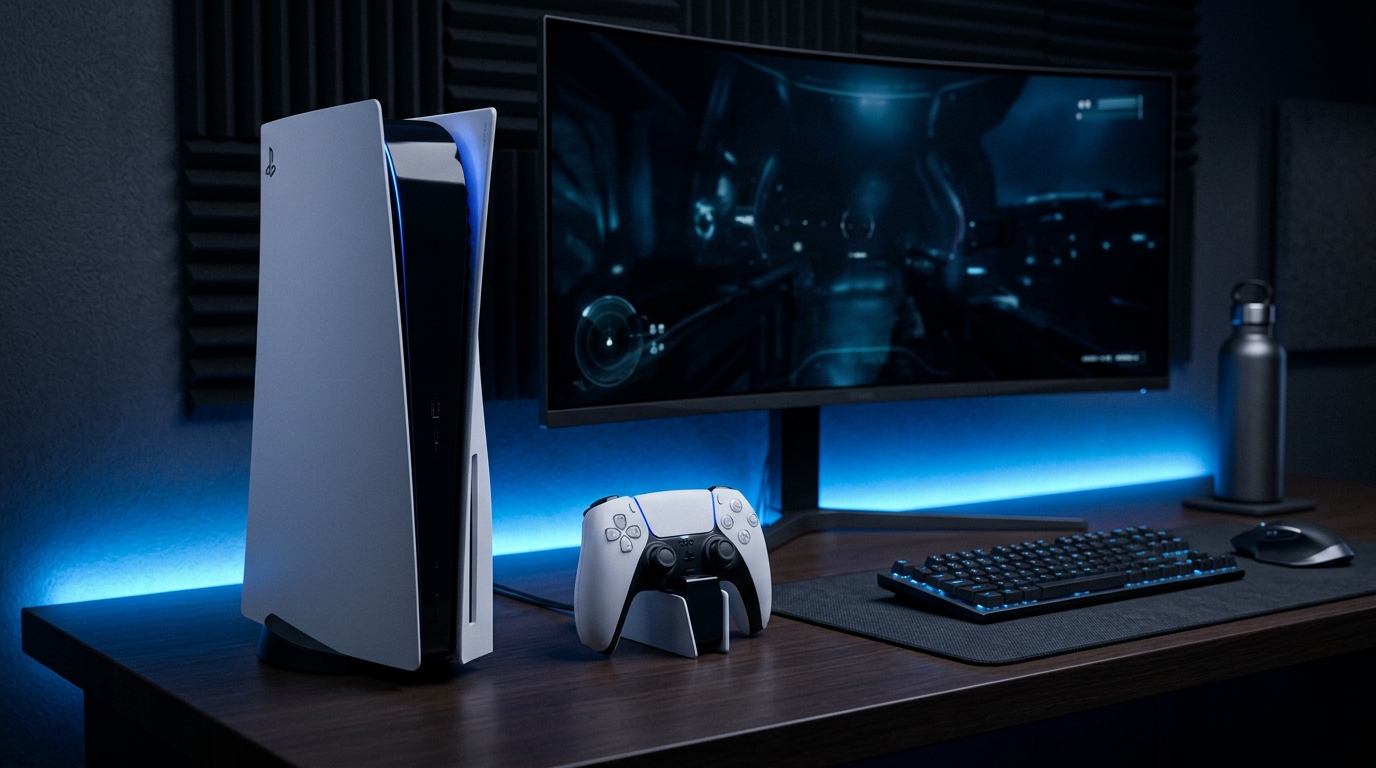
If you’re experiencing analog stick drift on your PlayStation 5 DualSense controller, you're not alone. This common issue can significantly impact your gaming experience, leading to unintended actions and frustrating gameplay. Fortunately, there are several effective methods to fix this without the need to open the controller, preserving its warranty and integrity. This comprehensive guide provides detailed instructions on how to address analog stick drift using simple household items and controller settings.
The primary solutions include using electrical contact cleaner spray or 99% isopropyl alcohol around the thumbstick housing, performing a 30-second stick rotation exercise, resetting the DualSense controller hardware via the rear pinhole, and adjusting game deadzone thresholds. Below, we will delve into each of these methods, providing you with thorough, step-by-step instructions to reclaim control of your gaming experience.
Understanding PS5 DualSense Controller
Controller Specifications
The PlayStation 5 DualSense controller is a cutting-edge gaming peripheral designed to enhance the gameplay experience. It features:
- Adaptive Triggers: These triggers provide variable resistance, allowing for more immersive experiences.
- Haptic Feedback: This technology offers realistic feedback, simulating a wide range of sensations.
- Built-in Microphone: Users can chat without the need for a headset.
- Battery Life: Approximately 12 hours of continuous play on a full charge, depending on usage.
- Bluetooth Connectivity: Enables wireless play with a range of up to 30 feet.
Common Issues with Analog Sticks
Analog stick drift occurs when the controller registers movement even when the thumbstick is at rest. This problem can stem from various factors, including:
- Wear and Tear: Prolonged use can lead to the degradation of internal components.
- Debris Accumulation: Dirt and dust can infiltrate the controller housing, affecting performance.
- Software Glitches: Firmware issues can sometimes cause erroneous readings.
Quick Fixes for Analog Stick Drift
Using Electrical Contact Cleaner
One effective method to combat analog stick drift is applying electrical contact cleaner. This cleaner is designed to remove dirt and grime from electronic contacts without leaving residue. Here’s how to use it:
- Purchase a can of electrical contact cleaner from a local hardware store or online.
- Power off your DualSense controller completely.
- Spray a small amount of the cleaner around the base of the thumbstick. Ensure you do not soak it; a light mist is sufficient.
- Allow it to sit for a few seconds to penetrate any debris.
- Rotate the thumbstick in all directions for about 30 seconds to distribute the cleaner evenly.
- Wipe away any excess cleaner with a soft, lint-free cloth.
Applying Isopropyl Alcohol
If you don’t have access to electrical contact cleaner, 99% isopropyl alcohol is an excellent alternative. This method is straightforward:
- Gather 99% isopropyl alcohol and a small cotton swab or microfiber cloth.
- Power off the controller to prevent any accidental inputs.
- Dampen the cotton swab with the alcohol; do not soak it.
- Gently clean around the thumbstick, focusing on the seams where dirt may accumulate.
- Rotate the thumbstick in all directions for about 30 seconds to allow the alcohol to work through the components.
- Let the controller dry completely before powering it back on.
Performing a Stick Rotation Exercise
This technique can recalibrate the controller’s internal sensors. Follow these steps:
- Ensure the controller is powered on and connected to your PlayStation 5.
- Access any game that allows free movement.
- Rotate the thumbstick in a circular motion for about 30 seconds. Do this clockwise and counterclockwise.
- Check if the drift issue persists. If so, proceed to the next step.
Resetting the DualSense Controller
Resetting the controller can solve many software-related issues that may be causing the drift. Here’s how to reset:
- Locate the small reset button on the back of the controller, near the L2 shoulder button.
- Using a paperclip or similar object, press and hold the reset button for about 5 seconds.
- Reconnect the controller to your PS5 using a USB cable.
- Power on the console and check if the drift issue has been resolved.
Adjusting Game Deadzone Thresholds
Many games allow you to adjust the deadzone settings for analog sticks. A deadzone is a range of motion in which the controller does not register input. Adjusting this can alleviate drift issues:
- Launch the game you want to play.
- Navigate to the settings menu, usually found under “Options” or “Controls.”
- Look for “Deadzone” settings for the analog sticks.
- Increase the deadzone value slightly and save your changes.
- Test the controller to see if the drift issue has improved.
Advanced Troubleshooting Techniques
Identifying External Factors
Before diving into deeper technical solutions, it’s essential to rule out external factors that may be contributing to the drift:
- Wireless Interference: Ensure that there are no devices nearby that could cause Bluetooth interference, such as microwaves or other wireless controllers.
- Firmware Updates: Check for system updates for your PS5, as these can sometimes resolve controller issues.
- Try Another Controller: If possible, test another DualSense controller to determine if the issue is isolated to your original controller.
Testing for Software Issues
Software issues can sometimes mimic hardware problems. To test for this:
- Boot your PlayStation 5 in Safe Mode by holding the power button until you hear a second beep.
- Select “Change Video Output” to reset display settings.
- Check if the controller behaves differently in Safe Mode.
- Exit Safe Mode and return to normal operation to see if problems persist.
Using Dedicated Calibration Tools
Several software tools can assist in calibrating your controller. These can help identify if the issue is hardware or software-related:
- Controller Companion: A software that allows for advanced controller calibration and configuration.
- Steam Big Picture Mode: If you use your PS5 controller on Steam, this mode allows you to customize settings, including deadzone adjustments.
Checking for Hardware Wear
If all else fails, it may be time to assess the controller for hardware issues:
- Inspect the thumbstick for any visible damage or excessive wear.
- Check for any loose components or rattling sounds when moving the controller.
- If you feel comfortable, research guides on how to open the controller for a deep clean or component replacement.
Comparative Analysis of Solutions
| Method | Effectiveness | Risk Level | Time Required | Cost |
|---|---|---|---|---|
| Electrical Contact Cleaner | High | Low | 5-10 mins | $10-$15 |
| Isopropyl Alcohol | Medium | Low | 5-10 mins | $5 |
| Stick Rotation Exercise | Medium | None | 30 secs | Free |
| Reset Controller | High | Low | 5 mins | Free |
| Adjust Deadzone | Medium | Low | 5 mins | Free |
DomineTec Pro Tip: Always ensure your controller is powered off before applying any cleaning agents to prevent accidental input. Additionally, regularly clean your gaming area to minimize dirt accumulation on your controllers.
Firmware Specifications
Keeping your PS5 DualSense controller's firmware updated is crucial for optimal performance and to minimize issues such as analog stick drift. Sony periodically releases firmware updates that enhance controller functionality, fix bugs, and improve compatibility with the PlayStation 5 system. Here’s how to check and update your firmware:
- Connect your DualSense controller to the PS5 console using a USB cable.
- Navigate to the settings menu from the main menu.
- Select "Accessories" and then "Controllers."
- If an update is available, follow the on-screen instructions to install it.
- Restart your console after the update is complete to ensure changes take effect.
Connection Diagnostics
Diagnosing connection issues with your DualSense controller can help identify problems that may lead to analog stick drift. Here are steps to perform connection diagnostics:
- Ensure that your controller is fully charged.
- Disconnect and reconnect the controller to the console to reset the connection.
- Check for interference from other devices; remove any nearby Bluetooth devices that might cause disruptions.
- Run a connectivity test by navigating to the "Settings" and checking under "Accessory Settings" to see the connection status.
- If the connection is unstable, consider resetting your network settings on the PS5.
Compatibility Matrix
Understanding the compatibility of your PS5 DualSense controller with various games and software can prevent issues. Here’s a compatibility matrix for reference:
| Game Title | Compatible Features | Known Issues |
|---|---|---|
| Game A | Adaptive Triggers, Haptic Feedback | Minor lag in wireless mode |
| Game B | Standard Functionality | None |
| Game C | Adaptive Triggers | Inconsistent feedback |
Signal Interference Fixes
To optimize the performance of your PS5 DualSense controller and prevent signal interference, consider the following solutions:
- Keep your console and controller within a reasonable distance, ideally within 10 feet.
- Avoid placing obstacles between the controller and console, such as large furniture or electronic devices.
- Turn off other wireless devices in the vicinity to reduce interference.
- Consider using a wired connection if the wireless signal remains unstable.
Maintenance Guide
Regular maintenance of your DualSense controller can significantly enhance its longevity and performance. Follow these maintenance tips:
- Clean the exterior of the controller regularly with a damp cloth to remove dirt and oils.
- Store the controller in a cool, dry place when not in use to avoid moisture damage.
- Avoid eating or drinking near the controller to prevent accidental spills.
- Inspect the thumbsticks for wear and replace them if necessary. Replacement parts can be found online.
Frequently Asked Questions (FAQ)
What causes analog stick drift in the PS5 controller?
Analog stick drift can be caused by various factors including wear and tear from prolonged usage, dirt and debris accumulation around the thumbstick, and in some cases, software glitches. Regular maintenance and cleaning can help prevent this issue.
Is it safe to use electrical contact cleaner on my PS5 controller?
Yes, electrical contact cleaners are generally safe for electronic devices. However, it’s important to use them sparingly and to follow the manufacturer’s instructions to avoid any potential damage.
How can I reset my PS5 DualSense controller?
To reset your controller, locate the small reset button on the back of the controller near the L2 button. Use a paperclip to press and hold this button for about 5 seconds, then reconnect the controller to your console.
Can adjusting the deadzone settings improve stick drift issues?
Yes, increasing the deadzone settings in game options can help mitigate the effects of stick drift by requiring a larger movement of the thumbstick before inputs are registered.
What should I do if the problem persists after trying these solutions?
If the drift continues after applying these methods, it may indicate a more serious hardware malfunction. Consider consulting customer support or seeking professional repair services for your controller.






