How to Fix Epson Printer Offline Status Error in Windows 10/11
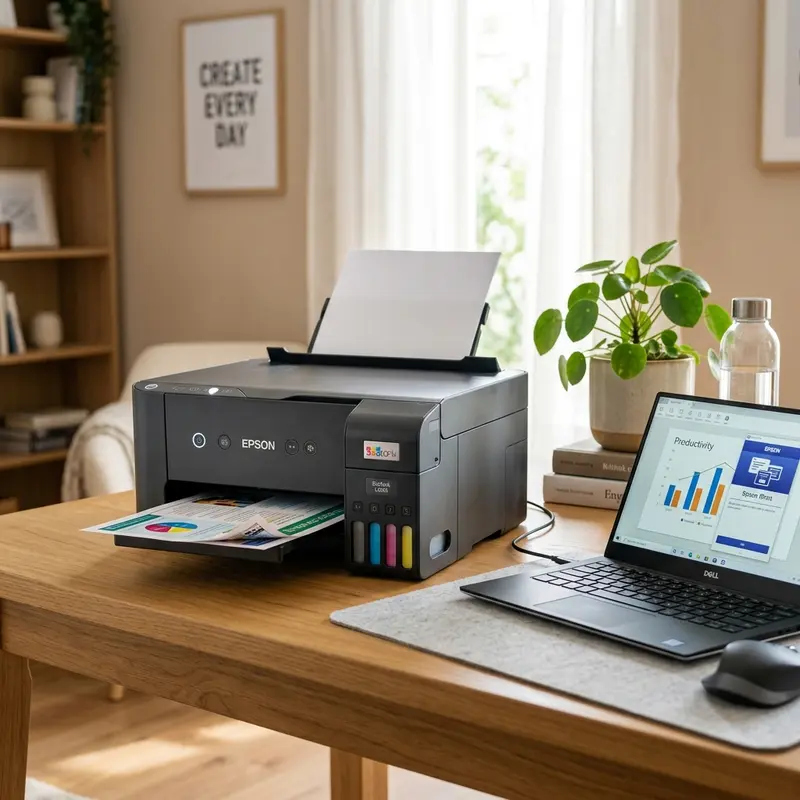
How to Fix Epson Printer Offline Status Error in Windows 10/11
Encountering an "offline" status error with your Epson printer can be frustrating, especially when you need to print important documents. This guide will explore the root causes of the offline status and provide step-by-step solutions to help you get your printer back online.
1. Root Causes for Epson Offline Status
Understanding the root causes of your Epson printer showing as offline is crucial for effective troubleshooting. Here are some common reasons:
- Connection Issues: A faulty USB cable, loose connection, or network issues (for wireless printers) can lead to an offline status.
- Printer Settings: Incorrect printer settings in Windows can also cause your printer to appear offline, including the 'Use Printer Offline' option being checked.
- Print Spooler Problems: The Print Spooler service, which manages the print jobs sent to the printer, may be stopped or malfunctioning.
- Driver Issues: Outdated or corrupted printer drivers can prevent proper communication between your computer and the printer.
- Network Configuration: For network printers, incorrect IP settings or network configuration can result in an offline status.
2. Solution 1: Unchecking 'Use Printer Offline' in Windows Print Queue
One of the most common reasons for your Epson printer showing as offline is that the 'Use Printer Offline' option has been enabled. Here’s how to check and disable this setting:
Step-by-Step Instructions:
- Open the Control Panel:
- Press the Windows key on your keyboard or click on the Start button.
- Type Control Panel and press Enter.
- Navigate to Devices and Printers:
- In the Control Panel, click on View devices and printers under the Hardware and Sound section.
- Locate Your Epson Printer:
- Find your Epson printer in the list of devices. It may be labeled with the model number or just as "Epson."
- Open the Printer Queue:
- Right-click on your Epson printer and select See what's printing.
- In the print queue window, click on the Printer menu at the top.
- Ensure that Use Printer Offline is not checked. If it is, click on it to uncheck.
- Close the print queue window and try to print again to see if the issue is resolved.
3. Solution 2: Restarting Print Spooler Service
If unchecking 'Use Printer Offline' does not resolve the issue, the next step is to restart the Print Spooler service. This service is responsible for managing print jobs in Windows.
Step-by-Step Instructions:
- Open the Run Dialog:
- Press Windows + R on your keyboard to open the Run dialog box.
- Open Services:
- Type services.msc and press Enter.
- In the Services window, scroll down to find Print Spooler.
- Right-click on Print Spooler and select Restart.
- If the service is not running, select Start instead.
- Close the Services window and check if your printer is online.
4. Solution 3: Setting as Default Printer
Sometimes, your computer may be sending print jobs to a different printer, causing your Epson printer to appear offline. Setting your Epson printer as the default printer can fix this issue.
Step-by-Step Instructions:
- Open Devices and Printers:
- Follow the steps mentioned in Solution 1 to navigate to Devices and Printers in the Control Panel.
- Right-click on your Epson printer in the list of devices.
- Select Set as default printer from the context menu. A green checkmark will appear next to it, indicating that it is now the default printer.
- Try printing a test page to see if the offline status has changed.
By following these solutions, you should be able to resolve the offline status error for your Epson printer in Windows 10/11. If the problem persists, further investigation into driver issues or network configurations may be necessary.
Advanced Troubleshooting Guide
When you encounter an offline status error with your Epson printer, it can sometimes require more in-depth troubleshooting methods to resolve the issue. Here are some advanced steps that you can take.
1. Check Printer IP Address
Sometimes, the printer's IP address may change, especially if you are using DHCP. Ensure that the IP address assigned to your printer is still valid:
- Print a network status sheet from the printer.
- Check the IP address displayed.
- Ensure it matches the one configured on your computer.
2. Disable SNMP Status Enabled
Simple Network Management Protocol (SNMP) can sometimes cause the printer to go offline. Disabling this feature can help:
- Go to Control Panel > Devices and Printers.
- Right-click your Epson printer and select Printer Properties.
- Navigate to the Ports tab.
- Select the port your printer is using and click on Configure Port.
- Uncheck the box for SNMP Status Enabled.
- Click OK and restart your printer and computer.
3. Update Network Drivers
Outdated or corrupted network drivers can lead to communication issues. Follow these steps to update:
- Right-click on the Start menu and select Device Manager.
- Expand the Network Adapters section.
- Right-click on your network adapter and choose Update driver.
- Select Search automatically for updated driver software.
- Follow the prompts to install any updates.
4. Reset the Print Spooler
Resetting the print spooler can clear up any stuck print jobs that might be causing the offline error:
- Press Windows + R to open the Run dialog.
- Type services.msc and hit Enter.
- Locate Print Spooler, right-click and select Stop.
- Go to C:\Windows\System32\spool\PRINTERS and delete any files inside this folder.
- Return to the Print Spooler service, right-click and select Start.
Expert Tips for 2026
As technology continues to evolve, so do the solutions for common printer issues. Here are some expert tips to keep your Epson printer running smoothly in 2026:
1. Embrace Cloud Printing
Utilizing cloud printing services can enhance your printer's capabilities. Here's how:
- Set up your printer with Google Cloud Print or similar services.
- Access your printer from any device connected to the internet.
- Ensure all devices are linked to the same cloud service for seamless printing.
2. Regular Firmware Updates
Keeping your printer firmware updated is crucial for optimal performance:
- Visit the Epson support website and check for firmware updates.
- Follow the installation instructions provided on the site.
- Regularly check for updates to ensure you have the latest features and fixes.
3. Utilize Mobile Printing Apps
With more people working remotely, mobile printing has become essential:
- Download the Epson iPrint app for easy mobile printing.
- Connect your smartphone or tablet to the printer via Wi-Fi.
- Print documents directly from your mobile device.
4. Monitor Ink Levels Proactively
Keeping an eye on ink levels can prevent unexpected issues:
- Use the printer's onboard menu or software to check ink levels.
- Set up alerts for low ink levels through your printer settings.
- Have spare cartridges ready to avoid interruptions.
Frequently Asked Questions (FAQ)
1. Why does my Epson printer keep going offline?
Your printer may go offline due to network connectivity issues, incorrect settings, or a malfunctioning print spooler. Try restarting your printer and computer, and ensure they are connected to the same network.
2. How can I bring my Epson printer back online?
To bring your printer back online, check the printer status in the Control Panel, ensure it is set as the default printer, and restart both your printer and computer. You may also need to check the printer's connection to the network.
3. Is it necessary to uninstall and reinstall the printer drivers?
While not always necessary, uninstalling and reinstalling the printer drivers can resolve persistent offline issues, especially if the drivers are outdated or corrupted. Make sure to download the latest drivers from the Epson website.
4. Can I print from my smartphone to my Epson printer?
Yes, you can print from your smartphone using the Epson iPrint app or other cloud printing services. Ensure your smartphone and printer are connected to the same Wi-Fi network.
5. What should I do if the printer is not responding at all?
If the printer is not responding, check the power connection, ensure it is turned on, and verify that the USB or network connection is secure. Restarting the printer and computer may also help.
Best Practices Checklist
Following these best practices can help you avoid issues and maintain the performance of your Epson printer:
- Regularly clean the printer heads and nozzles to prevent clogs.
- Keep your printer and its drivers updated to the latest versions.
- Use high-quality paper and ink for optimal results.
- Perform routine maintenance checks, including ink level monitoring and print quality assessments.
- Ensure your printer is connected to a stable and secure network.
- Periodically restart your printer to refresh its system.
- Store the printer in a dust-free environment to prevent hardware issues.
- Always follow the manufacturer's guidelines for installation and usage.
Epson Printer Offline: Parte 2
5) Solução 4: Atribuindo IP estático e substituindo a porta WSD pela TCP/IP padrão
Quando sua impressora Epson está offline, um dos problemas comuns pode ser a configuração da rede. A atribuição de um IP estático e a substituição da porta WSD pela porta TCP/IP padrão pode resolver o problema. Aqui está um passo a passo para fazer isso:
Passo 1: Atribuir um IP Estático
- Acesse as configurações do seu roteador.
- Localize a seção de DHCP e encontre a sua impressora na lista de dispositivos conectados.
- Defina um IP estático que não esteja em uso (ex: 192.168.1.100).
- Salve as alterações e reinicie o roteador.
Passo 2: Substituir a Porta WSD pela TCP/IP Padrão
- No seu computador, vá até Painel de Controle > Dispositivos e Impressoras.
- Localize a impressora Epson, clique com o botão direito e selecione Propriedades da Impressora.
- Vá para a aba Portas e verifique se a porta WSD está selecionada.
- Clique em Adicionar Porta e selecione Porta TCP/IP Padrão.
- Insira o IP estático que você designou anteriormente e siga as instruções na tela.
6) Solução 5: Reinstalando os Drivers da Epson e o EpsonNet Config
Drivers desatualizados ou corrompidos podem causar problemas de conexão levando a impressora a ficar offline. Reinstalar os drivers pode resolver esse problema. Veja como fazer isso:
Passo 1: Desinstalar o Driver da Impressora
- Acesse Painel de Controle > Programas e Recursos.
- Localize o driver da impressora Epson na lista, clique com o botão direito e selecione Desinstalar.
- Confirme a desinstalação e reinicie o computador.
Passo 2: Baixar e Instalar o Driver mais Recente
- Visite o site oficial da Epson e navegue até a seção de suporte.
- Busque pelo modelo da sua impressora e baixe o driver mais recente compatível com seu sistema operacional.
- Instale o driver seguindo as instruções na tela.
Passo 3: Reinstalar o EpsonNet Config
O EpsonNet Config é uma ferramenta útil para gerenciar impressoras em rede. Para reinstalá-lo:
- Baixe o EpsonNet Config do site da Epson.
- Instale o software e siga as instruções na tela.
7) Solução 6: Regras de Firewall e Configurações de AP Isolation
O firewall do seu computador ou as configurações de AP Isolation do roteador podem estar bloqueando a comunicação com a impressora. Aqui está como ajustar essas configurações:
Passo 1: Verificar as Regras do Firewall
- Acesse as configurações de segurança do seu computador e vá até o Firewall.
- Verifique se o programa da impressora Epson está na lista de exceções. Caso não esteja, adicione-o.
Passo 2: Desativar AP Isolation
AP Isolation impede que dispositivos na mesma rede se comuniquem. Para desativá-lo:
- Entre nas configurações do seu roteador.
- Localize a seção de Wireless ou Rede Sem Fio.
- Desative a opção AP Isolation.
- Salve as alterações e reinicie o roteador.
Comparativo das Soluções Propostas
| Solução | Dificuldade | Tempo Estimado | Efetividade |
|---|---|---|---|
| Atribuir IP Estático | Média | 10-15 min | Alta |
| Reinstalar Drivers | Baixa | 20-30 min | Alta |
| Configurar Firewall e AP Isolation | Baixa | 10-20 min | Média |
Perguntas Frequentes
1. Por que minha impressora Epson está aparecendo como offline?
Problemas de conectividade de rede, drivers desatualizados ou configuração inadequada podem causar esse problema.
2. Como posso saber se a impressora está conectada à rede?
Você pode verificar isso imprimindo uma página de configuração diretamente da impressora.
3. O que é WSD e como ele afeta minha impressora?
WSD (Web Services for Devices) é um protocolo que permite a comunicação automática entre dispositivos, mas pode causar problemas de conectividade.
4. O que fazer se a reinstalação do driver não resolver o problema?
Tente as soluções relacionadas à configuração de rede, como atribuir um IP estático ou ajustar o firewall.
5. Como posso verificar se o firewall está bloqueando a impressora?
Você pode acessar as configurações do firewall e procurar por exceções ou regras relacionadas à impressora.
6. Posso usar a impressora sem rede Wi-Fi?
Sim, você pode conectar a impressora diretamente ao computador via USB.
7. O que é AP Isolation e por que é importante?
AP Isolation é uma configuração que impede a comunicação entre dispositivos na mesma rede, podendo causar problemas de impressão em rede.
```





