How to Find HP Printer IP Address on Wi-Fi Network: Full Guide
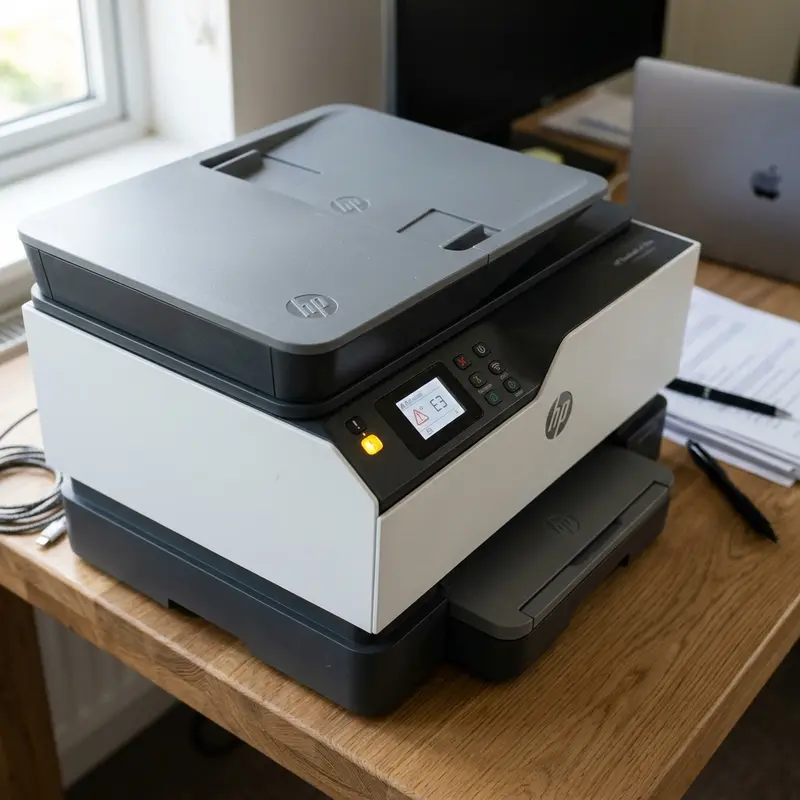
Configuring printers on home or corporate local area networks (LANs) requires a foundational understanding of IP routing and networking dynamics. To find the IP address of your HP printer on a Wi-Fi network, the most direct method is to press the Information (i) and Wireless (Wi-Fi) buttons simultaneously on the printer control panel to print a Network Configuration Page, or check the connected devices list in your router's DHCP administration interface. This unique logical identifier (typically in IPv4 format, such as 192.168.1.150) enables Windows and macOS systems to route print requests directly via TCP/IP ports, bypassing the unreliable automatic discovery processes of Web Services for Devices (WSD).
Often, when your computer reports that a printer is unavailable or offline, the core problem is not a physical disconnection but a change in the printer's IP address assigned by the router during a reboot. If you have dealt with network communication issues on other office devices, or if you need to troubleshoot offline states—as detailed in our guide on how to fix HP printer offline status in Windows—you know that managing IP addresses manually is key to network stability. In this detailed guide, we will analyze all practical methods to locate your HP printer's IP address, from CLI diagnostics to checking your router's administration tables.
1. The Importance of Finding Your HP Printer's IP Address
An Internet Protocol (IP) address is a unique numerical label assigned to each device participating in a computer network that uses the Internet Protocol Suite (TCP/IP) for communication. Without this address, other devices, laptops, and smartphones on the local network cannot send data packets to the printer. For HP inkjet and laser printers, finding and tracking this IP address is critical for several technical reasons.
By default, Windows 10 and 11 install networked printers using the WSD (Web Services for Devices) protocol. While WSD offers a convenient plug-and-play installation, it is prone to communication drops on standard consumer routers that struggle with multicast packet routing, often leading to sudden offline errors. When you identify the printer's exact IP address, you can replace the WSD port in Windows with a standard TCP/IP port (Standard TCP/IP Port). This guarantees that your print jobs route directly to the printer's network interface card, regardless of local network fluctuations.
Furthermore, knowing the IP address allows you to access the printer's Embedded Web Server (EWS). The EWS is an internal web-based management portal stored on the printer's flash memory. By entering the printer's IP address into a web browser's URL bar, you can access diagnostic features: monitor precise ink levels, configure Wi-Fi security keys, disable automatic firmware updates that restrict compatible third-party cartridges, adjust scanning resolutions, and assign a permanent static IP address.
2. Printing the Network Configuration Page Using Physical Buttons
If your HP printer features physical control panel buttons, printing the internal network diagnostic page is the fastest way to get the local IP address. This document provides a complete breakdown of the printer's active wireless hardware card and current network parameters.
The exact button sequence varies slightly depending on your HP printer model:
- Models with basic buttons (HP DeskJet 2700, 2776, 4100 series): Ensure the printer is powered on and has paper loaded. Press and hold the Information button (the "i" icon) and the Wireless button (the Wi-Fi antenna icon) simultaneously for approximately 3 seconds. The power button light will flash, and the printer will output a two-page report titled "Network Configuration Page." The IP is located under the "IPv4" or "Active IP Address" field;
- Models without a screen but featuring an Info button (HP DeskJet Ink Advantage 2300, 2774): If the printer is connected to your local network, press and hold the Information button (i) for 3 seconds to print a basic system status report, which includes active network details;
- Models with a touchscreen (HP OfficeJet Pro, HP Smart Tank 500/600 series): Swipe down from the top of the LCD screen or tap the wireless icon (Wi-Fi). The screen will display the current connection status and active IP address immediately, saving paper and ink.
Once you print the page, look for the "Active Connection Type" block. If the printer is properly connected to your local router, the "IP Address" field will display an IPv4 address, such as 192.168.0.50 or 10.0.0.105.
3. Identifying the IP Address via Router Admin Settings (DHCP Client List)
If the printer's physical panel is unresponsive, or if the printer is out of paper, you can find the IP address remotely by checking the DHCP allocation tables on your Wi-Fi router.
Wi-Fi routers assign local IP addresses using DHCP (Dynamic Host Configuration Protocol). When the printer connects to the network, it requests an IP address. The router records the printer's MAC address (the unique physical hardware identifier of the HP network card) and maps it to a temporary local IP. To view this mapping table, follow these steps:
- Open a web browser on a computer or phone connected to the same network and type your router's gateway IP address (typically
192.168.1.1,192.168.0.1, or192.168.15.1); - Enter the router's administrator username and password (check the label on the bottom of the router if you have not changed the factory defaults);
- Navigate to the section labeled DHCP, DHCP Client List, LAN Settings, or Attached Devices;
- The router will show a table listing the hostname, MAC address, and IP address of all active devices. Look for a hostname starting with "HP", "HP_Printer", or the printer model name. The IP address mapped to that entry is your printer's current address.
To simplify initial setup and ensure the printer connects to the correct frequency on your home network, check out our guide on how to connect the HP DeskJet 2776 to Wi-Fi, which details how to pair the device with your router's wireless bands.
4. Finding the Printer IP Using the HP Smart App (Mobile and PC)
HP offers the HP Smart app to help users manage their printers from mobile devices and desktop computers. If you have previously linked your printer to the app, it caches network status information and local IP details.
To locate the IP address using the HP Smart app's graphical interface, follow these instructions:
- Make sure your smartphone or computer is connected to the same Wi-Fi network as the HP printer;
- Open the HP Smart app and wait for it to sync with your devices. The home screen will display your printer's thumbnail and current status (ready, offline, or low ink);
- Click or tap on the printer image to open the main settings and management dashboard;
- Scroll down to the advanced section and click on Printer Settings or Network Information;
- Select Advanced Settings. On many models, this action will open the printer's EWS page in your browser. The IP address will be displayed at the top of the interface or under the network status tab as the "Printer IP" or "Network URL".
This method is highly recommended for users who prefer to avoid command-line terminals or router administration menus, providing a clear visual representation of the printer status.
5. Locating the IP via Command Prompt (CMD) Using Ping and ARP
For IT technicians and advanced Windows users, the Command Prompt (CMD) is a powerful tool to scan the local subnet and find hidden printers. By sending ICMP Echo Requests (ping) to the broadcast address and checking the ARP (Address Resolution Protocol) cache table, you can locate the printer quickly.
The ARP table maps IP addresses (network layer) to physical MAC addresses (data link layer) for all devices your computer has communicated with recently. To query this table on Windows, follow these command-line steps:
- Press the Windows Key + R to open the Run dialog box;
- Type
cmdand press Enter to launch the Windows Command Prompt; - First, ping your network's broadcast address to force all active devices on the subnet to reply and populate your computer's ARP cache. If your router's IP is 192.168.1.1, type:
ping 192.168.1.255and press Enter; - Once the broadcast ping sequence finishes, type the following command:
arp -aand press Enter; - Windows will display a list of all active IP addresses and their physical MAC addresses. HP devices use specific MAC address prefixes (OUI blocks) registered by the manufacturer (such as
00-08-C7,04-0E-3C,3C-D9-2B,A0-D3-C1). Look for MAC addresses starting with these prefixes; the corresponding IP address on the left is your printer.
6. Comparison of IP Discovery Methods, Speed, and Technical Requirements
The table below compares each discovery method, detailing the difficulty level, execution speed, and requirements for each:
| Method | Difficulty | Speed | Requirements | Key Advantage |
|---|---|---|---|---|
| Info + Wi-Fi Buttons | Very Low | Immediate | Printer on, loaded with paper and functioning ink | No computer or network password required. |
| Touchscreen Panel | Very Low | Immediate | Printer model with integrated LCD display | Quick visual check without using paper or ink. |
| Router DHCP Table | Medium | 2 to 5 min | Router admin login credentials and web browser | Finds the IP even if the printer cannot print. |
| HP Smart App | Low | 1 to 3 min | App installed on device and active Wi-Fi connection | User-friendly interface showing ink levels and network status. |
| CMD / ARP Commands | High | 1 min | Windows PC on the same subnet and CLI access | Advanced remote method that bypasses the physical printer interface. |
How to Assign a Static IP to Prevent Future Printer Disconnections
Once you locate your printer's current IP address, configure a **Static IP address** to prevent future connectivity issues. By default, routers reassign dynamic IP addresses when they restart. If your router rebooted, the printer might receive a new IP address (e.g., changing from 192.168.1.150 to 192.168.1.155). Because Windows continues sending print jobs to the old IP, the printer will appear offline.
To assign a static IP address using the HP Embedded Web Server (EWS), follow these steps:
- Open a web browser on a device connected to the same Wi-Fi network;
- Type the printer's current IP address into the URL bar (e.g.,
192.168.1.150) and press Enter to load the EWS management panel; - If your browser displays a security warning (such as "Your connection is not private") due to a self-signed security certificate, click "Advanced" and select "Proceed to IP Address (unsafe)." This is safe because you are accessing a local device within your home network;
- On the EWS home page, select the Network or Wireless tab;
- Locate the IPv4 configuration page and change the IP IP assignment mode from "Automatic (DHCP)" to "Manual (Static IP)";
- Enter your preferred static IP address. Choose a high number outside your router's typical DHCP pool (e.g.,
192.168.1.200) to avoid IP conflicts with other devices. Copy the Subnet Mask (typically255.255.255.0) and the Default Gateway (your router's IP, like192.168.1.1); - Configure the DNS server addresses. We recommend using Google's public DNS servers (Preferred DNS:
8.8.8.8, Alternate DNS:8.8.4.4) for reliable name resolution; - Click Apply or Save. The printer will temporarily disconnect from the Wi-Fi and reconnect with the new static IP address. Now, even if the router reboots, the printer's IP address will remain unchanged.
Understanding DHCP Dynamic IP Lease Expirations
Every time a printer joins a Wi-Fi network, the router DHCP server allocates an IP address for a lease time. Once this lease expires, the router can assign a different IP address, breaking connection pipelines from laptops configured to point to the old IP. To fix this, you must configure a static IP inside the HP Web Embedded Server (EWS) or bind the MAC address of the HP printer within your router DHCP reservation table. This ensures the printer always retains the exact same address, preventing future connection loss.
Frequently Asked Questions
How do I find my HP printer's IP address on my phone?
Open the HP Smart app on your phone, making sure you are on the same Wi-Fi network as the printer. Tap the printer image, go to Printer Settings, and select Advanced Settings or Network Information. The active IP address will be displayed under the network status section.
Why does my HP printer IP address keep changing?
By default, printers use DHCP to request a temporary IP address from the router. Every time the printer or router restarts, the router may assign a different IP address. To stop this, configure a static IP address in the printer's Embedded Web Server (EWS).
What should I do if my HP printer won't print the network configuration page?
Make sure the printer is loaded with paper and has sufficient ink. Check the control panel for error lights (like a flashing orange exclamation mark). Ensure the printer is in a ready state, then press and hold the Information and Wireless buttons together for 3 to 5 seconds.
How do I open the HP Embedded Web Server (EWS)?
Find the printer's IP address, then open a web browser on a computer or phone connected to the same network. Enter the IP address into the address bar and press Enter. If a security warning appears, choose to bypass it to load the administrative page.




