How to Find the Default Username and Password for Your Router
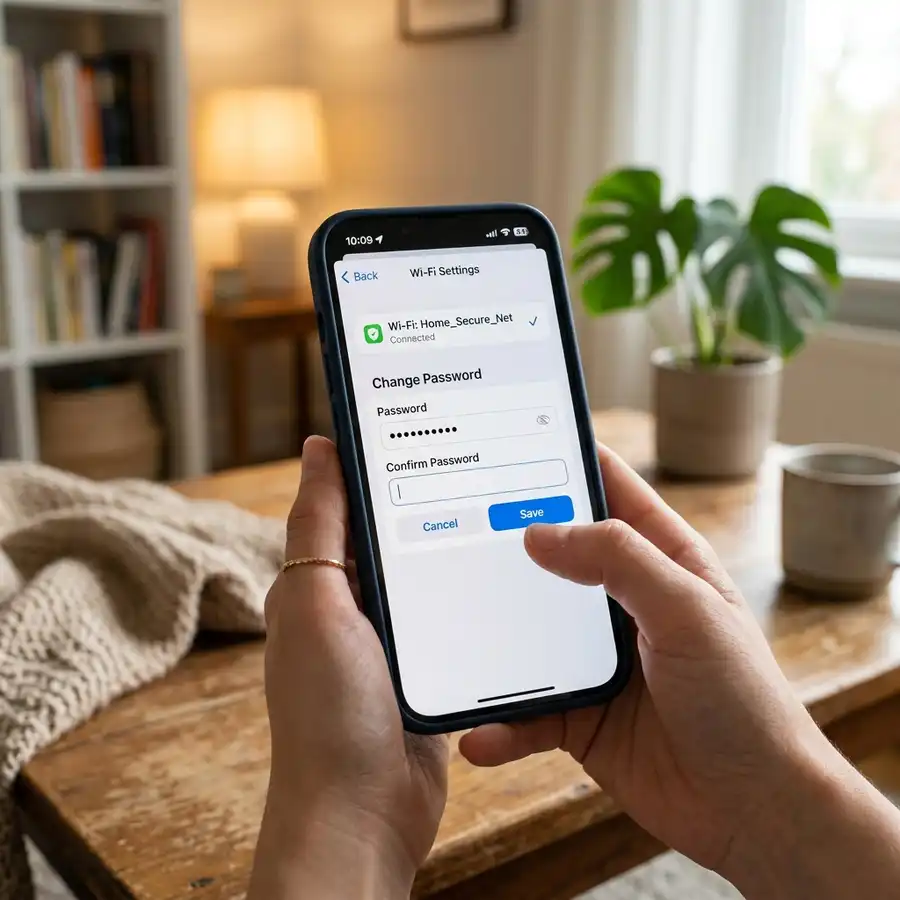
Learning how to access a router's web-based administration page is the very first step toward solving Wi-Fi network slowdowns, setting up isolated guest networks, and enhancing the overall security of your local data traffic. However, most users run into a frustrating initial hurdle: they do not know what login credentials were configured by the manufacturer or their broadband internet service provider. To find the default username and password for your router, check the physical label sticker stuck on the bottom or back of the device, look up the manufacturer's user manual using the exact router model number, or try the most common universal credential combinations such as "admin" for username and "admin", "password", "1234", or leaving it blank for password after discovering your router's default gateway IP address.
Throughout this comprehensive technical guide, we will explain in detail how to map your local area network (LAN) topology, identify your default gateway IP address across major operating systems, and perform a secure hardware reset if the original login keys have been altered. Keeping your router settings updated prevents data packets from being intercepted and eliminates network congestion bottlenecks, making it a critical skill for any home network administrator. For other common home appliance troubleshooting guides, you can read our technical article on the Liectroux C30B robot vacuum beeping and not moving or check our analysis on whether a Wi-Fi security camera consumes too much data.
1. Why Do Routers Have Default Credentials and the Security Risks Involved
Network routers are shipped from the factory programmed with generic login credentials to allow the end-user or installation technician to quickly perform initial configuration tasks without requiring complex proprietary software or dedicated physical serial connections. The firmware programmed onto the router's circuit board ties an internal HTTP web server to a simple local database that stores a generic username and an unencrypted default password.
However, leaving these default credentials unchanged after installation presents one of the most critical cybersecurity vulnerabilities in modern networking. Internet-based malware and botnets continuously scan public IP address ranges (on WAN interfaces) attempting remote administrative access via common ports like HTTP (80/8080) or Telnet/SSH (23/22) using dictionary attacks packed with default login keys. If successful, attackers can rewrite your local DNS server settings to redirect your network's traffic to malicious phishing pages designed to steal bank credentials and social media accounts, as well as compromise IoT devices on the network.
Another major security threat involves the TR-069 protocol (CWMP - CPE WAN Management Protocol) listening on port 7547. ISPs use this protocol for remote provisioning and firmware upgrades. Routers that maintain vulnerable administrative credentials can be targeted by hackers who exploit buffer overflow bugs in the TR-069 interface, recruiting the device into distributed denial of service (DDoS) botnets without the homeowner's knowledge. Additionally, leaving standard credentials active allows local network intruders or compromised Wi-Fi clients to execute cross-site request forgery (CSRF) scripts on your local browser, silently changing your router's configurations simply by loading an infected advertisement on a website.
2. Inspecting the Physical Router Label Sticker for Login Information
The fastest, most practical, and most reliable method to discover the default username, password, and starting IP address of a specific router model is to perform a direct visual inspection of the physical hardware. Almost all modern manufacturers (including TP-Link, Netgear, Linksys, Asus, D-Link, Mercusys, and Tenda) place an adhesive label sticker on the device's outer shell.
To extract this technical information correctly, proceed as follows:
- Unplug any Ethernet cables if necessary to easily manipulate the physical router.
- Turn the router over and inspect the bottom panel (the plastic surface near the rubber feet) or the rear port area.
- Search for text sections containing terms like "Default Access", "Router Login", "Admin Username", or "Config Key".
- Note that the label will also display the numerical IP address of the gateway (such as 192.168.0.1 or 192.168.1.1) or a local domain address (like
tplinkwifi.netorrouter.asus.com) designed for user-friendly navigation. - If the label is damaged, missing, or faded, you will need to retrieve it logically via operating system commands or by looking up technical documentation databases online.
If you are setting up a refurbished or ISP-provisioned device, the default credentials printed on the plastic cover might not work. Internet providers frequently override factory firmwares with custom software versions that disable root access. In these configurations, the default user printed on the sticker may only provide access to limited client interfaces, meaning you will need to check online forums or contact your ISP to request administrative credentials. In some enterprise or business-grade routers (such as Cisco, Ubiquiti, or MikroTik), there is no default password printed at all; instead, you are forced to establish a serial console session using a rollover cable to define the initial credentials via CLI (Command Line Interface).
3. Database of Default Usernames, Passwords, and IPs by Manufacturer
Networking hardware manufacturers tend to standardize default credentials across their product lines to simplify manufacturing processes and customer support. The following detailed table compiles the most common default gateway IP addresses, administrative usernames, and default passwords used by major brands in the global consumer market:
| Brand / Manufacturer | Common Default IP Address | Default Username | Factory Default Password | Technical Operating Notes |
|---|---|---|---|---|
| TP-Link | 192.168.0.1 (or tplinkwifi.net) |
admin |
admin (or create on first login) |
Newer models prompt the user to define a secure, custom password upon initial connection. |
| Netgear | 192.168.1.1 (or routerlogin.net) |
admin |
password |
Uses "admin" and "password" as a global standard for Nighthawk and standard routers. |
| Linksys | 192.168.1.1 | admin |
admin (or leave blank) |
Older models require you to leave the password field completely blank when using "admin". |
| ASUS | 192.168.50.1 (or router.asus.com) |
admin |
admin |
ASUS router software defaults to subnet 50 to avoid IP conflicts with upstream ISP modems. |
| D-Link | 192.168.0.1 | admin |
(Leave blank) | Uses an empty field as default password. Ensure password is set to secure the device later. |
If your specific brand isn't listed above, you can check specialized online repositories that compile default credentials for networking devices (such as routerpasswords.com). On these databases, you can search for the router model number printed on the hardware to find its factory configuration keys. Alternatively, if your router is running customized open-source firmware like OpenWrt, DD-WRT, or Tomato, the default IP is typically 192.168.1.1, the username is "root", and the default password field is left entirely blank, requiring you to define it through SSH or the LuCI web interface during your first connection session.
After logging in using one of the default credentials listed in the database, the first thing you should do is replace the default administrator username with a custom name (if supported by your firmware) and set a secure, high-entropy password (at least 16 characters mixing alphanumeric symbols and characters like %, #, or $). This drastically mitigates the risks of targeted social engineering or local network brute-force attacks.

4. How to Find Your Router's Default Gateway IP Address on Windows, macOS, Android, and iOS
Before testing default login combinations, you must verify the exact logical IP address of your router on your local area network. This IP is referred to as the Default Gateway. You can retrieve it through your operating system's built-in networking tools by following these instructions:
On Windows (via Command Prompt)
Press the Windows Key + R on your keyboard to launch the Run dialog box. Type cmd and press Enter. Inside the command prompt window, type ipconfig and hit Enter. The OS will list all active network interfaces. Look for your active network connection (Wi-Fi or Ethernet) and identify the line labeled "Default Gateway". The IPv4 address listed next to it (e.g., 192.168.1.1) is your router's IP.
On macOS (Apple)
Click the Apple logo icon in the top-left corner of your screen and select "System Settings" (or "System Preferences"). Choose the "Network" option from the sidebar. Click on your active connection (Wi-Fi or LAN, indicated by a green dot) and click "Details" or "Advanced". Go to the "TCP/IP" tab and look for the line labeled "Router". The address shown is your default gateway.
On Android Devices
Open the Settings app on your smartphone and navigate to "Network & Internet" (or "Connections"). Tap on "Wi-Fi" and select the cog wheel icon next to your active network name. Tap on "Advanced" or expand the network details menu. Locate the IP address shown in the "Gateway" or "Router" field.
On iOS Devices (iPhone / iPad)
Open the Apple Settings app. Select "Wi-Fi" and identify your connected network. Tap the blue "i" information icon on the right side of the network's name. Scroll down to the "IPv4 Address" section. The IP address shown next to "Router" is the correct gateway address.
If you run these diagnostic utilities and the default gateway address displays as 0.0.0.0 or is left completely blank, it indicates a DHCP assignment failure on your local network. Disconnect from your Wi-Fi and reconnect to renew your lease, or configure your device with a static IP address in the expected subnet (for example, setting your computer to IP 192.168.1.10 and gateway to 192.168.1.1) to force direct hardware communication with the router. You can do this by navigating to your adapter properties, selecting IPv4 settings, and manually defining the IP parameters alongside a standard subnet mask of 255.255.255.0.
5. Performing a Hardware Factory Reset if Default Credentials Fail
Frequently, when attempting to input default credentials from the sticker or manual, the router's login page refreshes with an "incorrect password" error. This is because the internet provider or a previous user customized the administrative credentials in the past to prevent unauthorized access.
In this scenario, the only way to gain administrative control over the router is to perform a physical factory reset (Hard Reset). A factory reset permanently clears all custom settings stored in the router's flash memory (including custom Wi-Fi network names, passwords, port forwarding rules, static IPs, and DHCP lease options), reverting the system software back to its factory default state.
To execute a factory reset safely, follow these technical steps:
- Verify that the router is plugged into a power source and turned on. The memory flash rewrite requires continuous power; pulling the power cord during a reset can corrupt the firmware.
- Inspect the back or bottom panel of the router to find a small recessed button hole labeled "Reset". On some models, this may be a tiny tactile physical button.
- If it is a recessed hole, use a thin tool with a rounded tip, such as a paperclip or a tooth-pick. Insert the tool until you feel the physical button click inside the casing.
- Hold the button down continuously for 10 to 15 seconds. Keep an eye on the physical LED indicator lights on the front of the router. They will flash simultaneously or go dark and light up in a sequence, showing that the system has wiped its configurations and is rebooting.
- Release the button and wait 3 to 5 minutes for the internal CPU to finish loading the stable default firmware partition. Once the router finishes booting, it will broadcast its default Wi-Fi network (which is either unsecured or uses the default key shown on the label), and you can log in at the gateway IP using the factory default credentials.
It is important to remember that when a reset completes, you will also need to reboot any network extenders or secondary Mesh nodes connected to the network. Because the primary router now has new radio credentials and a cleared DHCP allocation table, subordinate nodes relying on the old settings will fail to communicate with the main gateway. You must pair each repeater again individually to ensure seamless data forwarding without creating packet loops or broadcast storms on your LAN. Once you have regained entry, make sure to write down your new credentials in a safe place, such as a encrypted password manager (like Bitwarden, KeePass, or 1Password) to avoid needing another factory reset in the future.
Frequently Asked Questions (FAQ)
Is it safe to keep the default admin password if I change the Wi-Fi password?
No, it is highly insecure. The Wi-Fi password only encrypts data packets transmitted through the air between your devices and the router's antennas. If your admin password (used to manage settings at 192.168.1.1) remains set to the factory default, any device that connects to your Wi-Fi (or an attacker exploiting a WAN vulnerability) can gain full administrative control of your network routing and hijack your internet connection.
How do I log in if the router sticker is missing or damaged?
If the sticker is gone, first find your default gateway IP address (using commands like ipconfig in Windows) to identify the router's address. Open that IP in a browser and try common default login combinations like admin/admin or admin/blank. If those fail, search online for your exact router model number to download the manufacturer's manual in PDF format.
What should I do if the router's login page does not load in my browser?
Make sure your device is fully connected to the router's Wi-Fi network or Ethernet port. Ensure that any VPN, firewall, or proxy software on your computer is temporarily disabled, as they can misroute local traffic and block connections to local private IPs. You can also try loading the page using an incognito or private browsing window.
Will a factory reset disconnect my internet connection?
Yes. If your internet service provider requires your router to authenticate via a specific PPPoE username and password, or if your network relies on specific logical VLAN tagging, resetting the device will erase these configurations, causing a loss of internet access. Make sure you have your connection configuration details from your ISP handy before initiating a physical factory reset.




