
Reading foreign literature on your Kindle is one of the best ways to improve your vocabulary and language skills. However, the pre-installed dictionaries on Amazon devices do not always cover specialized terms, regional dialects, or specific language pairings. Download free Kindle dictionaries in MOBI/PRC format, transfer them to your device via USB to the dictionaries folder, and set them as default. This quick adjustment will unlock instant, offline lookups and translations as you read.
Whether you are learning Spanish, reading classic French literature, or studying academic Latin, having the right reference tool is essential. The Kindle platform has a built-in feature that detects the language metadata of your e-book and matches it with an active dictionary. If the default dictionary is too basic, or if you need a bilingual dictionary that translates foreign words directly into your native language, you can install custom, open-source, or free community-made dictionaries. This guide provides a comprehensive, step-by-step walkthrough of where to find these free files, how to transfer them to your Kindle, and how to configure them correctly.
1. Understanding Kindle's Default Dictionary System
Every Amazon Kindle device, from the basic model to the Kindle Paperwhite and Kindle Scribe, comes pre-configured with several official dictionaries. Amazon provides these dictionaries for free, covering major languages like English, Spanish, French, German, Italian, Portuguese, Chinese, and Japanese. When you open a book written in Spanish and tap a word, the Kindle automatically displays the definition from the default Spanish dictionary. If you open an English book, it uses the default English dictionary (typically the New Oxford American Dictionary or the Oxford Dictionary of English).
These default dictionaries are cloud-based until you download them. To access them, your Kindle needs to connect to Wi-Fi. Once downloaded, they work completely offline, allowing you to lookup words while traveling, on airplanes, or in areas with poor internet connection. However, these pre-loaded dictionaries are usually monolingual (e.g., explaining a Spanish word in Spanish). If you are a language learner, a monolingual lookup can be frustrating. You would benefit much more from a bilingual dictionary (e.g., Spanish-to-English or German-to-Portuguese) that translates the word instantly. Since Amazon does not offer bilingual dictionaries for every language pair, downloading free custom dictionaries from the internet is the best solution.
Metadata and Automatic Language Detection
To understand how custom dictionaries work, you need to understand file metadata. Every e-book and dictionary file contains metadata headers. These headers include tags for Language and Dictionary Input/Output Language. When you highlight a word, the Kindle reads the book's metadata language (e.g., "es" for Spanish) and looks for an active dictionary that accepts "es" as its input language. If the metadata matches, the dictionary pops up instantly. If the metadata is missing or incorrect, the Kindle will fail to recognize the dictionary, and you will see a message saying no dictionary was found. This is why properly formatted custom dictionaries are necessary.
2. Where to Download Free Kindle Dictionaries Online
Several online repositories and communities offer high-quality, free dictionaries specifically formatted for Amazon Kindle. These files are typically saved in MOBI or PRC format. The Kindle system requires these legacy Mobipocket formats because modern formats like KFX or AZW3 do not support the specific indexing systems needed for dictionary lookups. Below are the most reliable sources where you can safely download custom dictionaries without paying a dime.
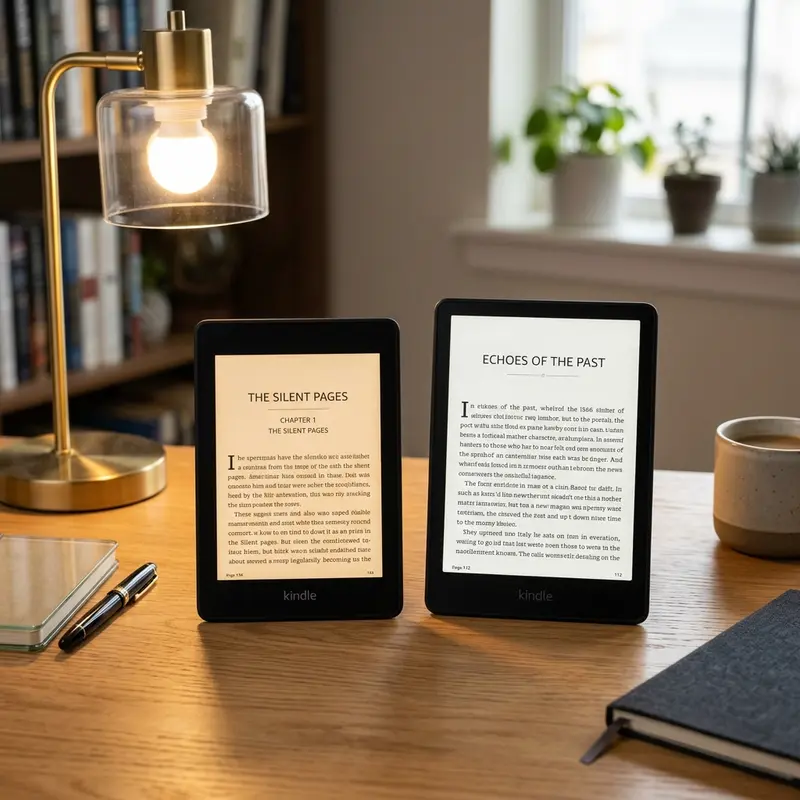
Top Sources for Free E-Reader Dictionaries
- The MobileRead Wiki and Forums: The MobileRead community is one of the oldest and most knowledgeable e-reader forums on the web. Users share custom dictionaries created from open-source databases like Wiktionary. You can find comprehensive bilingual files for dozens of languages, including Latin, Ancient Greek, Esperanto, and various regional dialects.
- GNU Collaborative International Dictionary of English (GCIDE): For English speakers seeking an incredibly detailed, classic dictionary, the GCIDE is available for free in MOBI format. It includes extensive etymologies and historical usages that surpass standard modern dictionaries.
- Open-Source Wiktionary Exports: Developers frequently export Wiktionary databases and convert them into Kindle-compatible files. Since Wiktionary is constantly updated by volunteers, these dictionaries are excellent for modern slang, technical terms, and neologisms.
- Project Gutenberg: While primarily known for free public domain books, Project Gutenberg also hosts historical dictionaries (such as Webster's 1913 Edition), which are ideal for readers of classic literature who want to understand archaic terms in context.
To help you choose the right source, we have compiled a table comparing the most popular free dictionary databases available for download:
| Source / Database Name | Best For | Supported Formats | License Type |
|---|---|---|---|
| Wiktionary Kindle Exports | Modern slang, idioms, bilingual pairs | MOBI, PRC | Creative Commons (Free) |
| MobileRead Forums | Rare languages, customized translations | MOBI, ZIP (needs extraction) | Public Domain / Community Free |
| Webster's 1913 (Gutenberg) | Archaic terms, classic 19th-century literature | MOBI | Public Domain (Free) |
| Latin-English Custom Dictionaries | Academic reading, classical studies | PRC, MOBI | GNU General Public License |
Dica DomineTec: Always check the file extension before downloading. Kindle dictionaries must be in MOBI or PRC format to be recognized as dictionaries by the e-reader system. EPUB, PDF, or AZW3 files will not work for dictionary lookups.
3. Step-by-Step: How to Install Custom Dictionaries on Kindle
Once you have downloaded the dictionary file to your computer, you need to transfer it to your Kindle. There are two primary methods to do this: using a USB cable (recommended for reliability) or sending it via the Send-to-Kindle service. Let's cover the USB method first, as it guarantees the file is placed in the correct system folder.
Method 1: USB Transfer (The Most Reliable Way)
To transfer the dictionary via USB, follow these precise steps:
- Connect your Kindle to your computer using a compatible USB data cable. Your Kindle screen will display a message indicating it has entered "USB Drive Mode."
- Open your file manager (File Explorer on Windows or Finder on macOS). The Kindle will appear as an external storage drive.
- Navigate into the Kindle drive. Look for the main folder named documents.
- Inside the documents folder, you will find a subfolder named dictionaries. If this subfolder does not exist, you can create it manually (name it in lowercase:
dictionaries). - Copy your downloaded
.mobior.prcdictionary file and paste it directly inside the dictionaries folder. - Safely eject the Kindle drive from your computer's operating system, then disconnect the USB cable.
Method 2: Using Send-to-Kindle (Alternative)
If you do not have a USB cable handy, you can upload the dictionary using Amazon's official web portal or by sending it to your Kindle email address. However, note that when using Send-to-Kindle, the file is processed in the Amazon cloud and delivered to your device as a standard document. If this happens, the Kindle might not automatically recognize it as a system dictionary. To ensure the file is categorized correctly, the USB method is highly preferred. If you must use Send-to-Kindle, make sure the dictionary file has the correct metadata headers. For more information on sending documents, you can check our guide on how to convert PDF to Word to prepare other readable formats for your Kindle.
4. How to Activate and Change Your Default Kindle Dictionary
After transferring the dictionary file to your Kindle, you must tell the e-reader to use it as the default look-up tool. The steps may vary slightly depending on your Kindle model and software version, but the logic remains the same across all modern e-ink devices.

Activating the Dictionary in Kindle Settings
To select your newly installed dictionary, follow these steps on your device:
- Turn on your Kindle and tap the top of the screen to open the quick actions menu. Tap the All Settings icon (represented by a gear).
- In the Settings menu, navigate to Language & Dictionaries.
- Tap on Dictionaries.
- Here, you will see a list of languages. Tap the language for which you want to change the dictionary (for example, Spanish).
- A list of all installed dictionaries for that language will appear. Select the custom dictionary you just transferred. A checkmark will appear next to it.
- Return to your library and open a book in that language. Tap and hold any word; the definitions should now be pulled from your new dictionary.
If you are reading a bilingual book, you can also change the dictionary on the fly without leaving the text. Simply tap and hold a word to bring up the definition window. In the bottom-right corner of the popup box, tap the name of the current dictionary. A dropdown list of all compatible dictionaries installed on your device will appear. Select your custom dictionary from this list, and the translation will update immediately.
5. Troubleshooting Common Custom Dictionary Issues on Kindle
Sometimes, installing a custom dictionary does not work as expected. You might find that the dictionary doesn't show up in settings, or the Kindle displays an error message saying that the look-up failed. Do not worry; these issues are common and can usually be solved by checking a few technical details.
The Dictionary is Not Appearing in the Settings Menu
If you have copied the file to your Kindle, but it does not show up in the settings list, the issue is likely the folder path or the file format. Make sure the file is in MOBI or PRC format. E-readers cannot index EPUB or PDF files as dictionaries. Additionally, verify that the file was placed inside documents/dictionaries/. If you placed it directly in the root directory or the main documents folder, the system will treat it as a standard e-book rather than a lookup database.
Incorrect Language Metadata (The Translation Does Not Trigger)
If the dictionary appears in your settings but fails to trigger when you highlight a word in a book, the problem is a language mismatch. For example, if you are reading a book that is internally tagged as French ("fr"), but your dictionary is internally tagged as English ("en"), the Kindle will not connect them. You can fix this by using Calibre, a free, open-source e-book management software. Import the dictionary file into Calibre, right-click it, select "Edit Metadata," and ensure the language tags are set correctly to match your target reading material.
FAQ — Frequently Asked Questions
Can I install dictionaries on Kindle without a computer?
Yes, you can install dictionaries without a computer by using the experimental web browser built into your Kindle. Simply navigate to a free dictionary repository, click the download link for the MOBI/PRC file, and the Kindle will automatically download and place it in the correct folder. Alternatively, you can use the Send-to-Kindle email service from a smartphone, though this method is less reliable than using a direct USB connection or the browser download.
Why are my custom Kindle dictionaries not working after a system update?
Amazon frequently updates the Kindle operating system firmware. Occasionally, these updates change how the device indexes files or reads metadata. If your custom dictionary stops working after an update, try connecting your Kindle to a computer, moving the dictionary file out of the device, restarting the Kindle, and then copying the file back into the documents/dictionaries folder. This forces the Kindle's indexing system to rebuild the database.
What is the difference between monolingual and bilingual Kindle dictionaries?
A monolingual dictionary defines words using the same language (for example, explaining the meaning of an English word in English). A bilingual dictionary translates a word from one language to another (for example, translating a Spanish word to its English equivalent). Bilingual dictionaries are essential tools for language learners, and downloading free custom bilingual dictionaries is highly recommended since the default pre-installed dictionaries are mostly monolingual.
Can I create my own custom Kindle dictionary?
Yes, you can create a custom dictionary using tools like Kindle Previewer or the KindleGen command-line tool provided by Amazon. You will need to write the source dictionary in tab-separated text or HTML format, define the input and output languages in the metadata, and compile the file into MOBI format. This is a great solution if you need a specialized glossary for professional terminology, academic research, or rare dialects.