How to Connect and Configure Wired Headphones to PS5 DualSense Controller
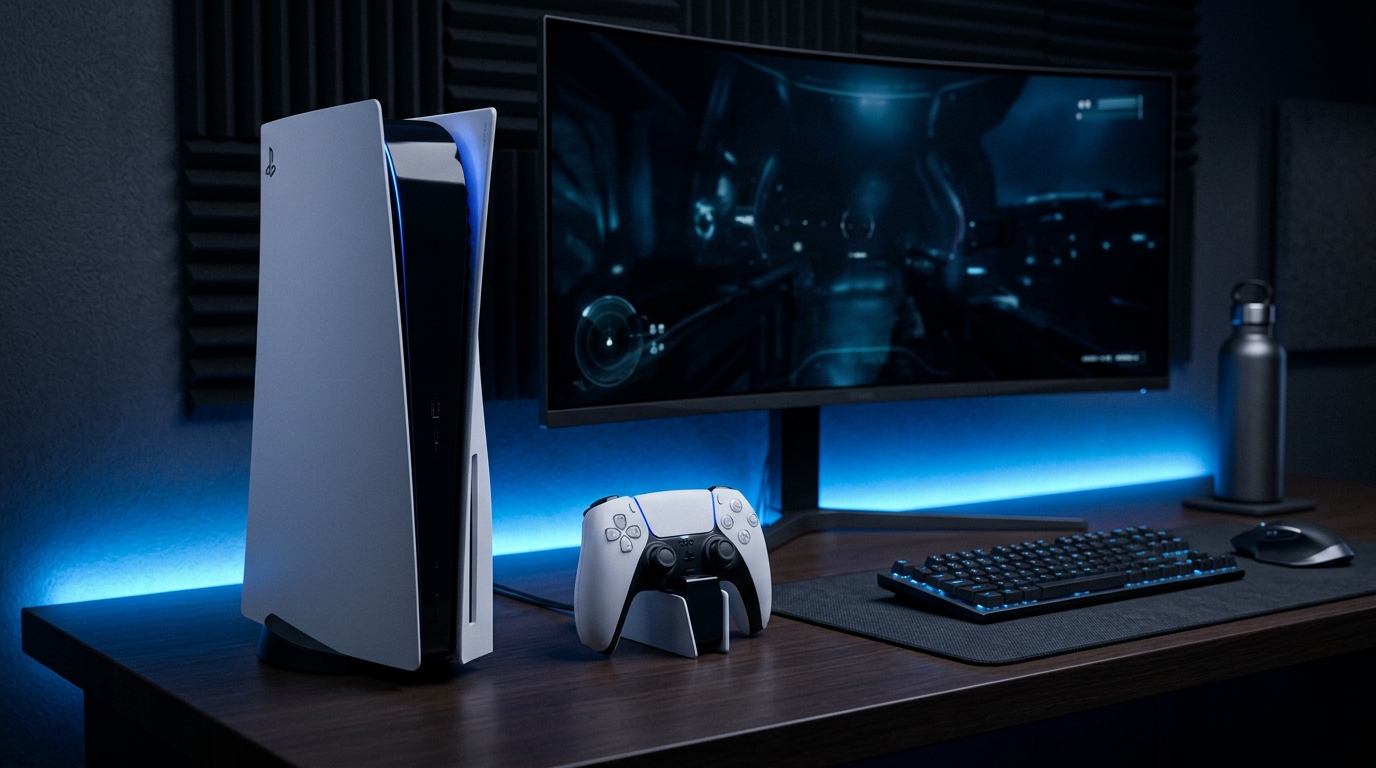
Connecting and configuring wired headphones to the PS5 DualSense controller is a straightforward process that enhances your gaming experience by providing immersive audio and an effective means of communication with fellow players. In this guide, we will walk you through every step, from connecting your 3.5mm wired headphones to adjusting system settings for optimal performance.
Understanding the PS5 DualSense Controller
The PlayStation 5 DualSense controller is a significant upgrade from its predecessor, the DualShock 4. Notably, it features advanced haptic feedback and adaptive triggers that enhance gameplay immersion. Additionally, it includes a 3.5mm audio jack that allows players to connect wired headphones or earbuds directly to the controller, making it an essential tool for those who prefer a wired audio solution.
Specifications of the DualSense Controller
Before diving into the connection process, it's essential to understand the specifications of the DualSense controller and its audio capabilities:
- Audio Jack: 3.5mm TRRS (Tip-Ring-Ring-Sleeve) audio jack for stereo sound.
- Microphone: Built-in microphone for voice chat and communication.
- Compatibility: Compatible with most standard 3.5mm headphones.
- Battery Life: Approximately 12 hours with audio usage, depending on settings.
Connecting Your Wired Headphones
Follow these simple steps to connect your wired headphones to the DualSense controller:
- Ensure your PS5 console is powered on and your DualSense controller is connected to the console, either via USB or wirelessly.
- Take your standard 3.5mm wired headphones or earbuds and locate the 3.5mm audio jack on the bottom of the DualSense controller.
- Insert the headphone plug into the 3.5mm audio jack until you hear a click, indicating a secure connection.
- Once connected, you should see a headphone icon appear on the PS5 interface, confirming the successful connection.
Configuring Audio Settings on PS5
After successfully connecting your headphones, it’s crucial to configure the PS5 audio settings to ensure optimal sound quality and functionality. Here’s how to do it:
Navigating to Sound Settings
- From the main PS5 menu, navigate to the Settings icon, which resembles a gear.
- Scroll down and select Sound.
- In the Sound menu, select Audio Output.
Selecting Output Device
In the Audio Output settings, you will see various options for output devices. Here’s how to set your connected headphones as the output device:
- Under Output Device, select Controller Headset from the list of available devices.
- Ensure that the Output to Headphones option is set to All Audio to ensure that both game audio and chat audio are routed through your headphones.
Enabling Tempest 3D AudioTech
One of the standout features of the PS5 is the Tempest 3D AudioTech, which allows for immersive audio experiences. To enable this feature, follow these steps:
Accessing 3D Audio Settings
- In the same Audio Output menu, scroll down to find the 3D Audio option.
- Toggle the 3D Audio option to On to activate it.
Choosing 3D Audio Profiles
You can customize your 3D audio experience by selecting different profiles:
- While in the 3D Audio settings, select 3D Audio Profile.
- Choose from various profiles such as Standard, FPS, or RPG depending on the game genre you primarily play.
DomineTec Pro Tip: Experiment with different 3D audio profiles to find the one that enhances your gaming experience the most, as this can significantly impact your situational awareness in games.
Muting and Unmuting the DualSense Microphone
The DualSense controller features a built-in microphone that can be muted or unmuted as needed. Properly managing this feature can enhance your gaming experience, especially during multiplayer sessions.
How to Mute the Microphone
- Locate the microphone button on the bottom of the DualSense controller, which is easily identifiable.
- Press the button to mute the microphone; an indicator light will turn orange, signaling that the microphone is off.
How to Unmute the Microphone
- To unmute, press the microphone button again. The indicator light will turn white, indicating that the microphone is active.
Common Issues and Troubleshooting
Even with straightforward connections and configurations, you may encounter issues. Below are common problems and their solutions:
Headphones Not Detected
If your headphones are not detected by the controller, try the following steps:
- Ensure that the headphone plug is fully inserted into the jack.
- Check the headphones with another device to confirm they are functioning correctly.
- Restart the PS5 console to refresh the connection.
Low Volume or Poor Sound Quality
If you experience low volume or poor sound quality:
- Check the volume level on the controller by pressing the Volume Up button.
- In the PS5 audio settings, ensure the Output to Headphones setting is set to All Audio.
- Adjust the volume on your headphones if they have a built-in volume control.
Microphone Issues
If the microphone is not working:
- Ensure the microphone is unmuted and check the indicator light on the controller.
- Check if the microphone works on other devices to rule out hardware issues.
- Restart the console and reconnect the headphones.
Controller Not Responding to Headphones
If the controller does not respond to the connected headphones:
- Disconnect and reconnect the headphones to the controller.
- Try a different pair of headphones to determine if the issue lies with the headphones.
- Reset the DualSense controller by pressing the reset button on the back using a paperclip.
Firmware Specifications for the DualSense Controller
The firmware of the DualSense controller plays a crucial role in its operation and compatibility with the PS5. Keeping the firmware up to date ensures optimal performance and access to the latest features. Here’s what you need to know:
Current Firmware Version
As of now, the latest firmware version for the DualSense controller is 0210. Ensure your controller is updated to this version for the best experience.
How to Update Firmware
- Connect your DualSense controller to the PS5 via USB.
- Go to Settings > Accessories > Controllers.
- Select Wireless Controller Device Software to check for updates and follow the prompts to install.
Connection Diagnostics for the DualSense Controller
Diagnosing connection issues with the DualSense controller can help resolve problems quickly. Here are some steps to effectively test the connection:
Checking Connection Status
To check the connection status of your controller:
- Navigate to Settings > Accessories.
- Select Controllers and check if the status indicates 'Connected'.
Troubleshooting Connection Issues
If you encounter connection issues, consider the following:
- Restart the PS5 console.
- Re-pair the controller by pressing the PS button while it’s connected via USB.
- Try connecting the controller to another USB port on the console.
Compatibility Matrix for Headphones with PS5
Understanding the compatibility of different headphone models with the PS5 DualSense controller is vital for gamers. Below is a brief compatibility matrix:
| Headphone Model | Type | 3D Audio Support | Microphone Compatibility |
|---|---|---|---|
| Sony WH-1000XM4 | Over-ear | Yes | Built-in |
| HyperX Cloud II | Over-ear | No | Detachable |
| Razer Kraken X | Over-ear | No | Built-in |
| SteelSeries Arctis 7P | Over-ear Wireless | Yes | Detachable |
| Apple AirPods Pro | In-ear | Yes | Built-in |
The above table showcases models that are tested for compatibility, ensuring that you select a headset that meets your gaming needs effectively.
Signal Interference Fixes for Wireless Accessories
While this article primarily focuses on wired headphones, understanding signal interference can be crucial for those who use wireless accessories alongside the PS5. Below are common fixes:
Identifying Sources of Interference
Signal interference can arise from various sources, including:
- Wi-Fi routers operating on the same frequency.
- Microwave ovens and other household electronics.
- Other wireless devices nearby.
Solutions to Minimize Interference
- Relocate your PS5 console away from potential interference sources.
- Change the Wi-Fi channel on your router to reduce overlap.
- Consider using a wired connection for devices that require reliable connectivity.
Maintenance Guide for the DualSense Controller
Maintaining your DualSense controller is essential for prolonging its lifespan and ensuring optimal performance. Here are some maintenance tips:
Regular Cleaning
Keep your controller clean by:
- Wiping it down with a microfiber cloth regularly.
- Using compressed air to remove dust from crevices.
- Avoiding liquids that could seep into the controller.
Battery Care
To maintain the battery health:
- Avoid letting the battery drain completely before charging.
- Use the official charging cable to prevent damage.
Frequently Asked Questions (FAQ)
1. Can I use any wired headphones with the PS5 DualSense controller?
Yes, most standard wired headphones with a 3.5mm TRRS connector can be used with the PS5 DualSense controller. However, it’s advisable to use headphones that are designed for gaming or have a good microphone for the best experience.
2. Will I lose any audio quality when using wired headphones?
Generally, you should not experience a loss in audio quality when using wired headphones with the DualSense controller. However, audio quality can vary significantly between different headphone models, so choosing high-quality headphones is recommended for the best experience.
3. How do I adjust audio settings for specific games?
Audio settings can often be adjusted within the game's menu. Look for audio options in the settings menu of each game to customize sound effects, voice chat, and music volume according to your preference.
4. Can I connect Bluetooth headphones to the PS5 DualSense controller?
No, the PS5 DualSense controller only supports wired headphones through the 3.5mm jack. Bluetooth headphones can be connected directly to the PS5 console but not through the controller.
5. What should I do if my headphones are not working with the PS5?
If your headphones are not working, ensure they are securely connected, check the audio settings on the PS5, and test the headphones on another device to rule out hardware issues. If problems persist, consider trying a different pair of headphones or resetting the controller.






