How to Connect and Configure Wired Headphones to PS4 Controller
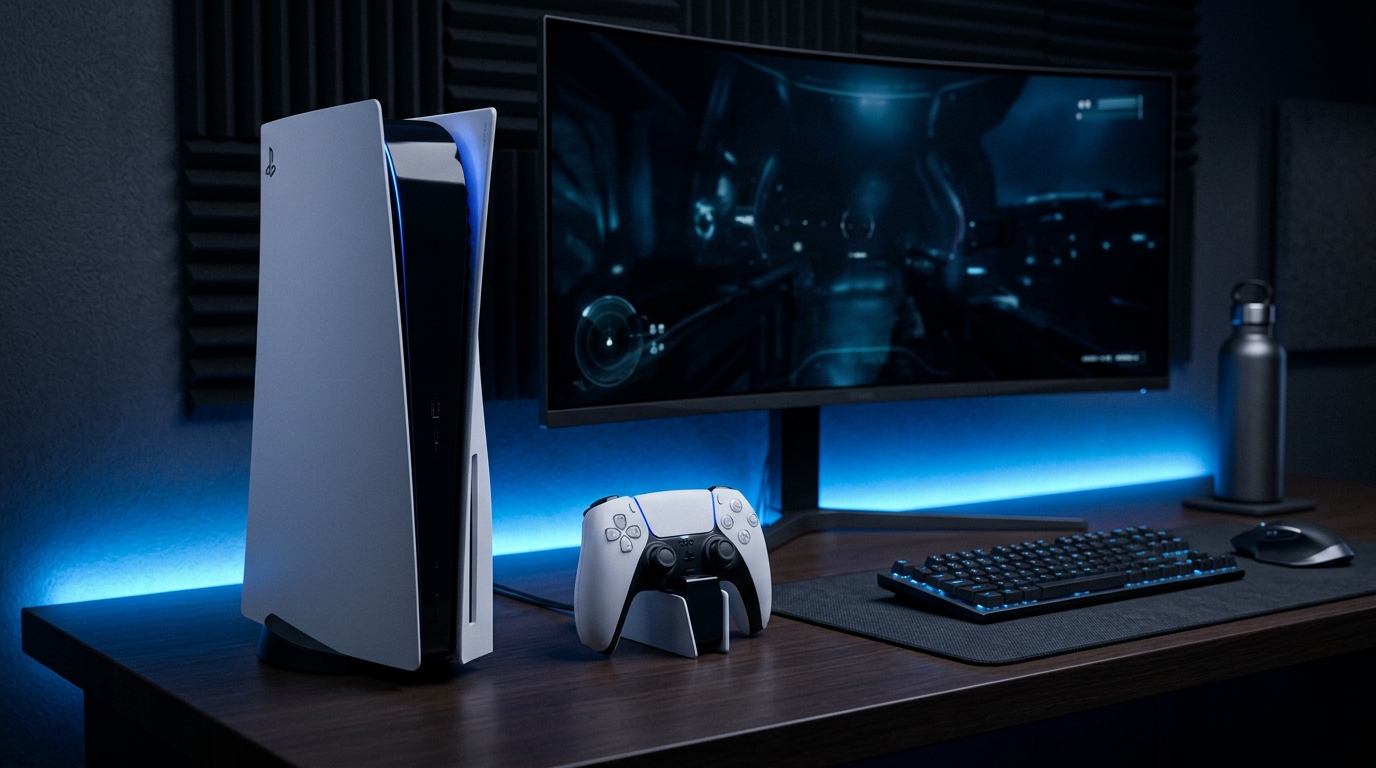
Connecting wired headphones to your PlayStation 4 (PS4) controller can significantly enhance your gaming experience by providing immersive audio and allowing for clearer communication with teammates. This guide will walk you through a comprehensive setup process, including configuration settings and troubleshooting common issues.
Understanding the PS4 DualShock 4 Controller
The PS4 DualShock 4 controller features a 3.5mm audio jack, allowing you to connect standard headphones or earbuds directly. This feature is particularly useful for gamers who want to enjoy private audio or engage in voice chat without disturbing others. The 3.5mm jack is compatible with most wired headphones, including those that come with smartphones.
Specifications of the DualShock 4 Controller
- Audio Jack Type: 3.5mm TRRS (Tip-Ring-Ring-Sleeve)
- Compatibility: Most wired headphones with a 3.5mm connector
- Weight: Approximately 210 grams
- Battery Life: Up to 8 hours of gameplay with wireless connection
- Bluetooth Version: Bluetooth 2.1 + EDR
Connecting Your Wired Headphones
To connect wired headphones to your PS4 controller, follow these steps:
- Locate the 3.5mm audio jack at the bottom of your DualShock 4 controller.
- Insert the headphone plug into the audio jack securely. Ensure it is pushed in all the way to avoid connection issues.
- Power on your PS4 and navigate to the home screen.
Verifying Connection
Once your headphones are connected, you can verify the connection by following these steps:
- Press the PS button on your controller to open the Quick Menu.
- Navigate to Sound/Devices.
- Check if your headphones are recognized by the system. You should see the option for Output to Headphones.
Configuring Audio Settings
To ensure your audio experience is optimized for gaming, you need to configure the audio settings on your PS4. Here’s how to do it:
- Press and hold the PS button on your controller to bring up the Quick Menu.
- Scroll down and select Sound/Devices.
- Choose Output to Headphones from the menu.
- Select All Audio to enable all game sounds and chat audio to be directed to your headphones.
Adjusting Volume Levels
After configuring your audio output, you may want to adjust the volume levels for optimal sound quality:
- In the Sound/Devices menu, you will also find the Volume Control (Headphones) option.
- Use the slider to increase or decrease the headphone volume according to your preference.
DomineTec Pro Tip: Always ensure your headphones are compatible with the PS4 controller to avoid audio issues. Look for headphones with a TRRS connector for the best performance.
Troubleshooting Common Issues
Despite following the setup instructions, you may encounter issues such as silent microphones or audio buzzing. Here are common problems and their solutions:
Silent Microphone Issues
If your microphone is not working, check the following:
- Ensure that the microphone is not muted. Some headphones have a mute switch on the cable.
- Check the audio jack connection. Unplug and reinsert the headphone jack to ensure a secure fit.
- Test the microphone on another device (like a smartphone) to confirm it is functioning properly.
- In the Sound/Devices menu, ensure the Chat Audio option is enabled.
Audio Buzzing and Distortion
Buzzing or distortion in audio can be frustrating. Here’s how to resolve it:
- Check the headphone cable for any damage or fraying. Damaged cables can cause audio issues.
- Try a different set of headphones to determine if the problem lies with the headphones or the controller.
- Disconnect any other audio peripherals that may be interfering with the connection.
Advanced Configuration Options
For users wanting to delve deeper into audio settings, the PS4 offers several advanced configuration options:
Adjusting Chat Audio and Game Audio Balance
You can balance game audio and chat audio to your liking:
- Access the Sound/Devices menu.
- Select Adjust Microphone Level to set the microphone sensitivity.
- Navigate to Chat Audio settings to adjust the balance between game audio and chat audio.
Using Headphones with PSVR
If you own PlayStation VR, you can use your wired headphones with the PS VR headset:
- Connect your headphones to the PS4 controller as described earlier.
- Put on the PS VR headset. The audio will be output through the connected headphones.
Firmware Specifications
Firmware plays a crucial role in the functionality of your PS4 controller and connected audio devices. Keeping the firmware updated ensures optimal performance and compatibility. Here’s what you need to know:
Checking Firmware Version
To check the firmware version of your PS4 controller:
- Connect your controller to the PS4 via USB.
- Navigate to Settings > Devices > Controllers.
- Check the firmware version displayed on the screen. Make sure it matches the latest version available from PlayStation.
Updating Firmware
If an update is available, follow these steps:
- Ensure your PS4 is connected to the internet.
- Go to Settings > System Software Update.
- If a new firmware version is available, follow the prompts to download and install it.
Connection Diagnostics
To troubleshoot connection issues with your headphones, you can perform a series of diagnostics:
Testing Audio Output
To test if audio is being transmitted through your headphones:
- Connect your headphones to the PS4 controller.
- Play a game or media to check for sound.
- If there’s no sound, try connecting a different pair of headphones to rule out headset issues.
Network Connection Check
If you're using online features, ensure your console has a stable internet connection:
- Go to Settings > Network.
- Select Test Internet Connection.
- Ensure both Upload and Download speeds meet the requirements for online gaming.
Compatibility Matrix
Understanding which headphones are compatible with your PS4 can save you time and frustration. Here’s a matrix of common headphone types and their compatibility:
| Headphone Type | Compatibility | Notes |
|---|---|---|
| TRRS Wired | Fully Compatible | Standard for most gaming headphones |
| Bluetooth Wireless | Limited | Requires Bluetooth adapter for use |
| USB Headset | Partially Compatible | May require specific settings adjustments |
| Standard Stereo | Compatible | Works well for basic audio |
Signal Interference Fixes
Signal interference can affect audio quality and connection stability. Here are some common fixes:
Minimizing Wireless Interference
If you experience audio dropouts:
- Keep your controller and console within close range.
- Avoid physical barriers, such as walls, between your controller and the console.
- Turn off other nearby wireless devices to reduce interference.
Using a Wired Connection
For the best audio quality, consider using a wired connection:
- Connect your headphones directly to the controller.
- Use a high-quality cable to minimize signal loss.
Maintenance Guide
To ensure your headphones and controller remain in good working condition, regular maintenance is essential:
Cleansing Your Headphones
Keep your headphones clean to prevent audio issues:
- Wipe the ear cups with a soft, dry cloth regularly.
- Remove any hair or debris from the headphone jack.
- Store in a cool, dry place when not in use.
Checking Controller Condition
Inspect your controller for any signs of wear:
- Check for cracks or damage on the controller casing.
- Ensure buttons and joysticks are functioning smoothly.
- Replace batteries if using a rechargeable model and they show signs of deterioration.
Comparative Analysis of Headphones for PS4
| Headphone Model | Type | Microphone | Compatibility | Price Range |
|---|---|---|---|---|
| HyperX Cloud II | Over-ear | Yes | PS4, PC, Xbox One | $99 - $129 |
| SteelSeries Arctis 7 | Wireless | Yes | PS4, PC | $149 - $199 |
| Razer Kraken X | On-ear | Yes | PS4, PC | $49 - $79 |
| Sony Gold Wireless | Wireless | Yes | PS4 | $99 - $129 |
| Logitech G430 | Over-ear | Yes | PS4, PC | $59 - $89 |
Choosing the Right Headphones
While you can use any headphones with a 3.5mm jack, selecting headphones specifically designed for gaming can enhance your experience. Look for features such as surround sound, comfortable padding, and a quality microphone for an optimal gaming experience.
Conclusion
Connecting wired headphones to your PS4 controller is a straightforward process that substantially improves your gaming experience. With the right configuration and troubleshooting techniques, you can make the most of your audio setup. Whether you are playing solo or in multiplayer, enjoying high-quality audio and clear communication is essential.
Frequently Asked Questions (FAQ)
1. Can I use any wired headphones with my PS4 controller?
Yes, most wired headphones with a 3.5mm TRRS connector are compatible with the PS4 controller. However, for optimal performance, consider using headphones designed for gaming.
2. Why is there no audio coming from my headphones?
If you are not receiving audio, ensure that your headphones are properly connected to the controller, and check the audio settings in the PS4's Sound/Devices menu to confirm that the correct output option is selected.
3. What should I do if my microphone isn’t working?
First, ensure that your headphone's microphone is not muted. Check the connection, and navigate to the Sound/Devices menu to adjust the microphone level. Test your headphones on another device to rule out hardware failure.
4. How do I fix audio buzzing from my headphones?
Audio buzzing could be due to a faulty headphone jack or damaged cables. Try using a different set of headphones or inspect the cable for damage. Additionally, disconnect any other audio devices that might be causing interference.
5. Can I use wireless headphones with my PS4 controller?
While the PS4 controller itself does not support wireless headphones directly through the 3.5mm jack, you can connect wireless headphones via Bluetooth. However, this process differs and requires additional configuration.






