
Configuring your Vivo internet router directly from your smartphone is the fastest and most convenient way to manage your home local area network. Previously, configuring a home gateway required a desktop computer connected via an RJ45 Ethernet cable. Today, thanks to mobile-responsive admin panels and optimized web interfaces, you can perform all administrative tasks completely wirelessly. To configure your Vivo router settings on your mobile phone step-by-step, connect to the router's Wi-Fi network, open a web browser on your smartphone, type the default gateway IP address (typically 192.168.15.1) in the address bar, log in using the username "admin" and the unique password printed on the physical label on the bottom of the device, and adjust your settings in the Wi-Fi configuration menu.
This mobile-friendly setup allows you to quickly change your network name (SSID), update your Wi-Fi password to prevent unauthorized access, create isolated guest networks, and optimize wireless channels to improve speed. In this comprehensive guide, we will walk you through the exact technical steps needed to access and configure default settings on the main routers supplied by Vivo Fibra, including those manufactured by Askey, Mitrastar, and HP, helping you gain complete administrative control over your internet connection.
1. The Convenience of Configuring Vivo Routers via Smartphone
Modern routers provided by Vivo feature responsive administration pages. When you access the gateway's IP address from a mobile browser, the interface automatically scales to fit your phone's screen, making it easy to tap buttons and navigate menus. This removes the need for physical Ethernet cables or computer systems to maintain your local network.
Additionally, managing your router from your phone allows you to react quickly if you suspect unauthorized users are on your network. If you notice slow internet speeds, you can open the admin panel in seconds, check the DHCP client list to see all connected devices, and change your security keys immediately to secure your network.
2. Finding Your Vivo Router's Default Gateway IP Address
To open the login page of your Vivo router, you must first identify its default gateway IP address. For almost all Vivo Fibra installations using modern fiber gateways, the default IP address configured from the factory is 192.168.15.1. However, if your router was modified by an installer or if you are cascading a secondary router, this IP address might be different.
To find the correct gateway address on your mobile device, follow these steps:
- On Android: Go to Settings > Network & Internet > Wi-Fi. Tap the gear icon next to your connected network, then tap "Advanced" or "Details." Look for the field labeled "Gateway" or "Router." The address shown there (typically 192.168.15.1) is the correct IP.
- On iOS (iPhone): Go to Settings > Wi-Fi. Tap the blue "i" icon next to your connected network. Scroll down to the IPv4 section and look for the address listed next to "Router."
3. Accessing the Admin Dashboard via Mobile Browser
Once you have identified the gateway IP address, open your preferred mobile web browser (such as Google Chrome, Safari, or Firefox). Type the IP address (usually 192.168.15.1) into the address bar at the top of the screen and press "Go" or "Enter."
If your browser displays a security warning stating that "Your connection is not private" or shows an SSL certificate error, this is normal. Local routers use self-signed SSL certificates for basic HTTPS encryption. To proceed, tap the "Advanced" button at the bottom of the warning, then select "Proceed to 192.168.15.1 (unsafe)" to load the page.
On the login page, enter the username admin. Note that the administrator password is not the same as the Wi-Fi password you use to connect your devices to the internet. The admin password is a unique sequence of characters generated at the factory and printed on the physical sticker located on the bottom or back of your Vivo router. Enter this password exactly, paying close attention to uppercase and lowercase letters.
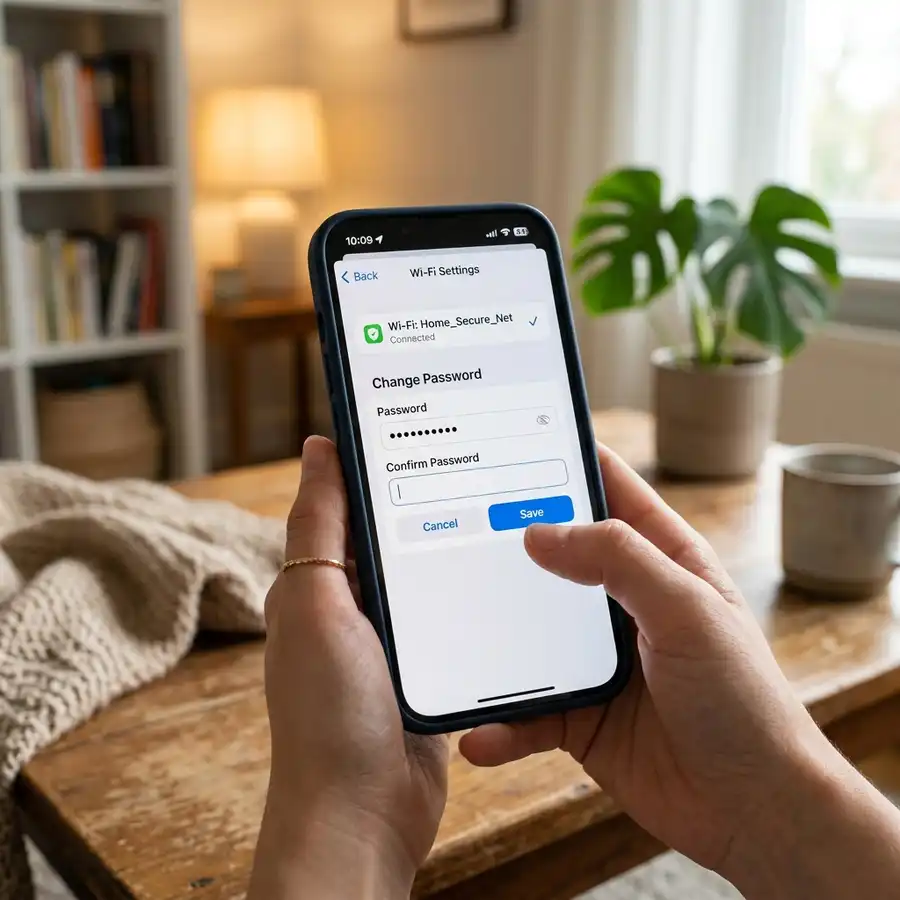
4. Step-by-Step Guide: Changing Wi-Fi Name and Password
After logging in, you will see the main dashboard (often called Vivo Home). Follow these steps to change your network name and password:
- Locate Wi-Fi Settings: Open the main menu (usually represented by a three-line menu icon) and select "Wi-Fi Settings," "Wireless," or "Wireless Setup."
- Select Frequency Bands (2.4 GHz and 5 GHz): Most modern Vivo routers are dual-band. You will see configuration options for the 2.4 GHz band (which offers longer range but slower speeds) and the 5 GHz band (which offers faster speeds but shorter range).
- Change the SSID (Network Name): In the field labeled "SSID" or "Network Name," delete the default name and enter your preferred name.
- Update the Security Key: In the "WPA Key," "Password," or "Security Key" field, delete the default password and enter a new one. Create a strong password of at least 8 characters, combining uppercase and lowercase letters, numbers, and special characters (such as @, #, $).
- Save and Apply Changes: Tap the "Save," "Apply," or "Submit" button. Your wireless connection will disconnect temporarily. Go to your phone's Wi-Fi settings, locate your new network name, and connect using your new password.
5. Vivo Fibra Router Models Comparison
To help you identify your specific hardware, the table below lists the most common router models supplied by Vivo Fibra and their default access details:
| Manufacturer / Model | Default Gateway IP | Default Username | Admin Password Location | Wi-Fi Standard Support |
|---|---|---|---|---|
| Askey RTF8115VW | 192.168.15.1 | admin | Sticker on the bottom of device | Wi-Fi 5 (Dual-Band AC) |
| Mitrastar HGW-2501GN-R2 | 192.168.15.1 | admin | Sticker on the back or bottom | Wi-Fi 5 (Dual-Band AC) |
| Askey RTF3507 (Wi-Fi 6) | 192.168.15.1 | admin | Sticker on the router base | Wi-Fi 6 (Dual-Band AX) |
| Mitrastar GPT-2741GNAC | 192.168.15.1 | admin | Sticker on the back cover | Wi-Fi 5 (Dual-Band AC) |
6. Advanced Security Recommendations for Vivo Gateways
Changing your default Wi-Fi network name and password is only the first step in securing your home network. To protect your devices from unauthorized access, consider adjusting these advanced security settings in your router's administration panel:
Disable Wi-Fi Protected Setup (WPS): WPS allows you to connect devices simply by pressing a physical button on the router or entering an 8-digit PIN. However, WPS has security vulnerabilities that allow attackers to crack your network password using brute-force tools. Locate the WPS option in your wireless settings and disable it to protect your network. This prevents unauthorized users from executing WPS Pixie-Dust attacks to bypass your password protection entirely.
Use WPA2-AES or WPA3 Cryptography: Verify that your wireless networks are configured to use WPA2-PSK (AES) or WPA3 (if your devices support it). WPA3 replaces CCMP with the more robust GCMP (Galois/Counter Mode Protocol) and introduces the SAE (Simultaneous Authentication of Equals) handshake. This protocol replaces the old Pre-Shared Key exchange method and prevents offline dictionary attacks where hackers capture handshake packets to crack your password. WPA3 also includes Protected Management Frames (PMF) by default, which prevent deauthentication attacks where unauthorized users disconnect your devices from the network. Avoid older WEP and WPA-TKIP protocols, as they are obsolete, insecure, and can slow down your internet connection.
DomineTec Tip: Many modern Vivo routers use a feature called "Band Steering" (or Unified Wi-Fi). This feature combines the 2.4 GHz and 5 GHz bands under a single SSID. The router automatically assigns your device to the best band based on your distance and signal quality. If you want manual control, you can disable this feature in the wireless settings and configure separate names for each band (e.g., NetworkName_2.4G and NetworkName_5G). This prevents your phone from getting stuck on the slower 2.4 GHz band when a faster 5 GHz signal is available.
7. Optimizing Wi-Fi Signal and Channel Selection
If you experience slow speeds or connection drops in certain rooms after setting up your router, it may be due to signal interference from neighboring networks. Routers set to automatically select wireless channels choose the best option when they start up, but they may not adjust when new interference occurs during the day. In high-density environments like apartment buildings, this overlapping signal noise degrades performance.
In the 2.4 GHz band, only channels 1, 6, and 11 do not overlap. Set your router to use one of these channels manually. The 5 GHz band has more channels available and is less crowded, but 5 GHz signals are blocked more easily by walls than 2.4 GHz signals. Wi-Fi 6 (802.11ax) routers also support Orthogonal Frequency Division Multiple Access (OFDMA) and BSS coloring, which helps mitigate co-channel interference by coloring channels to distinguish between networks. Keep your channel width at 20 MHz on the 2.4 GHz band to reduce interference, and use 80 MHz on the 5 GHz band to get the fastest download and upload speeds. This ensures stable performance for your connected devices.
8. Rebooting and Preventive Maintenance for Fiber Gateways
To ensure your Vivo Fibra network operates reliably at gigabit speeds, perform regular maintenance. Fiber gateways are tiny computers running localized Linux operating systems. Over time, constant network address translation (NAT), packet inspection, firewall operations, and device association requests consume the system's memory cache, leading to slower speeds or connection drops.
We recommend performing a soft reboot of the gateway once a week. You can reboot the device directly through the administration interface under the "System Tools" or "Maintenance" menu, or by disconnecting the power cord for 30 seconds. Additionally, check for firmware updates under the device information screen. Although Vivo pushes automatic updates to subscriber gateways, checking the firmware status ensures your device runs the latest security patches. Keeping the router's physical vents free of dust and placing it in an open area rather than inside closed cabinets prevents thermal throttling, extending the lifespan of your networking equipment.
9. Troubleshooting: Connecting to the Router Admin Panel
If you cannot load your router's administration page on your mobile phone, use these troubleshooting steps to identify and resolve the issue:
The page 192.168.15.1 does not load: Make sure your mobile data (3G/4G/5G) is turned off in your phone's settings. If mobile data is active, your phone may try to load the page through your cellular network rather than the local Wi-Fi connection. You can also try loading the page in an incognito or private browsing tab to bypass browser cache and cookie issues. If the page still fails to load, try using a different mobile browser (like Firefox or Opera) or restart your smartphone to flush the DNS cache. Additionally, check that your device has been assigned an IP address in the 192.168.15.X subnet, which is required to communicate with the gateway.
Forgot the router administrator password: If you changed the default admin password and cannot remember it, you must reset the router to its factory settings. Find the physical "Reset" button (usually located inside a small pinhole on the back of the device) and press it with a paperclip or pin for 10 to 15 seconds while the router is powered on. This will restore all settings to their factory defaults, allowing you to log in using the password printed on the sticker. Note that this will also reset your Wi-Fi name and password back to the default values, meaning you will need to re-authenticate all your mobile and smart home devices. Once logged back in, you can configure IP address allocation, set up static DHCP leases, or adjust firewall configurations to enhance network routing security.
10. Frequently Asked Questions (FAQ)
What is the default administrator password for Vivo routers?
There is no single default password (like "admin" or "password") for all Vivo routers. Each router has a unique, factory-generated administrator password printed on the sticker attached to the bottom or back of the device.
How can I access the admin panel if 192.168.15.1 does not work?
Verify that your phone is connected to the router's Wi-Fi network. If you are connected and the page still does not load, check the gateway address in your phone's Wi-Fi settings. Some installations may use 192.168.1.1 or 192.168.0.1 depending on the configuration.
Does changing Wi-Fi settings on my phone affect wired devices?
No. Changing the Wi-Fi name (SSID) or password only affects wireless devices. Devices connected to the router using a physical Ethernet cable will remain connected and will not require any changes.
Can I use the Vivo Smart Wi-Fi app to configure my router?
Yes. Vivo offers a "Smart Wi-Fi" app for Android and iOS devices. This app allows you to make basic changes, such as updating your Wi-Fi password or viewing connected devices, through a simplified interface. For advanced settings like port forwarding or manual channel selection, accessing the admin panel via a web browser at 192.168.15.1 is recommended.
Is it safe to keep the default Wi-Fi password printed on the sticker?
While the default Wi-Fi passwords on Vivo routers are randomly generated and unique to each device, changing them is recommended to eliminate security risks. Anyone who gains temporary physical access to the sticker on your router can connect to your network and monitor traffic. Creating a custom, strong password is a recommended security practice to protect your personal data and devices, keeping your home environment safe from intrusion.




