How to Clean Your Smart TV Screen Safely Without Leaving Streaks
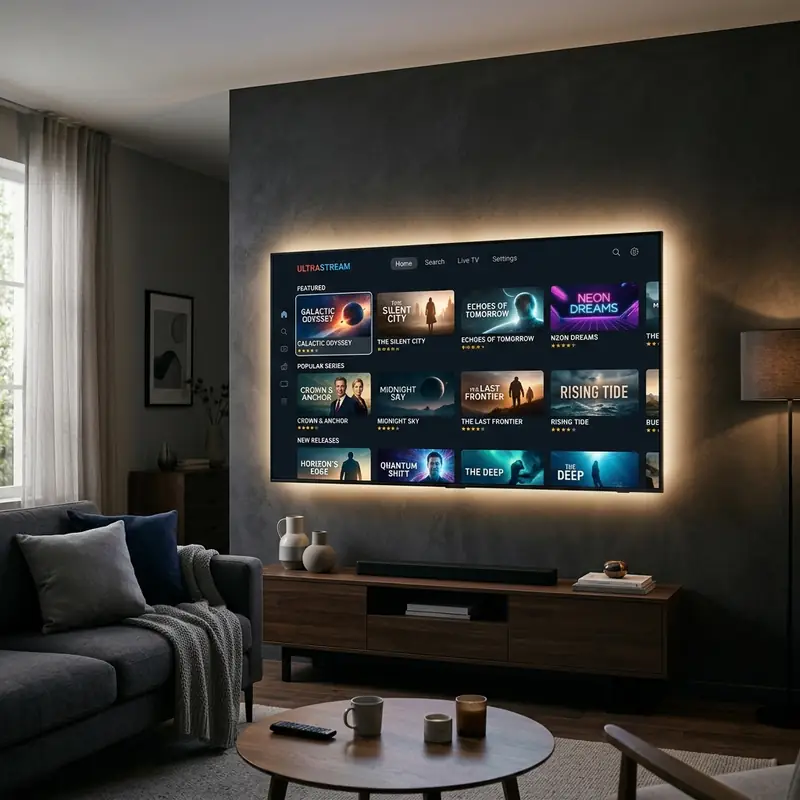
Smart TVs have se tornado um elemento essencial em nossos lares, oferecendo infinitas oportunidades de entretenimento com o toque de um botão. No entanto, com o uso frequente, as telas desses dispositivos podem acumular poeira, impressões digitais e manchas, o que pode prejudicar a sua experiência de visualização. Limpar a tela da sua Smart TV adequadamente é essencial não apenas por razões estéticas, mas também para manter a integridade do display. Este guia irá orientá-lo sobre os métodos mais seguros para limpar a tela da sua Smart TV sem deixar marcas ou danificar o display.
Understanding Your Smart TV Screen
Modern Smart TVs come equipped with various display technologies including LED, OLED, QLED, and NanoCell. Each of these technologies has unique properties that require specific care. Understanding the differences in these display types is crucial for selecting the right cleaning methods and products.
LED Displays
LED (Light Emitting Diode) displays are known for their brightness and energy efficiency. They are typically coated with anti-reflective coatings that can be sensitive to harsh chemicals. Therefore, special care must be taken when cleaning.
OLED Displays
OLED (Organic Light Emitting Diode) displays offer stunning picture quality and deep blacks. However, they are also more delicate than LED screens and can be easily scratched or damaged by improper cleaning techniques.
QLED Displays
QLED (Quantum Dot Light Emitting Diode) displays, developed by Samsung, utilize quantum dots to enhance brightness and color. Just like LED screens, QLED displays require a gentle touch during cleaning to preserve the quality of the screen.
NanoCell Displays
NanoCell displays from LG use nanoparticles to improve color accuracy. Estas telas também têm revestimentos protetores que podem ser afetados por limpadores ou panos abrasivos, necessitando de métodos de limpeza cuidadosos.
What to Avoid When Cleaning Your Smart TV
Before diving into the proper cleaning techniques, it’s important to understand what NOT to use on your Smart TV screen. Using the wrong products can result in damaged screens or voided warranties.
Prohibited Cleaning Products
- Rubbing alcohol
- Windex or other glass cleaners
- Paper towels
- Abrasive cloths ou esponjas
- Any cleaners containing ammonia
Essential Cleaning Supplies
To clean your Smart TV screen effectively and safely, you will need a few essential supplies:
- Lint-free microfiber cloth
- Distilled water
- Screen cleaning solution specifically designed for electronics (optional)
DomineTec Tech Tip: Always use a soft, lint-free microfiber cloth to avoid scratching your screen. Avoid using regular cloths or paper towels, as they can leave lint or potentially scratch the surface.
Step-by-Step Cleaning Process
Now that you know what to avoid and have gathered your cleaning supplies, let’s dive into the step-by-step process for safely cleaning your Smart TV screen.
Step 1: Power Off and Unplug the TV
Before you begin cleaning, turn off your Smart TV and unplug it from the wall outlet. This not only helps you see smudges and dust better on the black screen but also ensures sua segurança enquanto limpa.
Step 2: Inspect the Screen
With the TV powered off, take a moment to inspect the screen closely. Look for fingerprints, dust, and any stubborn marks. This will help you determine how much cleaning is necessário e onde focar seu esforço.
Step 3: Dry Wipe with a Microfiber Cloth
Using a dry, lint-free microfiber cloth, gently wipe the screen in a circular motion. Do not apply too much pressure, as this can damage the screen. Start from the top and work your way down to avoid redistributing dust and dirt.
Step 4: Dampen the Cloth for Stubborn Marks
If there are still stubborn marks after the dry wipe, you can lightly dampen the microfiber cloth with distilled water or a dedicated screen cleaning solution. Remember, NEVER spray liquid directly onto the screen; always apply it to the cloth first.
Step 5: Wipe Again with the Damped Cloth
Using the dampened cloth, gently wipe the screen again in circular motions. Be careful not to let any moisture seep into the edges of the screen, as this can damage internal components.
Step 6: Dry the Screen
After cleaning, use a dry section of the microfiber cloth to gently wipe the screen again. This will help absorb any remaining moisture and prevent streaks from forming.
Step 7: Clean the TV Frame
While the screen is the main focus, don’t forget to clean the TV frame and base. Use a separate microfiber cloth for this purpose to avoid transferring any dirt back onto the screen.
Step 8: Plug In and Power On
Once everything is dry, plug your Smart TV back in and power it on. Enjoy your crystal clear screen free from dust and smudges!
Approved vs Prohibited Cleaning Products
| Product Type | Approved | Prohibited | Form | Notes |
|---|---|---|---|---|
| Screen Cleaner | Yes, dedicated electronic cleaner | Windex | Liquid | Specially formulated for screens |
| Water | Yes, distilled | Tap water | Liquid | Avoid impurities |
| Microfiber Cloth | Yes, lint-free | Paper towels | Cloth | Soft and gentle |
| Foam Cleaner | Yes, if screen-safe | Aerosol cleaners | Foam | Check for compatibility |
| Dry Wipes | Yes, electronics wipes | Disinfectant wipes | Wipes | Avoid harsh chemicals |
For more information on the best portable external SSDs, check out our detailed guide on best portable external SSDs. Also, if you need to translate documents, see how to easily translate entire PDF files for free.
Advanced Troubleshooting Techniques
Sometimes, even after thorough cleaning, you may notice persistent issues such as ghosting, uneven brightness, or color distortion. These problems could stem from both hardware and software issues. Here are some advanced troubleshooting techniques to consider:
Check Display Settings
Ensure your TV’s display settings are optimized. Navigate to the settings menu and check for options such as brightness, contrast, and color saturation. Adjusting these settings can sometimes resolve issues related to poor display quality.
Update Firmware
Manufacturers often release firmware updates that enhance your TV's performance and fix bugs. Check the manufacturer's website for firmware updates specific to your model and follow the instructions to install them.
Reset to Factory Settings
If issues persist, consider resetting your Smart TV to factory settings. This can resolve software glitches that might be affecting display performance. Be sure to back up any important data before performing a factory reset.
Alternative Settings for Optimal Viewing
For the best viewing experience, consider adjusting some settings that can affect how your Smart TV displays content. Here are some alternative settings you may want to explore:
Picture Mode
Most Smart TVs come with preset picture modes like Standard, Movie, or Dynamic. Experiment with these modes to see which one provides the best quality for your viewing environment. The Movie mode is often the best for a more natural look.
Color Calibration
Advanced users may want to calibrate their TV's color settings manually. This could involve adjusting the RGB settings to ensure colors are true-to-life. You can find various online guides and tools that can help with this process.
Ambient Light Sensor
If your TV has an ambient light sensor, ensure it is turned on. This feature automatically adjusts the screen brightness based on the surrounding light, providing a better viewing experience in varying lighting conditions.
Long-Term Care Tips
Maintaining your Smart TV doesn’t stop at cleaning. Here are some long-term care tips to ensure your device remains in optimal condition:
Regular Dusting
In addition to cleaning the screen, regularly dust the entire TV, including vents and speakers. Use a soft brush or microfiber cloth to avoid scratching surfaces.
Proper Placement
Ensure your TV is placed in a location where it is not exposed to direct sunlight for extended periods. Sunlight can fade screen colors over time and cause heat damage.
Safe Usage Practices
When using your Smart TV, avoid showing static images for prolonged periods, as this can lead to burn-in, particularly on OLED screens. Instead, use screensavers or switch to different content periodically.
Frequently Asked Questions (FAQ)
1. Can I use water to clean my Smart TV screen?
Yes, distilled water is safe to use for cleaning your Smart TV screen. Just ensure that you dampen the cloth instead of spraying water directly onto the screen.
2. How often should I clean my Smart TV screen?
It is advisable to clean your Smart TV screen every few weeks or as needed, depending on your environment. Dust and fingerprints can accumulate rapidamente, afetando a qualidade da imagem.
3. Are there any homemade solutions for cleaning my TV screen?
While some people use a mixture of distilled water and vinegar, it’s best to stick with products specifically designed for electronic screens to avoid any risk of damage.
4. What should I do if my screen has scratches?
Unfortunately, scratches on the screen cannot be removed easily. It’s best to consult a profissional para reparos ou substituição se o dano for significativo.
5. Can I use a regular cloth to clean my TV?
No, regular cloths can leave lint and potentially scratch the screen. Always use a soft, lint-free microfiber cloth for the best results.






