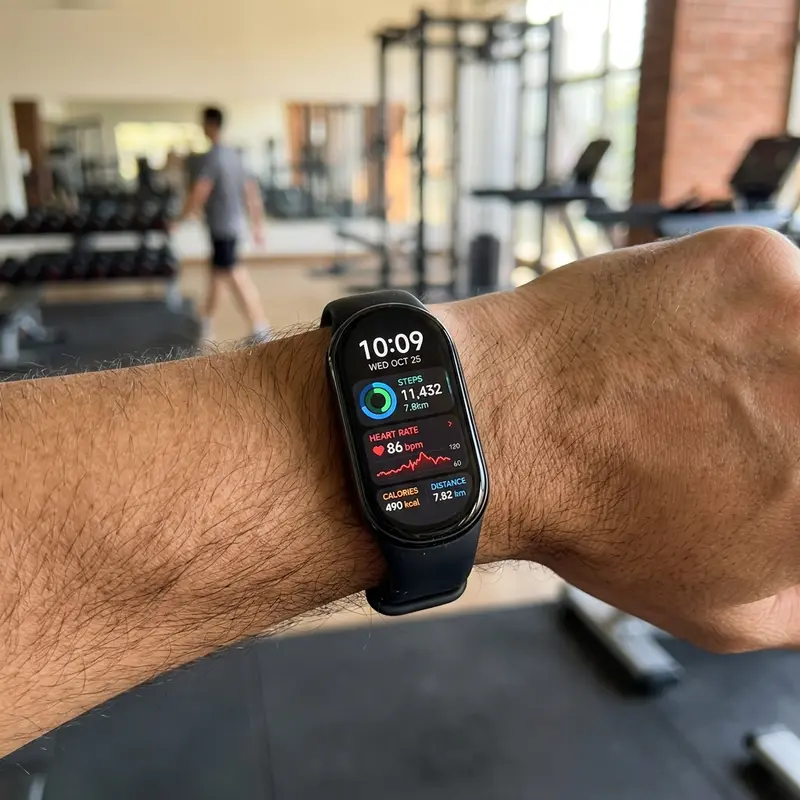
How to Change and Sync Time on Xiaomi Mi Band: A Technical Troubleshooting Guide
Xiaomi Mi Bands do not feature manual time adjustment settings on the device itself. Instead, they operate as logical extensions of your paired smartphone's clock. Because of this architecture, users frequently experience incorrect time displays when traveling across time zones, during daylight saving adjustments, or when cellular network signals drop. Resolving an out-of-sync clock on your band requires understanding the background synchronization processes between your smartphone and the companion app.
To change time on Mi Band, you must open the official Mi Fitness app on your phone, ensure Bluetooth is active, pull down on the app's main dashboard to force a manual data sync, and verify that your phone's system settings are set to automatic date and time. This instantly updates all clock, calendar, and timezone parameters on the band.
If you own other wearable devices and want to keep their battery and system performance optimized, check out our troubleshooting guides on Apple Watch battery draining fast solutions and learn how to restart frozen Apple Watch to ensure continuous fitness logging.
1. Understanding the Bluetooth Sync Routine
The Xiaomi Smart Band uses Bluetooth Low Energy (BLE) to transmit fitness logs and sync time. To preserve the band's battery life, the clock is not constantly updated over active connections. Sychronization happens in spaced intervals or when you actively open the companion app in the foreground on your phone.
If the Mi Fitness app is forced closed by Android's strict battery saver options, the background sync is cut. Furthermore, if your phone runs out of battery and is turned off for hours, the band's internal oscillator might drift slightly (referred to as clock drift), leading to small time delays until the next successful app sync. When the smartphone reboots and establishes a secure socket link to the wearable, a series of byte payloads are written to adjust the internal RTC (Real-Time Clock) chip inside the band.
2. GATT Profiles and Bluetooth Data Packet Protocol
From a firmware engineering perspective, the system clock, time zone offset, and DST (Daylight Saving Time) flags are represented as attributes within a standard GATT (Generic Attribute Profile) server. When the companion app establishes a link with the band, it queries the GATT server and writes to the Current Time Service (CTS) characteristic. This write command contains a byte array detailing the current Unix epoch timestamp, fractional seconds, and regional timezone adjustments.
If your smartphone's Bluetooth stack is overloaded with active connections—such as wireless earbuds, car kits, or smart home hubs—the GATT write operation can experience latency or write timeouts. This manifests as a connected status in the OS Bluetooth menu but an out-of-sync clock on the wearable display. Resetting the Bluetooth adapter clears these socket bottlenecks, allowing clean GATT writes to occur.
3. Step-by-Step Guide to Sychronize Time
If your Mi Band is displaying the incorrect time, follow these steps to force a clock update:
- Ensure your Mi Band is close to your phone (within 5 meters) to avoid signal attenuation.
- Verify that Bluetooth is enabled on your smartphone.
- Open the Mi Fitness (or Zepp Life) app on your device.
- Go to the main Health dashboard tab.
- Tap on the screen and pull down to refresh. A sync animation will rotate at the top of the interface.
- Wait until the synchronization progress bar completes. The time on your band will update immediately.
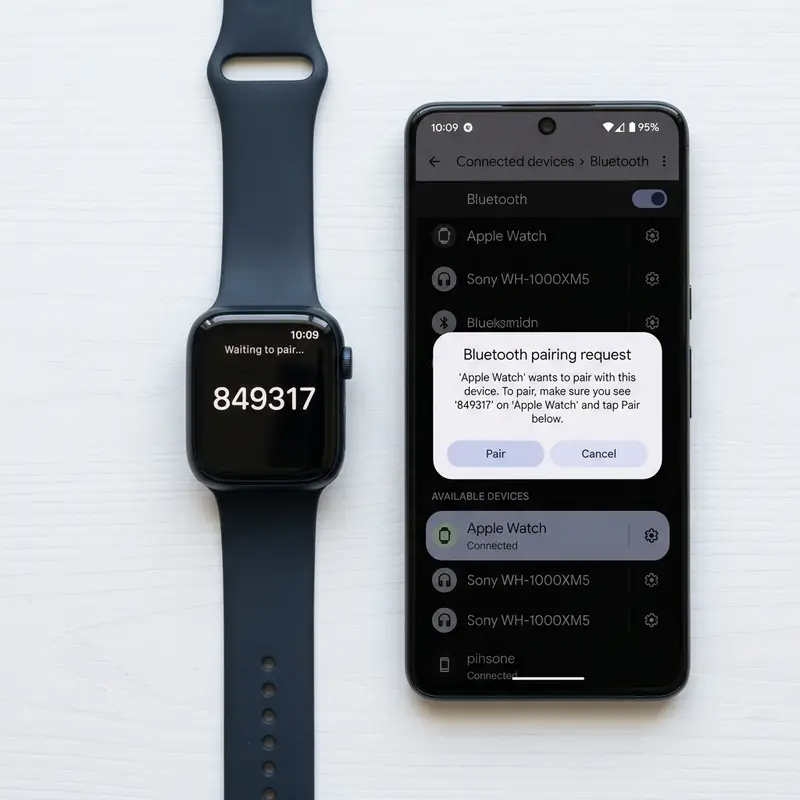
4. Fixing the 12-Hour vs. 24-Hour Time Format Display
A common issue when pairing a Mi Band with a new smartphone is the clock displaying time in a 12-hour format (with AM/PM labels) even when the phone is configured to a 24-hour layout, or vice-versa. This occurs due to a synchronization lag in the app configuration tables. To resolve this formatting mismatch:
- Navigate to your smartphone's system Settings.
- Go to Date & Time settings.
- Toggle the "Use 24-hour format" switch off to temporarily force the phone into a 12-hour format.
- Open the Mi Fitness app and pull down to sync the band.
- Go back to your phone settings and toggle the "Use 24-hour format" switch back on.
- Open the Mi Fitness app and sync once more. This forces the app to rewrite the display preferences on the band's flash storage.
5. Optimizing OS Background App Constraints (Android & iOS)
Operating systems apply aggressive memory and battery management policies that can kill background processes, halting clock updates. Ensure the companion app has unrestricted access:
- On Android (MIUI/HyperOS, Samsung One UI, Stock Android): Tap and hold the Mi Fitness app icon, select "App Info," go to "Battery Saver," and choose "No Restrictions." Additionally, toggle the "Autostart" option on to allow the app to launch automatically after a phone reboot.
- On iOS (Apple iPhones): Go to Settings > Mi Fitness. Enable the "Background App Refresh" and "Bluetooth" permissions. Avoid force-closing the app by swiping it away in the app switcher, as iOS will suspend all background Bluetooth communication channels immediately.
6. Time Synchronization Troubleshooting Reference Matrix
| Observed Issue | Root Cause | Resolution Steps |
|---|---|---|
| Time is off by exactly 1 hour or showing incorrect DST alignment | Incorrect regional timezone data or outdated carrier network parameters on the phone | Toggle the automatic timezone settings on your phone off and on, then sync the app. |
| Clock drifts or lags behind by several minutes over a week | No background sync occurring due to app termination by OS memory manager | Disable battery optimization and allow background refresh for the companion app. |
| Weekday or month displays in English instead of the local language | Incomplete language database push during the initial pairing process | Change phone language to another language, sync, change back to your preferred language, and sync. |
| Band displays only the QR code and does not show the clock face | The band has been factory reset and is waiting to establish a secure pairing keyset | Open the Mi Fitness app, tap 'Add Device', and scan the QR code on the band's screen. |
| Sync fails repeatedly with a connection timeout error | Bluetooth cache corruption on the host smartphone | Turn off Bluetooth, toggle Airplane Mode on and off for 15 seconds, and retry syncing the app. |
7. Managing Clock Drift During International Travel
When crossing time zones, your phone updates its local time via carrier towers, but your smart band may lag behind if the app is suspended. To resolve this instantly upon landing, open the companion app and force a sync. If the time remains incorrect, restarting your phone will clear the temporary regional time zone tables and force a clean database sync to the band.
8. The Role of Location Services in Accurate Clock Syncing
Many advanced watch faces display astronomical data, such as sunrise, sunset, and solar positioning, which require precise GPS coordinates. If you deny the companion app permission to access location data in the background, these variables will fail to update. Ensure location permissions are set to 'Always Allow' to keep climate widget data synced.
9. Data Consistency of Notification Offsets
An overlooked issue is how delayed notifications relate to incorrect time settings. If the internal clock of the band differs from the timestamp generated by incoming chat applications, messages may load out of chronological order. Keeping your time synced prevents confusing chat threads and keeps workout logging chronological across databases.
10. The Technical Impact of Wearable Clock Drift
Because smart bands use micro-controllers equipped with small crystal oscillators, they lack the atomic clock access of cellular towers. This results in standard clock drift (where the processor slightly drops or adds clock cycles over time). Frequent synchronizations with a phone that pulls correct NTP (Network Time Protocol) times prevent this hardware limitation from manifesting as a noticeable deviation on your screen.
11. Best Practices for Traveling Across Multiple Timezones
If you regularly travel for business or leisure across multiple timezones, keep these practices in mind. Before boarding, open your companion app and allow it to sync in the departure zone. Upon landing in the destination zone, wait for your cellular modem to register the local network time. Once the phone updates its system clock, unlock the device, open the companion app, and refresh. This prevents watchOS and Zepp OS from throwing data index mismatch errors due to timestamps crossing backwards or forwards in time.
12. Localizing Date and Calendar Formats
Another layer of date and time synchronization involves localized calendar settings. Different regions format dates as DD/MM/YYYY, whereas others use MM/DD/YYYY. The Mi Band imports this display logic during the GATT connection phase. If your watch face shows the day of the week in English while your phone is in Spanish or French, the application's locale configuration might be unsynced. Toggle your phone language to English, perform a full Bluetooth sync, and then toggle back to your native tongue to overwrite the corrupt language table on the band's storage partition.
13. Bluetooth GATT Characteristic Architecture and Open Source Libraries
If you are a developer looking to integrate custom tools with the Mi Band using open-source libraries like Gadgetbridge, you will need to interact with the raw GATT services directly. The primary service for time sync is identified by the standard UUID 0000180f-0000-1000-8000-00805f9b34fb. Writing to this service requires sending a custom byte buffer. This buffer must contain the year in a two-byte little-endian format, followed by single bytes for the month, day, hour, minute, and second. If your custom application fails to format these integers into the precise byte alignment expected by the Nordic or Dialog semiconductor chips inside the band, the clock will fail to update, and the device will discard the packet silently. Sychronizing through official companion apps ensures that these byte buffers are perfectly formatted and parsed, shielding users from connection failures.
14. Handling daylight saving time database updates
Operating systems on smartphones maintain an internal database of global timezone rules (often derived from the IANA Time Zone Database). When regional governments decide to alter or abolish daylight saving periods, a system update is pushed to your phone to update this database. If your phone is running an outdated operating system version, its timezone rules might conflict with the local carrier network. In these cases, the phone updates its time from network signals, but the internal database is not updated. This causes the companion app to push the wrong offset during Bluetooth syncs. Always ensure your phone's OS is updated to the latest minor version to prevent DST database mismatch issues from corrupting your smart band's clock face.
Frequently Asked Questions (FAQ)
1. Why is the time on my Mi Band still wrong after syncing the app?
If syncing the app does not fix the time, go to your phone's system Settings > Date & Time. Disable "Use network-provided time" or "Automatic time zone," adjust your phone's clock manually, open the Mi Fitness app to sync, and then re-enable automatic time on your phone.
2. Can I use the Mi Band and adjust the time without a smartphone?
No. The Mi Band is designed as a companion accessory. Without completing the initial pairing process via the Mi Fitness app on an Android or iOS smartphone, the band will remain stuck on the QR code pairing screen, making it unusable.
3. How do I change the time format from 12h to 24h on the band?
The display format cannot be toggled directly from the band's menus. The band automatically mirrors the format selected in your smartphone's system preferences. Ensure 24-hour time is active on your phone, then refresh the app.
4. Why did my band time change when I didn't adjust my phone?
This usually happens during daylight saving transitions. If your phone is set to automatically update its timezone, it pushes the updated time packet to the band. If this didn't happen, a manual pull-down sync in the app will resolve it.
5. Does the Mi Band require internet to sync the correct time?
No. The synchronization between the phone and the band is done locally via Bluetooth. As long as your phone's clock is correct, you can sync the time even in remote areas without internet access.




