How to Adjust Lumbar Support Height and Depth on Flexform Tecton Office Chair
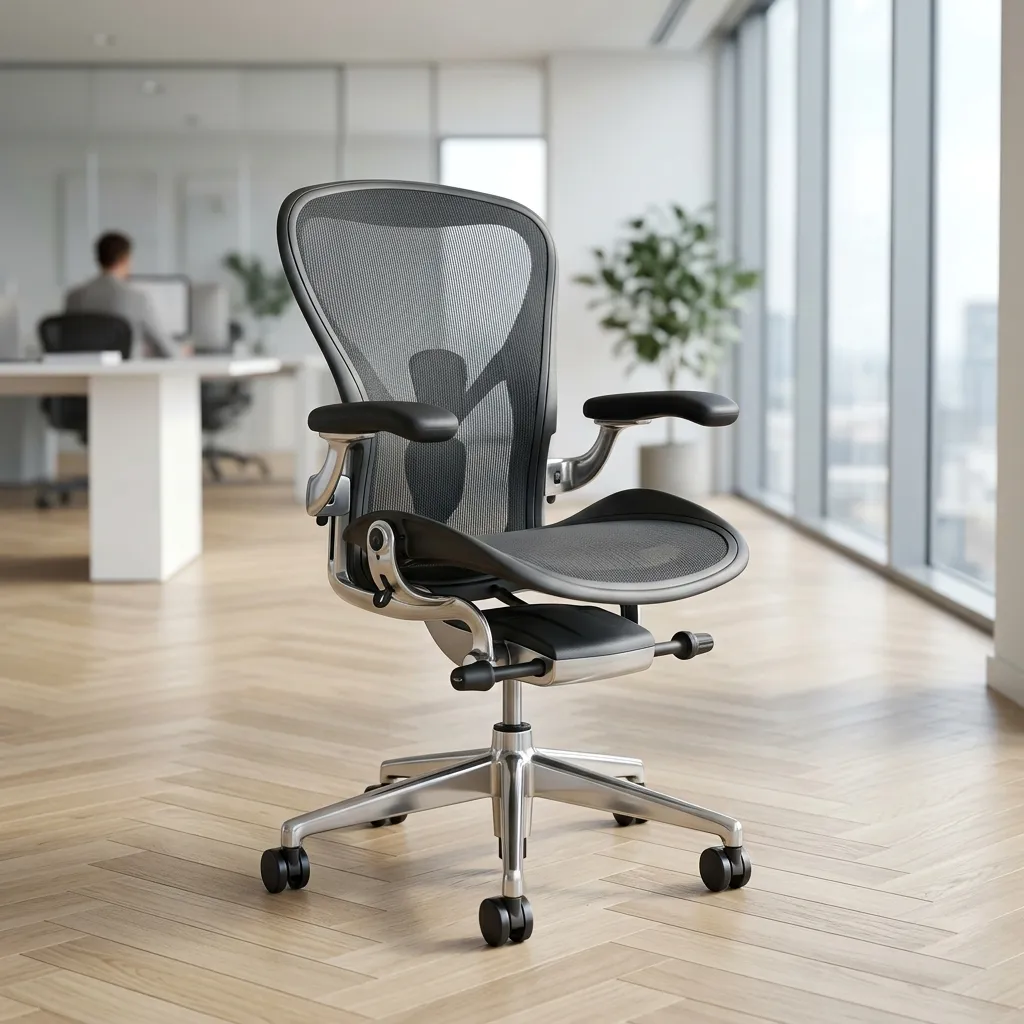
In today’s fast-paced work environment, spending long hours sitting at a desk can lead to various health issues, particularly discomfort and pain in the lower back. An ergonomic office chair, such as the Flexform Tecton, is designed to alleviate these concerns by providing adequate support for your spine. One of its key features is the adjustable lumbar support, which is crucial for aligning your back properly and maintaining a healthy posture. In this guide, we will walk you through the process of adjusting the lumbar support height and depth on the Flexform Tecton office chair, ensuring that you can sit comfortably and productively throughout your workday.
Understanding how to properly set your lumbar support can make a significant difference in your overall comfort and productivity. The lumbar support pad is designed to nest into the natural curve of your lower back, helping to reduce strain on your intervertebral discs and promoting good posture. This tutorial will provide you with a step-by-step approach to adjusting the lumbar support on your Flexform Tecton chair, along with ergonomic guidelines to ensure you achieve the best possible seated position.
Understanding Lumbar Support
Lumbar support refers to the cushioning and support provided to the lower back area, specifically the lumbar region of the spine. The lumbar spine consists of five vertebrae that are crucial for supporting the upper body's weight while allowing for movement and flexibility. Proper lumbar support helps maintain the natural curvature of the spine, which is essential for preventing discomfort and injury.
What is the Flexform Tecton Office Chair?
The Flexform Tecton is a high-quality office chair that features a breathable mesh backrest designed to enhance comfort and support during long hours of sitting. Its adjustable lumbar support allows users to customize their seating experience according to their specific needs. With this chair, you can ensure that your lower back is properly supported, helping to maintain a healthy posture.
Locating the Lumbar Support Bar
The first step in adjusting the lumbar support is to locate the lumbar support bar behind the mesh backrest of the chair. This is an essential part of the chair’s ergonomic design, allowing for independent adjustment of the lumbar support pad. Here’s how to find it:
Step 1: Position Yourself in the Chair
Begin by sitting in the Flexform Tecton chair. Ensure that your back is resting against the backrest and that your feet are flat on the floor. This will help you assess the lumbar support placement effectively.
Step 2: Feel for the Lumbar Support Bar
Reach behind the mesh backrest with your hand. You should be able to feel a horizontal bar that moves slightly when pressure is applied. This is the lumbar support bar that controls the height adjustment of the lumbar cushion. Familiarizing yourself with its location will make the adjustment process much easier.
Adjusting the Lumbar Support Height
Now that you have located the lumbar support bar, it’s time to adjust the height of the lumbar support pad. Proper height adjustment is essential to ensure that the support aligns with the natural curve of your lower back.
Step 1: Determine Your Ideal Height
Your lumbar support should be positioned just above your pelvis, ideally aligning with the natural curve of your lumbar lordosis. To find your ideal height, follow these guidelines:
- Sit upright in your chair with your feet flat on the ground.
- Note where your lower back curves inward; this is where the lumbar support should be positioned.
- Consider using a measuring tape to measure the distance from the seat of the chair to the curve of your lumbar spine.
Step 2: Adjust the Lumbar Support Bar
Once you have determined your ideal height, it’s time to adjust the lumbar support:
- Using your hand, gently pull the lumbar support bar upward or downward until the lumbar cushion is positioned correctly.
- Make small adjustments and return to a seated position to test the support's effectiveness.
Step 3: Test for Comfort
After adjusting the height, sit back in the chair and assess whether the lumbar support feels comfortable. You should feel the support snugly fitting into the curve of your lower back, providing adequate support without causing discomfort.
Adjusting the Lumbar Support Depth
In addition to height, the depth of the lumbar support is also adjustable. Proper depth adjustment is crucial for ensuring that the support is not too firm or too soft, providing the right level of pressure against your back.
Step 1: Assess Your Comfort Level
Sit back in the chair and lean against the lumbar support. Pay attention to how it feels against your back. If it feels like it is pushing too hard or not providing enough support, you will need to adjust the depth.
Step 2: Adjust the Lumbar Cushion
To adjust the depth, follow these steps:
- While seated, identify the adjustment mechanism for the lumbar cushion. This may be a knob, lever, or strap located near the lumbar support bar.
- Turn the knob or pull the lever to adjust the depth of the cushion. If your chair has a strap, you may need to pull it to create more tension or release it to allow for more depth.
- Make incremental adjustments and then sit back to test the depth until you find the most comfortable position.
Step 3: Reassess Your Position
After adjusting the depth, take a moment to reassess your seated position. Ensure that you can maintain an upright posture without feeling strain on your lower back. Adjust further if necessary.
Understanding Mesh Tension and Lumbar Support
The Flexform Tecton chair utilizes a breathable mesh material that conforms to your body while providing necessary support. The combination of mesh tension and lumbar support is integral to distributing your upper body weight evenly across the chair, which in turn helps relieve pressure on your intervertebral discs.
The Role of Mesh Tension
Mesh tension allows the chair to adapt to your movements and body shape while maintaining support. This elasticity is beneficial for:
- Reducing pressure points that can lead to discomfort.
- Enhancing airflow, keeping you cool during long work sessions.
- Promoting dynamic sitting by allowing slight movements without losing support.
How Lumbar Support Works with Mesh Tension
When properly adjusted, the lumbar support works in conjunction with the mesh to support your spine while allowing for natural movement. Proper alignment reduces the risk of developing pain and discomfort over time. It’s essential to find the right balance between mesh tension and lumbar support to achieve optimal comfort.
Ergonomic Posture Recommendations
To further assist you in achieving the best seating position, we have compiled an ergonomic posture recommendation table. This table outlines key posture habits and the corresponding lumbar support settings for various sitting positions.
| Posture Type | Angle of Seat | Lumbar Support Height | Lumbar Support Depth | Notes |
|---|---|---|---|---|
| Straight Sitting | 90° | Above Pelvis | Medium | Promotes upright posture |
| Leaning Forward | 100° | At or below Pelvis | Firm | Encourages engagement |
| Relaxed Sitting | 100° | Above Pelvis | Soft | Comfortable for breaks |
| Reclined Sitting | 120° | Mid to upper Lumbar | Medium to firm | Good for relaxation |
| Crossed Legs | 90° | Above Pelvis | Soft | Avoid prolonged periods |
DomineTec Tech Tip: Regularly reassess your lumbar support settings, especially if your work habits change. Small adjustments can lead to significant improvements in comfort and productivity.
Advanced Troubleshooting for Lumbar Support Issues
If you find that adjusting the lumbar support on your Flexform Tecton chair does not yield the desired comfort, consider the following advanced troubleshooting steps:
Identify the Source of Discomfort
Before making further adjustments, take a moment to identify where the discomfort is originating. This can help you target the right areas for adjustment:
- If the lumbar support feels too hard, it may be pushing against a sensitive area in your lower back. Consider reducing the depth of the support.
- If you feel like the support is too low or high, revisit the height settings and make finer adjustments.
- Check if your chair is correctly positioned in relation to your desk. Sometimes, discomfort can stem from how your chair interacts with your workstation.
Alternative Settings for Different Activities
Depending on your daily tasks, you may need to adjust your lumbar support settings to optimize comfort:
- For prolonged typing or data entry, consider a firmer lumbar support to encourage an upright posture.
- When reading or reviewing documents, a softer depth may be more comfortable, as it allows for slight leaning.
- If you frequently transition between tasks, make it a habit to reassess your lumbar support settings throughout the day.
Long-Term Care Tips for Your Chair
To ensure the longevity and effectiveness of your Flexform Tecton chair, follow these long-term care tips:
- Regularly clean the mesh and upholstery to maintain hygiene and appearance. Use a damp cloth and mild detergent to wipe down surfaces.
- Check for any loose screws or components every few months to ensure stability and safety.
- Consider rotating your seating position or alternating chairs periodically to reduce wear on the lumbar support.
- Keep the chair away from direct sunlight to prevent fading and deterioration of materials over time.
Finalizing Your Adjustments
After making the necessary adjustments to both the height and depth of the lumbar support, it’s important to finalize your settings to ensure they remain effective throughout your work sessions.
Step 1: Take a Break
After adjusting, take a short break to allow your body to relax. Standing up for a few moments can help reset your posture and provide insight into how the new settings feel.
Step 2: Re-evaluate the Settings
Once you return to your chair, sit down and assess the adjustments. Ensure that the lumbar support feels comfortable and adequately supports your lower back.
Step 3: Maintain Regular Adjustments
As you work, your body may require different levels of support based on your activities. Don’t hesitate to make further adjustments as needed. Regularly check that your lumbar support is still aligned with your lumbar lordosis for optimal comfort.
Frequently Asked Questions (FAQ)
How often should I adjust the lumbar support on my Flexform Tecton chair?
It’s recommended to periodically reassess your lumbar support settings, especially if you change your sitting position or work tasks. Every few weeks or after long periods of sitting can be a good time to check for comfort.
Can I use the Flexform Tecton chair without adjusting the lumbar support?
While you can use the chair without adjustments, it’s not advisable. The lumbar support is designed to promote better posture and comfort, which can help prevent back pain and discomfort over long periods of sitting.
What should I do if I still experience back pain after adjusting the lumbar support?
If you continue to experience discomfort, it may be beneficial to evaluate other aspects of your workstation setup, including your desk height, monitor position, and keyboard placement. Consulting with an ergonomic specialist may also be helpful.
How does the mesh material impact my sitting experience?
The mesh material provides breathability and flexibility, allowing the chair to conform to your body while distributing weight evenly. This can reduce pressure points and enhance comfort, especially during long sitting periods.
Are there any specific lumbar support settings for different body types?
Yes, the ideal lumbar support settings can vary based on individual body types and preferences. It’s important to adjust the height and depth according to your unique anatomy and comfort level for optimal support.






