![How to Add Midjourney Bot to Your Discord Server [2026]](/images/posts/ai-image-generator.webp)
Recommended Reading: See also our guide on Midjourney V6 parameters.
Recommended Reading: See also our guide on how to use Midjourney for free.
How to Add Midjourney Bot to Your Discord Server [2026]
Adding the Midjourney Bot to your Discord server enables powerful AI-driven art generation capabilities for advanced designers and digital artists.
Understanding Midjourney and Its Capabilities
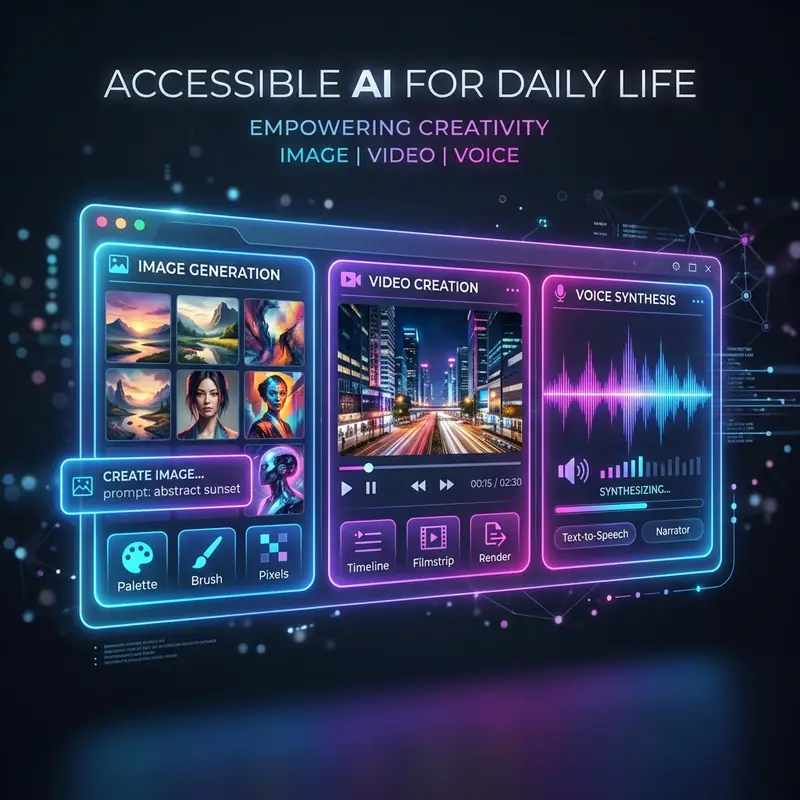
Midjourney is an innovative AI tool that allows users to generate high-quality images through simple textual prompts. The bot functions within the Discord platform, which serves as an ideal environment due to its community-driven communication and collaboration features. By understanding how to add the Midjourney bot to your Discord server, you can leverage its capabilities to enhance your design workflow, streamline collaborative efforts, and experiment with creative expressions. The bot is designed to interpret and visualize complex prompts, making it an invaluable tool for digital artists and AI prompt engineers. It offers various parameters and settings that allow for a high degree of customization when generating images, thus catering to the specific needs of advanced users who seek to push the boundaries of their creative projects.
Prerequisites for Adding Midjourney Bot
Before diving into the steps of adding the Midjourney bot to your Discord server, ensure you meet the following prerequisites:
- You must have an active Discord account and be a member or owner of a Discord server where you intend to add the Midjourney bot.
- Familiarity with Discord roles and permissions is essential, as you will need to manage the permissions required for the bot to function effectively.
- Access to the Midjourney platform, which may require a subscription or membership depending on the service offerings at the time of your attempt.
Step-by-Step Guide to Add the Midjourney Bot
The following steps provide a comprehensive guide on how to add the Midjourney bot to your Discord server:
- Access the Midjourney Website: Open your web browser and navigate to the official Midjourney website. You may need to log in or create an account if you haven't done so.
- Locate the Invite Link: Once logged in, look for the section that provides the option to invite the Midjourney bot to your Discord server. This is typically found in the dashboard or user settings.
- Select Your Server: Click on the 'Invite' button, which will prompt Discord to ask you to select which server you would like to add the bot to. Ensure you have the necessary permissions to add bots to that server.
- Set Permissions: Review the permissions the bot requires to function properly. Adjust these as necessary based on your server's privacy settings and the roles of users who will interact with the bot.
- Authorize the Bot: After setting the desired permissions, click on the 'Authorize' button. You may need to complete a CAPTCHA to confirm that you are not a robot.
- Configure Bot Settings: Once the bot is added, navigate to your server settings and configure the bot's permissions and roles to ensure it can access the necessary channels for optimal performance.
- Test the Bot: In a text channel, type a simple command such as “/imagine” followed by a prompt to verify that the bot is functioning correctly.
Parameters and Settings for Midjourney
The Midjourney bot comes equipped with various parameters that can be adjusted to fine-tune the output of the generated images. Understanding these parameters is important for advanced designers and digital artists who wish to fully exploit the bot's capabilities. Below is a comparative table of some commonly used parameters:
| Parameter | Description | Default Value | Example |
|---|---|---|---|
| --aspect | Sets the aspect ratio of the generated image. | 1:1 | --aspect 16:9 |
| --quality | Controls the rendering quality and time. | 1 | --quality 2 |
| --style | Specifies the artistic style of the generated image. | default | --style 4b |
| --chaos | Adjusts the level of randomness in the output. | 0 | --chaos 50 |
| --no | Excludes certain elements from the image. | N/A | --no background |
Optimizing Your Workflow with Midjourney
To maximize the effectiveness of the Midjourney bot in your creative projects, consider the following workflow optimization strategies. These practices will help streamline your efforts and improve the quality of your generated images:
- Create a Prompt Library: Develop a library of effective prompts that you can refer to when generating images. This repository can save time and improve consistency in your outputs.
- Experiment with Different Parameters: Don’t hesitate to experiment with various parameters to find the best combinations for your specific creative needs. The Midjourney bot is versatile and can deliver vastly different results based on the inputs provided.
- Utilize Feedback Loops: Share your generated images with peers or fellow artists to receive constructive feedback. This can lead to new ideas and improvements in your prompting techniques.
- Schedule Regular Usage: Establish a routine for using Midjourney. Regular interaction with the bot can enhance your familiarity with its capabilities and help you refine your artistic vision.
- Collaborate with Others: Engage with communities that focus on AI art generation. Collaboration can yield innovative ideas and broaden your understanding of how to effectively use Midjourney.
DomineTec Tip: Regularly update your knowledge about Midjourney’s capabilities and features by checking official documentation and community forums. This ensures you stay informed about the latest enhancements and best practices.
Common Issues and Troubleshooting
As with any technology, users may encounter issues when integrating the Midjourney bot into their Discord servers. Here are some common problems and their potential solutions:
- The Bot Is Not Responding: If the Midjourney bot is unresponsive, ensure that it has the correct permissions to read and send messages in the channels where you are trying to use it. You can adjust bot permissions in the server settings under 'Roles'.
- Image Generation Is Taking Too Long: Image generation times may vary based on server load and the complexity of the prompt. If delays occur, consider using simpler prompts or adjusting the quality parameter to reduce processing time.
- Errors in Prompt Interpretation: If the bot is not generating images as expected, review your prompt for clarity and specificity. Providing more context or detailed descriptions can lead to improved outputs.
- Bot Not Found: If you cannot find the bot in your server, double-check the invite link you used and ensure that the bot is still operational and not facing downtime.
Advanced Configuration Techniques for Midjourney Bot in Discord
To fully leverage the capabilities of the Midjourney Bot in your Discord server, advanced configuration techniques can significantly enhance user experience and optimize performance. One of the first steps in advanced configuration is to set up role permissions effectively. By creating specific roles for users who will interact with the Midjourney Bot, you can control who has access to its features. For instance, you might want to create a role called "Midjourney Artist" that allows users to generate images, while restricting others to viewing only. This can be accomplished by navigating to your server settings, selecting Roles, and adjusting the permissions for the Midjourney Bot accordingly. Ensure that the bot has the necessary permissions to read messages, send messages, and embed links in channels where it will be active.
Another advanced technique involves utilizing command prefixes and custom commands to streamline interactions with the Midjourney Bot. By default, the bot may use a standard prefix for commands, but you can customize this to better suit your server's theme or user preferences. To change the command prefix, you would typically access the bot’s configuration settings through its dashboard or command interface. Additionally, consider creating custom commands that can trigger specific actions or responses from the bot. For example, you could set up a command that generates a random image based on a specific theme or style, allowing users to explore different creative outputs without needing to input detailed prompts each time. This not only enhances user engagement but also encourages creativity within your community.
Integrating webhooks with the Midjourney Bot can also provide a more dynamic interaction model. Webhooks allow you to send real-time data from your server to other applications or services. For instance, you could set up a webhook that automatically posts generated images to a designated channel or even to external platforms like Twitter or Instagram. To configure webhooks, you would need to create a new webhook in your Discord channel settings, copy the webhook URL, and then set it up in conjunction with the Midjourney Bot’s API. This can involve writing a simple script that listens for new image generation events and sends the corresponding data to the webhook URL, ensuring that your community stays updated with the latest creations without manual intervention.
Lastly, consider implementing logging and analytics to monitor the performance and usage of the Midjourney Bot on your server. By keeping track of how often the bot is used, which commands are most popular, and user engagement levels, you can make informed decisions about future configurations and enhancements. There are various Discord bot management tools available that can help you set up logging features, or you can create a custom logging system using the bot’s API. This data can be invaluable for understanding user behavior and optimizing the bot’s functionalities to better serve your community's needs. By employing these advanced configuration techniques, you can transform your Discord server into a vibrant hub of creativity and collaboration, fully harnessing the power of the Midjourney Bot.
Frequently Asked Questions
1. Can I add the Midjourney bot to a private Discord server?
Yes, you can invite the Midjourney bot to a private Discord server as long as you have the necessary permissions to do so. Ensure that the bot has the required access to interact with channels as needed.
2. What are the costs associated with using the Midjourney bot?
The Midjourney bot may require a subscription for advanced features or extended usage. Pricing details can be found on the Midjourney website, as they may change based on service updates.
3. How can I improve the quality of images generated by Midjourney?
To improve image quality, experiment with the quality parameter, try different styles, and provide detailed prompts. Using higher-quality settings may increase processing time but can result in better outputs.
Advanced Configurations and Workflow Optimization for Midjourney Bot on Discord
When integrating the Midjourney Bot into your Discord server, it is essential to consider not only the basic setup but also how to optimize its performance through advanced configurations. One of the initial steps in this optimization process is the proper management of role permissions. To do this, you can navigate to your server settings, select "Roles," and then create a specific role for users who will engage with the Midjourney Bot. Ensure that this role has the "Send Messages," "Read Messages," and "Embed Links" permissions enabled while restricting access to sensitive channels. You can use Discord's role hierarchy to manage these permissions effectively by adjusting the role positions to ensure that the Midjourney Bot can interact seamlessly within designated channels.
Another important aspect of enhancing your server's interaction with the Midjourney Bot is by customizing the command prefix. By default, the bot may use a generic prefix, which can lead to command conflicts if multiple bots are present in your server. To change the prefix, you can utilize the command settings within the bot’s configuration dashboard, or you can execute commands that set a unique command prefix. This not only minimizes confusion but also allows for a more intuitive user experience. Additionally, consider implementing slash commands that are native to Discord, enhancing the bot's responsiveness. For example, you can create a command structure like /imagine which invokes the bot to generate images based on user prompts directly, providing a more interactive and user-friendly environment.
Performance optimization can also be achieved through the use of structured prompts that are designed to guide the Midjourney Bot towards generating the desired outputs efficiently. Advanced users can craft prompts using a combination of parameters and modifiers to refine their requests. For instance, using specific keywords such as "vivid," "cinematic," or "hyper-realistic" can drastically influence the quality of the generated images. A well-structured command might look like this: /imagine "mountain landscape, vivid colors, cinematic lighting" --quality 2 --style 4, where --quality and --style are parameters that dictate the output's fidelity and artistic style. By experimenting with different combinations of parameters, users can significantly enhance their results, leading to more satisfying interactions with the bot and reducing the number of iterations required to achieve the desired outcome.
Finally, to further streamline your workflow, consider developing a set of template prompts that can be reused across different projects or sessions. This can be accomplished by creating a text file or document that includes common prompts along with their respective parameters. You can utilize Discord integrations such as Google Drive or Notion to store and access these templates easily. For example, a template for character design might include fields for traits like “age,” “mood,” and “background,” allowing users to quickly fill in the blanks and generate complex images with minimal effort. By focusing on these advanced configurations and strategies, you can enhance not only the functionality of the Midjourney Bot but also elevate the overall user experience within your Discord server.

