
How to Fix Samsung Galaxy Watch Battery Drain Issues
Samsung Galaxy Watch models running the WearOS platform (such as the Galaxy Watch 4, 5, 6, and 7 series) feature vibrant Super AMOLED screens, continuous health metric tracking, and wireless communication links. However, battery longevity remains a primary concern for most users. If your smartwatch suffers from sudden battery depletion, failing to reach 24 hours on a full charge, the culprit is typically a software conflict, background applications, or inefficient settings.
To fix Galaxy Watch battery drain issues, disable the Always-On Display (AOD) setting, set biological tracking intervals for heart rate and stress to manual or periodic (10-minute) measurements, turn off the wake-up gesture, and block background activity for non-essential applications. If the excessive battery usage occurred after a system update, executing a system cache partition wipe via recovery mode or performing a factory reset will resolve the underlying software conflicts. Applying these energy-saving steps will stabilize daily runtime.
If you are also looking to optimize other smart devices in your home network ecosystem, read our step-by-step guides on como apagar todas as fotos do apple watch or improve your home internet signal coverage by checking iphone weak wifi signal how to fix.
1. Managing the Always-On Display (AOD) Power Overhead
The Super AMOLED screen technology on Samsung smartwatches lights up individual pixels. While the Always-On Display (AOD) drops the display refresh rate to save power, keeping the panel illuminated continuously remains the largest consumer of battery. Standard tests show that disabling AOD can improve overall battery life by 30% to 40% on a single charge. This setting change alone often helps the watch last through a second full day of mixed use.
2. Optimizing Sensor Sampling Rates in Samsung Health
The optical PPG sensors on the back of the Galaxy Watch scan blood flow patterns using green and infrared LEDs. Running these sensors continuously draws a constant current from the battery pack, which increases CPU utilization.
To reduce sensor overhead and conserve energy:
- Swipe up on the main screen to open the app launcher and select the gear icon to open Settings.
- Scroll down and tap Samsung Health.
- Select Heart Rate and change the frequency from "Measure continuously" to "Measure every 10 min. while still".
- Navigate to Stress tracking and change the configuration to "Measure manually".
- Turn off sleep blood oxygen (SpO2) tracking in the sleep settings menu unless you specifically need it, as the red and infrared LED array consumes significant power overnight.
3. Resource Consumption Matrix
| System Feature | Power Consumption Level | Recommended Setting Option |
|---|---|---|
| LTE Radio (Cellular Connection) | Critical (Drains battery in hours) | Set to "Auto" or "Always Off" |
| Always-On Display (AOD) | High (20% - 30% daily capacity) | Disable and use touch to wake |
| Continuous Heart Rate Monitoring | Medium (10% - 15% battery load) | Switch to 10-minute intervals |
| Automatic Activity Detection | Medium (Continuous accelerometer use) | Limit to walking and running only |
| Raise Wrist to Wake Screen | Low to Medium (Accidental turn-ons) | Disable if you move your hands frequently |
4. Disabling the Raise Wrist to Wake Gesture
The gesture control settings use the internal accelerometer and gyroscope to detect when you lift your arm. However, tasks like driving, typing on a keyboard, or waving your hands can trigger this sensor, turning the AMOLED screen on by accident. These accidental wake-ups throughout the day can significantly drain your battery.
To turn off the wake gesture and activate the screen manually:
- Open the Settings app on your Galaxy Watch.
- Tap Display.
- Toggle off the switch for "Raise wrist to wake".
- Ensure that "Touch screen to wake" or "Turn bezel to wake" (for classic models) is enabled instead.
5. Performing a System Cache Partition Wipe (Recovery Mode)
After a major WearOS software update, temporary system files can sometimes conflict with new system files. This can cause background processes to run out of control, making the processor run at high clock speeds even when the watch is idle. Wiping the cache partition can resolve this issue without deleting your personal data.
To wipe the cache partition on your Galaxy Watch:
- Turn off the watch by pressing and holding both physical buttons until the screen turns black and the "Rebooting" message appears.
- As soon as the message shows, press the top (Power) button repeatedly until the Reboot Mode menu appears.
- Use the Power button to scroll through the menu options until you highlight Recovery.
- Press and hold the Power button for 2 seconds to enter recovery mode. The Android logo should appear shortly.
- Use the bottom button to navigate down to Wipe Cache Partition, then press the top button to select it.
- Confirm by selecting Yes.
- Once the process is complete, select Reboot System Now to restart your watch normally.
6. LTE Signal Strength and Standalone Mode Battery Drain
If you own an LTE Galaxy Watch and use an eSIM, avoid leaving cellular connectivity set to "Always On" in areas with weak cellular coverage. The internal radio transceiver will increase its transmission power to maintain a stable connection, which can generate heat and drain a full battery in 3 to 4 hours. Keep your mobile networks setting on "Auto" so the watch only connects to cellular when disconnected from your phone's Bluetooth and Wi-Fi.
7. Controlling WearOS Background Processes
The Android-based WearOS platform allows third-party applications to run tasks in the background. To manage this, you can enable Developer Options by going to Settings > About Watch > Software Info and tapping "Software Version" seven times. Then, go to Developer Options > Background Process Limit and set it to a maximum of 2 processes. This prevents unoptimized third-party apps from consuming CPU cycles and draining battery.
8. Calibrating the Battery Fuel Gauge
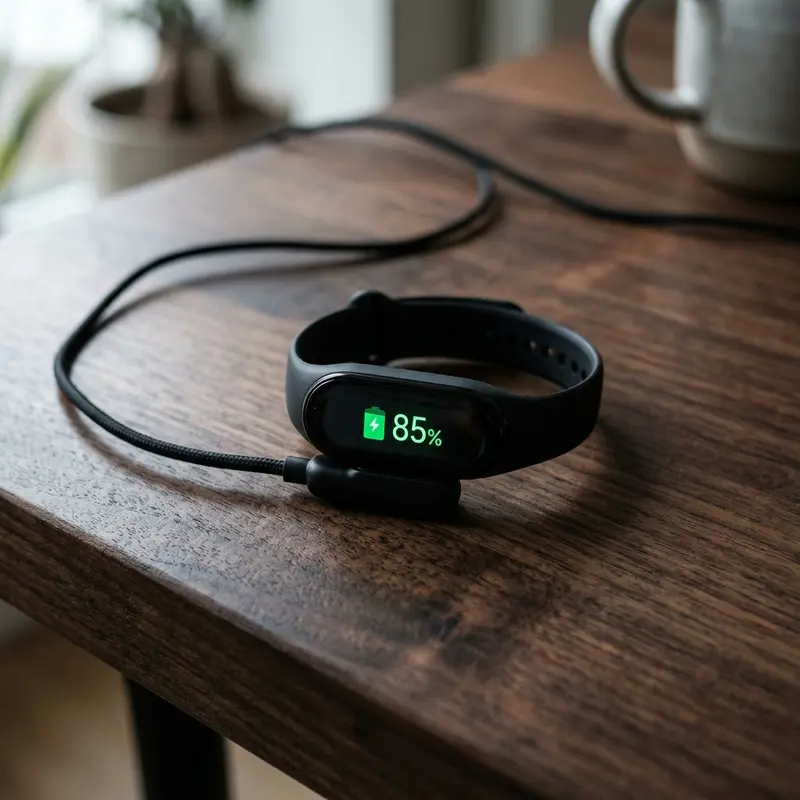
If your battery percentage drops erratically—such as jumping from 30% to 10% in a few minutes—the battery controller may need to recalibrate its voltage reference points. To fix this, perform a full charge-discharge cycle: run the watch down until it powers off automatically due to a flat battery, then charge it to 100% on the official charger without interruption. Leave it on the charger for an extra hour after it reaches 100% to reset the battery measurement metrics in the system.
Analyzing Background App Threads and RAM Management in WearOS
Samsung's WearOS uses an Android-based software kernel that schedules background threads for watch applications. When certain apps fail to release their CPU locks or keep background services active, they force the Exynos processor to remain in high-frequency power states instead of entering deep sleep. To monitor these battery-draining apps, enable Developer Options on your Galaxy Watch, navigate to Running Services, and inspect which software modules consume the most RAM. Terminating these unoptimized apps or removing tools that poll weather and system stats reduces background processor usage and extends daily battery runtime.
The Impact of Automated Wi-Fi Scanning and Signal Strength search
The built-in Wi-Fi radio on Galaxy Watch models requires higher power levels than Bluetooth Low Energy (BLE) channels. If the Wi-Fi settings are configured to 'Automatic', the wearable will scan for wireless network SSIDs whenever the primary Bluetooth link with your phone drops. This continuous signal search rapidly depletes the lithium-ion battery. Disabling the Wi-Fi transceiver manually and only turning it on for firmware downloads prevents these search loops, ensuring a much more consistent battery life.
Deactivating Automatic Exercise Recognition Sensors
The Samsung Health suite constantly analyzes motion patterns to automatically detect activities like walking, swimming, or rowing. This task keeps the accelerometer and gyroscope active and requires continuous CPU cycles to match patterns. Disabling the automatic workout recognition features within the health settings stops this background tracking and reclaims valuable battery capacity.
Optimizing AMOLED Screen Timeout Settings to Preserve Power
Keeping the high-brightness AMOLED screen illuminated for long periods after receiving alerts drains the battery. Adjust your screen timeout to 15 seconds and disable the 'Wake Screen on Wrist Raise' feature if you make frequent hand gestures. This ensures the watch screen only illuminates when you interact with physical buttons, minimizing battery draw from accidental activations.
Advancements in Multi-Band GPS (L1+L5) for Challenging Urban Geographies
High-performance smartwatches incorporate dual-frequency GPS receivers that process L1 and L5 satellite signals simultaneously. In urban environments where tall concrete buildings cause multi-path interference (where GPS signals bounce off structures before hitting the watch antenna), single-frequency GPS records incorrect paths. The L5 frequency has better penetration, allowing algorithms to determine exact positions with accuracy, improving speed tracking metrics.
Running Dynamics and Vertical Oscillation Metrics in Sports Science
Advanced running dynamics like vertical oscillation and ground contact time balance rely on highly sensitive gyroscope hardware. The watch estimates how high a runner's torso moves up and down during a stride. Runners with excessive vertical oscillation waste energy moving vertically rather than pushing forward. Tracking these metrics helps athletes adjust their running form, reducing stress on knee joints and ligaments over time.
Understanding Reflective Optical Spectroscopy in SpO2 Pulse Sensors
The blood oxygen saturation (SpO2) sensor in modern wearables uses reflective optical spectroscopy. The sensor emits red light (approx. 660 nanometers) and infrared light (approx. 940 nanometers) through the skin. Oxygenated hemoglobin absorbs more infrared light, whereas deoxygenated hemoglobin absorbs more red light. By calculating the ratio of reflected light captured by the photodiode array, the onboard processor estimates blood oxygen saturation levels.
Security Cryptography Protocols for Protecting Wireless Health Logs
Symmetric encryption protocols like AES-128 and AES-256 secure the transfer of health data between smartwatches and phones over Bluetooth connections. Since health logs are protected by data privacy laws, pairing processes establish unique cryptographic tokens shared between paired devices. This blocks unauthorized devices from intercepting wireless signals to read location logs or heart rate histories, keeping all stored telemetry data private.
Compiler Optimizations and Application Execution in Resource-Constrained Environments
To run applications smoothly on limited smartwatch hardware, developer suites use Ahead-of-Time (AOT) compilation. This converts source code into native machine code instructions before application launch, reducing CPU cycles during runtimes. Wearable operating systems like WearOS also use layout optimizers to make sure rendering circular UI elements does not overload system RAM, preventing lag when running media players.
The Role of MEMS Accelerometers in Complex Motion Tracking
Micro-Electromechanical Systems (MEMS) accelerometers built into modern smartwatches measure linear acceleration along three orthogonal axes. These tiny silicon components detect minute voltage shifts generated by the swing of a user's arm. Proprietary sensor-fusion algorithms analyze these analog signals and apply Fourier transforms to filter out environmental vibrations, such as typing or driving. This mechanical parsing prevents the system from logging false steps, saving processing cycles for the main CPU cores and drastically reducing battery drain during standby periods.
Chemical Degradation of Lithium-Ion Batteries Under Thermal Stress
Small-scale lithium-ion cells used in wearable electronics undergo rapid physical degradation when subjected to persistent heat. The chemical charging cycle generates internal resistance that, if not radiated through the aluminum or ceramic case, damages the solid electrolyte interphase (SEI) layer. This reduces the anode's ability to host lithium ions. Furthermore, utilizing low-quality chargers that introduce voltage spikes accelerates lithium plating on the electrodes, increasing the risk of cell swelling and sudden battery drops.
Frequently Asked Questions (FAQ)
1. What features does Power Saving Mode disable on the Galaxy Watch?
Power Saving Mode turns off the Always-On Display (AOD), limits CPU performance to 70%, lowers display brightness by 10%, reduces the screen timeout limit, and suspends background data syncing to extend battery life.
2. Why does my Galaxy Watch warm up during wireless charging?
A moderate increase in temperature is normal for induction-based wireless charging. However, excessive heat can indicate the use of incompatible chargers. Always charge your device on a flat surface in a well-ventilated room.
3. Do custom watch faces increase battery drain?
Yes, especially those with bright background graphics, animations, or multiple active widgets (complications). Because AMOLED screens use power for colored pixels, using dark, simple watch faces will save battery.
4. How do I check which application is draining my watch battery?
Open the Galaxy Wearable app on your phone, go to Watch Settings, and select Battery. The screen will display a detailed breakdown of battery usage by app and service since the last charge.
5. How often should I perform a factory reset?
It is generally recommended to perform a factory reset after major annual operating system updates (such as updating to a new version of One UI Watch) to clear out system conflicts and restore battery efficiency.




