Best Cheap Gigabit Routers for Fiber-Optic Broadband Connections

Best Cheap Gigabit Routers for Fiber-Optic Broadband Connections in 2026
The best cheap Gigabit Ethernet router for fiber-optic broadband connections must feature physical WAN and LAN ports that support the 10/100/1000 Mbps (1 Gigabit per second) standard, offer dual-band Wi-Fi capabilities operating on the Wi-Fi 5 (802.11ac) or Wi-Fi 6 (802.11ax) standard, and run on a processor clocked at 1.0 GHz or higher with at least 128 MB of RAM to prevent bottlenecking. Entry-level models such as the Mercusys AC12G, TP-Link Archer C6 (or C80), and the TP-Link Archer AX12 (a budget-friendly Wi-Fi 6 router) are top recommendations for 2026 because they prevent the physical port bottleneck of older 10/100 Fast Ethernet interfaces, which limit internet plans above 100 Mbps to a maximum practical throughput of just 94 Mbps.
1. The Hardware Bottleneck: Fast Ethernet (10/100) vs. Gigabit Ethernet (10/100/1000)
A common mistake made by home broadband users is subscribing to a high-speed fiber-optic internet plan (such as 200, 300, or 500 Megabits per second) while continuing to use an older wireless router equipped with **Fast Ethernet** ports. The Fast Ethernet standard, which relies on 10BASE-T/100BASE-TX hardware specifications, has an absolute physical limit of 100 Mbps of raw throughput.
When accounting for the logical encapsulation of data across the OSI layers (including Ethernet frame headers, IP headers, TCP/UDP packet overhead, and PPP/LCP encapsulation utilized by your ISP's PPPoE authentication server), the maximum actual throughput achievable over a Fast Ethernet port is approximately **94 to 95 Mbps**. This means if you pay for a 400 Mbps fiber plan, over 75% of your contracted bandwidth is discarded at your router's WAN input port. To utilize plans faster than 100 Mbps, your router's hardware must feature **Gigabit Ethernet (1000BASE-T)** interfaces, which negotiate physical link rates at 1000 Mbps.
2. Best Value Budget Gigabit Routers on the Market
Advancements in network silicon chips have made Gigabit hardware highly affordable. Below are the best value budget Gigabit routers available for fiber connections in 2026:
- Mercusys AC12G (Wi-Fi 5): This is one of the most affordable Gigabit routers available. It features all-Gigabit WAN and LAN ports, dual-band Wi-Fi with a combined nominal speed of 1200 Mbps (300 Mbps on 2.4 GHz and 867 Mbps on 5 GHz). It is an ideal option for users with 200 or 300 Mbps plans who want to keep costs low;
- TP-Link Archer C6 or Archer C80 (Wi-Fi 5): The Archer C6 and C80 series add useful software features, including advanced parental controls, local VPN server support, and MU-MIMO technology to manage connections for multiple devices simultaneously. The Archer C80 features 3x3 MIMO on the 5 GHz band, providing better signal range and throughput;
- TP-Link Archer AX12 (Wi-Fi 6): The best entry-level option for upgrading to the Wi-Fi 6 (802.11ax) standard. The Archer AX12 offers OFDMA technology to reduce latency in online gaming, native WPA3 security encryption, and Target Wake Time (TWT) to help preserve battery life on connected mobile devices;
- Huawei WS5200 V3 (Wi-Fi 5): This model features a high-performance 1.2 GHz dual-core processor and external antennas running LDPC (Low-Density Parity-Check) algorithms to decode wireless signals weakened by masonry walls.
| Router Model | Wi-Fi Standard | Physical Ports | CPU / RAM Specs | Recommended Fiber Tier | Value Rating |
|---|---|---|---|---|---|
| Mercusys AC12G | Wi-Fi 5 (AC1200) | 3 Gigabit Ports (1 WAN + 2 LAN) | Single-Core / 64 MB | Up to 300 Mbps | Excellent (Lowest Price) |
| TP-Link Archer C6 | Wi-Fi 5 (AC1200) | 5 Gigabit Ports (1 WAN + 4 LAN) | Single-Core / 128 MB | Up to 400 Mbps | Very High (Reliable) |
| TP-Link Archer C80 | Wi-Fi 5 (AC1900) | 5 Gigabit Ports (1 WAN + 4 LAN) | Single-Core / 128 MB | Up to 600 Mbps | High (Excellent 3x3 Range) |
| TP-Link Archer AX12 | Wi-Fi 6 (AX1500) | 4 Gigabit Ports (1 WAN + 3 LAN) | Dual-Core / 128 MB | Up to 800 Mbps | Excellent for Wi-Fi 6 Upgrade |
| Huawei WS5200 V3 | Wi-Fi 5 (AC1200) | 4 Gigabit Ports (Auto-sensing) | Dual-Core 1.2GHz / 128 MB | Up to 400 Mbps | High (Strong CPU Performance) |
3. The Practical Role of Dual-Band Wi-Fi: 2.4 GHz vs. 5 GHz
A Gigabit router must be configured properly to deliver full speeds over wireless networks. The recommended budget Gigabit routers use **Dual-Band** technology, broadcasting two separate wireless networks in your home:
The **2.4 GHz** band has longer radio wavelengths that penetrate physical barriers like brick walls and concrete floors effectively, providing wide coverage for outdoor yards and distant rooms. However, due to channel congestion and narrower bandwidth, its real-world speeds are limited to between 50 and 70 Mbps. This band is best suited for basic mobile browsing and smart home IoT devices (such as smart bulbs, plugs, and robot vacuums) that do not require high throughput.
The **5 GHz** band utilizes shorter wavelengths to transmit data at much higher rates, easily supporting speeds of 300 to 600 Mbps or more under optimal conditions. However, its shorter waves are easily blocked by walls and solid obstacles. To get the maximum speed from your fiber connection on your computer or phone, connect to the 5 GHz band and maintain a clear line of sight to the router's antennas where possible.
4. Cable Categories Matter: Cat5 vs. Cat5e vs. Cat6 Specifications
The physical Ethernet cables connecting your network hardware can affect performance. If you use a Gigabit router with a 1000 Mbps WAN port but link it to your modem using an old Cat5 cable (which only has four internal wires instead of eight), the physical link negotiation (Auto-Negotiation) between the modem and router will drop to 100 Mbps Fast Ethernet speeds.
To support stable Gigabit link negotiations, your Ethernet cables must feature all 8 internal copper wires (four twisted pairs) and meet at least the **Cat5e** standard for runs up to 100 meters. For environments with potential electrical interference—such as network cables running through conduit alongside electrical wiring—**Cat6** or **Cat6a** cabling is recommended. These cables contain physical plastic spacers (splines) and additional shielding to eliminate electromagnetic interference (EMI) and crosstalk, preventing your network cards from dropping down to lower negotiation speeds during heavy use.
Let's look at the electrical and frequency specifications. **Cat5e** cables are rated for bandwidths up to **100 MHz**, while **Cat6** cables are certified up to **250 MHz** and feature thicker wire insulation, which drastically reduces the Bit Error Rate (BER) over longer cable distances. If you use copper-clad aluminum (CCA) cabling instead of bare copper wires, the attenuation increases significantly, which can lead to packet losses and auto-negotiation dropping down from 1000 Mbps to 100 Mbps. Always check that your Ethernet cables are marked with 100% solid bare copper (BC) and meet ANSI/TIA-568-C.2 industry certifications to maintain the full bandwidth capability of your Gigabit router interfaces.
5. Step-by-Step Technical Setup and VLAN Tagging for Fiber Connections
Follow these steps to configure your new Gigabit router for a high-speed fiber-optic connection:
- Set Your ISP Modem to Bridge Mode: Most modems or ONUs supplied by internet service providers come pre-configured as active routers. Connecting your new router directly to one of these devices creates a Double NAT condition, which can cause connection issues, latency, and port mapping errors. Log into your ISP modem's settings page and change its operating mode from "Router" to "Bridge";
- Connect the Hardware via WAN: Use a Cat5e or Cat6 Ethernet patch cable to connect the LAN 1 port on your ISP modem to the WAN (Internet) port on your new Gigabit router;
- Configure WAN Authentication and VLAN IDs: Log into your new router's settings panel (typically by entering
192.168.0.1or192.168.1.1in a web browser). If your ISP requires PPPoE authentication, set the WAN connection type to "PPPoE" and enter the credentials provided by your ISP. Additionally, many fiber providers use **802.1Q VLAN Tagging** to separate internet, IPTV, and VoIP traffic. If your ISP requires a VLAN ID for internet access, go to the IPTV/VLAN settings on your router, enable VLAN tagging, and enter the specific VLAN ID (for example, VLAN ID 10 is common for Vivo, while VLAN ID 100 or 200 is used by other providers). If no VLAN is required, select "Dynamic IP" and disable VLAN tagging; - Assign Static DNS Servers: In your router's LAN or DHCP settings, change the default ISP DNS servers to public DNS addresses for improved lookup speeds and reliability. Set the Primary DNS to
1.1.1.1(Cloudflare) and the Secondary DNS to8.8.8.8(Google); - Enable Native IPv6: If your ISP supports IPv6, enable it in your router settings. Choose "DHCPv6" or "SLAAC/Passthrough" as the connection type to reduce the need for packet translation, helping to improve response times for gaming servers.
6. Advanced Routing Options: Band Steering and Channel Planning
Most budget-friendly Gigabit routers offer a feature called **Band Steering** (often labeled as Smart Connect or Unified SSID). When enabled, this feature broadcasts both the 2.4 GHz and 5 GHz networks under a single SSID name and password. The router then dynamically assigns connected devices to the appropriate frequency band based on signal strength, capability, and current network load. While convenient, some legacy smart home IoT devices can fail to connect to a combined SSID because they cannot resolve dual-frequency handshakes. If you experience connection failures with smart plugs or bulbs, disable Smart Connect and configure separate SSIDs (such as "MyNetwork_2G" and "MyNetwork_5G").
Furthermore, manual channel selection is crucial for peak performance. In the 2.4 GHz band, set the channel to 1, 6, or 11, and keep the channel width at 20 MHz. For the 5 GHz band, select channels like 36, 40, 44, or 48 for low-power indoor use, or DFS channels if your router supports them. Setting the 5 GHz channel width to 80 MHz allows the router to utilize contiguous channels to maximize transmission speeds, though in crowded apartment complexes, dropping the channel width down to 40 MHz can sometimes improve overall packet delivery stability by reducing adjacent channel interference.
7. Diagnosing and Troubleshooting Bandwidth Bottlenecks
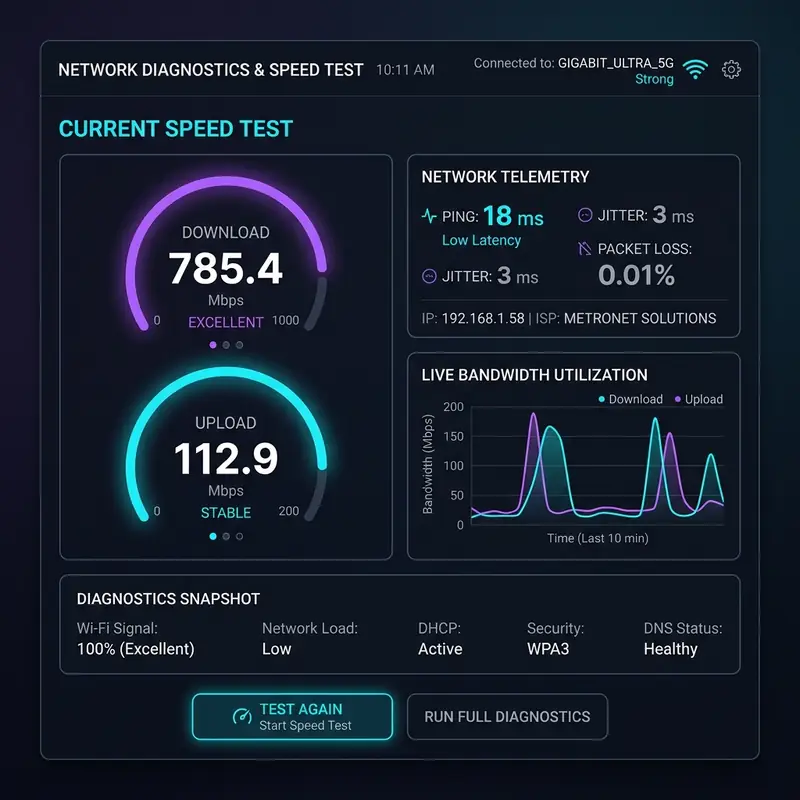
If your internet speed does not meet your subscription tier after installing a Gigabit router, use the physical and logical diagnostic rules in the table below to resolve the issue:
| Observed Issue | Probable Cause | Diagnostic Test Method | Recommended Technical Solution |
|---|---|---|---|
| Connection speed capped at 100 Mbps | Damaged cable or old 4-wire Cat5 cable | Check the link status indicators on the router's WAN port or within the WAN settings page. | Replace the cable with a certified 8-wire Cat5e or Cat6 copper Ethernet cable. |
| Slow Wi-Fi speeds at short distances | Device connected to the 2.4 GHz band | Check the Wi-Fi connection properties on your smartphone to identify the active band (2.4G or 5G). | Connect to the 5 GHz Wi-Fi network and manually set the 2.4 GHz channel width to 20 MHz to reduce interference. |
| Lag during peak network usage | QoS is disabled, causing queue congestion | Run a speed test while another user streams high-definition video and measure packet jitter. | Enable Quality of Service (QoS) settings on the router and set your primary gaming or work devices to High Priority. |
| High latency or Double NAT errors | ISP modem is routing traffic instead of bridging | Open the Command Prompt on Windows, run 'tracert 8.8.8.8', and check if multiple private IP addresses appear in the first hops. | Configure the ISP modem to Bridge Mode or set your router's WAN IP address as a DMZ host in the modem settings. |
For more details on resolving network speed mismatches between wired and wireless connections, check out our guide on troubleshooting when Wi-Fi is slow but Ethernet cable speeds are fast. If you need to access your router settings page but are unsure of the correct address, read our article on how to access the 192.168.0.1 router configuration page for step-by-step instructions on finding your gateway address.
Frequently Asked Questions (FAQ)
What happens if I use an old Cat5 cable on a Gigabit port?
The network interfaces will automatically drop the connection speed to 100 Mbps Fast Ethernet because Cat5 cables lack the internal wire pairs required for Gigabit link negotiation.
Do all dual-band Wi-Fi 5 routers have Gigabit ports?
No. Many budget-friendly AC1200 routers use Fast Ethernet (10/100) ports to reduce manufacturing costs. Always check the physical port specifications before purchasing.
Why does my 400 Mbps fiber connection only reach 90 Mbps on my smartphone?
This typically occurs if your smartphone is connected to the slower 2.4 GHz Wi-Fi band, which has a practical limit of about 70 Mbps, or if the router does not feature Gigabit ports.
What are the primary performance advantages of Wi-Fi 6?
Wi-Fi 6 uses OFDMA and 1024-QAM to deliver up to 40% higher throughput, reduced latency, and improved management of multiple connected devices on busy networks.
Optimizing Your Fiber-Optic Connection
Choosing a reliable, low-cost Gigabit Ethernet router is an effective way to get the full speed of your fiber-optic connection. Using correct Ethernet cabling and selecting the appropriate Wi-Fi band helps ensure a stable connection for working from home and gaming. If you need to manage access or restrict devices on your network, read our guide on how to block connected devices on your Wi-Fi from the router settings.




