
The best 5GHz Wi-Fi channel for online gaming is channel 36, 40, 44, or 48 (UNII-1 band) for its low latency, high compatibility, and lack of radar detection interference, combined with an 80 MHz channel width to balance throughput and ping stability.
For PC and console gamers, every millisecond of connection latency can determine the outcome of a competitive online match. While a wired Gigabit Ethernet connection remains the absolute gold standard for gaming stability, physical layout constraints force many users to rely entirely on Wi-Fi. In these situations, properly configuring the 5GHz frequency band is paramount to reducing ping, avoiding random lag spikes (jitter), and preventing packet loss. This deep technical analysis details the channel structure of the 5GHz spectrum and explains how to select the best configuration to maximize gaming performance.
1. Understanding the 5GHz Spectrum: Standard vs. DFS Channels
Unlike the legacy 2.4GHz band, which only offers three non-overlapping channels (1, 6, and 11), the 5GHz frequency spectrum provides a significantly wider range of transmission frequencies. This spectrum is split into several sub-bands known as UNII (Unlicensed National Information Infrastructure) bands. Choosing the optimal channel for gaming requires understanding how these bands operate and how they interact with nearby signals.
The base channels available in consumer hardware are located in the UNII-1 band (channels 36, 40, 44, and 48). These are standard residential channels, free from regulatory restrictions, and supported by virtually every Wi-Fi client device globally—ranging from older smartphones to modern consoles like the PlayStation 5 and Xbox Series X. Because of their widespread compatibility and lack of interference-sensing requirements, these channels offer the most stable, reliable connection paths for gaming.
Further up the frequency range are the UNII-2 (channels 52, 56, 60, and 64) and UNII-2 Extended (channels 100 to 144) bands. These frequency bands are designated as DFS (Dynamic Frequency Selection) channels. By law, consumer routers using these frequencies must share them with military, meteorological, and aviation radar systems. If your router detects any radar pulses on a DFS channel, it must immediately disable transmission on that frequency and dynamically switch to a non-DFS channel. This process causes a sudden, temporary network dropout lasting from 30 seconds to two minutes—instantly disconnecting you from your online multiplayer match.
As a result, while DFS channels are often completely vacant and free from residential congestion, they introduce a distinct risk of random connection drops, especially if you reside within a few miles of an airport, military installation, or weather station. Conversely, if you live in a dense apartment building, the standard UNII-1 channels may suffer from neighbor congestion, making the higher, non-DFS UNII-3 channels a far more suitable choice.
During ranked competitive matches (such as in Counter-Strike, Valorant, or Call of Duty), a DFS dropout will register as an immediate disconnection, resulting in match losses and penalty bans for leaving early. Additionally, the mandated Channel Availability Check (CAC) silence interval prevents the router from re-establishing the network connection for up to a full minute, which is catastrophic for active gamers. Opting for a dedicated, non-DFS channel is therefore the most reliable method for keeping your connection active.
2. Optimizing Channel Width: 20, 40, 80, or 160 MHz for Gaming?
Channel width determines the size of the frequency pipe used to transmit data packets. In the 5GHz settings, you can configure your router to use widths of 20, 40, 80, or 160 MHz. While a wider channel allows for higher maximum download and upload speeds, it does not necessarily translate to lower latency (ping) or improved stability during real-time multiplayer gaming.
In fact, wider channels are significantly more susceptible to external noise and overlap from neighboring wireless networks. For competitive gaming, consistent latency and zero packet loss are far more critical than raw file-transfer throughput. A game packet requires very little bandwidth, but it must be transmitted without delay. Setting your router to 160 MHz consumes almost the entire available spectrum, making your connection highly vulnerable to minor interference sources.
The standard technical recommendation for online gaming is to utilize an 80 MHz channel width. This provides a perfect middle ground: it delivers high speeds for large game downloads and updates (often 100GB+) while maintaining excellent stability. However, if you reside in a highly congested area and notice frequent ping spikes (jitter), reducing the channel width to 40 MHz is a highly effective solution. This narrows the transmission path, concentrating the wireless signal and shielding it from adjacent network interference.
While 20 MHz offers the highest levels of signal concentration and interference shielding, it significantly caps the local file transfer speeds, which may hinder downloading updates or local media streaming. On the other hand, the 160 MHz width, while marketed heavily for Wi-Fi 6 (802.11ax) and Wi-Fi 7 devices, is extremely difficult to maintain without interference in urban centers. It forces the router to bind multiple channels together, crossing DFS zones and dramatically increasing packet collision rates.
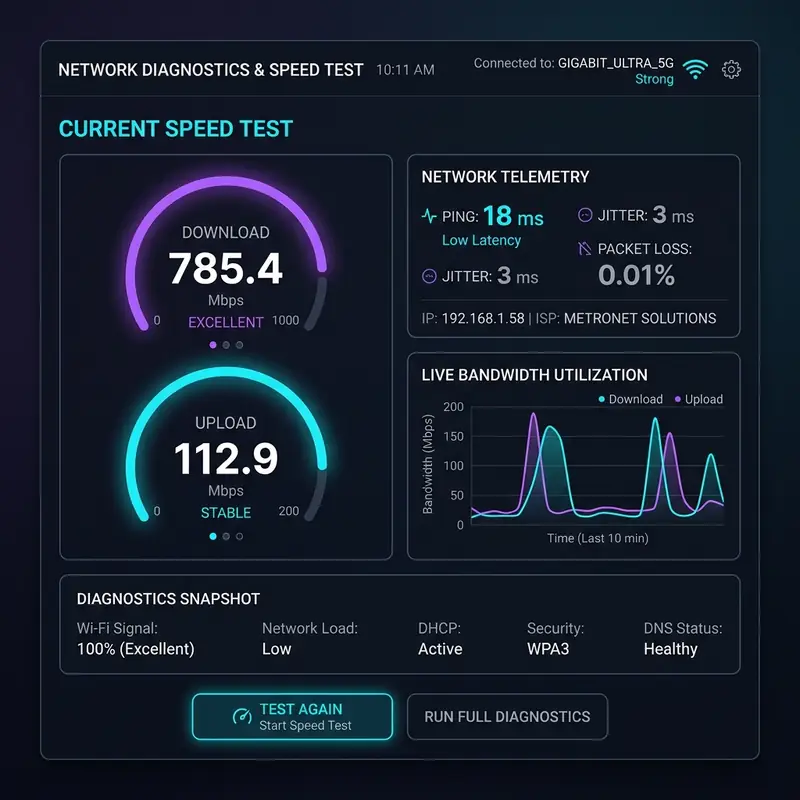
3. Analyzing and Avoiding Neighboring Wi-Fi Interference
To determine the absolute best 5GHz channel for your home, you must analyze your local wireless environment. There are several free applications that scan the surrounding airspace in real time. On Android, Wi-Fi Analyzer is a popular utility. For Windows computers, software tools like WiFiInfoView or inSSIDer provide highly detailed graphs displaying the channel usage of all neighboring networks.
When running these diagnostic tools, pay close attention to which 5GHz channels are occupied by nearby routers. If you see that your neighbors' devices are clustered on channels 36 and 40, you should manually adjust your router's wireless settings to utilize channel 44 or 48. This ensures your gaming traffic flows over an open, unhindered frequency path.
If the lower spectrum is completely saturated, your best option is to look towards the UNII-3 band (channels 149, 153, 157, 161, and 165). The UNII-3 band allows for higher legal transmission power levels and is free from DFS requirements. This makes it an exceptional choice for gamers, as it bypasses residential congestion while maintaining high signal strength over longer distances and through physical walls.
Using spectrum analysis software allows you to visualize co-channel interference and overlap. When multiple routers transmit on overlapping wide channels (like 80 MHz), they must wait for each other to stop transmitting (CSMA/CA contention). This invisible queue is the direct cause of sudden ping spikes (latency jitter) that disrupt online matches. Choosing an isolated channel completely eliminates this physical bottleneck.
4. Step-by-Step Guide to Changing the 5GHz Channel on Your Router
To implement these gaming-optimized settings on your home network, follow this standard procedure to manually select your 5GHz channel:
- Open a web browser on a computer or smartphone that is connected to your router's Wi-Fi network.
- Type your router's default gateway IP address into the address bar. Common router IPs include 192.168.1.1, 192.168.0.1, 192.168.15.1, or 192.168.18.1. Press Enter.
- Input the administrative credentials (username and password) to log into the management console. These details are typically printed on a label on the back or bottom of the router.
- Navigate to the main settings menu and locate the Wireless, Wi-Fi, or Wireless Settings section.
- Access the sub-menu specifically dedicated to the 5GHz band. If your router uses a unified SSID for both 2.4GHz and 5GHz (often called Smart Connect or Band Steering), disable it so you can manage the bands independently.
- Locate the Channel dropdown menu. Change the setting from "Auto" to your chosen channel (preferably 36, 44, or 149).
- In the Channel Width dropdown, select 80 MHz (or 40 MHz for highly congested environments).
- Click Save or Apply. The 5GHz wireless radio will reboot briefly to apply the new transmission parameters.
Once the network is back online, reconnect your gaming console or PC to the dedicated 5GHz network. It is important to run multiple in-game latency tests or ping diagnostics to ensure the new channel provides a smooth, lag-free experience.
Many modern routers from brands like ASUS, TP-Link Archer, or Netgear offer built-in network scanning features within their administrative consoles. These utilities generate graphs showing channel utilization without the need to install third-party applications. If your device has this feature, use it to check your immediate surroundings before selecting a permanent channel.
5. 5GHz Channel Comparison for Online Gaming (Ping & Jitter Focus)
The table below compares the performance, compatibility, and suitability of the different 5GHz channel groups specifically for competitive online multiplayer gaming:
| Channel Band | Included Channels | Device Compatibility | Ping Stability | Gaming Evaluation |
|---|---|---|---|---|
| UNII-1 (Low Band) | 36, 40, 44, 48 | Excellent (100%) | Maximum (No DFS interference) | Recommended (Best Overall Option) |
| UNII-2 (DFS Band) | 52, 56, 60, 64 | High | Moderate (Risk of radar-induced drops) | Use Conditionally (If UNII-1 is congested) |
| UNII-2 Extended (DFS) | 100 to 144 | Moderate | Unstable (Frequent radar interference) | Not Recommended for Gaming |
| UNII-3 (High Band) | 149, 153, 157, 161, 165 | Excellent | Very High (High signal penetration) | Highly Recommended (Best for Range) |
| ISM Band (High End) | 165 and above | Restricted in some regions | High (But limited to 20MHz width) | Avoid (Too limited for modern devices) |
In addition to channel adjustments, physical positioning is a critical factor for 5GHz gaming reliability. The 5GHz signal suffers from a path loss exponent that is significantly higher than that of the 2.4GHz band. This means that for every wall or obstacle the signal traverses, the signal-to-noise ratio (SNR) degrades rapidly. For optimal gaming, place the router in a central, elevated position at least 1.5 meters off the ground and avoid placing it behind metallic cabinets, concrete pillars, or close to large mirrors, which reflect electromagnetic waves and cause multipath fading.
Furthermore, gaming packets are highly sensitive to bufferbloat—latency spikes caused by the router holding onto too many packets in its buffer during periods of high download activity. To verify if your current 5GHz connection is suffering from bufferbloat, you can use online diagnostic tools that test your latency under load. If your ping spikes by more than 15ms during a network speed test, it indicates that the router's queue management algorithm is struggling. Changing to an un-congested UNII-1 channel helps mitigate this by ensuring the physical transmission medium remains clean and free of packet retransmissions.
6. Additional Router Settings to Lower Latency for Gaming
While selecting the correct 5GHz channel is vital, manual channel tuning alone will not fix lag if there are other network bottlenecks. To achieve the absolute lowest ping and eliminate jitter, consider enabling these advanced quality settings within your router's firmware:
Quality of Service (QoS): QoS allows you to prioritize specific network traffic. In your router's QoS settings, set your gaming console or PC as the highest-priority device on the network, or toggle "Gaming Mode" if available. This ensures that even if other devices in your home are streaming 4K video or downloading large files, your game's data packets are processed first, preventing ping spikes.
Disable WMM Power Save: Wi-Fi Multimedia (WMM) is required for high-speed wireless standards. However, many routers have a secondary feature called "WMM Power Save" or "U-APSD" enabled by default. This power-saving protocol temporarily puts the wireless receiver to sleep to save battery on mobile devices. For gaming, this introduces minor latency delays. Disabling WMM Power Save keeps the wireless connection active and fully responsive.
Configure Custom DNS Servers: While DNS does not affect real-time in-game latency, changing your DNS settings to high-performance providers improves match connection speeds and server lookup times. Manually configure your router or PC to use Cloudflare DNS (1.1.1.1 and 1.0.0.1) or Google Public DNS (8.8.8.8 and 8.8.4.4) for reliable connection routing.
Disable IPv6 if Routing is Unstable: Although IPv6 is the future of networking, many local ISPs have not fully optimized their routing paths for IPv6 game traffic. If you experience unstable ping or minor packet loss with IPv6 active, try disabling it in your router settings to force the device to communicate exclusively via the more mature IPv4 protocol.
Applying these adjustments in tandem with manual 5GHz channel optimization ensures your wireless connection remains highly stable and competitive, allowing you to play online multiplayer games with minimal performance differences compared to a direct Ethernet cable. Combining proper channel width, noise mitigation, and priority routing parameters establishes the ultimate gaming environment inside your home.




