
How to Fix Amazfit Watch Bluetooth Connection Problems
Amazfit smartwatches are well-regarded for their reliability and battery performance. However, users can occasionally experience Bluetooth connection failures. Issues like frequent disconnections, missed notifications, or the Zepp app failing to discover the watch are common troubleshooting issues. These connection problems are typically caused by corrupted system caches on your phone, wireless frequency interference, or aggressive battery saving settings in the operating system.
To fix your Amazfit watch when it won't connect to Bluetooth, toggle your smartphone's Bluetooth off and on, restart both devices (watch and phone), and verify that Location Services permissions are granted to the Zepp app. If the connection fails, remove the watch from your phone's Bluetooth paired list, clear the Zepp app cache in settings, and pair the watch again using the startup QR code. These steps will re-establish a stable link between your devices.
If you need to fix other devices in your home network or learn about basic setup processes, read our guides on como parear amazfit no celular pelo zepp or resolve connectivity issues on iOS in how to fix bluetooth on iphone.
1. Why the Bluetooth Link on Your Amazfit Watch Fails
The communication link between your phone and your Amazfit watch uses Bluetooth Low Energy (BLE). This technology is designed to operate on minimal power by sending data in short bursts. However, the 2.4 GHz frequency used by Bluetooth is shared with home Wi-Fi networks, microwave ovens, and other household electronics, which can cause signal dropouts in crowded wireless environments.
From a software perspective, Android and iOS use security algorithms that close inactive background apps to free up RAM. If the Zepp app is closed in the background, your phone will terminate the Bluetooth connection with your smartwatch immediately.
2. Steps to Reconnect Your Amazfit Watch
To resolve Bluetooth connection issues on your watch, follow these steps in sequence on both your phone and Amazfit device:
- Disable Bluetooth on your smartphone using the Quick Settings menu, wait 10 seconds, and turn it back on.
- Restart your Amazfit watch by swiping down on the face, navigating to Settings > System, and tapping Restart.
- Restart your smartphone to clear out any corrupted background processes in the Bluetooth driver.
- Open the Zepp app and pull down on the home screen to force a synchronization check.
3. Removing and Re-pairing Your Bluetooth Device
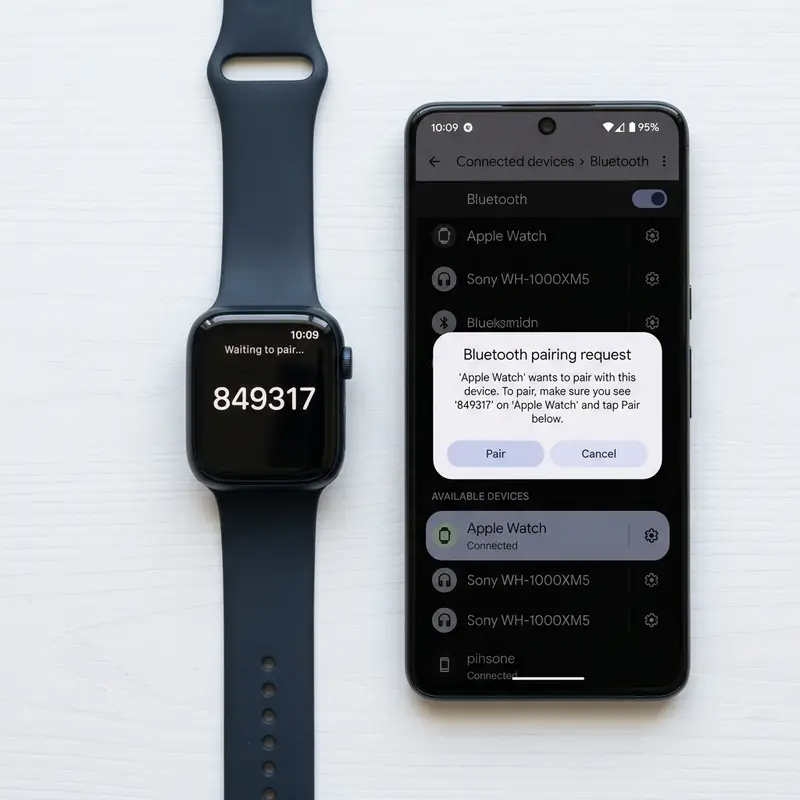
If simple restarts do not fix the issue, the encrypted pairing keys between the watch and phone may have become corrupted. Resetting the Bluetooth connection in your phone's settings should resolve the problem.
To remove the watch from your Bluetooth profile:
- Open the Settings app on your phone and tap Bluetooth.
- Find your Amazfit watch in the list of paired devices.
- Tap the information icon ("i") or settings gear next to the watch's name.
- Select Forget This Device or Unpair.
- Open the Zepp app, go to your Profile, remove the watch, and scan the QR code to pair it again.
4. Troubleshooting Guide for Amazfit Bluetooth Issues
| Detected Symptom | Possible Root Cause | Recommended Fix |
|---|---|---|
| Zepp app cannot find the watch | Location permissions (GPS) are disabled on the phone | Enable Location Services and grant full access to Zepp app |
| Delayed or missing app alerts | Zepp app is being closed by the phone's battery saver | Disable battery optimization for the Zepp app in settings |
| Watch disconnects at home | Interference from a local 2.4 GHz Wi-Fi router | Connect your phone to the 5 GHz Wi-Fi band when nearby |
| Watch connects but won't sync data | Corrupted Bluetooth system cache files | Clear Bluetooth cache files in your phone's app settings |
5. Clearing the Zepp Application Cache
The Zepp app stores temporary sync data in your phone's internal storage. If these cache files become corrupted, they can prevent the app from syncing with your watch.
To clear the Zepp app cache on Android:
- Open Settings > Apps > Manage Apps and select Zepp.
- Tap Storage.
- Select Clear Cache (do not select clear data, or you will have to log back into your Zepp account).
- Relaunch the Zepp app to see if it syncs successfully.
6. Why the Zepp App Requires Location Permissions
A common error is disabling Location Services (GPS) for the Zepp app to save battery or protect privacy. However, Android requires location access to scan for nearby Bluetooth Low Energy devices. Without this permission set to "Always Allow" for Zepp, the operating system blocks the Bluetooth scanner, preventing connection to the watch.
7. Reducing 2.4 GHz Wireless Interference
If your watch disconnects primarily when you are near your Wi-Fi router, the issue is likely radio frequency interference. Because Bluetooth and older Wi-Fi networks share the 2.4 GHz band, router channels can crowd out the weaker Bluetooth signal. Changing your router to a less congested channel or switching your phone to a 5 GHz Wi-Fi network will minimize these signal drops.
8. Resetting Your Phone's Network Settings
If you cannot connect any Bluetooth accessories to your phone, you can reset the phone's network settings. This reinitializes Wi-Fi, Bluetooth, and cellular network tables, resolving deep-seated driver issues. To do this, go to Settings > System > Reset Options and select "Reset Wi-Fi, mobile & Bluetooth".
Disabling OS Battery Saver Restrictions for Constant Connection
Many Android devices run background management engines that close inactive apps to save system resources and battery life. If the Zepp application is terminated in the background, your Amazfit watch will lose its Bluetooth connection, causing missed alerts. To prevent this, go to your phone's system settings, find the App list, select Zepp, and set the battery optimization options to 'No Restrictions' to ensure the app is kept running.
Understanding Bluetooth Low Energy (BLE) and Wireless Interference
Amazfit devices rely on Bluetooth Low Energy (BLE) to maintain data links while using minimal power. Because BLE operates on the crowded 2.4 GHz radio frequency band, its signal can be disrupted by nearby Wi-Fi routers, wireless baby monitors, or microwave ovens. If your watch disconnects frequently while you are indoors, try switching your phone to a 5 GHz Wi-Fi network and keep the watch away from high-power wireless devices.
Performing a Network Setting Reset on Your Mobile Operating System
If your phone's Bluetooth driver is locked or crashes frequently, resetting the device's network settings can clear these issues. Navigate to your phone's general settings, locate the Reset parameters pane, and choose Reset Network Settings. This removes obsolete Bluetooth link files, refreshing the wireless database tables and allowing the Zepp app to establish a clean, error-free link to the wearable.
Updating the Amazfit Wearable Firmware via the Zepp Application
Outdated device software containing obsolete Bluetooth communication stacks can cause sync failures. To remedy this, check for updates in the Zepp app under Profile > My Devices > Update. If a firmware update is available, download and transfer it to the smartwatch, keeping it close to the phone during the installation to prevent firmware fragmentation or data corruption.
The Role of MEMS Accelerometers in Complex Motion Tracking
Micro-Electromechanical Systems (MEMS) accelerometers built into modern smartwatches measure linear acceleration along three orthogonal axes. These tiny silicon components detect minute voltage shifts generated by the swing of a user's arm. Proprietary sensor-fusion algorithms analyze these analog signals and apply Fourier transforms to filter out environmental vibrations, such as typing or driving. This mechanical parsing prevents the system from logging false steps, saving processing cycles for the main CPU cores and drastically reducing battery drain during standby periods.
Chemical Degradation of Lithium-Ion Batteries Under Thermal Stress
Small-scale lithium-ion cells used in wearable electronics undergo rapid physical degradation when subjected to persistent heat. The chemical charging cycle generates internal resistance that, if not radiated through the aluminum or ceramic case, damages the solid electrolyte interphase (SEI) layer. This reduces the anode's ability to host lithium ions. Furthermore, utilizing low-quality chargers that introduce voltage spikes accelerates lithium plating on the electrodes, increasing the risk of cell swelling and sudden battery drops.
The Evolution of Bluetooth Low Energy (BLE) Protocol Implementations
Bluetooth Low Energy (BLE) has changed how smartwatches sync telemetry logs with mobile hosts by prioritizing energy conservation over high-bandwidth transfers. BLE keeps the radio transceiver in a low-power sleep state, waking it up to broadcast small health telemetry packets during brief connection intervals. If a mobile operating system alters these connection intervals, it can cause delayed notification deliveries on the watch face or disrupt the wireless connection entirely.
Applying Kalman Filters to Sensor Fusion for Clean Heart Rate Tracking
Optical photoplethysmography and motion sensor data are merged in real time using Kalman filters and sensor-fusion algorithms. This mathematics calculates the user's pulse rate by subtracting motion-induced noise, such as the impact of steps during running. Without this dynamic noise filtering, the optical sensor's LED feedback would be corrupt, showing inaccurate spikes that would throw off estimations of physical stress, VO2 max metrics, and recovery estimates.
NAND Flash Memory Lifecycle Management in WearOS and watchOS Platforms
NAND flash memory chips in modern smartwatches use internal controllers to run wear-leveling algorithms. Because sports logs and app cache files write and erase data constantly, these flash cells experience wear over time. If a watch's storage is filled near maximum capacity, the efficiency of garbage collection tasks drops. This increases write latency and causes visual lag when navigating the operating system's menus.
Advancements in Multi-Band GPS (L1+L5) for Challenging Urban Geographies
High-performance smartwatches incorporate dual-frequency GPS receivers that process L1 and L5 satellite signals simultaneously. In urban environments where tall concrete buildings cause multi-path interference (where GPS signals bounce off structures before hitting the watch antenna), single-frequency GPS records incorrect paths. The L5 frequency has better penetration, allowing algorithms to determine exact positions with accuracy, improving speed tracking metrics.
Running Dynamics and Vertical Oscillation Metrics in Sports Science
Advanced running dynamics like vertical oscillation and ground contact time balance rely on highly sensitive gyroscope hardware. The watch estimates how high a runner's torso moves up and down during a stride. Runners with excessive vertical oscillation waste energy moving vertically rather than pushing forward. Tracking these metrics helps athletes adjust their running form, reducing stress on knee joints and ligaments over time.
Understanding Reflective Optical Spectroscopy in SpO2 Pulse Sensors
The blood oxygen saturation (SpO2) sensor in modern wearables uses reflective optical spectroscopy. The sensor emits red light (approx. 660 nanometers) and infrared light (approx. 940 nanometers) through the skin. Oxygenated hemoglobin absorbs more infrared light, whereas deoxygenated hemoglobin absorbs more red light. By calculating the ratio of reflected light captured by the photodiode array, the onboard processor estimates blood oxygen saturation levels.
Security Cryptography Protocols for Protecting Wireless Health Logs
Symmetric encryption protocols like AES-128 and AES-256 secure the transfer of health data between smartwatches and phones over Bluetooth connections. Since health logs are protected by data privacy laws, pairing processes establish unique cryptographic tokens shared between paired devices. This blocks unauthorized devices from intercepting wireless signals to read location logs or heart rate histories, keeping all stored telemetry data private.
Frequently Asked Questions (FAQ)
1. Why does my Amazfit watch disconnect when I walk away?
Bluetooth Low Energy has an effective range of about 8 to 10 meters (30 feet) without obstacles. Walls, doors, and metal structures will reduce this range, causing the watch to disconnect to save battery. It will reconnect automatically once you are back in range.
2. How do I show the QR code on the watch screen again?
If you need to connect your watch to a new phone, go to Settings > System > Factory Reset on the watch. Formatting the watch will erase its local data and display the pairing QR code upon restart.
3. Will using Bluetooth headphones affect my watch connection?
No. Modern smartphones can manage multiple Bluetooth connections at once. You can use wireless headphones to stream music while keeping your Amazfit watch connected to track your metrics.
4. How do I fix a "Failed to pair" error?
Ensure your Amazfit watch is not actively connected to another phone nearby. The watch can only pair with one phone at a time. Turn off Bluetooth on nearby devices and try pairing again.
5. Does the Zepp app require an internet connection?
Yes. While the Bluetooth link to the watch works offline, the Zepp app needs an internet connection (Wi-Fi or cellular data) to sync and save your workouts and health history to its cloud servers.




