How to Fix USB Device Not Recognized Error Using Windows CMD and Diskpart

How to Fix USB Device Not Recognized Error Using Windows CMD and Diskpart
The "USB Device Not Recognized" error is a common issue faced by users of Windows operating systems. This article provides a comprehensive guide on how to fix this error using Windows Command Prompt (CMD) and Diskpart, ensuring a technical yet accessible approach.
Understanding the USB Device Not Recognized Error
This error typically occurs when the operating system fails to identify a connected USB device. Causes can range from hardware malfunctions to corrupted drivers.
Preliminary Checks
Before diving into CMD and Diskpart, ensure the following:
- Check the USB port for physical damage or debris.
- Test the USB device on another computer to rule out device failure.
Using Windows CMD to Diagnose the Issue
The Windows Command Prompt can be a powerful tool for diagnosing and resolving USB issues. Follow these steps to utilize CMD effectively:
- Open CMD by typing "cmd" in the Windows search bar and selecting "Run as administrator."
- Type
set devmgr_show_nonpresent_devices=1and press Enter. - Next, type
start devmgmt.mscto open Device Manager. - In Device Manager, select "View" and then "Show hidden devices."
- Look for any greyed-out USB devices under "Universal Serial Bus controllers."
- Right-click and select "Uninstall" on these devices.
- Reboot the computer to reinstall the USB drivers automatically.
Employing Diskpart for Advanced Troubleshooting
If the error persists, using Diskpart can provide deeper insights into the USB device's status. Execute the following steps:
- Open CMD as an administrator.
- Type
diskpartand hit Enter to launch the Diskpart utility. - Input
list diskto display all connected drives. - Identify the USB device from the list. It is usually the smallest disk.
- Type
select disk X(replace X with the disk number of the USB device) and press Enter. - To see detailed information, type
detail disk. - To clean the disk, type
cleanand hit Enter. This action removes all partitions and data. - After cleaning, type
create partition primaryto create a new partition. - Format the USB drive with
format fs=ntfs quickorformat fs=fat32 quick. - Finally, assign a drive letter by typing
assign letter=X(replace X with the desired letter).
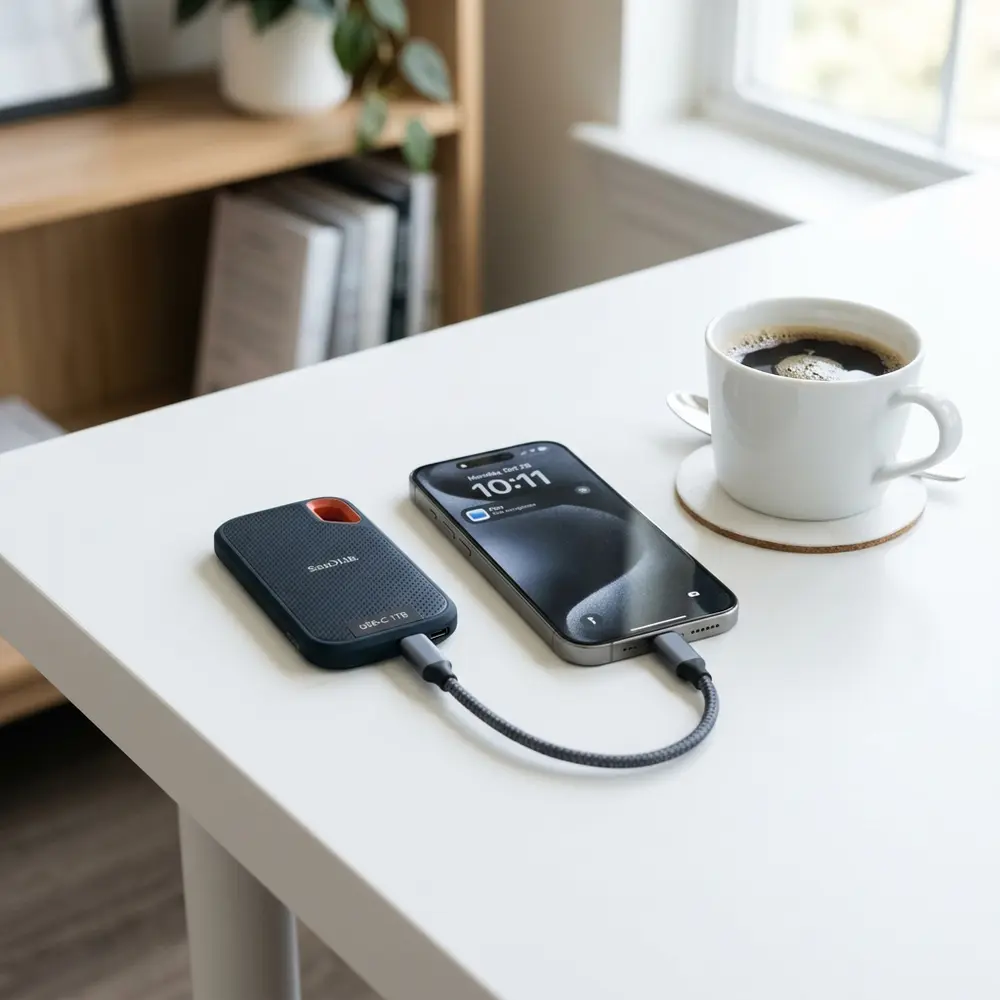
Comparison of USB Formats
| File System | Maximum File Size | Maximum Volume Size | Compatibility |
|---|---|---|---|
| FAT32 | 4 GB | 8 TB | Windows, macOS, Linux |
| NTFS | 16 TB | 16 EB | Windows, limited macOS support |
| exFAT | 16 EB | 128 PB | Windows, macOS, Linux |
Finalizing the Repair Process
After successfully executing the steps above, the USB device should function correctly. If the problem remains, consider updating the chipset drivers from the manufacturer’s website.
Common Causes of USB Device Not Recognized Error
Several factors may lead to the "USB Device Not Recognized" error. These can include faulty USB ports, outdated drivers, or issues related to power management settings.
Additionally, it is advisable to disable USB selective suspend settings to avoid unintentional disconnections.
Power Management Settings Adjustment
Incorrect power management settings can cause USB devices to become unresponsive. Adjusting these settings can help in many cases:
- Open Device Manager and navigate to "Universal Serial Bus controllers."
- Right-click on each USB Root Hub and select "Properties."
- Under the "Power Management" tab, uncheck "Allow the computer to turn off this device to save power."
Alternative Solutions
In addition to the CMD and Diskpart methods, consider these alternatives:
- Update Windows to ensure all drivers are current.
- Use third-party software designed for USB device repair.
- Try different USB ports or another computer to isolate the issue.

When to Seek Professional Help
If the USB device continues to show as unrecognized after all troubleshooting steps, hardware failure may be the cause. Seeking assistance from a professional technician is advisable in such cases.
Frequently Asked Questions
1. What causes the USB device not recognized error?
This error can be caused by hardware failure, corrupted drivers, or improper power management settings.
2. Can Diskpart fix USB errors?
Yes, Diskpart can be used to clean and format USB drives, potentially resolving recognition issues.
3. Is it safe to use CMD for USB repairs?
Using CMD to diagnose and repair USB issues is generally safe, provided commands are executed correctly.
4. What should be done if the USB device is still not recognized after troubleshooting?
If the issue persists, consider testing the USB device on another computer or contacting a professional technician.
5. Are there any risks involved in using Diskpart?
Diskpart can erase data on the selected drive, so ensure that important files are backed up before use.
Advanced Setup Tips for Using CMD and Diskpart
When addressing the USB device not recognized error, advanced users can utilize CMD and Diskpart commands effectively. Ensuring that the system is running with administrative privileges is essential for executing these commands without restrictions.
Before initiating any command, it is advisable to back up important data. This precaution helps prevent data loss should any unexpected issues arise during the troubleshooting process.
Utilizing commands such as "diskpart" followed by "list disk" can help identify the connected USB devices. This level of detail allows for targeted actions to be taken on the specific device causing the error.
Common Mistakes to Avoid
One frequent mistake is neglecting to check USB connections before diving into CMD commands. Simple issues like loose cables or faulty ports can often be the underlying cause of the error.
Another common error is executing Diskpart commands without fully understanding their implications. Incorrect commands can lead to data loss or further complications with the USB device.
Failing to run the Command Prompt as an administrator can also hinder troubleshooting efforts. Proper permissions are crucial for executing commands that alter disk settings or configurations.
Model Comparisons and Compatibility Issues
Different USB models may exhibit varied behaviors when encountering recognition errors, making it important to understand device specifications. Some devices may require specific drivers or software compatibility that can lead to confusion.
When using CMD and Diskpart, it is essential to verify that the commands used are compatible with the USB device's model. Not all devices respond uniformly to the same commands, which can affect troubleshooting outcomes.
Researching the specific USB device model can uncover known issues and recommended solutions. This knowledge can streamline the troubleshooting process and reduce frustration.
Use Case Scenarios for CMD and Diskpart
In scenarios where a USB drive is detected but not accessible, utilizing CMD and Diskpart can provide a solution. Commands can assist in reformatting the drive or assigning a new letter to access the files.
For users dealing with corrupted USB devices, running Diskpart can help clean the drive and restore functionality. This method can be particularly useful for troubleshooting drives that are not recognized at all.
When faced with a malfunctioning USB port, using CMD to check for driver issues can also provide insights. Identifying whether the problem lies within the USB device or the port itself is crucial for effective resolution.
Troubleshooting Steps to Take
Initial troubleshooting should begin with checking physical connections and trying different USB ports. If the device remains unrecognized, running the "chkdsk" command can help identify any file system errors.
Using the "list disk" command in Diskpart can reveal if the USB device is detected by the system at all. If the device appears in the list, further commands can be used to diagnose and resolve specific issues.
For persistent problems, resetting the USB drivers through Device Manager may also be necessary. This can often clear up any conflicts preventing the device from being recognized.
When to Seek Expert Help
If all troubleshooting steps fail to resolve the USB device not recognized error, it may be time to consult a professional. Experts can provide deeper insights and access to tools that may not be available to average users.
In situations involving critical data recovery, reaching out to data recovery specialists is advisable. They possess the expertise and resources to recover lost data from malfunctioning USB devices safely.
Persistent hardware issues, such as recurring recognition errors across multiple devices, might indicate an underlying system problem. Seeking professional assistance can help diagnose and rectify these more complex issues.
Understanding the USB Device Not Recognized Error
The "USB Device Not Recognized" error can arise for various reasons, including driver issues, hardware failures, or system conflicts. When this issue occurs, the device fails to connect properly to the computer, resulting in limited functionality. This guide aims to provide detailed steps on how to rectify this error using Windows Command Prompt (CMD) and Diskpart.
Verification Checklist Before Using CMD and Diskpart
- Ensure the USB device is functional by testing it on another computer.
- Inspect the USB port for physical damage or dirt.
- Check for updated drivers in Device Manager.
- Restart the computer to rule out temporary issues.
- Connect the USB device directly to the computer instead of using a hub.
Using CMD to Fix USB Device Not Recognized
CMD can be a powerful tool for diagnosing and fixing various system issues. Follow these steps to use CMD for resolving the USB device error:
Step 1: Open Command Prompt
- Press Windows + R to open the Run dialog.
- Type cmd and press Enter.
Step 2: Run USB Troubleshooter Command
Use the following command to troubleshoot USB devices:
msdt.exe -id DeviceDiagnosticThis command will open the Hardware and Devices troubleshooter. Follow the on-screen instructions to identify and fix any issues.
Step 3: Check USB Drivers
To check and potentially reinstall USB drivers via CMD, execute the following commands:
set devmgr_show_nonpresent_devices=1start devmgmt.mscThis will open Device Manager. Look for USB devices, right-click on them, and select Uninstall device. Restart the computer to reinstall the drivers automatically.
Using Diskpart to Manage USB Devices
Diskpart is a command-line utility that allows the management of disks, partitions, and volumes. This tool can help fix recognition issues by ensuring the USB drive is properly formatted and assigned a drive letter.
Step 1: Open Diskpart
- Open CMD as described earlier.
- Type diskpart and press Enter.
Step 2: List Available Disks
To see all connected drives, use the command:
list diskThis will display all disks connected to the computer, including the USB device.
Step 3: Select the USB Disk
Identify the USB drive from the list and replace X with the disk number:
select disk XStep 4: Clean the USB Disk
To remove all partitions and data, execute:
cleanNote: This will erase all data on the USB drive. Ensure that important files are backed up elsewhere.
Step 5: Create a New Partition
Create a new partition and format it with the following commands:
create partition primaryformat fs=ntfs quickassignThis process will prepare the USB drive for use and should resolve recognition issues.
Additional FAQ
What causes the USB Device Not Recognized error?
This error can be caused by a variety of factors, including hardware failure, outdated or corrupted drivers, or even issues with the Windows operating system itself.
Can I recover data from a USB drive that is not recognized?
Data recovery may be possible using specialized software, but success is not guaranteed if the drive is not recognized by the system.
What should I do if the above methods don't work?
- Try using a different USB port.
- Test the device on another computer.
- Consider using data recovery tools if data is critical.
- Check for Windows updates that may fix underlying issues.
Comparison Table: CMD vs. Diskpart for USB Issues
| Feature | CMD | Diskpart |
|---|---|---|
| Ease of Use | Moderate | Moderate to Difficult |
| Data Loss Risk | Low | High (if 'clean' command is used) |
| Scope of Functionality | Troubleshooting | Disk Management |
| Recommended Usage | When troubleshooting hardware issues | When advanced disk management is needed |
Technical Glossary
- CMD: Command Prompt, a command-line interpreter application available in most Windows operating systems.
- Diskpart: A command-line disk partitioning utility in Windows.
- USB: Universal Serial Bus, a standard for connecting peripherals to a computer.
- Driver: Software that allows the operating system to communicate with hardware devices.
- Format: The process of preparing a storage device for use, which includes creating a file system.
- Partition: A division of a physical disk drive into separate sections that can be managed independently.




