How to Fix Router Blinking Blue Light with No Internet Access

Running into issues with your home wireless network is a common annoyance, but few troubleshooting scenarios are as puzzling as seeing your router's indicator lights display unexpected behavior. On modern hardware models from popular brands like TP-Link (especially the Archer and Deco lines), Intelbras, and D-Link, the color of the front-facing LEDs signals the exact state of network communications. While a blue color usually signifies a positive hardware link state, when that light begins blinking continuously and you lose internet connectivity, your technical diagnosis must look beyond physical wiring. When your router is flashing a blue internet light but you have no internet access, it indicates that the physical connection (RF carrier, DSL sync, or fiber GPON link) to your ISP is established, but the router failed the logical authentication (such as PPPoE), did not receive an IP address via DHCP from the ISP, or is experiencing DNS resolution failures or account provisioning locks.
To resolve this issue quickly and effectively, it is crucial to understand that a blinking blue light is not a sign of a physical line cut down the street (which usually triggers solid red or orange indicators). Instead, it points to a logical link failure or packet forwarding issue within the network layer. In the sections below, we will unpack the physical causes of this data stream interruption and outline the complete practical process for restoring your router's external connectivity. For other common home appliance troubleshooting guides, you can read our technical article on the Liectroux C30B robot vacuum beeping and not moving or check our analysis on whether a Wi-Fi security camera consumes too much data.
1. The Physical and Logical Meaning of a Blinking Blue Light on Your Router
The light-emitting diodes (LEDs) integrated into consumer routers serve as a hardware-level diagnostic display (HUD) for monitoring system operation. On TP-Link Archer devices and Mesh network nodes, the internet LED (often indicated by a globe icon or WAN port label) changes colors depending on where the WAN interface stands in establishing a TCP/IP connection. A solid red or orange light indicates physical link downtime (Link Down), typically meaning an unplugged, broken, or misconfigured cable.
Conversely, a blue LED confirms that the router's physical WAN interface has successfully synchronized with your internet service provider's hardware, such as an Optical Line Terminal (OLT) or external cable modem. The intermittent flashing of this blue light shows that data packets are actively being transmitted (such as address requests and security handshakes), but the router has failed to secure a stable public IP assignment. In simpler terms, your router is sending network requests out onto the physical line, but the provider's gateway is either not responding to authentication attempts or rejecting the login credentials provided by the router.
This physical synchronization of GPON fiber optics occurs at wavelengths of 1490nm for downstream and 1310nm for upstream. The optical transceiver must maintain an optical power budget, typically between -8 dBm and -27 dBm. When the received optical power falls below this range due to macro-bends or micro-bends in the fiber cable, the physical link becomes unstable, causing the blue light to flash cyclically as the router drops frames and struggles to register with the OLT.
2. Identifying the Problem: ISP Authentication Failure vs. Local Network Issue
Before modifying settings within your router's administration software, you should execute a physical elimination process to rule out localized structural issues. The safest way to isolate the fault is to run a comparative diagnostic check comparing your local area network (LAN) behaviors to those of your wide area network (WAN).
The most common technical scenarios and their diagnoses are detailed in the bullet points below:
- Scenario A: Worn or Poorly Crimped WAN Ethernet Cable: If the blue light flickers and turns off completely at random intervals, check the Ethernet patch cable connecting the router's blue WAN port to your optical modem's LAN port. Aging Cat5e cables can suffer from oxidized copper RJ45 pins or micro-fractures in the internal twisted pairs, which prevents Gigabit Ethernet negotiation (1000 Mbps) and forces the link down to an unstable 10 Mbps connection. Replace this cable with a shielded Cat6 patch cord to test.
- Scenario B: ISP Authentication Failure (PPPoE Down): If the cable is physically flawless yet the blue light continues flashing indefinitely, the issue lies on the logical network layer. This typically happens during scheduled maintenance on the ISP's RADIUS validation servers, preventing PPPoE handshakes from completing, or when an administrative lock has been placed on the customer account.
- Scenario C: DNS Cache Congestion or IP Address Conflicts: In rare cases, the router successfully obtains a public IP address from the ISP, but the DNS server addresses assigned via DHCP are offline or unreachable. Connected computers will report "Connected, no internet access," and the router's LED will flash blue as it attempts to sync global time packets via NTP.
3. Step-by-Step Troubleshooting Guide to Resolve Blinking Blue Light with No Internet
To fix the logical mismatch indicated by the blinking blue light and restore your broadband internet access permanently, follow this logical sequence of power cycling and router reconfiguration:
- Perform a Sequential Power Cycle: Unplug both your router and the ISP-supplied modem from their electrical outlets. Wait at least 60 seconds. This duration allows the capacitors on both circuit boards to discharge completely and clears your stale IP lease session on the provider's server. Plug in the ISP modem first and wait until all its fiber-link LEDs (such as PON or Sync) are solid. Then, power on your secondary router and wait for it to boot. This sequence resolves about 80% of temporary DHCP assignment glitches.
- Access the Router's Administrative Panel: Connect a computer to the router via a physical Ethernet cable, open your preferred web browser, and type in your gateway IP address (typically 192.168.0.1 or 192.168.1.1). Enter your administrative username and password.
- Inspect WAN Link Status: In the main dashboard or under the "Status" tab, look for the WAN or Internet status section. Check if the connection status shows "Connecting..." or displays error messages like "Incorrect PPPoE credentials" or "No response from server."
In PPPoE environments, the router and the OLT establish a session using a four-step discovery sequence: PADI (Initiation), PADO (Offer), PADR (Request), and PADS (Session-confirmation). If the blue LED continues to flash, you should inspect your router's System Log. If you see repeated warnings that the router is not receiving a PADO packet, it indicates that the ISP's Access Concentrator (AC) is not responding to your router. This confirms the outage is on the ISP side, and you will need to wait for them to finish maintenance.
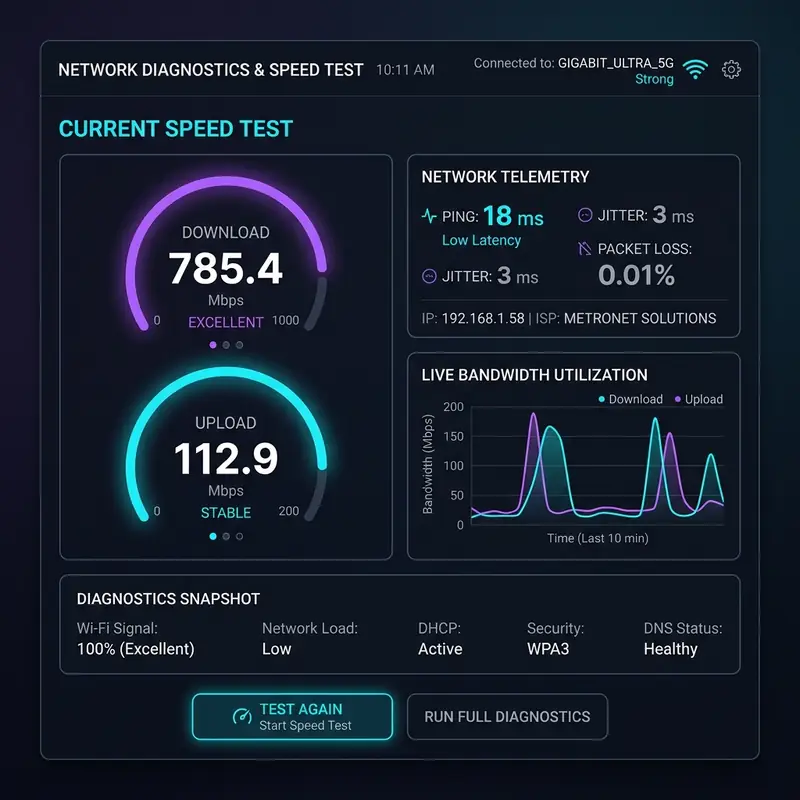
4. How to Reconfigure PPPoE Credentials and DHCP Settings in Your Router
If you have verified that the physical line is stable but the WAN interface remains without a leased IP address, it is likely that the authentication credentials have been lost due to a power surge, or the ISP has updated their IP allocation parameters. Use the following table to configure the correct WAN settings:
| WAN Connection Type | Required Technical Parameters | Resolution Actions & Fixes | Physical LED Behavior |
|---|---|---|---|
| PPPoE (Point-to-Point Protocol over Ethernet) | Unique username and password provided by your ISP. | Re-enter the credentials under the WAN menu. Pay close attention to casing and symbols. If the issue persists, contact your ISP to reset your authentication password. | Slow-flashing blue light (failed login authentication handshake). |
| Dynamic IP (DHCP Client) | Automatic IP address lease from the upstream modem. | Click "Release" and then "Renew" in your router's WAN menu. If the router's IP address overlaps with the modem's IP, change the router's local IP to 192.168.100.1. | Rapid-flashing blue light (actively requesting DHCP IP lease). |
| Static IP | Fixed WAN IP address, Subnet Mask, Gateway, and DNS servers. | Double-check that all manual numbers are entered accurately. If the provider's upstream equipment was swapped, confirm if the gateway IP changed. | Blue light illuminates briefly, then goes dark or turns red (IP address conflict). |
Additionally, make sure to enable the MAC Address Clone feature in your router's WAN configuration if your internet provider binds access strictly to the physical hardware address of the computer or modem originally deployed during installation. Cloning your older device's MAC address will prompt the ISP's authentication servers to authorize traffic immediately.
Another technical variable is the Maximum Transmission Unit (MTU) size. Standard Ethernet frames use an MTU of 1500 bytes. However, PPPoE encapsulation adds an 8-byte header overhead. If your router does not adjust its MTU to 1492, large packets will be fragmented. If your ISP drops fragmented packets, your router will struggle to load websites over HTTPS, causing the blue LED to flash continuously while TCP retransmissions fail. In some complex networks, you may need to reduce the MTU size further to 1480 or 1454 bytes, particularly if your ISP routes traffic through older ATM backbones that add additional tunneling overhead to your data streams.
5. Troubleshooting DNS Failures by Setting Up Free Public DNS Servers
If, after completing the steps above, the router's blue LED stops flashing and turns solid, yet your connected devices continue to report "Connected, no internet access" when trying to load web pages, the issue is DNS name resolution. The devices cannot resolve human-readable domains (like google.com) into routable numeric IP addresses.
To resolve this, you should change the default DNS servers assigned by your ISP to fast, reliable public DNS servers. Follow these configuration steps:
- Log into your router's admin interface and navigate to the "Local Network" (LAN) or "DHCP Server" settings.
- Locate the fields labeled "Primary DNS" and "Secondary DNS".
- Replace the numbers currently configured with these highly stable, free DNS combinations:
- Cloudflare DNS: Primary:
1.1.1.1/ Secondary:1.0.0.1 - Google DNS: Primary:
8.8.8.8/ Secondary:8.8.4.4 - OpenDNS: Primary:
208.67.222.222/ Secondary:208.67.220.220
- Cloudflare DNS: Primary:
- Click "Save" or "Apply Settings." Once saved, restart the network adapters on your computers or reconnect Wi-Fi on your mobile devices to flush the local DNS cache.
If you prefer an added layer of encryption and privacy, you can configure your router or downstream clients to use DNS over HTTPS (DoH) or DNS over TLS (DoT). These protocols secure your DNS queries using TLS encryption, preventing your local ISP from tracking the domains you visit and bypassing local DNS hijacking attempts. Many modern router firmwares support native DoT configurations under their WAN or Network Security menus, allowing you to use secure resolver addresses such as `cloudflare-dns.com` or `dns.google` directly at the gateway level.
To verify if the DNS changes were applied correctly and resolve the issue, open your computer's command terminal (cmd or terminal) and perform a lookup query. Type nslookup google.com and check the "Server" line in the response. It should display the IP address of your router or the specific public DNS server (such as 1.1.1.1) that you manually assigned. If it still points to your ISP's default server or returns a "Server Failure" or "Refused" error, run the command ipconfig /flushdns on Windows or sudo killall -HUP mDNSResponder on macOS to clear the system's local DNS resolver cache. This step forces the operating system to request fresh, updated IP mappings for all external web resources directly from the newly configured DNS hosts.
Frequently Asked Questions (FAQ)
Why does my TP-Link router show a flashing blue internet light while the Wi-Fi works?
A functioning Wi-Fi connection simply means your router's wireless antennas are active and broadcasting a local area network (WLAN) to devices in your home. However, the flashing blue internet LED on the panel indicates that the router is unable to send and receive data packets with the external wide area network (WAN) through the cable connected to your modem. Devices will connect to the Wi-Fi but cannot load web pages or load apps.
What does it mean if the router's LED turns red after flashing blue?
If the router's status LED flashes blue for a few minutes and then changes to solid red or orange, it means the router has timed out trying to establish a logical connection or has detected a complete physical loss of synchronization with the modem. Check if the fiber optic cable going into your modem is bent or disconnected, and contact your ISP for support.
How do I tell if the flashing blue light is due to ISP maintenance?
The quickest way to check if the issue is ISP-side maintenance is to unplug the Ethernet cable from your router's WAN port and plug it directly into a laptop's network port. Configure a PPPoE dialer connection in your OS (or leave it on dynamic IP if applicable). If your laptop also cannot connect and returns DHCP timeout errors, the issue lies in your ISP's infrastructure.
Does updating the router's firmware resolve flashing blue light issues?
Yes. Firmware updates frequently contain patches for logical bugs in the router's DHCP Client and PPPoE components, improving login compatibility with updated ISP equipment. Download the firmware version matching your exact hardware model from the manufacturer's official support site, and upload the file under "System Tools" > "Firmware Upgrade". Never power off the router while the upgrade is processing.




