Router Blinking Orange Light: What it Means and How to Fix It Step-by-Step

In home and enterprise network architectures, the wireless router serves as the central hub managing traffic between local devices and the wider internet. To facilitate rapid diagnostics when connection drops occur, manufacturers like TP-Link, ASUS, Netgear, Linksys, and D-Link integrate visual LED status indicators on the front panel of their devices. While a steady blue or green light indicates a healthy connection, encountering a blinking orange or amber light can halt your activities and leave you guessing about what is wrong. A blinking orange light on a router indicates that the hardware has detected a physical or logical connectivity issue on the WAN (Wide Area Network) port, meaning the router is physically connected to the modem but is unable to establish an IP address lease or authenticate a session with your Internet Service Provider (ISP).
While this issue might look like a sign of broken hardware, it is usually caused by simple physical link issues (like a loose Ethernet cable RJ45 connector), a temporary DHCP lease timeout from your service provider, or mismatched WAN credentials (such as an incorrect PPPoE username or password). By understanding the underlying communication protocols and hardware indicators, you can resolve the issue yourself without waiting for a technician. In this technical diagnostic guide, we will analyze the difference between blinking and solid orange indicators, explore physical layer troubleshooting, walk through web interface configurations, cover PPPoE/DHCP adjustments, explain the firmware updating process, and provide a clear diagnostics table to help you restore your network.
1. The Technical Meaning of a Blinking vs. Solid Orange Light
To understand the root cause of the error, we must analyze the specific pattern of the orange LED. Networking equipment uses distinct light behaviors to communicate different stages of the initialization and connection process within the OSI model.
Here are the two main states of the orange LED on most consumer routers:
- Blinking Orange Light: This pattern indicates that the router's physical WAN interface is active and has detected an electrical connection to the modem, but the logical negotiation is failing. The router is broadcasting DHCP discovery packets or sending PPPoE authentication requests to the ISP's terminal servers, but it is not receiving a response. This can happen due to high signal attenuation, a loose wire, or a configuration mismatch.
- Solid Orange Light: A solid orange or amber light generally means the router has completed its physical connection to the modem or ONT (Optical Network Terminal) but the authentication handshake has failed completely. The network link is active physically, but the ISP is refusing to issue an IP address. This usually occurs when your account is temporarily suspended, when there is an outage in your area, or when the ISP's MAC address binding mechanism is blocking your router.
On specific TP-Link Archer series routers, the internet icon (shaped like a globe) turns orange or amber to indicate that the network cable is connected to the WAN port but the device cannot reach the external domain names. Recognizing these patterns saves time, helping you focus on configuration adjustments rather than buying new hardware.
2. Physical Layer Troubleshooting: Cables, Ports, and Power
Before modifying any software configurations or resetting your router's firmware, you should rule out physical connection failures. Damaged cabling or port issues are common culprits behind the blinking orange light.
Follow this step-by-step physical layer inspection checklist:
- Inspect the WAN Cable: Locate the Ethernet cable connecting the WAN port (usually colored blue, yellow, or labeled "Internet") on your router to the LAN port on your modem. Unplug both ends, inspect the copper pins inside the RJ45 plugs for dust or oxidation, and plug them back in firmly until you hear a clear click.
- Upgrade to a Cat6 Cable: Standard Cat5 cables are prone to internal damage and do not support gigabit speeds. Swap your current cable for a high-quality Cat5e or Cat6 Ethernet cable. Cat6 cables provide better shielding against electromagnetic interference and support data rates up to 10 Gbps over short distances, stabilizing your connection.
- Test Different Ports: Connect the Ethernet cable to a different LAN port on your modem or ONT. Sometimes a single Ethernet port on the modem can fail due to power surges, while the other ports remain functional.
- Perform a Proper Power Cycle: Power down both your modem and your router by unplugging their power cables from the wall outlet. Leave them unplugged for at least 60 seconds. This allows the capacitors inside the circuits to discharge fully, clearing any corrupt routing tables or temporary software freezes. Plug the modem back in first and wait 2 to 3 minutes for its lights to stabilize. Once the modem is online, plug in your router and watch if the light changes from orange to green or blue.
3. Accessing the Router's Web Configuration Utility
If the physical cables are secure but the orange light continues to blink, the issue is likely a logical mismatch in the router's configuration. To check the connection status, you need to log in to the router's web interface using a computer or phone connected to your Wi-Fi or LAN ports.
Follow these steps to access the administrator panel:
- Open a web browser (such as Google Chrome, Firefox, Safari, or Edge) on your connected device.
- Type the default IP address of your router in the URL address bar and press Enter. The most common default IP addresses are: 192.168.0.1 (typically TP-Link and D-Link), 192.168.1.1 (typically ASUS, Linksys, and Netgear), 192.168.18.1 (Huawei), or 192.168.15.1 (Vivo/other ISP modems).
- If you do not know your router's IP, open the Command Prompt on Windows (search for
cmd), typeipconfig, and look for the IP address listed next to "Default Gateway". On macOS, go to System Settings > Network > Advanced > TCP/IP to find the gateway IP. - Enter the default administrator username and password. You can find these credentials printed on a sticker underneath your router. The default values are typically
adminfor both fields, or the password field may be left blank. - Once logged in, go to the Status, WAN Settings, or Network Map section.
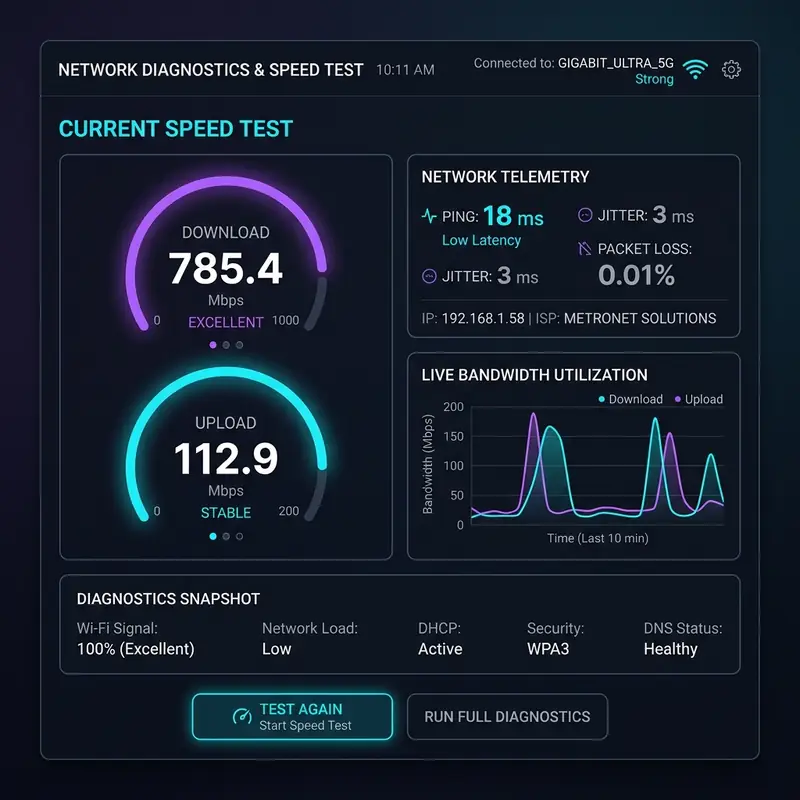
Review the WAN status messages. An error message such as "Unplugged WAN Cable," "PPPoE Authentication Failed," or "No Response from DHCP Server" will tell you exactly why the orange light is flashing.
4. Configuring WAN Protocols: PPPoE, Dynamic IP, and DNS
Different internet service providers use different protocols to authenticate your router and assign it an external IP address. Setting the wrong protocol prevents connection, leaving the orange indicator active.
Here is how to configure the WAN interface based on your ISP's technical requirements:
PPPoE Configuration: Many fiber-to-the-home (FTTH) and DSL connections require a PPPoE username and password. In your router's WAN or Internet settings, change the Connection Type to PPPoE and enter the credentials provided by your ISP. If you do not have these credentials, contact your ISP's support line to retrieve them. Save your changes and restart the router to initiate a new authentication request.
Dynamic IP (DHCP) Configuration: Cable internet providers usually assign IP addresses automatically via DHCP. Set your WAN Connection Type to Dynamic IP. If you are still not receiving an IP, click the "Release" and "Renew" buttons in the web interface. Some ISPs lock connections to a specific MAC address. If this is the case, click "Clone MAC Address" in the settings to copy your computer's MAC address to the router's WAN port.
DNS Server Configuration: If your ISP's default DNS servers are offline, your router may show an orange light because it cannot resolve domain names. Go to the DNS settings within the WAN page, disable automatic DNS, and enter these reliable public DNS servers:
- Primary DNS:
8.8.8.8(Google DNS) or1.1.1.1(Cloudflare DNS) - Secondary DNS:
8.8.4.4(Google DNS) or1.0.0.1(Cloudflare DNS)
Applying these adjustments will bypass unstable ISP name resolution servers, resulting in faster browsing and lower latency.
5. Performing a Factory Reset and Complete Reconfiguration
If you have checked the physical connections and verified the WAN settings but the orange light persists, there may be a corrupt configuration file or software conflict. A factory reset will wipe all custom settings and return the router to its original settings.
To factory reset your router safely, follow these steps:
- Make sure the router is plugged in and powered on. Locate the small hole labeled RESET on the back or bottom panel.
- Insert a paperclip, needle, or SIM card tool into the reset hole. Press and hold the internal button for 10 to 15 seconds.
- Watch the LED lights on the front panel. Once all the LEDs flash or turn off simultaneously, release the button.
- Wait about 2 minutes for the router to finish rebooting. The Wi-Fi network names (SSIDs) will revert to their default names, which are printed on the label underneath the router.
- Connect your computer or smartphone to the default Wi-Fi network and open your web browser to access 192.168.0.1 or 192.168.1.1.
- Run the Quick Setup Wizard to set a new custom Wi-Fi network name, a secure WPA2 or WPA3 password, and the correct internet protocol (PPPoE or Dynamic IP) for your ISP. Save the settings to apply them.
6. Router LED Status Diagnostic Table
Use the diagnostic matrix below to quickly identify what your router's LED lights mean and what actions you should take to fix any issues.
| LED Color & Pattern | Technical Status | Likely Root Cause | Recommended Corrective Action |
|---|---|---|---|
| Blinking Orange / Amber | WAN Negotiating Error | Loose Ethernet cord, faulty RJ45 connector, or DHCP negotiation timeout. | Reseat the WAN cable, replace with a Cat6 cable, and power cycle the modem. |
| Solid Orange / Amber | WAN Connected, No Internet | Authentication failure, incorrect PPPoE credentials, or blocked MAC address. | Log in to the router's web interface, verify PPPoE credentials, or clone MAC address. |
| Solid Blue / Green | Normal Operation | Internet connection established and data is flowing normally. | No action required. Your internet connection is working correctly. |
| Solid Red | Critical Hardware / ISP Outage | No fiber signal detected or severe firmware corruption. | Contact your ISP to report an outage or check for physical cable damage outside. |
| Off (No Light) | No Power | Power adapter unplugged, bad outlet, or failed power supply. | Verify power connection, test another wall outlet, and inspect the power adapter. |
7. Updating Router Firmware to Prevent Software Errors
If the orange light continues to blink even after a factory reset, your router may be running outdated firmware. Bugs in older firmware can cause memory leaks, IPv6 address negotiation failures, and security vulnerabilities that disrupt the connection.
To update your router's firmware safely, follow these steps:
- Log in to your router's web interface and navigate to the Administration, System Tools, or Firmware Update menu to check your current firmware version.
- Visit the official support website of your router manufacturer (e.g., TP-Link, ASUS) and search for your specific model number. Make sure to match the hardware version (e.g., V1, V2) to avoid installing incompatible firmware.
- Download the latest firmware update file (typically a
.zipfile containing a.binfile) to your computer. - Extract the zip folder, go back to the router's firmware update page, click "Choose File" or "Browse", and select the extracted
.binfile. - Click Upgrade or Update. IMPORTANT WARNING: Do not turn off the router or disconnect the Ethernet cable during the update process. Doing so can permanently corrupt the router's memory, making the device unusable.
- The router will automatically restart once the update is complete. All software bugs should now be resolved, and your connection should be stable.
Frequently Asked Questions
Why is my router's internet light blinking orange?
A blinking orange light means the router has detected a physical link to your modem but cannot negotiate an IP address or authenticate with your ISP. This is usually caused by a loose cable, incorrect network settings, or a temporary outage.
How do I fix a solid orange light on my router?
To fix a solid orange light, log in to your router's admin panel (typically at 192.168.0.1 or 192.168.1.1), verify your WAN settings (such as PPPoE credentials or DHCP), and change your DNS servers to Google DNS (8.8.8.8) or Cloudflare DNS (1.1.1.1).
Can a faulty Ethernet cable cause an orange light?
Yes, a damaged or low-quality Ethernet cable can cause packet loss and electrical errors, preventing the router from establishing a connection. Replacing the cable with a high-quality Cat6 cable often resolves the issue.
What is the difference between a red light and an orange light on a router?
An orange light usually indicates a configuration or negotiation issue on the WAN port, meaning the router's hardware is working but cannot authenticate. A red light typically means a complete loss of the physical signal (such as a cut fiber optic line) or a hardware failure within the router itself.




