How to Fix Laser Printer Roller Slipping and Not Pulling Paper
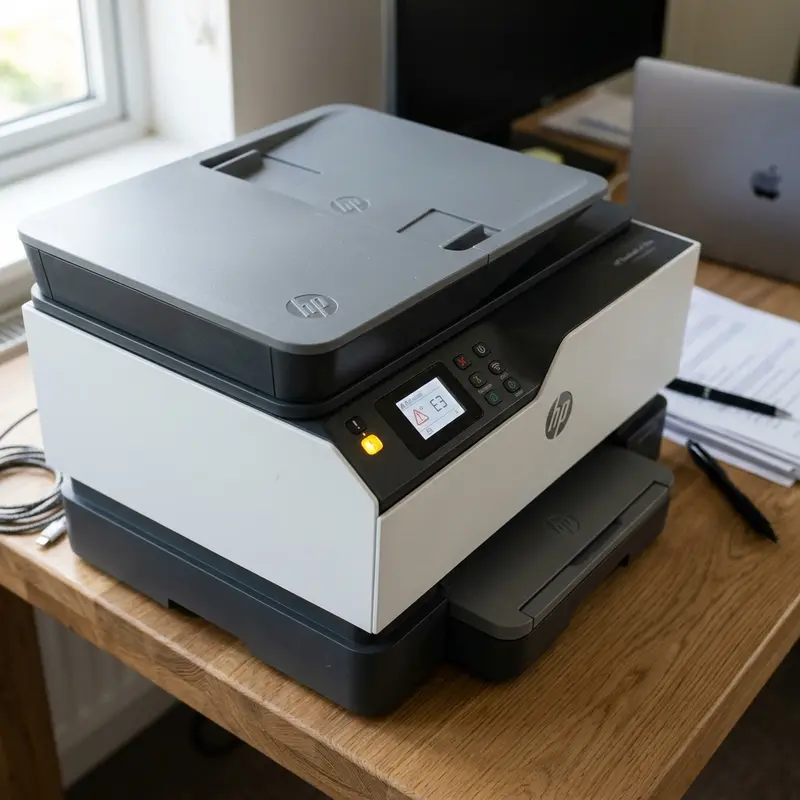
Laser printers and digital copiers rely on a complex network of mechanical assemblies to feed paper from the input tray and transport it through the imaging drum, transfer roller, and thermal fuser. One of the most common maintenance issues in high-volume offices occurs when the printer makes a loud mechanical rotation noise but fails to feed the paper, eventually displaying an "Out of Paper" or "Paper Feed Error" on the screen. To fix a laser printer that is not pulling paper because the pickup roller is slipping, clean the rubber surface of the roller using a lint-free cloth dampened with isopropyl alcohol or mild soapy water to remove accumulated paper dust and toner residue, or replace the worn rubber sleeve if its micro-treads have worn smooth.
Understanding the physics of friction in feeding mechanisms and learning how to clean, restore, or replace these parts is vital to keeping your printer functional without expensive technician visits.
1. The Mechanical Engineering of the Paper Feed Assembly
The paper feed system in a laser printer operates via three main components working in mechanical synchronization. The first component is the pickup roller (or feed roller), which features a high-grip EPDM (ethylene propylene diene monomer) rubber sleeve. This roller is mounted on a D-shaped or circular shaft and rotates exactly once per page cycle.
The second component is the separation pad (or separation roller) located directly beneath the pickup roller. The separation pad's role is to apply static friction to the second sheet of paper in the stack. While the pickup roller pulls the top sheet into the paper path, the separation pad holds back the remaining paper, preventing multiple sheets from feeding at once (double-feeding).
The third component is the feed solenoid clutch. When the logic board triggers the solenoid, it releases a spring-loaded gear clutch, allowing the pickup roller shaft to execute exactly one rotation. If the pickup roller's rubber sleeve loses its texture or cannot overcome the friction of the separation pad, it will slip on the paper, causing a paper feed error.
2. Common Causes of Pickup Roller Slipping
There are two primary factors that cause a pickup roller to lose its grip:
- Paper Dust Accumulation: The industrial cutting process of copy paper creates a fine cellulose powder. As paper is fed through the tray, this dust coats the rubber surface of the pickup roller, filling its microscopic treads and creating a slick barrier.
- Toner and Ozone Residue: Static charges from the organic photoconductor (OPC) drum and transfer assembly draw toner particles into the printer's interior. This toner mist settles on the feed rollers. Combined with fuser heat, the EPDM rubber eventually oxidizes, vulcanizes, and dries out, becoming smooth and glossy.
3. Step-by-Step Roller Cleaning and Rubber Rejuvenation
In most cases, you do not need to replace the pickup roller immediately. A deep cleaning can restore its grip. Follow this cleaning procedure:
- Turn off the printer, unplug the power cord, and allow the fuser unit to cool for 15 minutes to avoid burns.
- Access the pickup roller. In many compact HP LaserJet models, the roller is located inside the top ceiling of the input tray cavity. In other models, like Brother printers, you must remove the toner cartridge and drum unit to expose the roller assembly.
- Moisten a lint-free microfiber cloth with high-purity isopropyl alcohol (99.8%). Clean the rubber roller thoroughly, rotating it manually to wipe the entire circumference. The cloth will show black residue from the paper dust and toner.
- Maintenance Tip: While isopropyl alcohol is great for cleaning oils, using it repeatedly over several years can dry out natural rubber. For a more durable fix, use a professional Rubber Rejuvenator spray. This compound restores the rubber's elasticity and grip, extending its lifespan.
- Allow the roller to dry for five minutes before reinstalling components and plugging in the printer.
4. The Role of the Separation Roller Assembly (Friction Physics)
The separation pad or separation roller is as critical to the feed process as the pickup roller. When paper is pressed upward by the tray's spring plate, the pickup roller grips the top sheet. The separation pad, situated directly opposite, provides counter-friction. The coefficient of friction of the separation rubber or cork is calculated to allow one sheet of standard weight (75g/m² to 90g/m²) to slip past, but holds back a second sheet.
When this pad wears smooth or loses its spring tension, it no longer provides sufficient resistance. As a result, the pickup roller pulls two or more sheets into the paper path. This causes a double-feed paper jam, usually stopping the pages right before they enter the registration rollers. Cleaning the separation pad with a rubber rejuvenator is just as important as cleaning the feed roller to ensure reliable feeding cycles.
5. Diagnosing Solenoid Residual Magnetism and Sticky Damping Pads
Solenoids are electro-mechanical actuators that control the gear engagement of the feed rollers. They consist of a wire coil, a metal frame, a spring-loaded armature, and a tiny rubber or foam dampening pad. The pad is designed to cushion the physical impact of the armature when it strikes the coil frame, preventing metallic clicking noises.
Over time, the heat inside the printer degrades this foam cushion, turning it into a sticky, adhesive residue. When the coil is de-energized, the metal armature remains stuck to the adhesive residue rather than springing back immediately. This delayed release allows the feed gears to remain engaged for multiple cycles, resulting in extra sheets being pulled or causing paper size mismatches. To fix this, access the solenoid on the side frame of the printer, scrape off the decayed foam with a plastic tool, clean the surface with isopropyl alcohol, and apply a small piece of heat-resistant tape to replace the dampening pad.
6. EPDM Rubber Chemistry and Chemical Rejuvenators
The feed rollers on consumer and commercial printers are made of Ethylene Propylene Diene Monomer (EPDM) rubber. EPDM is selected for its high resistance to heat, ozone, and physical wear. However, EPDM is susceptible to degradation from hydrocarbons and oils. Dust from paper processing and trace chemical plasticizers from toner cartridges leach onto the roller surface over time, forming a hard, glazed layer.
While isopropyl alcohol cleans surface oils, it does not dissolve the glazed layer. A chemical Rubber Rejuvenator contains solvents that temporarily swell the EPDM polymer chains. This expansion opens up the micro-pores of the rubber and brings fresh, high-friction polymer to the surface. Using a rejuvenator compound once a year restores the EPDM rubber to its original specifications, preventing slipping issues.
7. Evaluating Tray Sensor Levers and Actuator Switches
Before assuming the pickup roller is at fault, check if the printer is detecting the paper correctly. In the bottom of the tray cavity is a small, spring-loaded plastic lever called the paper sensor actuator. When paper is loaded, it pushes this lever down, closing an optical switch on the engine board.
If this lever is bent, out of its spring channel, or blocked by paper scraps, the printer will display an "Out of Paper" error even if the tray is full. In this state, the feed motor will not spin the pickup roller at all. Inspect this lever to ensure it moves freely and returns to its default position when the paper tray is removed.
8. Environmental Humidity and Tray Storage Management
The performance of paper feeding mechanisms is highly dependent on environmental conditions. High humidity causes paper fibers to absorb moisture, which increases the weight of the sheets and makes them stick together due to surface tension. In humid offices, the pickup roller must work twice as hard to separate sheets, which increases the rate of slipping and leads to paper jams.
To prevent these issues, store your paper in a dry cabinet and only load as many sheets as you need for your current print jobs into the tray. In very humid areas, consider using a paper dehumidifier cabinet or keeping silica gel packs in your paper storage drawers. Additionally, make sure to fan your paper stack before loading it into the tray, as this separates the sheets and reduces static friction, allowing the pickup roller to pull sheets smoothly.
9. Emergency Fix: Rotating the Rubber Sleeve
If you are facing a critical deadline and the pickup roller is too worn to pull paper even after cleaning, you can perform an emergency repair. The rubber sleeve is a separate, flexible band mounted on a hard plastic core.
Because the pickup roller only makes contact with the paper along half of its circumference during a rotation cycle, only one side of the rubber sleeve wears down. The backside remains unused and retains its original texture.
Turn off the printer and remove the pickup roller by releasing its plastic tabs. Carefully slide the rubber sleeve off the plastic core using your fingers. Rotate the sleeve 180 degrees and slide it back onto the core, so the worn section faces inward and the unused, textured rubber faces outward. Reinstall the roller. This emergency fix restores traction immediately, allowing you to print until a replacement part is delivered.
10. Troubleshooting Sticky Solenoid Damping Pads (Double-Feeding)
If your printer pulls multiple pages at once or displays a paper size mismatch error even after cleaning the roller, a sticky feed solenoid is often the cause. The solenoid control system coordinates gear engagement for printing.
Solenoids have a small metal armature that contacts the coil magnet. Manufacturers apply a small foam pad to dampen the noise of this contact. Over time, this foam decays into a sticky adhesive. The armature then sticks to the residue for a fraction of a second after the electrical current stops. This delay prevents the spring from disengaging the gears, causing the roller to execute multiple rotations and feed extra sheets. To fix this, remove the printer's side panel, locate the solenoid, clean the sticky adhesive with isopropyl alcohol, and apply a small piece of electrical tape or felt to replace the worn dampener.
11. Adjusting Media Weights and Paper Settings in Windows 11
Feed slipping can also occur when trying to print on heavy stocks (such as labels or cardstock) using default plain paper settings.
Thick papers require more mechanical torque to pass through the printer's paper path. If you do not change the paper weight in the printer properties, the engine will use its standard, low-torque speed profile. Open the Windows 11 printer driver's "Printing Preferences" and change the paper type from "Plain Paper" to "Heavy Paper" or "Cardstock". This slows down the feed rollers and increases motor torque, allowing the pickup roller to pull the heavy media reliably without slipping.
Additionally, check the tray rollers inside the cassette. Many high-capacity trays feature a secondary separation roller that assists the primary feed roller. If this secondary roller accumulates dust or has a worn spring, it can slip, preventing the paper from reaching the main pickup area and causing feed errors.
12. Replacing a Worn Pickup Roller
When the EPDM rubber shows deep cracks or is completely smooth across its entire surface, it must be replaced. Replacement rollers are inexpensive and easy to find.
Follow these steps to replace the roller on most office laser printers:
- Turn off the printer and disconnect the power cable.
- Remove the paper tray from the printer chassis.
- Look into the paper tray cavity to locate the pickup roller.
- Gently pry open the plastic release tabs on either side of the roller using your fingers or a flat screwdriver.
- Slide the old roller off the shaft and snap the new roller into place until you hear it click.
- Reinstall the paper tray and run a test print to verify successful feeding.
| Component Part | Function | Common Failure Mode | Calibration / Fix |
|---|---|---|---|
| Pickup Roller | Grabs the top sheet from tray | Paper dust coating, rubber smoothing | Clean with isopropyl alcohol or replace |
| Separation Pad | Ensures only one sheet passes | Worn surface, spring tension loss | Replace pad or adjust spring tension |
| Feed Solenoid | Controls roller rotation cycles | Sticky damper pad causing double rotations | Clean solenoid plate, apply new foam pad |
Frequently Asked Questions (FAQ)
Why does my laser printer make noise but fail to pull paper?
This is usually caused by a dirty pickup roller. Paper dust and toner residue coat the rubber surface, reducing its grip. The roller slips on the top sheet of paper instead of feeding it into the printer path.
Can I clean printer rollers with household rubbing alcohol?
It is not recommended. Household rubbing alcohol contains water and additives that can rust metal shafts and accelerate the drying and cracking of natural rubber. Use 99% pure isopropyl alcohol or a dedicated rubber rejuvenator instead.
What causes a printer to pull multiple pages at the same time?
This is usually caused by a worn separation pad, which loses the friction needed to hold back secondary sheets, or a sticky feed solenoid that delays the disengagement of the feed gears, causing the roller to rotate multiple times.
How can I print on thick paper or labels without feed errors?
Open the printer properties on your computer and set the paper type to "Heavy Paper", "Labels", or "Cardstock". This configuration changes the motor speed and torque settings to feed thicker media reliably.




