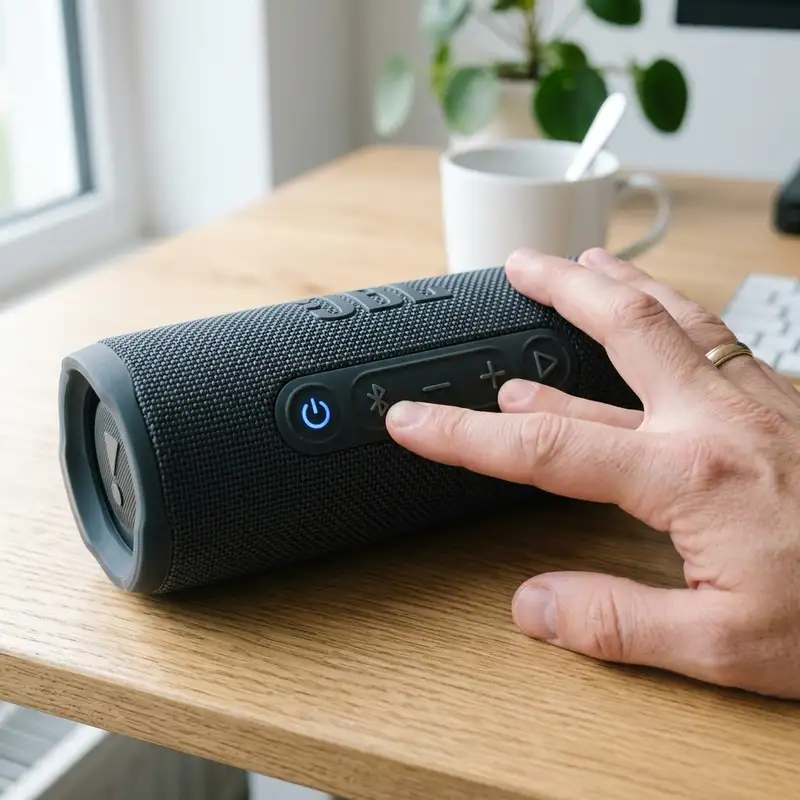
If only one of your JBL Wave Flex earbuds is working, the quickest and most effective fix is to perform a full factory reset on both earbuds and their charging case, then re-pair them with your device. This common issue often stems from a temporary glitch in the earbuds' internal synchronization or a corrupted Bluetooth connection, and a reset typically resolves these underlying software conflicts, restoring proper functionality to both audio channels.
Understanding the Problem: Why Only One Earbud Works
Experiencing silence from one of your JBL Wave Flex earbuds can be incredibly frustrating, especially when you're trying to enjoy music, podcasts, or take important calls. This isn't an uncommon problem with true wireless stereo (TWS) earbuds across various brands, including JBL. The issue typically arises when the left and right earbuds lose their ability to communicate effectively with each other or when one fails to establish a stable connection with your playback device. Unlike traditional wired headphones, TWS earbuds rely on a complex interplay of internal software, Bluetooth protocols, and battery management to function seamlessly as a pair. When any of these components experience a minor hiccup, it can manifest as one earbud going mute.
Several factors can contribute to this imbalance. Sometimes, it's as simple as one earbud having a critically low battery charge, preventing it from powering on or maintaining a connection. Other times, residual dirt or earwax can block the charging contacts, leading to inconsistent charging. More often, however, the problem is software-related. Your earbuds might have encountered a temporary bug, a corrupted pairing profile on your device, or a synchronization error where they fail to recognize each other as a stereo pair. Environmental factors, such as strong electromagnetic interference, can also temporarily disrupt the Bluetooth signal, causing one earbud to drop out. Understanding these potential causes is the first step towards effectively troubleshooting and resolving the issue, guiding you towards the most appropriate solution, which frequently involves a comprehensive reset.
Preliminary Checks Before a Full Reset
Before diving into a full factory reset, which, while effective, requires re-pairing your earbuds, it's wise to go through a series of preliminary checks. These simple diagnostic steps can often resolve the "one earbud not working" issue without the need for a more drastic reset, saving you time and effort. Many problems can be attributed to basic oversights or minor glitches that are easily correctable. Taking a moment to systematically check these common culprits ensures you're not overlooking a straightforward solution.
1. Check Earbud and Case Battery Levels
This is perhaps the most common reason for one earbud failing to work. True wireless earbuds operate independently, and it's possible for one to drain faster than the other, especially if you use them individually for calls or if one wasn't seated correctly in the charging case. Ensure both your JBL Wave Flex earbuds are properly placed in their charging case and that the case itself has sufficient charge. Look for the indicator lights on both the earbuds and the case; solid lights usually mean they are charging, while blinking lights might indicate a low battery or a charging issue. Leave them to charge for at least 15-30 minutes before attempting to use them again. A low battery in the case can also prevent the earbuds from charging fully, even if they appear to be seated correctly.
2. Inspect Charging Contacts and Cleanliness
Dirt, dust, earwax, or moisture can accumulate on the charging pins of the earbuds and the corresponding contacts inside the charging case. Even a thin layer of grime can prevent a proper electrical connection, leading to one earbud not charging or connecting reliably. Carefully inspect the metal contacts on both earbuds and within the charging case. Use a dry cotton swab, a soft, clean cloth, or a toothpick (with extreme care) to gently clean any visible debris. Avoid using abrasive materials or excessive liquid. A small amount of isopropyl alcohol on a cotton swab can be used for stubborn grime, but ensure the contacts are completely dry before placing the earbuds back in the case.
3. Verify Bluetooth Connection on Your Device
Sometimes the issue lies not with the earbuds themselves, but with the connection on your playback device (smartphone, tablet, laptop). Go to your device's Bluetooth settings and ensure the JBL Wave Flex is properly connected. Try "forgetting" or "unpairing" the JBL Wave Flex from your device's Bluetooth list, then re-enable Bluetooth on your device and attempt to pair them again from scratch. This can often clear up any corrupted Bluetooth profiles that might be causing connection issues. Also, ensure no other devices are trying to connect to your earbuds simultaneously, as this can create conflicts. For more extensive Bluetooth troubleshooting, you might find our guide on fixing Bluetooth pairing issues helpful.
4. Test with a Different Audio Source or Device
To isolate whether the problem is with your earbuds or your primary audio source, try connecting your JBL Wave Flex to a different device. For example, if you typically use them with your phone, try pairing them with a tablet or computer. If both earbuds work perfectly with the new device, then the problem is likely with your original device's Bluetooth settings, audio output, or software, rather than the earbuds themselves. This diagnostic step helps narrow down the potential culprits significantly.
5. Perform a Soft Reset of Your Device
A simple restart of your smartphone, tablet, or computer can often resolve minor software glitches that might be interfering with the Bluetooth connection or audio output. Turn your device completely off, wait for a few seconds, and then power it back on. Once it has fully restarted, try reconnecting your JBL Wave Flex earbuds and test the audio again. This action clears temporary system data and can refresh the Bluetooth module, potentially resolving the issue.
By systematically working through these preliminary checks, you can often identify and fix the problem without needing to perform a full factory reset. If, after all these steps, only one earbud continues to function, then a complete reset is the next logical and highly recommended step.
| Symptom | Possible Cause | Quick Fix / Next Step |
|---|---|---|
| One earbud completely silent, no LED light | Critically low battery or charging contact issue | Ensure proper seating in case, clean contacts, charge for 30 min. |
| Both earbuds connect, but only one produces sound | Bluetooth profile corruption or internal sync error | Forget device in Bluetooth settings, re-pair. |
| Earbuds connect, sound cuts in and out on one side | Interference, weak signal, or minor software glitch | Move closer to source, restart source device, check for updates. |
| One earbud works with one device, but not another | Source device's Bluetooth settings or software issue | Test with multiple devices, perform soft reset of problematic device. |
| Earbud charges, connects, but still no sound | Firmware bug or hardware fault | Proceed with a full factory reset. |
The Definitive JBL Wave Flex Reset Procedure
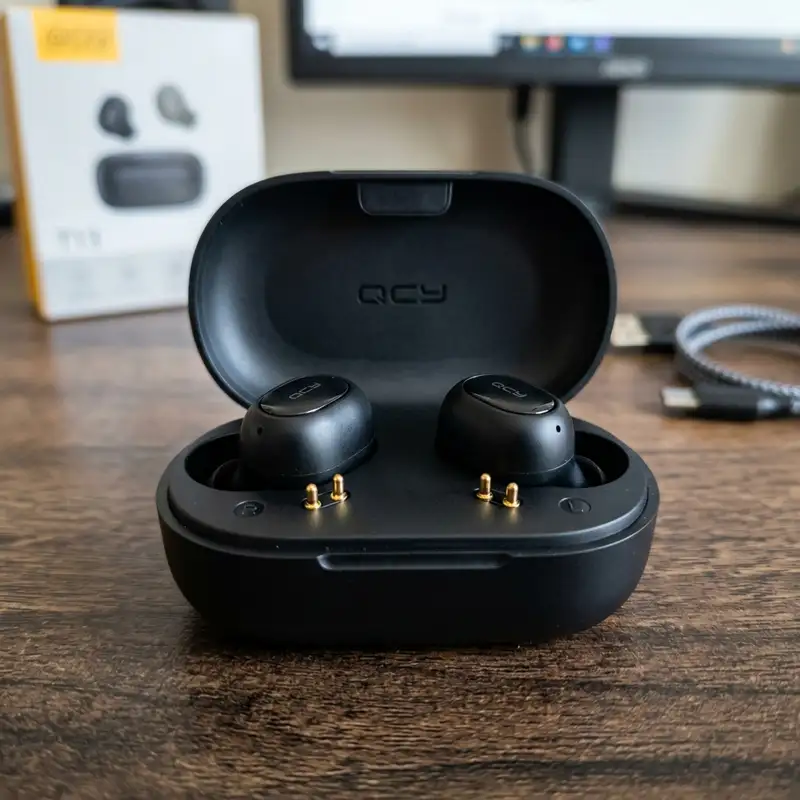
If the preliminary checks didn't resolve the issue, a full factory reset is almost always the solution for a single non-functional earbud on your JBL Wave Flex. This process clears all previous pairing information and internal settings, returning the earbuds to their default, out-of-the-box state. It's akin to giving them a fresh start, often resolving deep-seated synchronization errors or corrupted software states. Follow these steps carefully to ensure a successful reset and optimal performance afterward.
-
Place Earbuds in the Charging Case
Ensure both your JBL Wave Flex earbuds are placed securely inside their charging case. It's crucial that they are properly seated and making contact with the charging pins. The charging indicator lights on the earbuds should illuminate, confirming they are receiving power.
-
Keep the Charging Case Open
With both earbuds inside, keep the lid of the charging case open. This allows the earbuds to remain active and responsive to the reset command, as some reset procedures require the earbuds to be in a "ready" state.
Locate and Press the Reset Button (if applicable) OR Touch Controls
For many JBL true wireless earbuds, a dedicated reset button might be found inside the charging case, usually near the hinge or between the earbud slots. If your JBL Wave Flex has such a button, press and hold it for approximately 5-10 seconds. The indicator lights on the earbuds or case might flash, turn off, or change color to indicate that the reset is in progress or complete.
If your JBL Wave Flex model does NOT have a physical reset button (which is common for models focusing on touch controls), the reset procedure typically involves the touch controls on the earbuds themselves:
- While the earbuds are in the open charging case, touch and hold the touch control area on BOTH earbuds simultaneously for about 5-10 seconds.
- Look for an indicator light change. The LED lights on the earbuds might flash rapidly, turn solid white, or briefly turn off and then back on, signifying that the reset has been initiated or completed. Release your fingers once you observe this change.
It's important to note that the exact LED behavior can vary slightly between JBL models, so consult your JBL Wave Flex user manual if you are unsure or do not see the expected light sequence. However, the common pattern is a noticeable change in the LED activity.
Close the Charging Case and Wait
Once you've performed the reset action (either button press or touch control hold), close the lid of the charging case and wait for about 10-15 seconds. This allows the earbuds to power cycle and fully apply the factory reset settings.
"Forget" the Earbuds on Your Device
Before attempting to re-pair, go to the Bluetooth settings on all devices that were previously connected to your JBL Wave Flex. Find "JBL Wave Flex" (or similar name) in the list of paired devices and select "Forget," "Unpair," or "Delete" this device. This step is crucial to ensure that your device doesn't try to connect using old, potentially corrupted pairing information.
Re-pair Your JBL Wave Flex Earbuds
Now, open the charging case. The earbuds should automatically enter pairing mode (often indicated by a blinking LED on one or both earbuds). Go to your device's Bluetooth settings, scan for new devices, and select "JBL Wave Flex" from the list to connect. Both earbuds should now connect and function as a stereo pair. You should hear a confirmation tone or voice prompt.
After successfully completing these steps, test your JBL Wave Flex earbuds with various audio sources to confirm that both are now working perfectly. This comprehensive reset procedure addresses most software-related issues that cause one earbud to malfunction, providing a reliable path to restoring full stereo sound.
Re-pairing Your JBL Wave Flex After a Reset
Once you've successfully performed a factory reset on your JBL Wave Flex earbuds, the next critical step is to correctly re-pair them with your preferred audio device. Since the reset erases all previous pairing data, your device will no longer recognize them automatically. This re-pairing process is essentially like connecting them for the very first first time, and following the steps precisely ensures a stable and synchronized connection for both earbuds. Rushing this step or missing a detail can lead to persistent issues, so it's important to be thorough.
1. Prepare Your Device for Pairing
Before taking the earbuds out of the case, ensure your smartphone, tablet, or computer's Bluetooth is enabled. It's also a good practice to close any audio apps that might interfere with the initial connection. Navigate to your device's Bluetooth settings menu, where you can scan for new devices. This ensures your device is actively listening for new connections.
2. Activate Pairing Mode on JBL Wave Flex
With the Bluetooth on your device ready, open the lid of your JBL Wave Flex charging case. The earbuds, having just been reset, should automatically enter pairing mode. You'll typically observe a white or blue LED light blinking rapidly on one of the earbuds, indicating they are discoverable and ready to be paired. If the lights don't blink, try removing both earbuds from the case for a few seconds and then placing them back in, ensuring the case lid remains open.
3. Select Your Earbuds from the Device List
On your device's Bluetooth settings screen, you should see "JBL Wave Flex" appear in the list of available devices. Tap on it to initiate the connection. Your device might ask for confirmation or display a pairing request. Accept any prompts that appear. If you don't see "JBL Wave Flex," try refreshing the Bluetooth scan on your device or briefly closing and reopening the earbud case lid.
4. Confirm Successful Connection
Once paired, the blinking LED on the earbud(s) will usually turn solid or stop blinking, and you might hear an audible confirmation tone or voice prompt from the earbuds themselves (e.g., "Connected"). On your device, "JBL Wave Flex" should now appear under "Paired Devices" or "My Devices" with a "Connected" status. At this point, both earbuds should be recognized as a single stereo unit.
5. Test Audio Playback
Immediately after pairing, play some audio – a song, a video, or a podcast – to confirm that sound is coming through both the left and right earbuds. Test various types of audio content and adjust the volume to ensure full functionality. If only one earbud is working at this stage, or if the connection is unstable, try the entire reset and re-pairing process one more time. Sometimes, a second attempt can resolve any lingering minor glitches that weren't cleared the first time.
Proper re-pairing is the cornerstone of restoring full functionality after a reset. By following these steps, you establish a fresh, clean connection that is free from previous errors, allowing your JBL Wave Flex earbuds to perform as intended.
Advanced Troubleshooting and Software Considerations

Even after a full factory reset and careful re-pairing, some users might still encounter issues with one JBL Wave Flex earbud not working. In such cases, it's time to delve into more advanced troubleshooting steps, focusing on software, firmware, and potential interference issues that might be at play. These solutions often address problems that are less obvious than simple connection glitches or low battery levels.
1. Check for JBL Firmware Updates
JBL frequently releases firmware updates for its audio products to improve performance, fix bugs, and enhance compatibility. An outdated firmware version on your JBL Wave Flex could be the root cause of synchronization issues or connection instability. To check for and install updates:
- Download and install the "JBL Headphones" app on your smartphone (available for iOS and Android).
- Connect your JBL Wave Flex earbuds to your phone via Bluetooth.
- Open the JBL Headphones app. The app should detect your earbuds.
- Navigate to the settings or update section within the app. If a firmware update is available, follow the on-screen instructions to download and install it. Ensure your earbuds are charged and remain connected during the entire update process to avoid bricking them.
Firmware updates can often resolve persistent issues that a standard reset cannot, as they directly address the earbud's internal operating system.
2. Troubleshoot with the JBL Headphones App
The JBL Headphones app isn't just for updates; it also offers various settings and diagnostic tools. Explore the app's features:
- Equalizer Settings: While unlikely to cause one earbud to stop working, ensure no extreme equalizer settings are active that might mute one channel.
- Connection Stability: Some apps provide options to prioritize connection stability over audio quality, which might help in environments with high interference.
- Device Information: Check if the app reports any errors or unusual status messages for either earbud.
Reinstalling the JBL Headphones app itself can also sometimes resolve app-related glitches that might be indirectly affecting your earbuds' performance.
3. Review Device Audio Settings
On your connected device (phone, tablet, computer), double-check the audio output settings. Ensure that the balance slider for left and right channels is centered and not skewed heavily to one side. Sometimes, accessibility settings or specific audio enhancements can inadvertently affect stereo output. For example, on some Android devices, "Mono audio" might be enabled, which can sometimes interfere with how stereo sound is processed. Ensure this setting is disabled unless you specifically need it.
4. Address Bluetooth Interference
Bluetooth signals can be susceptible to interference from other electronic devices, Wi-Fi networks, microwaves, and even physical obstructions. If you're consistently experiencing issues in a particular location, try moving to a different environment to see if the problem persists. Keep your audio source device close to your earbuds and minimize physical barriers between them. Devices operating on the 2.4 GHz frequency band are common culprits for interference, so try to keep your earbuds away from active Wi-Fi routers or other Bluetooth devices that aren't actively paired.
5. System Software Updates for Your Source Device
Just as earbud firmware updates are important, so are the operating system updates for your smartphone, tablet, or computer. These updates often include improvements to Bluetooth drivers and audio processing capabilities. Ensure your device is running the latest available software version to guarantee optimal compatibility and performance with your JBL Wave Flex earbuds. Outdated drivers or OS versions can sometimes lead to intermittent connectivity or audio issues with peripherals.
By systematically working through these advanced troubleshooting steps, you can often identify and resolve more complex issues that might be preventing one of your JBL Wave Flex earbuds from functioning correctly. If after all these efforts the problem persists, it might indicate a hardware fault, leading to the next considerations.
When to Seek Professional Help or Warranty Support
After exhausting all software-based troubleshooting steps, including preliminary checks, multiple resets, re-pairing attempts, and firmware updates, if one of your JBL Wave Flex earbuds persistently refuses to work, it's highly probable that you're dealing with a hardware issue. At this point, continuing to troubleshoot on your own might be unproductive and could potentially void any warranty. Knowing when to escalate the problem to professional support is crucial.
Signs of a Potential Hardware Fault:
- No Indicator Lights: If one earbud shows absolutely no sign of life (no charging lights, no pairing lights) even after being in the charging case for an extended period, it could indicate a dead battery, a faulty charging circuit, or internal damage.
- Physical Damage: Visible damage to the earbud (e.g., cracks, dents, water damage, bent charging pins) is a clear sign of a hardware problem. Even if the damage seems minor, it can disrupt internal components.
- Inconsistent Behavior: If the non-working earbud occasionally flickers to life only to die again, or if its behavior is completely erratic and unpredictable across multiple devices and after multiple resets, it points towards an unreliable internal component.
- Heat Generation: If one earbud or a specific part of the charging case feels unusually warm during charging or use, it could signal an internal short circuit or battery problem.
- No Change After All Troubleshooting: The most definitive sign is when every single troubleshooting step outlined in this guide has been meticulously followed, yet the problem persists without any improvement whatsoever. This strongly suggests a defect beyond software rectification.
Contacting JBL Support:
If you suspect a hardware issue, the next step is to contact JBL's customer support. Have the following information ready to streamline the process:
- Proof of Purchase: Your receipt or order confirmation is essential for warranty claims.
- Product Model and Serial Number: The JBL Wave Flex model name and its unique serial number (usually found on the charging case or packaging).
- Detailed Description of the Problem: Explain clearly what the issue is, what troubleshooting steps you've already taken (mentioning resets, cleaning, app checks, etc.), and the results of those steps.
- Warranty Status: Be aware of your product's warranty period. Most electronics come with a limited one-year warranty.
JBL's support team can provide further diagnostic steps, offer repair services, or arrange for a replacement if your earbuds are still under warranty and deemed to have a manufacturing defect. You can often initiate support requests through their official website or by phone. For general support inquiries, you can start at the JBL Support Page.
Remember, attempting to open or repair the earbuds yourself will almost certainly void your warranty and could cause further damage. It's always best to rely on professional service for hardware-related problems, especially when the device is still under warranty.
DomineTec Tip: Clearing the cache of the JBL Headphones app on your smartphone restores the stereo balance of Wave Flex earbuds.
Frequently Asked Questions

Why does only one of my JBL Wave Flex earbuds connect to my phone?
This usually happens due to a synchronization error between the two earbuds, a corrupted Bluetooth profile on your phone, or an individual earbud battery issue. The earbuds might not be communicating with each other to form a stereo pair, or your phone might be defaulting to connecting only one channel. Performing a factory reset and re-pairing them is the most common fix.
How do I know if my JBL Wave Flex earbuds are properly charged?
When placed in the charging case, the JBL Wave Flex earbuds typically display LED indicators that show their charging status. A solid light often means fully charged, while a blinking light indicates active charging. The charging case itself also has indicator lights to show its battery level. Refer to your user manual for specific light patterns, but ensuring both earbuds show proper charging activity is key.
Can I use my JBL Wave Flex earbuds individually after a reset?
Yes, after a factory reset and successful re-pairing, your JBL Wave Flex earbuds should be able to be used individually (mono mode). Most true wireless earbuds are designed for this flexibility, allowing you to use either the left or right earbud independently while the other remains in the case or is turned off. The reset process doesn't remove this feature; it just ensures both earbuds are in a healthy, synchronized state when used together.
What if my JBL Wave Flex still has issues after the reset and re-pairing?
If the problem persists after a full factory reset and careful re-pairing, consider checking for firmware updates via the JBL Headphones app, ensuring your source device's software is up to date, and testing the earbuds with a different device to rule out source-specific issues. If all these steps fail, it strongly suggests a potential hardware defect, and you should contact JBL customer support for further assistance or warranty claims.
Conclusion
Dealing with only one earbud working on your JBL Wave Flex can be a frustrating experience, but as this comprehensive guide illustrates, most instances are resolvable through systematic troubleshooting. From simple checks like battery levels and clean contacts to the definitive factory reset procedure and advanced software considerations, a solution is often within reach. Remember that patience and a methodical approach are your best tools. By following these steps, you can typically restore full stereo sound to your JBL Wave Flex, ensuring you get back to enjoying your audio without interruption. If, however, all efforts prove futile, rest assured that JBL's support channels are available to assist with potential hardware-related concerns, ensuring your investment is protected. Keeping your earbuds clean and updated can also help prevent future issues, extending their lifespan and consistent performance, a topic we explore further in our article on optimizing earbud battery life.



