iPhone Has No Sound Suddenly: 7 Causes and iPhone No Sound How to Fix Guide
Few things are as frustrating as realizing your iPhone has suddenly lost all audio capabilities. Whether you are missing important phone calls, failing to hear alarm clocks in the morning, or trying to watch a video only to be met with complete silence, a mute device disrupts your daily routine. If your device has suddenly gone completely silent, you may be looking for an iphone no sound how to fix checklist to resolve this problem without having to pay for expensive repairs. Fortunately, in the vast majority of cases, a silent iPhone is caused by minor configuration issues, temporary software bugs, or easily cleanable ports rather than permanent hardware failures.
In this comprehensive guide, we will walk you through a systematic, step-by-step diagnostic process to identify the exact cause behind your sound loss. We will explore everything from physical hardware switches and wireless connections to deeper software settings and recovery methods. Before we dive into the details, let us review a comparative summary of the most common causes, symptoms, and difficulty levels for troubleshooting this issue.
iPhone Sound Issues: Cause and Solution Matrix
To help you quickly locate the most relevant solution, here is a detailed breakdown of the primary reasons your iPhone's sound might be failing, along with their difficulty level and immediate fixes:
| Cause | Primary Symptoms | Difficulty Level | Recommended Action |
|---|---|---|---|
| Ring/Silent Switch | No ringtone or alert sounds, but media volume works fine. Orange strip is showing. | Very Easy | Flip the physical switch on the side of the iPhone so the orange color is hidden. |
| Bluetooth Connections | No sound from speakers, but audio plays when checking connected accessories. | Very Easy | Disconnect AirPods or wireless speakers, or turn off Bluetooth entirely in Control Center. |
| Ghost Headphones Mode | Volume slider shows the "Headphones" label even though no accessories are plugged in. | Medium | Clean the Lightning/USB-C port or headphone jack using compressed air or a toothpick. |
| Focus Modes / DND | Calls and notifications are silenced, and screen doesn't light up for alerts. | Easy | Disable Do Not Disturb or active Focus Modes via the Control Center. |
| Software Bugs | Sound cuts out randomly or only fails in specific third-party apps. | Easy | Force restart the iPhone, update iOS to the latest version, or reinstall the affected app. |
| Speaker Obstruction | Muffled audio, low maximum volume, or crackling sound during playback. | Easy | Gently brush the speaker grilles at the bottom and top ear speaker using a soft-bristled brush. |
| Hardware Damage | Speakers are completely silent across all modes, even after clean installs and resets. | Hard | Contact Apple Support or visit an authorized service center for diagnostic repairs. |
Quick Diagnostic: iPhone No Sound How to Fix
Before testing advanced settings, it is crucial to perform a quick diagnostic routine to determine if the issue is systemic (affecting the entire device) or isolated to a specific app, speaker, or connection. A structured troubleshooting process will prevent you from accidentally resetting your settings when a simple toggle switch was the true culprit.
First, test your internal speakers. Go to Settings > Sounds & Haptics (or Settings > Sounds on older models) and locate the Ringer and Alerts slider. Drag the slider to the right to increase the volume. If you hear a ringtone play through the bottom speaker, your physical speakers are working properly, and the sound issue is likely caused by software settings, active focus modes, or Bluetooth routing. If the slider is greyed out, or if you drag it and hear absolutely nothing, you are either dealing with a system-level audio freeze or a physical speaker malfunction.
Second, test the top ear speaker. Make a phone call (or call your voicemail) and put the phone to your ear. If you can hear the call normally but cannot hear anything when switching to speakerphone, the bottom speaker is damaged. Conversely, if you can hear the speakerphone but the ear speaker is silent, the top speaker is blocked or broken. Knowing where the silence occurs helps pinpoint the solution.
Cause 1 — The Ring/Silent Switch

The single most common reason an iPhone fails to ring or make alert sounds is the physical Ring/Silent switch. Located on the left side of the device, just above the volume buttons, this toggle has been a signature hardware feature of the iPhone since its inception in 2007 (on the iPhone 15 Pro and 16 series, this has been replaced by the customizable Action Button, which we will discuss below).
When the switch is flipped down toward the back of the phone, showing a thin orange line, the device is in Silent Mode. In this state, incoming phone calls, text alerts, system notifications, and game sound effects are completely muted. However, media playback—such as playing music in Spotify, watching videos in YouTube, or streaming Netflix—will still play audio if you turn the volume up manually inside those apps. This difference often confuses users into thinking their speaker is broken because they can hear a YouTube video but the phone refuses to ring. To fix this, simply flip the switch upward toward the screen so that the orange indicator is hidden. You will see a notification on the screen confirming that "Silent Mode" is now turned off.
If you own an iPhone with the Action Button (iPhone 15 Pro/Pro Max and the iPhone 16 family), the physical orange indicator switch is gone. Instead, the Action Button can be mapped to toggle Silent Mode. Check if your Action Button is configured to mute the device by going to Settings > Action Button. You can also swipe down to open the Control Center and look at the bell icon. If the bell icon has a slash through it and is highlighted, tap it to disable Silent Mode and restore system sounds.
Cause 2 — Connected Bluetooth Devices
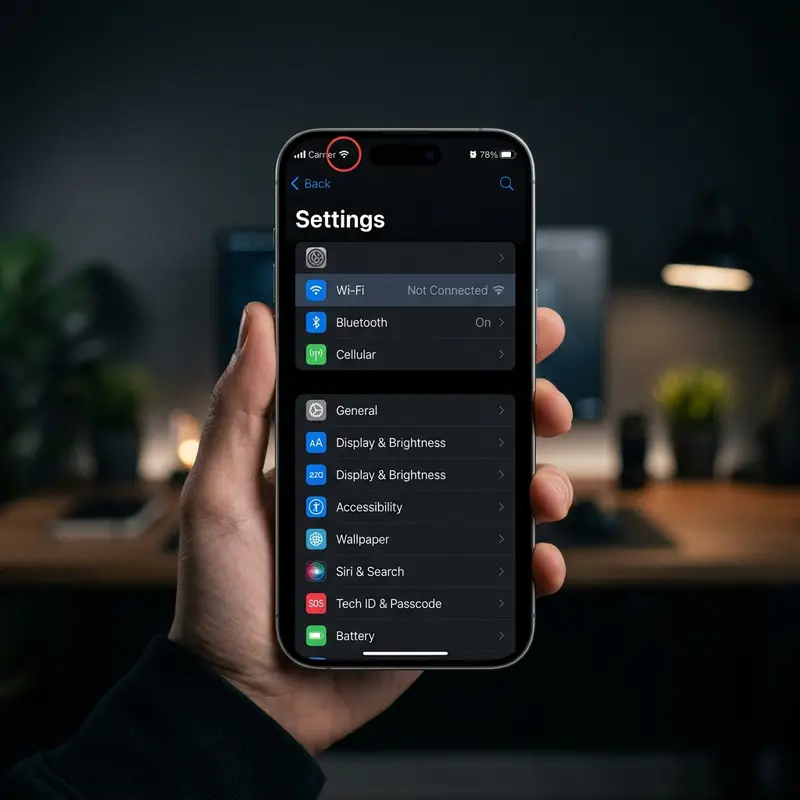
Another common culprit is audio routing. The iPhone is designed to automatically route all audio output to the most recently connected accessory. If you own wireless headphones, Bluetooth speakers, or an active car audio system, your iPhone might still be connected to those devices even if they are sitting in another room or inside their charging case.
For example, if your AirPods are sitting in your backpack but the charging case lid did not close correctly, they may remain connected to your iPhone. When you play a video or receive a call, your phone routes the audio to the AirPods, leaving the built-in speaker completely silent. To diagnose and resolve this routing issue, swipe down from the top-right corner of your screen to access the Control Center. Tap the AirPlay icon in the media playback card (the icon looks like a triangle with concentric circles radiating outward). Review the list of output devices; if a Bluetooth speaker or headset is checked, tap iPhone to force the audio back to the internal speaker. Alternatively, you can temporarily turn off the Bluetooth antenna by tapping the Bluetooth icon in the Control Center or going to Settings > Bluetooth and toggling the switch to off. If the sound returns immediately, you have found the issue.
Cause 3 — Headphone Mode Stuck (Ghost Headphones)
Sometimes, an iPhone's operating system gets confused and believes a pair of wired headphones is connected, even when the port is empty. This is commonly referred to as "Ghost Headphones Mode" or being stuck in Headphone Mode. When this occurs, iOS disables the external speakers and sends all audio signals to the non-existent headphones.
To verify if your iPhone is stuck in Headphone Mode, press the physical volume up or volume down buttons on the left side of your device. Watch the volume HUD indicator overlay that appears on the screen. If the indicator displays "Headphones" instead of "Volume" or "Ringer," your device is stuck. This issue is almost always caused by physical debris, lint, or moisture trapped inside the Lightning connector, USB-C port, or the 3.5mm headphone jack on older iPhones. The metal contacts inside these ports are extremely sensitive; a small clump of pocket lint can bridge the connections, mimicking a plugged-in cable. To resolve this, shut down your iPhone and use a can of compressed air or a clean, dry wooden toothpick to gently clean the interior of the port. Do not use metal objects like paperclips or needles, as they can permanently damage the gold pins inside. Once the debris is cleared, turn your iPhone back on and test the volume buttons again.
Cause 4 — Volume Set to Zero or Do Not Disturb Active
It sounds simple, but sometimes the media or system volume is simply turned all the way down. iOS manages system volume (ringtone and alerts) and media volume (music, video, and games) independently. If you press the volume buttons while no media is playing, you may be adjusting the ringer, while the media track remains muted, or vice versa.
To check and adjust all volume levels, go to Settings > Sounds & Haptics. Ensure that the "Change with Buttons" toggle is enabled if you want to control the ringer volume using the physical buttons. Additionally, check if your device is running a restrictive Focus Mode. Focus modes like "Do Not Disturb," "Work," or "Sleep" are designed to silence incoming calls, notifications, and alerts. If a Focus mode is active, you will see a crescent moon or another focus icon in your status bar or on your Lock Screen. Swipe down to open the Control Center, tap the active Focus card, and turn it off to allow notifications to make noise again.
Causes 5, 6, and 7 — App Settings, Software Bugs, and Hardware Failures
If you have checked the silent switch, Bluetooth routing, headphone port, and volume levels, and your iPhone still has no sound, the problem lies in app-specific configurations, operating system glitches, or mechanical damage.
Cause 5: App-Specific Audio Settings
If the sound works in some applications (like Safari) but fails in others (like Instagram or a specific game), the issue is not with your hardware. Many apps have their own internal volume controls or mute toggles. For example, Instagram defaults to muting videos unless you tap the video screen or press the physical volume buttons. Games often have settings menus where sound effects (SFX) and music tracks can be turned down or disabled completely. Open the settings of the problematic application and verify that the sound configurations are active.
Cause 6: Software Bugs and Operating System Glitches
Operating systems are highly complex, and sometimes the core audio daemon (the background process that manages sound processing) crashes or freezes. This can result in complete audio failure across all apps. A simple system reboot will restart the audio driver and resolve the issue. If your device has crashed completely, or if you are dealing with other bugs, you can refer to our iPhone black screen guide to understand how to handle system freezes. To restart a modern iPhone (iPhone X, 11, 12, 13, 14, 15, and 16):
- Press and hold either the volume up or volume down button along with the side power button simultaneously.
- Release the buttons when the "slide to power off" slider appears on the screen.
- Drag the slider to turn the phone off and wait 30 seconds.
- Press and hold the side power button again until the Apple logo appears.
If a normal restart does not work, check if there is an iOS update available by going to Settings > General > Software Update. Software updates contain patches for known audio bugs.
Cause 7: Mechanical and Hardware Failures
If you have completed all software diagnostics, cleaned your ports, performed a factory reset, and the speakers remain silent, your iPhone is likely suffering from physical hardware damage. This typically occurs after a severe drop, physical impact, or liquid exposure. Water damage can easily short-circuit the speaker coil or corrode the internal audio connections, leading to muffled or completely absent sound. If you are experiencing physical issues, keep in mind that speakers are subject to the same wear and tear as other physical components, which can also cause common hardware failures on iPhone devices over time. If the hardware is damaged, the speaker module will need to be replaced by an Apple certified technician.
Frequently Asked Questions (FAQ)
Why does my iPhone sound muffled or low even at max volume?
Muffled sound is usually caused by physical obstruction of the speaker grilles. Over time, pocket lint, dust, makeup, and oil from your ears accumulate inside the tiny mesh grilles of the bottom and ear speakers. To clean them, take a soft-bristled toothbrush or a specialized cleaning putty and gently brush the grilles to loosen dirt. Avoid using liquids or inserting sharp needles, which can puncture the protective acoustic membrane. Additionally, check if your phone case is blocking the speaker openings.
Why does my iPhone lose sound only during phone calls?
If your iPhone has sound during media playback but goes silent during phone calls, it could be a receiver issue or cellular network configuration. First, try turning off "Phone Noise Cancellation" (if available on your iOS version) under Settings > Accessibility > Audio/Visual. Second, verify if your carrier settings are up to date by navigating to Settings > General > About. Finally, test the call using headphones; if you can hear the call through headphones, the internal receiver speaker is likely damaged.
Can liquid damage cause my iPhone speaker to stop working?
Yes, liquid ingress is a major cause of speaker failure. Although modern iPhones are water-resistant (IP68 rating), they are not completely waterproof. Liquid can get trapped in the speaker cavities, temporarily dampening the sound and causing a muffled effect. If your phone was recently exposed to water, do not charge it. Stand the iPhone upright with the speakers facing down to let gravity drain the liquid. Let it dry completely in a well-ventilated area for several hours.
How do I test my iPhone speakers using the built-in diagnostics?
While iOS does not have a user-facing interactive diagnostic application, you can test speaker channels using the Mono Audio setting. Go to Settings > Accessibility > Audio/Visual. Play a song and slide the Balance slider fully to the left, then fully to the right. This allows you to isolate the top and bottom speakers to confirm if one is working while the other is dead, which is essential for diagnosing speaker channel issues.
