HP Smart Tank 515 Blinking Orange Light Alert (How to Fix)
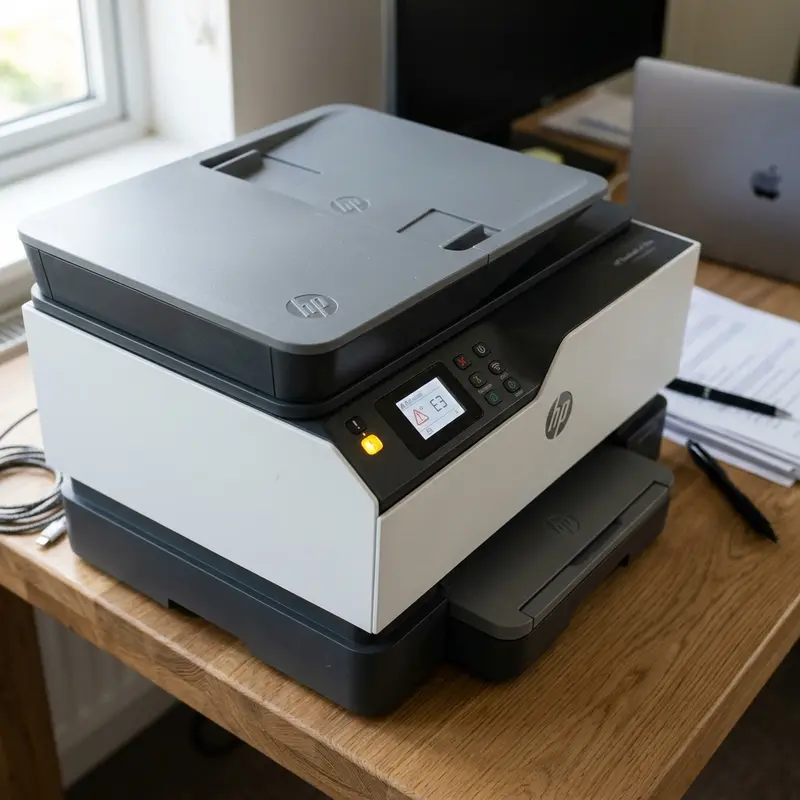
The HP Smart Tank 515 printer is widely used in homes and offices due to its impressive cost efficiency and print quality. However, users occasionally encounter situations where the device stops responding and displays visual error warnings on its liquid crystal display (LCD) panel, accompanied by a persistently blinking orange LED light. This blinking alert does not indicate a fatal motherboard failure, but rather a logical warning code that requires quick user intervention. To resolve the HP Smart Tank 515 blinking orange light error, check the active icon on the LCD screen: if it is the paper page icon, clear any jammed paper from the path and clean the rollers; if it is a printhead icon (black or tri-color), open the front access door, ensure the printheads are firmly locked in place, and clean their copper contacts with a dry, lint-free cloth.
Understanding how to interpret the specific alert symbols shown on the Smart Tank 515 LCD screen is key to applying the correct solution. For other common technical repairs, read our technical guide on the Liectroux C30B robot vacuum stop error or check our analysis on how much Wi-Fi security camera data is consumed.
1. Interpreting the HP Smart Tank 515 Orange Light Alerts
The motherboard of the HP Smart Tank 515 is programmed with detailed diagnostic routines. Common mechanical or connection issues are flagged by activating the orange Alert LED (typically situated next to the Resume/Cancel button). To address the root cause, look closely at the printer's LCD screen and identify which secondary icon is flashing alongside the main orange LED:
- Flashing Paper Icon: Indicates a media feeding error, a physical paper jam, or paper alignment issues in the rear input tray.
- Flashing Printhead Icon: Indicates an electrical communication fault or physical placement error on one or both printheads (Black or Tri-color) in the carriage.
- Flashing Ink Drop Icon: Warns that the estimated ink level in one of the tanks has reached the minimum line, blocking print jobs to prevent air from entering the tubes.
- Flashing Exclamation Mark Symbol: Indicates a generic system error, such as the print carriage being blocked by packing tape or the front access door being left open.
2. Troubleshooting Common HP Smart Tank 515 Errors
No matter which icon is flashing on the screen, follow these physical cleaning and alignment steps:
Scenario A: Clearing Paper Jams and Cleaning the Rollers
If paper wrinkles or the rollers slip, the orange LED will blink alongside the paper icon. Unplug the printer. Never pull jammed paper out through the top rear input tray. Always pull it out gently in the natural direction of output through the front output slot to prevent damaging the pickup rollers and sensors. Clean the rear rubber pickup roller with a cotton swab dampened with isopropyl alcohol to remove accumulated paper fibers.
Scenario B: Resolving Printhead Communication Faults
If the icon corresponding to the black (left) or tri-color (right) printhead is flashing, there is a copper contact communication issue. Turn on the printer and open the front access door. Wait for the carriage to glide to the center. Press down on the blue carriage latch cover to release it. Pull the printheads out. Using a clean, dry, lint-free cloth, clean the gold copper contact pads on the back of each printhead and the matching metal pins inside the carriage. Slide the printheads back in and push the blue latch back up until it clicks into place.
Scenario C: Resolving a Stuck Print Carriage
Sometimes left-over packing tape blocks the carriage rail, triggering a carriage jam error. Unplug the printer, reach inside the front access door, and manually glide the carriage back and forth to ensure there are no paper fragments or foreign objects wedged in the capping station corners.
| LCD Icon + Orange LED | Probable Logical Cause | Resolution Procedure |
|---|---|---|
| Flashing Paper Page | Paper jam or slippery rear feed roller. | Pull paper from front output, clean the pickup roller with isopropyl alcohol. |
| Flashing Printhead Icon | Oxidized copper contacts or misaligned printhead. | Remove printheads, clean the gold contacts with a lint-free cloth, and lock the blue latch. |
| Flashing Ink Drops | Estimated ink levels are below the minimum safety line. | Refill the physical tanks and re-calibrate estimated levels via the HP Smart app. |
3. Performing a Hard Reset
If the orange LEDs continue to blink after you have cleared paper jams and cleaned the contacts, a logical error may be locked in the motherboard's cache memory. Perform a hard reset to clear the system state:
- With the printer turned on, **pull the power cord directly out of the back** of the HP Smart Tank 515 (do not press the Power button).
- Unplug the power cord from the wall outlet as well.
- Wait exactly 60 seconds to allow the board capacitors to discharge completely.
- Plug the power cord directly back into the wall outlet (avoid using extensions or surge protectors during this step).
- Connect the power cord to the back of the printer. It will turn on automatically. Wait for the boot sequence to finish and check if the status light returns to solid white.
4. Maintenance Habits to Prevent Future Alerts
To ensure consistent operation of your printer, maintain these basic hardware routines:
- Print Weekly: Print a color test sheet at least once a week. This keeps the ink flowing through the HP thermal printhead nozzles, preventing clogging from dried ink.
- Store Paper in a Dry Environment: Moist paper fibers curl and stick together, making it difficult for the pickup rollers to grab a single sheet, leading to feed errors.
- Keep the Blue Carriage Latch Closed: Opening this latch allows air to invade the delivery lines, requiring ink purges to restore print quality.
Lubricating the Metal Guide Rail to Solve Mechanical Carriage Jams
If the orange status light flashes with a carriage jam error symbol and the path is clear of paper, the metal guide rail may be dry. The carriage assembly slides back and forth on this rail, and friction can cause motor current spikes that trigger the jam error. Wipe the rail with a lint-free cloth and apply a thin layer of synthetic silicone grease along the rail to restore smooth movement. This simple step prevents motor wear and keeps the carriage moving smoothly.
Verifying Ground Connections to Prevent Static Mainboard Resets
Electrostatic build-up inside the printer chassis can cause communication drops between the mainboard and printhead carriages. This static build-up is common in dry environments or when using low-quality power strips. Ensure the printer is plugged directly into a grounded wall outlet. This dissipates static charges, preventing false error signals and flashing orange lights, ensuring reliable print operations.
Detailed Inspection of the Printhead Latch Lock Mechanism
The printhead latch lock on the HP Smart Tank 515 is a critical mechanical part that keeps the printheads secure and connected. If this latch is slightly loose or has dust inside, the electrical connection will fail, triggering the blinking orange light. Open the door, release the latch, clean the plastic housing, and lock it back into place firmly to restore connection. This ensures consistent electrical contact for the printhead circuits.
Understanding the Paper Path Sensor and Cleaning the Feed Area
The paper path sensor is located near the input tray and monitors sheet feeding. If dust or paper fibers cover the sensor lens, the system registers a fake jam, blocking operations. Use canned air to blow dust out of the feed area and clean the sensor path to resolve the error. Keeping this area clean prevents false paper feed warnings and keeps print jobs flowing.
Handling Low-Quality Paper and Sticky Media Feed Errors
Using low-quality paper or sticky labels can cause feeding issues. Sheets can stick together, causing multiple pages to feed at once and jam the rollers. Store your paper in a dry environment and fan the stack before loading to ensure smooth feeding. Fanning the paper breaks static bonds between sheets, reducing the risk of multi-page feeds.
Preventative Maintenance Tips for HP Smart Tank Printheads
To keep your printheads in good condition, print a color page once a week to prevent ink from drying inside the nozzles. Keep the printer plugged in so it can perform automatic nozzle cleanings, extending the life of the printheads. This consistent maintenance keeps the printhead resistors cool, preventing electrical burn-out.
Advanced Troubleshooting: Checking for Motherboard Communication Drops
If error lights blink even when there are no jams or dirty contacts, a motherboard communication error may have occurred. This is common during power fluctuations. Run a hard reset by unplugging the power cord for 60 seconds to clear the motherboard cache. This reset re-initializes the firmware, resolving temporary lockouts and restoring status lights.
Clearing Obstructions in the Service Station Area
The service station located on the far right side of the printer guides printhead capping. If dried ink accumulates in the service spittoon, it can block the carriage from seating properly, triggering an orange light error. Use a plastic spatula or swab to gently clear out any ink build-up. This ensures the carriage can lock into its home position without friction.
Checking for Stepper Motor Wear and Gear Backlash in the HP 515
Loud clicking or grinding noises during paper feeding cycles point to stepper motor wear or drive gear alignment issues. Stepper motors rely on precise gear engagement to feed sheets. Over time, dust can get trapped between the plastic teeth. Applying specialized synthetic grease to the gears dampens noise and prevents feeding failures.
Maintaining Printhead Electrical Paths to Prevent Connectivity Errors
The copper contact pads on the printhead carriages can build up microscopic oil or ink mist over time, disrupting electrical signals from the mainboard. If the orange alert light flashes, wipe the gold contacts on the printheads and carriage board using a lint-free cloth and isopropyl alcohol. This ensures clean electrical communication and prevents false error warnings.
Managing Service Spittoon Clogs on the HP Smart Tank 515
The service spittoon is located on the far right of the printer and collects waste ink during printhead maintenance. If waste ink builds up, it can block the carriage from locking into its home position, causing carriage jam errors. Clear out any dried ink deposits with a plastic swab to ensure the carriage slides freely along the rail.
Verifying Ground Connections to Dissipate Electrostatic Charges
Static charges inside the printer chassis can interfere with mainboard signals, causing false error lights. Plug the printer directly into a grounded wall outlet rather than a low-quality extension cord. This dissipates static build-up, preventing false orange light warnings and connection drops, especially in dry environments.
Cleaning the Encoder Strip to Prevent Carriage Path Errors and Jams
The encoder strip is a thin, semi-transparent plastic band running across the width of the HP Smart Tank 515 carriage path. It has microscopic vertical lines that the carriage sensor reads to coordinate movement. If ink mist, dust, or grease covers these markings, the printhead carriage will lose track of its position, sliding out of bounds and triggering a blinking orange light error. Wipe the encoder strip gently with a dry microfiber cloth, avoiding excessive pressure to prevent damaging or unhooking the band.
Checking the Status of the Printhead Assembly Contact Springs and Latches
The removable printheads inside the HP 515 connect to the carriage circuit board using small copper contact springs. Over time, these springs can lose tension or build up ink residue, causing signal drops that trigger error status lights. Open the access door, release the blue carriage latch, remove both printheads, and clean the gold contacts on the carriage side using a dry cotton swab. Reinsert the printheads and press the latch down until it clicks to ensure a secure connection.
How a Faulty Output Tray Sensor Triggers False Flashing Amber Alerts
The HP Smart Tank 515 has a small physical sensor inside the output tray area that monitors whether the paper extension arm is fully extended during printing. If paper dust or small scraps block this sensor, the firmware registers a paper path blockage, halting printing and flashing the orange warning light. Inspect the output tray with a flashlight, use a can of compressed air to clear any dust, and ensure the extension arm operates smoothly.
Frequently Asked Questions (FAQ)
Why does the HP Smart Tank 515 alert light flash immediately upon startup?
If it flashes immediately at startup, it indicates a mechanical carriage initialization block (carriage caught on packing tape or jammed paper in the service area) or that the front access door is open, blocking the boot sequence.
How do I know which printhead on my HP Smart Tank 515 is causing the error?
The LCD screen shows two printhead outlines: one labeled with a "K" (Black) and the other with "CMY" (Tri-color). The icon representing the specific printhead that is failing or missing will flash on the display.
Will the HP Smart Tank 515 burn its printhead if I print without ink?
Yes. HP printheads use thermal print technology, where electrical resistors heat ink to high temperatures to spray it. Without a constant flow of ink to cool these resistors, the printhead will quickly overheat, burning out the circuitry irreversibly.




