How to Connect and Use a USB Flash Drive or SSD on USB-C iPads

How to Connect and Use a USB Flash Drive or SSD on USB-C iPads
Connecting and utilizing a USB flash drive or SSD on USB-C iPads enables expanded storage solutions and seamless data transfer capabilities. This guide provides a comprehensive overview of the connection process, device compatibility, and operational instructions.
Understanding USB-C Compatibility
USB-C ports on iPads allow for various peripherals to be connected without requiring an adapter. It is essential to verify that the iPad model supports USB-C connections to ensure compatibility with external storage devices.
Connecting USB Flash Drives and SSDs
To connect a USB flash drive or SSD to a USB-C iPad, follow these steps:
- Ensure the iPad is updated to the latest iOS version for optimal compatibility.
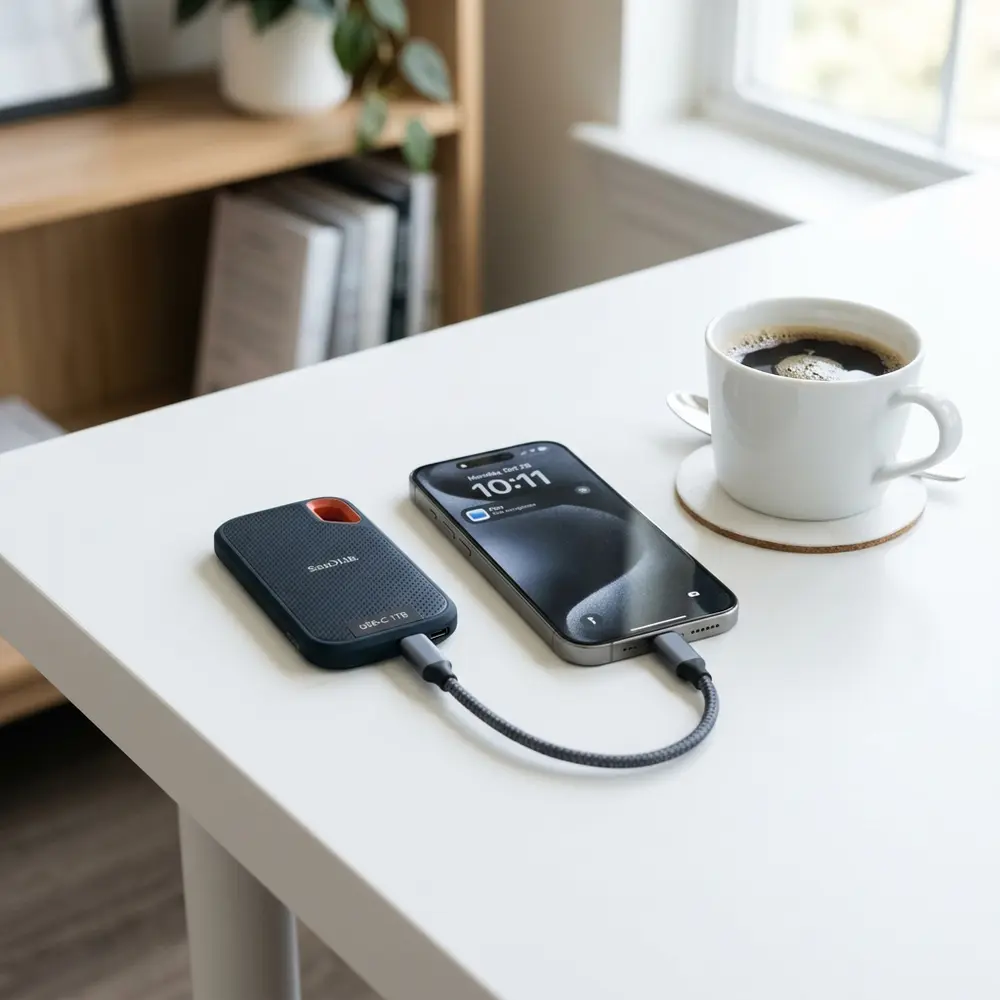
- Connect the USB-C flash drive or SSD directly to the iPad's USB-C port.
- For devices without USB-C connectors, use a compatible USB-C adapter.
- Once connected, the Files app will automatically recognize the external storage device.
Using the Files App
After connecting the flash drive or SSD, open the Files app to access the external storage. This app provides a straightforward interface for managing files between local and external storage.
File Management Functions
Users can perform various file management tasks, such as copying, moving, or deleting files directly from the Files app. The app supports a range of file formats, making it versatile for different data types.
Performance Comparison of USB Flash Drives and SSDs
When selecting between USB flash drives and SSDs, consider performance metrics such as read/write speeds, capacity, and price. The following table outlines key differences across popular brands:
| Brand | Type | Read Speed (MB/s) | Write Speed (MB/s) | Capacity (GB) | Price (USD) |
|---|---|---|---|---|---|
| SanDisk | USB Flash Drive | 400 | 200 | 128, 256, 512 | 20 - 100 |
| Samsung | SSD | 1050 | 1000 | 250, 500, 1000 | 70 - 300 |
| Crucial | SSD | 550 | 500 | 250, 500, 1000 | 60 - 250 |
| Lexar | USB Flash Drive | 300 | 150 | 64, 128, 256 | 15 - 75 |
Power Considerations
USB-C iPads provide power to connected devices, but high-capacity SSDs may require additional power. Users should consult the SSD manufacturer's specifications to ensure proper functionality.
External Power Requirements
Some SSDs may necessitate an external power source for optimal performance. This is particularly relevant for SSDs that exceed standard power consumption limits.
File Types and Compatibility
The Files app supports a variety of file types, including documents, images, and videos. It is crucial to ensure that file formats are compatible with the iPad to avoid accessibility issues.
Transferring Files to and from the iPad
Files can be transferred to and from the iPad by simply dragging and dropping within the Files app. This functionality allows for quick data management without unnecessary steps.
Using Third-Party Apps
While the Files app offers basic functionality, third-party applications can enhance file management capabilities. Consider utilizing apps specifically designed for file transfer and management.

Formatting USB Drives for iPad Use
USB drives may require formatting to be compatible with iOS devices. The recommended format is exFAT, as it supports large files and is accessible across various operating systems.
To format a USB drive, connect it to a computer and use the Disk Utility (macOS) or Disk Management (Windows) tools. Select the exFAT format before completing the process.
DomineTec Tip: For those seeking enhanced workflows, consider investing in the best portable USB-C monitor to improve productivity.
Common Issues and Troubleshooting
Encountering issues while connecting USB drives to iPads is not uncommon. Below are some typical problems and solutions:
- Device not recognized - Ensure the drive is properly inserted and compatible.
- Slow transfer speeds - Consider the drive’s specifications and the iPad’s capabilities.
- File format issues - Verify file formats are supported by the iPad.
Data Security and Backup
When using external drives for storage, data security is paramount. Regularly back up data stored on USB drives to avoid loss in case of device failure.
Best Practices for USB Drive Management
To maintain optimal performance, follow these best practices:
- Safely eject the USB drive through the Files app before removal.
- Keep the drive clean and free from physical damage.
- Regularly update the firmware of the drive if applicable.
Recovering Data from USB Drives
If issues arise with accessing data on a USB drive, recovery methods can be employed. Refer to guidelines on how to recover and fix raw usb flash drive using cmd without formatting for step-by-step instructions.

Conclusion
Connecting and using USB flash drives or SSDs on USB-C iPads significantly enhances storage capabilities and file management efficiency. Following the outlined steps and best practices will ensure a smooth experience with external storage devices.
Frequently Asked Questions
- Can any USB flash drive work with a USB-C iPad?
- Not all USB flash drives are compatible. Ensure the drive is designed for USB-C connections or use an adapter.
- What file formats can be used with USB drives on iPads?
- The iPad supports various formats, including exFAT, FAT32, and APFS. Avoid using NTFS for optimal compatibility.
- Are SSDs faster than USB flash drives when connected to an iPad?
- Generally, SSDs provide significantly faster read and write speeds compared to USB flash drives, enhancing data transfer efficiency.
- How can USB drives be safely ejected from an iPad?
- Use the Files app to select the drive and choose the eject option before physically disconnecting it from the iPad.
- What should be done if a USB drive is not recognized by the iPad?
- Check for compatibility, ensure the drive is functioning properly, and verify the iPad’s iOS version is up to date.
Advanced Setup Tips for USB-C iPads
To maximize the functionality of a USB flash drive or SSD with a USB-C iPad, ensure that the device is formatted correctly. Utilizing the exFAT file system is recommended, as it supports larger file sizes and compatibility across different operating systems.
Additionally, consider using a powered USB hub if connecting multiple devices. This can prevent power issues and ensure stable connections for external devices when working on larger projects.
Common Mistakes to Avoid
One common mistake is neglecting to eject the USB flash drive or SSD properly before disconnecting it from the iPad. Failing to do so can lead to data corruption or loss of files stored on the external device.
Another frequent error involves connecting devices that require more power than the iPad can supply. This might lead to devices not being recognized or functioning intermittently, which can be frustrating during critical tasks.
Model Comparisons for USB-C iPads
When selecting a USB flash drive or SSD for use with a USB-C iPad, consider comparing models based on speed and durability. SSDs typically offer faster read and write speeds compared to traditional flash drives, making them suitable for more demanding applications.
It is also essential to evaluate the build quality of the devices. Many SSDs are designed to withstand physical shocks, while standard USB flash drives may not offer the same level of protection.
Use Case Scenarios for External Storage
Using a USB flash drive or SSD with a USB-C iPad can significantly enhance productivity for creative professionals. For example, photographers can quickly transfer large RAW image files directly from the camera to the iPad for editing.
In educational settings, students can utilize external storage to back up important coursework and projects. This not only provides extra space but also ensures that essential materials are easily accessible during presentations or group work.
System Compatibility Considerations
Before purchasing a USB flash drive or SSD, check the compatibility with the iPad's operating system. Most modern USB-C devices will work seamlessly, but older models may require additional adapters or may not be recognized at all.
Also, consider the compatibility of the file system used on the external drive. While exFAT is widely supported, other formats like NTFS may restrict access and functionality on iPadOS.
Cost Estimates for External Drives
The cost of USB flash drives and SSDs can vary widely based on storage capacity and speed. A basic 64GB USB flash drive can be found for as little as $10, while high-performance SSDs with multiple terabytes of storage may exceed $300.
It is advisable to balance the budget with the required specifications. Investing in a higher-quality SSD may yield better long-term performance and reliability for frequent users.
Troubleshooting Connection Issues
If a USB flash drive or SSD fails to connect to a USB-C iPad, start by checking the physical connections. Ensure that both the iPad and the external device are free from dirt or debris that may hinder proper connection.
If issues persist, consider restarting the iPad or testing the drive on another device. This can help determine if the problem lies with the iPad or the external storage itself.
When to Seek Expert Help
If persistent issues arise while attempting to connect a USB flash drive or SSD, it may be time to consult an expert. Experienced technicians can provide insights that may not be readily apparent, particularly in complex scenarios.
Additionally, if data recovery is necessary due to corruption or accidental deletion, professional services may be required. Attempting DIY recovery methods can sometimes exacerbate the problem, leading to further data loss.
How to Connect and Use a USB Flash Drive or SSD on USB-C iPads
Understanding USB-C Compatibility
USB-C has become a standard port for many devices, including iPads. It offers faster data transfer rates and improved power delivery compared to previous USB types. The following details are crucial for connecting USB-C flash drives or SSDs to iPads:
- Compatibility: Ensure that the USB flash drive or SSD is compatible with USB-C. Most modern drives come with USB-C connectors.
- File System: iPads primarily support the APFS and exFAT file systems. Drives formatted with NTFS may have limited functionality.
- Power Requirements: Some external SSDs may require more power than what the iPad can provide. It is advisable to use drives with their own power supply.
Verification Checklist for USB-C Drives
Before connecting a USB drive to an iPad, the following checklist should be followed to ensure proper functionality:
- Check Drive Format: Confirm that the drive is formatted as APFS or exFAT.
- Inspect USB Connector: Ensure the USB-C connector is not damaged and is clean.
- Test with Another Device: Verify that the drive works with another USB-C device.
- Update iPadOS: Ensure that the iPad is running the latest version of iPadOS for optimal compatibility.
Connecting the USB Drive
The process of connecting a USB flash drive or SSD to an iPad is straightforward:
- Connect the USB-C flash drive or SSD directly to the iPad's USB-C port.
- If necessary, use an adapter that converts USB-A to USB-C for older drives.
- Once connected, the Files app should automatically recognize the drive.
Using the Files App
The Files app on iPadOS is the primary interface for managing files on connected USB drives. Key functionalities include:
- Viewing Files: Access files stored on the USB drive directly from the Files app.
- Copying Files: Copy files from the iPad to the USB drive and vice versa.
- Organizing Files: Create folders and organize files within the USB drive.
Common Issues and Troubleshooting
While connecting USB drives to iPads is generally seamless, users may encounter issues. Here are common problems and their solutions:
- Drive Not Recognized:
- Check the drive's compatibility and file system format.
- Try reconnecting the drive or using a different USB-C port.
- Slow Transfer Speeds:
- Ensure that the drive supports USB 3.0 or higher.
- Close any unnecessary applications that may be using system resources.
- Files Not Accessible:
- Confirm that the files are in a supported format.
- Check for any file permission issues.
Comparison Table: USB Flash Drives vs. SSDs
| Feature | USB Flash Drive | SSD |
|---|---|---|
| Speed | Typically slower, up to 300 MB/s | Faster, often above 500 MB/s |
| Durability | Less durable, susceptible to physical damage | More durable, designed for longevity |
| Storage Capacity | Commonly up to 1TB | Up to several terabytes |
| Cost | Generally cheaper | Higher price per GB |
| Power Consumption | Low power usage | Higher power usage, may require external power |
Technical Glossary
- USB-C: A universal connector type that supports data transfer, video output, and power delivery.
- APFS: Apple File System, optimized for flash storage and used primarily on Apple devices.
- exFAT: A file system that is compatible with both Windows and macOS, suitable for larger files.
- Data Transfer Rate: The speed at which data is transferred from one device to another, usually measured in MB/s.
- SSD: Solid State Drive, a type of storage device that uses flash memory for faster data access.
Frequently Asked Questions (FAQ)
Here are some frequently asked questions regarding the use of USB flash drives and SSDs with USB-C iPads:
- Can any USB-C drive work with my iPad?
Most USB-C drives will work, but ensure they are formatted correctly and within power requirements.
- What file formats are supported?
iPads support APFS and exFAT file formats. Other formats may not be accessible.
Open the Files app, select the drive, and use the eject option before physically disconnecting it.
With the right adapters, it is possible to connect multiple drives, but performance may vary.




