To use your iPhone abroad without roaming fees, disable cellular data roaming, switch to an international travel eSIM, or buy a local prepaid SIM card.
When you board an international flight, your iPhone is a powerful travel companion, holding your boarding passes, reservation details, maps, and translation apps. However, it can also become a financial liability the moment your plane lands. Standard mobile carriers are notorious for charging exorbitant international roaming fees. A single megabyte of data can cost up to $15 under pay-as-you-go rates, and even automated background processes—like email fetching or app updates—can trigger daily travel passes costing $10 to $15 per day. If you are away for two weeks, that is an extra $150 to $200 added to your monthly bill just for basic connectivity.
Fortunately, modern iOS architecture and cellular technologies like eSIM (Embedded SIM) offer highly efficient, cost-effective alternatives. By understanding how your iPhone communicates with foreign cell towers and configuring your iOS settings correctly, you can stay connected at local rates or even for free. In this comprehensive guide, we will analyze the technical mechanics of roaming charges, compare the best connectivity options, provide a step-by-step configuration checklist, and explain how to manage dual SIM setups on your iPhone.
The Trap of Automatic International Roaming on iOS
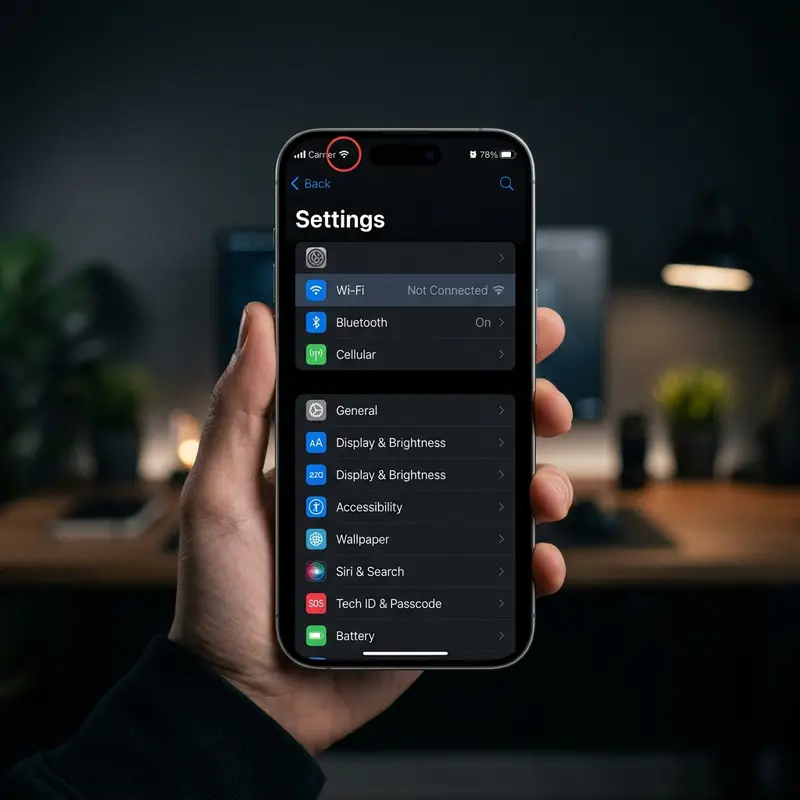
To understand why international roaming is so expensive, we must look at how cellular networks interoperate globally. When you travel abroad and turn on your iPhone, the baseband modem scans local radio frequencies to locate compatible cellular towers. When it finds a network, it initiates a handshake. This process relies on the International Mobile Subscriber Identity (IMSI) stored on your SIM card or eSIM profile.
The IMSI contains a Mobile Country Code (MCC) and a Mobile Network Code (MNC). When a foreign network (the host carrier) detects that your MCC/MNC belongs to an international operator, it queries your home carrier's Home Location Register (HLR) or Home Subscriber Server (HSS) via secure signaling networks (such as SS7 or Diameter protocols). This query determines whether an international roaming agreement exists between the two carriers. Once confirmed, the host network registers your device on its Visitor Location Register (VLR). Every byte of data, every SMS, and every minute of voice calls you consume is tracked by the host network and reported back to your home carrier via Transferred Account Procedure (TAP) files.
Because home carriers pay wholesale rates to host carriers for utilizing their infrastructure, they pass these costs down to the consumer with substantial markups:
- Pay-as-you-go Rates: Without a specific travel plan, standard rates apply. These rates can be punitive, ranging from $2.00 to $15.00 per megabyte. A simple web page load of 5 MB could cost you up to $75.
- Daily Roaming Passes: Many major carriers automatically enroll subscribers in daily passes (such as AT&T's International Day Pass or Verizon's TravelPass). The moment your iPhone performs any background sync—even a simple weather widget update—it triggers a 24-hour pass charge of $10 to $12. If you transit through multiple countries in a single day, some carriers may charge multiple daily passes.
- Automatic Fallback: iOS is designed to maintain a network connection. If your iPhone loses connection to a preferred host carrier, its baseband modem will automatically search and latch onto another available network, potentially one with higher roaming rates, unless explicitly restricted.
Options Comparison: What Is the Best Way to Connect Abroad?
When preparing for international travel, you have several connectivity strategies. Each has distinct trade-offs in terms of cost, convenience, speed, and coverage. The table below outlines the primary methods:
| Connection Type | Average Cost | Ease of Setup | Speed/Coverage | Best For |
|---|---|---|---|---|
| International eSIM | $5 - $30 ( prepaid packs ) | Easy (QR code or app installation) | High-speed 4G/5G on multiple networks | Convenient data connectivity, multi-country trips |
| Local Physical SIM | $10 - $40 ( prepaid plan ) | Moderate (must buy at airport/store and swap cards) | Excellent (local resident priority speeds) | Long-term stays, heavy local calling/texting |
| Home Carrier Pass | $10 - $15 per day | Very Easy (automatic activation) | Variable (often throttled after daily threshold) | Short business trips, keeping home number active |
| Public Wi-Fi Only | Free | Hard (requires searching for networks constantly) | Low/Unstable (restricted to specific venues) | Budget travelers, low-connectivity needs |
Crucial iOS Settings to Adjust Before Your Flight
To ensure your iPhone doesn't consume expensive roaming data, you need to adjust several configuration toggles in iOS before your aircraft departs or immediately upon boarding. These steps block cellular handshakes while keeping essential local features active.
1. Disable Data Roaming At the Baseband Level
The single most critical step is turning off the roaming toggle. When Data Roaming is turned off, the iOS network stack instructs the cellular baseband firmware not to establish data sessions (PDP contexts) when registered on a non-home PLMN (Public Land Mobile Network). You can still receive SMS messages and incoming phone calls (charges may apply for answering), but internet access via mobile towers is blocked. To turn it off, follow these steps:
- Open the Settings app on your iPhone.
- Tap on Cellular (or Mobile Data in some English locales).
- Tap on Cellular Data Options.
- Toggle the switch next to Data Roaming to the Off position.
2. Disable Background App Refresh
Many applications use silent push notifications or periodic background fetch APIs to update their content (e.g., social feeds, weather widgets, and email clients). Even if you are not actively using an app, it will consume cellular data in the background, signaling servers via APNs (Apple Push Notification service) and receiving payload bytes. To block this:
- Navigate to Settings > General.
- Tap on Background App Refresh.
- Select Background App Refresh at the top.
- Choose Wi-Fi or Off. Setting it to Wi-Fi restricts background network calls entirely to local wireless connections.
3. Disable Automatic App Store Downloads
iOS is optimized to update apps, system assets, and iCloud items automatically. These transfers are often very large and can rapidly consume any international data allotment. To disable automated App Store actions:
- Go to Settings > App Store.
- Under Automatic Downloads, turn off the toggle for App Updates and Automatic Downloads.
- Under the Cellular Data section, turn off the toggle next to Automatic Downloads.
4. Turn Off iCloud Drive and Photos Cellular Sync
If you capture high-resolution photos or edit documents during your trip, iOS will attempt to sync these files to iCloud. This upload stream uses massive upstream bandwidth, which is expensive on roaming plans. To disable this behavior:
- Go to Settings > Cellular.
- Scroll to the very bottom of the page (below the list of applications).
- Toggle off iCloud Drive to prevent document syncing over cellular networks.
- Go to Settings > Photos > Cellular Data (or search cellular data within the Photos settings pane) and turn off Cellular Data and Unlimited Updates.
Dica DomineTec: Switch your cellular data mode to "Low Data Mode". Navigate to Settings > Cellular > Cellular Data Options and enable Low Data Mode. This pauses automatic updates, background tasks, and reduces media resolution on cellular networks.
Method 1 — International Travel eSIMs
The transition from physical SIM cards to eSIM (Embedded SIM) is one of the most significant advancements in mobile connectivity. An eSIM is a programmable eUICC (Embedded Universal Integrated Circuit Card) soldered directly onto your iPhone's logic board. Instead of inserting plastic cards, you download a digital profile containing the carrier's cryptographic keys and credentials.
The remote provisioning of eSIM profiles uses the GSMA's Consumer RSP (Remote SIM Provisioning) architecture. When you buy a travel eSIM, the provider registers an entry on an SM-DP+ (Subscription Manager Data Preparation) server. Your iPhone contacts the SM-DP+ server—typically by scanning a QR code or using an app—authenticates via a digital signature, and downloads the profile over an encrypted TLS connection. If you are using newer models like the US version of the iPhone 14, 15, or 16, your phone lacks a physical SIM tray entirely, making eSIM the mandatory standard for connection.
The benefits of using eSIMs for international travel are extensive:
- Zero Physical Hassle: You do not need to locate a mobile kiosk at an airport, manage tiny plastic cards, or carry a SIM ejector tool.
- Pre-departure Setup: You can purchase and install your eSIM profile at home before you travel, and configure it to activate automatically the moment you land.
- Multiple Profiles: Modern iPhones (iPhone XS and newer) can store multiple eSIM profiles (typically up to 8 or more), allowing you to switch between carriers with a few taps.
- Security: Since it is embedded in the hardware, a lost or stolen iPhone cannot have its SIM card easily removed, maintaining its location tracking capabilities online.
To configure this, you can learn how to activate eSIM on iPhone step-by-step.
Top International eSIM Providers
Several specialized eSIM providers cater specifically to international travelers. The most prominent are Airalo and Holafly:
- Airalo: One of the most popular global eSIM marketplaces. Airalo sells localized data packages for over 200 countries, as well as regional plans (e.g., Eurolink for Europe) and global plans. Their plans are structured on a prepaid volume basis (e.g., 1GB, 3GB, 5GB, 10GB, or 20GB valid for 7 to 30 days), making it ideal for managing exact budgets and avoiding overspending.
- Holafly: Known primarily for its unlimited data packages in popular destinations like Europe, the United States, and Asia. Holafly is perfect for power users who stream video or upload large media files. However, keep in mind that Holafly plans do not usually support tethering (personal hotspot) in all regions, and they enforce a Fair Usage Policy (FUP) that can throttle speeds if consumption is extremely high.
Method 2 — Local Physical SIM Cards
While eSIMs are incredibly convenient, local physical SIM cards remain a highly practical and often cheaper alternative, especially in countries where eSIM technology is not yet widely adopted or is restricted to local residents by local regulations. They are also essential if your iPhone is an older model that does not support eSIM profiles.
Where to Buy and What to Expect
Upon arriving at your destination, you will find mobile carrier kiosks in the arrivals hall of most major airports. While convenient, airport kiosks often charge premium prices or package SIM cards with unnecessarily expensive tourist plans. For the best rates, visit an official carrier retail store in the city center. You will need to bring your physical passport for registration in most countries, as local laws often require identity verification before activating a mobile line.
Here is a breakdown of typical prepaid rates in major travel regions:
- European Union: Due to EU roaming regulations ("Roam Like at Home"), a prepaid SIM card purchased in any EU country (e.g., Vodafone in Germany or Orange in France) will work across all other EU member states without roaming surcharges. For around €15 to €25, you can typically purchase a prepaid package offering 20GB to 50GB of high-speed 4G/5G data, local minutes, and texts.
- United States: Mainstream carriers like T-Mobile or AT&T offer prepaid options. Alternatively, Mobile Virtual Network Operators (MVNOs) like Mint Mobile or Ultra Mobile offer cheaper tourist-friendly prepaid plans. A standard prepaid SIM in the US generally costs between $30 and $50 for 10GB to unlimited data.
- Southeast Asia: Prepaid SIM cards in countries like Thailand, Vietnam, or Indonesia are exceptionally cheap. For $5 to $10, you can secure large data allowances (often 50GB or more) valid for 30 days, making them highly economical.
Managing Dual SIM Setups on Your iPhone
If your iPhone supports Dual SIM (either via a physical SIM and an eSIM, or two eSIMs on iPhone 13 and newer models), you can run your home line and your local travel line simultaneously. This is highly useful for receiving verification codes (2FA SMS) from your bank on your home number while using the local SIM for cheap data.
To configure Dual SIM safely and avoid unexpected charges on your primary line, follow these instructions:
- Go to Settings > Cellular.
- Under Cellular Plans, tap on your primary/home line and label it "Primary". Tap on your local travel line and label it "Travel".
- Tap on Default Voice Line and select your "Primary" line (if you want to receive calls on your home number) or "Travel" (to avoid international call rates).
- Tap on Cellular Data and select your "Travel" line.
- CRITICAL STEP: Below the Cellular Data selection, you will see a toggle for Allow Cellular Data Switching. Turn this toggle OFF. If you leave it on, your iPhone will automatically switch back to your primary home carrier if the local network coverage degrades, triggering massive roaming bills without warning.
How to Minimize Data Consumption on the Road
Staying connected is only half the battle; managing your data allocation efficiently is crucial to avoiding unexpected top-up costs. Here are advanced strategies to minimize cellular bandwidth usage while traveling.
1. Download Offline Navigation Maps
GPS navigation is indispensable when traveling, but loading map assets, satellite imagery, and routing data in real-time consumes significant bandwidth. Downloading maps over Wi-Fi before you head out is a highly effective way to conserve data:
- Google Maps: Open Google Maps, search for your target city, tap your profile icon in the top right corner, select Offline Maps, and tap Select Your Own Map. Adjust the boundary box to cover the entire metropolitan area and download it.
- Apple Maps: In iOS 17 and newer, Apple Maps allows offline storage. Search for a location, tap the Download button in the place card, select the size of the area, and download.
- Organic Maps or MAPS.ME: These open-source navigation apps use OpenStreetMap data and are designed from the ground up for complete offline use, including turn-by-turn driving and walking directions.
2. Turn Off Cellular Backup for iCloud and Photos
Ensure your photo library is not uploading to the cloud via cellular data. A single 4K video clip can easily exceed 500 MB, which would instantly deplete many travel data packages. Turn off cellular syncing under Settings > [Your Name] > iCloud > iCloud Backup and make sure Back Up Over Cellular is turned off.
If you need to share large files or media offline with travel companions, you can use AirDrop to share photos securely without utilizing any cellular bandwidth.
3. Connect to Public Wi-Fi Safely
Public Wi-Fi networks in airports, hotels, and cafes are convenient for downloading offline content or updating your phone, but they pose significant security risks. Open networks lack encryption at the wireless layer, making your data vulnerable to packet sniffing, Man-in-the-Middle (MitM) attacks, and DNS spoofing.
- Disable Auto-Join: Go to **Settings** > **Wi-Fi** > **Ask to Join Networks** and set it to **Ask**. Additionally, turn off **Auto-Join Hotspot** to prevent your iPhone from automatically connecting to carrier-operated public hotspots.
- Use a Secure VPN: Always routing your traffic through an encrypted tunnel using modern protocols like WireGuard or OpenVPN is essential when using public Wi-Fi. This ensures that even if the network is compromised, your personal credentials and financial data remain encrypted.
FAQ (Frequently Asked Questions)
Will my iPhone work in any country globally?
Yes, most modern iPhones are globally compatible, but two key factors determine functionality: carrier locking and network frequency bands. First, your iPhone must be carrier-unlocked. If you purchased your iPhone under a carrier contract or device payment plan, it may be locked to that provider. Go to Settings > General > About and scroll down to Carrier Lock. If it says "No SIM restrictions," your iPhone is unlocked and will accept any local SIM or eSIM. Second, your iPhone's baseband hardware (such as Qualcomm's Snapdragon modems) supports a wide range of LTE and 5G bands. However, some regional variations exist. For instance, North American iPhones utilize specific bands (like band 71 for T-Mobile or mmWave bands for high-speed 5G in the US) that might not be used in Europe or Asia, which rely heavily on bands like LTE band 20 or sub-6GHz 5G band n78. In almost all cases, the iPhone will automatically adapt and connect to the fastest compatible local band available.
Can I keep using my original WhatsApp account with an international SIM?
Yes. WhatsApp identifies your account using a unique database key mapped to your original phone number, not the physical SIM card currently inside the device. When you insert a new local SIM card or activate a travel eSIM, your iPhone's operating system detects the IMSI change. Upon opening WhatsApp, a prompt will appear asking: "We detected a new SIM card. Do you want to switch your number to the new SIM or keep your existing number?" You must select Keep Existing Number (or "Keep" depending on the prompt). This allows you to continue sending and receiving messages, access your existing chats, and remain in group conversations using your home phone number, while all data traffic is routed through the cheap local SIM card. Note that if you need to reinstall WhatsApp or set it up on a new device while abroad, you will need to receive a verification SMS on your home number, so keeping your home SIM active in roaming mode (with cellular data disabled) is required for that specific step.
What happens if I accidentally leave Data Roaming turned on?
If you leave Data Roaming enabled on your primary line, your iPhone's baseband processor will establish a packet data protocol (PDP) context with the host network immediately upon connection. The host carrier will report this usage back to your home operator. Even if you do not open a web browser, background tasks—such as push notification handshakes, location updates, and mail syncing—will immediately exchange data. Depending on your home carrier's policy, this will either trigger an automatic $10 to $15 daily roaming pass or accumulate pay-as-you-go fees at rates up to $15 per megabyte, resulting in substantial charges within minutes. To prevent this, always disable Data Roaming before your flight takes off.
How does Wi-Fi Calling work when traveling internationally?
Wi-Fi Calling (Voice over Wi-Fi, or VoWiFi) allows your iPhone to route voice calls and SMS messages over an internet connection rather than a cellular tower. The iPhone establishes a secure IPsec tunnel from the local Wi-Fi router directly to your home carrier's Evolved Packet Core (EPC) network. Because the network treats this connection as if you were located within your home country, calls made back to your home country are typically free or included in your standard domestic plan. However, calls made to local numbers in the country you are visiting will be billed as international long-distance calls from your home country, not local calls. It is important to confirm your carrier's specific VoWiFi policies, as some networks disable or restrict international Wi-Fi Calling activation unless configured prior to leaving your home network footprint.