How to Configure Retraction Settings When Printing with Flexible TPU Filament
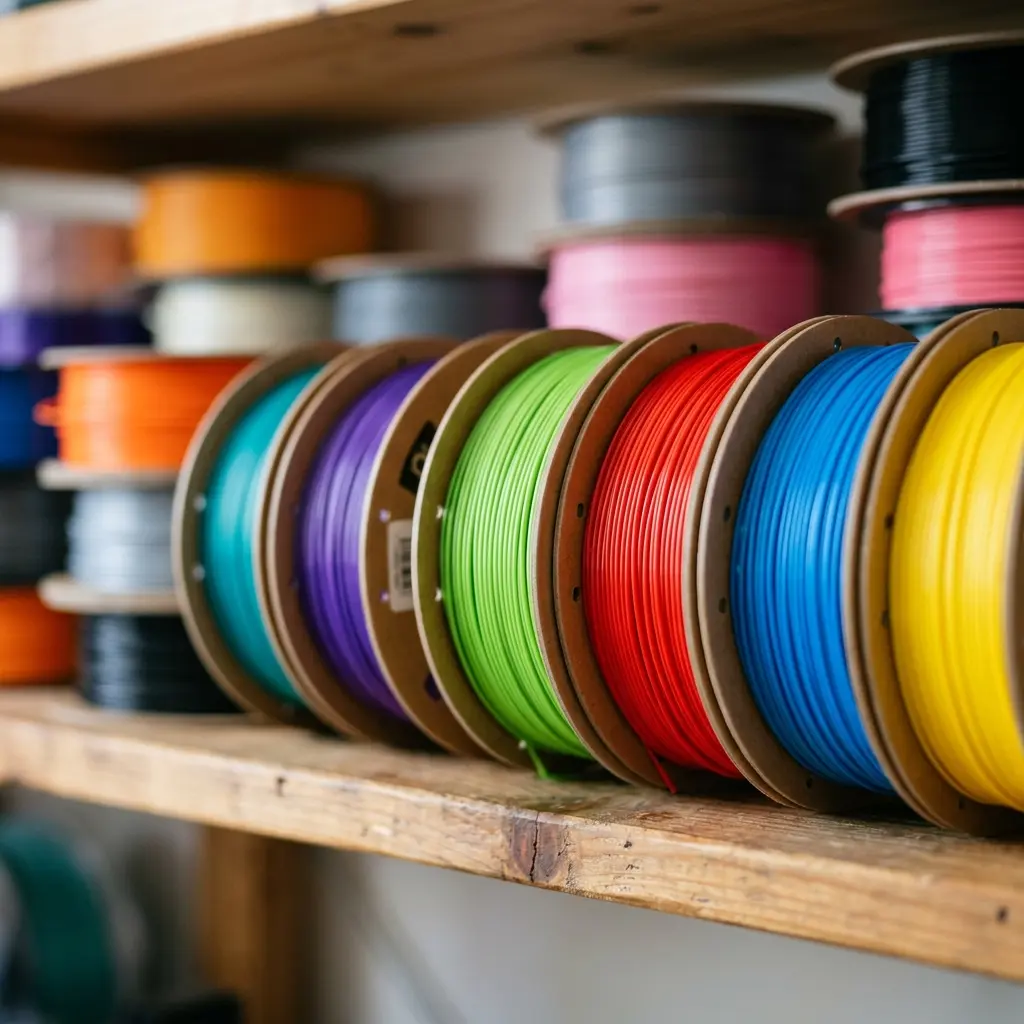
Configuring retraction settings for flexible TPU filament requires careful adjustments to prevent stringing and ensure print quality.
Understanding TPU Filament Characteristics
Thermoplastic Polyurethane (TPU) is a popular flexible filament known for its elasticity and durability.
These properties, while advantageous, introduce challenges during 3D printing.
TPU’s flexibility means it can stretch and compress, which affects how it behaves during the retraction phase of printing.
Properly configured retraction settings can minimize issues such as stringing and blobs.
Understanding the material properties of TPU is crucial for achieving successful prints.
- Elasticity: TPU can stretch significantly without breaking.
- Durability: It is resistant to abrasion and has good impact resistance.
- Temperature Resistance: TPU can withstand a range of temperatures.
Key Retraction Settings for TPU
Retraction settings that work well for rigid filaments may not yield the same results when using TPU.
Key settings include retraction distance, speed, and the minimum travel distance.
Generally, shorter retraction distances are recommended for TPU, typically between 0.5 to 2 mm.
The retraction speed should also be slower, usually between 20 to 30 mm/s, to accommodate the filament's elasticity.
Adjusting these parameters can drastically improve the outcome of your prints.
It is also essential to consider the nozzle size and type, as these can influence the retraction settings.
Step-by-Step Guide to Configure Retraction Settings
- Access your slicer software and open the model you wish to print.
- Locate the retraction settings in the slicer. This can typically be found under the "Filament" or "Printer" settings.
- Set the retraction distance between 0.5 mm and 2 mm.
- Adjust the retraction speed to a range of 20 to 30 mm/s.
- Ensure the minimum travel distance is set to at least 1 mm to avoid unnecessary retractions.
- Save your settings and proceed to slice the model.
- Perform a test print to evaluate the effectiveness of the settings.
Follow these steps carefully to ensure optimal retraction settings for TPU filament printing.
Common Issues and Troubleshooting
Even with optimal retraction settings, issues may arise during printing.
Common problems include stringing, blobs, and poor adhesion.
Stringing often occurs when the nozzle moves between different print areas without retraction.
Increasing the retraction distance or speed can help mitigate this issue.
Blobs may form if retraction settings are too aggressive.
Reducing the retraction distance or speed can alleviate this problem.
Inconsistent extrusion can also lead to print failures; ensure that the extruder is calibrated correctly.
Always inspect the filament for any signs of moisture absorption, as TPU is hygroscopic.
Importance of Temperature Settings
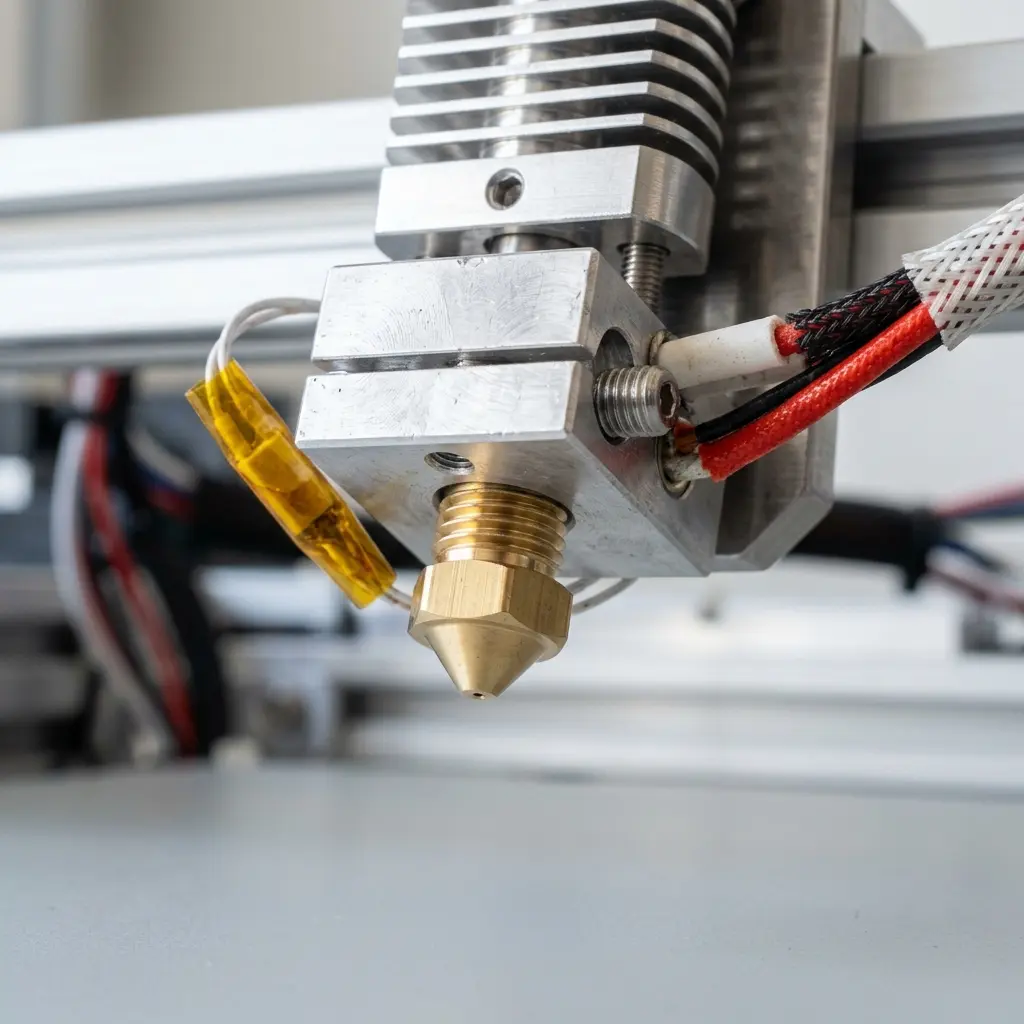
Temperature plays a crucial role in the success of printing with TPU.
A higher temperature can improve flow but may increase stringing.
Typical TPU printing temperatures range from 220°C to 250°C.
Begin with a mid-range temperature and adjust based on print quality.
Monitor the temperature closely, as variations can impact print fidelity.
Conduct temperature tower tests to find the optimal temperature for your specific TPU filament.
Calibration and Testing
Before finalizing settings, calibrate your 3D printer for optimal performance with TPU.
Calibration ensures that the extruder is delivering the correct amount of filament during print.
Conduct test prints using small models to evaluate the effectiveness of retraction settings.
Adjust settings based on the results to achieve the best print quality.
Consider performing a flow rate calibration to ensure the right amount of filament is extruded.
This step is crucial for flexible filaments like TPU, which can be more challenging to control.
Advanced Tips for Printing with TPU
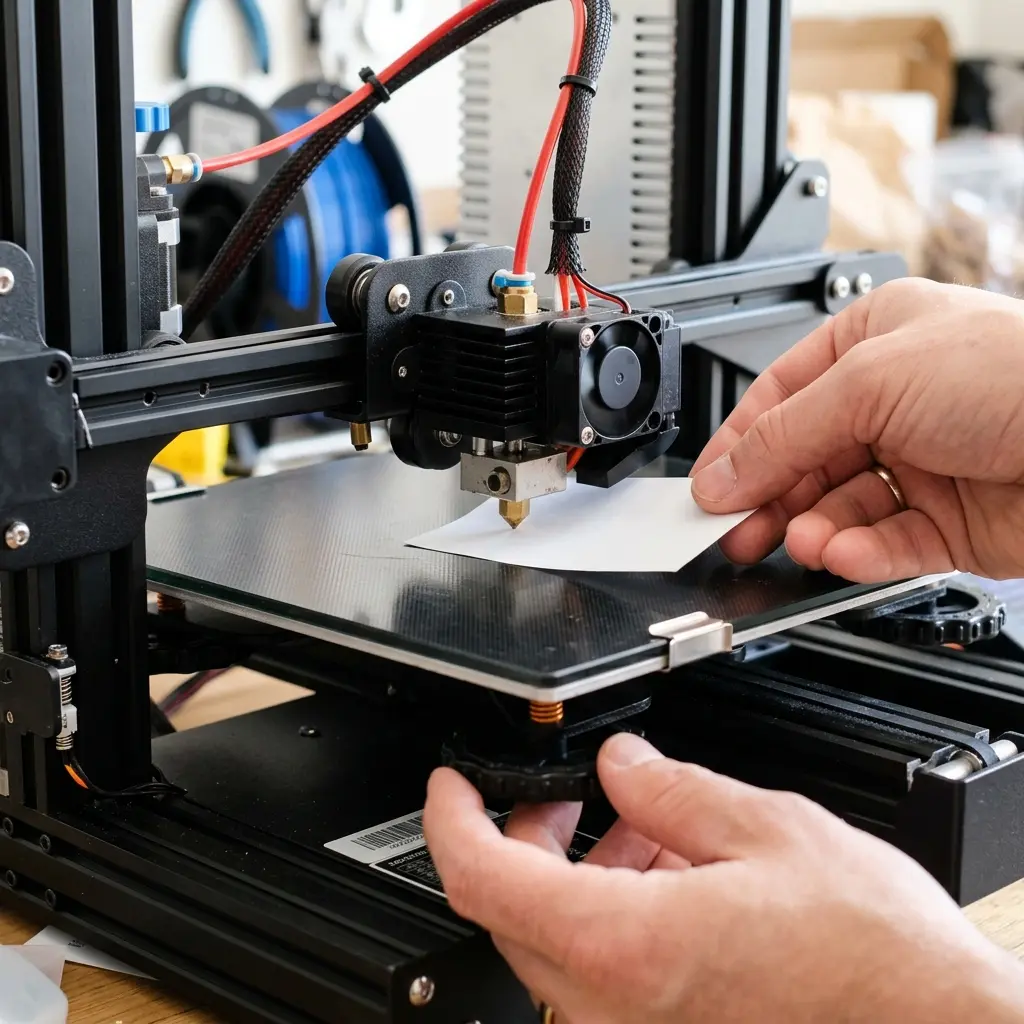
DomineTec Tip: Consider using a direct drive extruder for TPU to improve filament handling and reduce the risk of jams.
Additionally, experimenting with different slicer settings can yield varying results.
Each printer and filament may respond differently, so adjustments may be necessary.
Using a slower printing speed can also help with the accuracy of prints.
Keep the printing environment stable, as drafts and temperature fluctuations can affect print quality.
Regular maintenance of the 3D printer, including cleaning the nozzle and checking for clogs, will further enhance performance.
Print Quality Comparison Table
| Filament Type | Retraction Distance (mm) | Retraction Speed (mm/s) | Printing Temperature (°C) |
|---|---|---|---|
| PLA | 3-5 | 40-60 | 190-220 |
| ABS | 4-6 | 40-60 | 220-240 |
| TPU | 0.5-2 | 20-30 | 220-250 |
Using Slicer Software Effectively
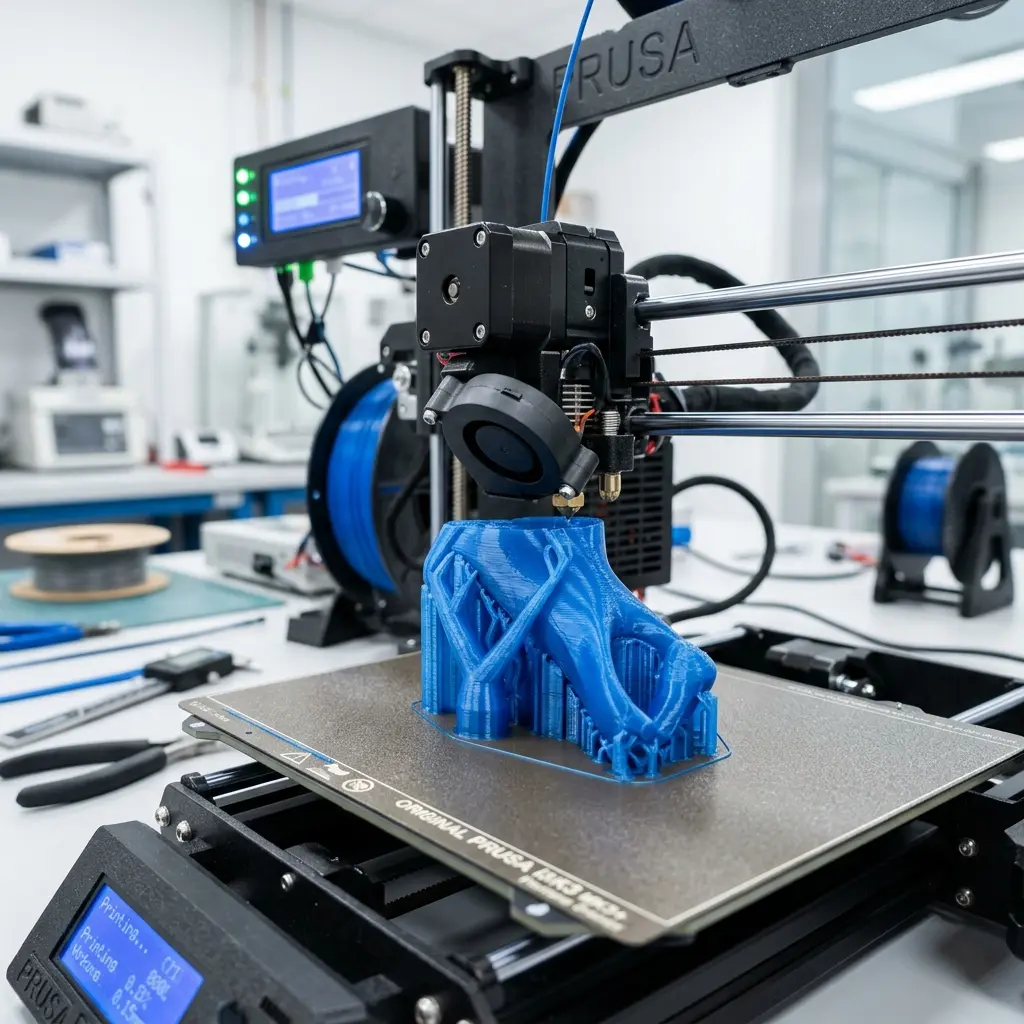
Understanding how to use slicer software is essential for achieving the desired outcomes when printing with TPU.
Familiarize yourself with the settings specific to your slicer.
For those using Cura, refer to the how to use cura slicer guide for detailed instructions on configuring retraction and other settings.
Each slicer may have unique features; exploring these can enhance print quality.
Consider using features like adaptive layer height and anti-aliasing for better surface finishes.
Final Thoughts on TPU Printing
Printing with TPU requires a careful balance of settings to achieve optimal quality.
Adjusting retraction settings can significantly enhance print results.
Always start with recommended settings and make incremental adjustments based on test prints.
Patience and experimentation lead to successful prints with flexible TPU filament.
Documenting changes and results can help build a reference for future prints.
Engaging with the 3D printing community can provide additional insights and tips for working with TPU.
Frequently Asked Questions
What is the best retraction distance for TPU?
The best retraction distance for TPU typically ranges from 0.5 mm to 2 mm.
Shorter distances are preferred to reduce the risk of filament jamming.
How can stringing be minimized when printing with TPU?
Stringing can be minimized by adjusting the retraction settings, specifically reducing the retraction distance and speed.
Additionally, optimizing print temperatures can help.
Is a heated bed necessary for TPU?
A heated bed is highly recommended when printing with TPU to improve adhesion and reduce warping.
Set the bed temperature between 50°C and 60°C for optimal results.
Can I use a Bowden extruder for TPU?
While it is possible to use a Bowden extruder for TPU, a direct drive extruder is generally preferred for better control over the flexible filament.
This helps avoid jams and improve overall print quality.
What should I do if my prints are failing?
If prints are failing, review the retraction settings, temperature settings, and bed leveling.
Conduct test prints and make incremental adjustments to find the optimal configuration.




